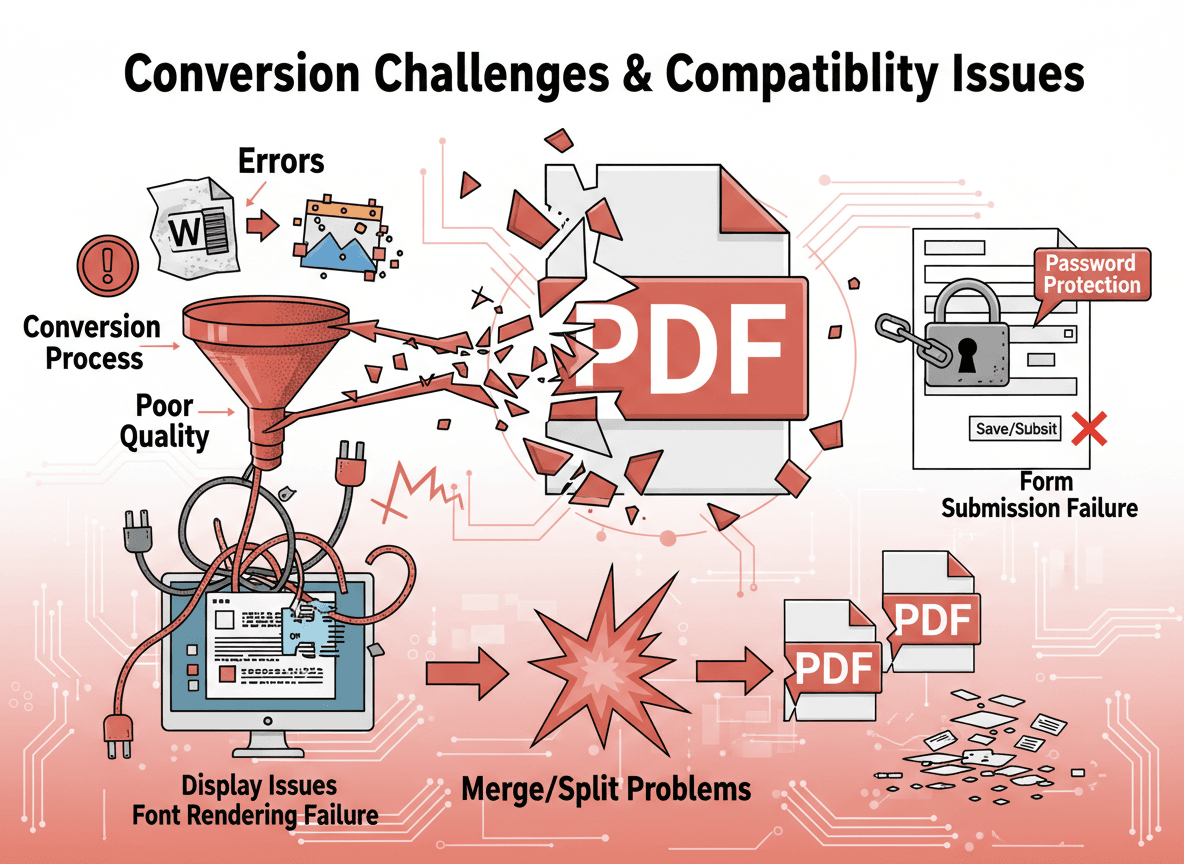
I converted a Word document to PDF last week, and the result was a disaster. Fonts changed, tables broke across pages awkwardly, and the layout looked completely different. The document had complex formatting and custom fonts, which caused the conversion problems. That experience taught me why some Word documents convert poorly and how to prevent issues.
Our Multi to PDF tool handles Word document conversion well, but understanding potential issues helps. Some Word documents convert to PDF perfectly, while others look terrible—formatting breaks, fonts change, layouts get messed up. Understanding why some documents convert poorly helps you fix the issues or prevent them. Recognizing common problems and their solutions saves time and frustration.
Word to PDF conversion problems usually come from complex formatting, unusual fonts, or layout issues. Our Multi to PDF tool handles most conversions well, but these problems are predictable and often preventable. Let me explain common problems and solutions so you can avoid conversion issues.
Common Conversion Problems
Font issues are frequent problems. Custom fonts that aren't embedded in the Word document cause font substitution during conversion. The PDF might use different fonts, changing appearance and potentially affecting layout. Font substitution can make documents look unprofessional or different from intended.
Layout problems occur with complex designs. Complex layouts with multiple columns, text boxes, or unusual positioning often don't convert accurately. Elements might shift, overlap, or break in unexpected ways. Simple layouts convert better than complex ones.
Image problems can affect document quality. Images might not convert correctly, lose quality, or appear in wrong positions. Some image formats or embedded objects don't convert well, causing visual problems in the PDF. Image issues can make documents look unprofessional.
Table issues are common with complex tables. Tables might break across pages awkwardly, lose formatting, or display incorrectly. Complex tables with merged cells, unusual formatting, or spanning multiple pages often cause problems. Table formatting is sensitive to conversion.
Page breaks might not work as expected. Manual page breaks in Word might not translate correctly to PDF, causing content to appear on wrong pages. Automatic page breaks might occur in awkward places, splitting content inappropriately.
Header and footer issues can affect document appearance. Headers and footers might not appear correctly, might be positioned wrong, or might be missing entirely. These elements are important for professional documents, so problems are noticeable.
Why Problems Happen
Complex formatting challenges conversion tools. Word documents with complex formatting—multiple columns, text boxes, unusual positioning, or intricate designs—are harder to convert accurately. Conversion tools try to preserve formatting, but complex layouts often don't translate perfectly.
Unusual fonts cause substitution issues. Fonts that aren't embedded in the Word document or aren't available on the system might be substituted during conversion. This changes appearance and can affect layout. Standard fonts convert more reliably than custom fonts.
Layout complexity increases conversion difficulty. Complex layouts with multiple elements, overlapping content, or unusual positioning challenge conversion tools. Simple, straightforward layouts convert better. Complexity increases the chance of problems.
Image formats affect conversion quality. Some image formats or embedded objects don't convert well to PDF. Low-quality images, unusual formats, or embedded objects might cause problems. Compatible image formats convert more reliably.
Word version differences affect conversion. Different versions of Word handle conversion differently, and conversion tools might work better with some versions than others. Newer Word versions often have better built-in PDF conversion.
Solutions for Conversion Problems
Simplify formatting before converting. If your document has complex formatting causing problems, simplify it. Remove unnecessary text boxes, simplify column layouts, or adjust positioning. Simpler formatting converts more reliably.
Embed fonts to prevent substitution. Ensure fonts are embedded in the Word document before converting. This prevents font substitution and maintains appearance. Word's font embedding options help ensure fonts are included.
Fix layout issues in Word first. If you notice layout problems after conversion, fix them in Word rather than trying to fix the PDF. It's easier to adjust layouts in Word, then convert again. Fixing source files produces better results.
Check images for compatibility. Ensure images are in compatible formats (JPG, PNG) and have good quality. Convert or optimize images if needed before adding them to Word. Compatible images convert more reliably.
Use Word's built-in conversion for best results. Word's "Save as PDF" feature usually works better than external conversion tools because it understands Word's file format. Built-in conversion preserves formatting better and handles fonts more accurately.
Test conversion and fix issues iteratively. Convert the document, check results, identify problems, fix them in Word, and convert again. This iterative approach helps you catch and fix issues systematically. Testing prevents final document problems.
Best Practices for Reliable Conversion
Prepare the Word document before converting. Fix formatting issues, embed fonts, check images, and verify layout in Word before converting. Good preparation prevents conversion problems. It's easier to fix issues in Word than in PDF.
Fix formatting issues in Word first. Don't try to fix conversion problems in the PDF—fix them in Word and convert again. Word gives you more control over formatting and layout. Source file fixes produce better results.
Embed all fonts used in the document. Font embedding ensures fonts appear correctly in PDFs and prevents substitution. Word's font embedding options help ensure fonts are included. Embedded fonts maintain document appearance.
Simplify complex layouts when conversion is problematic. If complex layouts cause conversion issues, simplify them. Remove unnecessary complexity, adjust positioning, or use simpler layouts. Simpler layouts convert more reliably and often look better.
Test conversion before finalizing. Convert the document, check results, and verify everything looks correct before considering it final. Testing catches issues early and prevents problems in final documents. Don't assume conversion worked perfectly.
Use appropriate tools for conversion. Word's built-in "Save as PDF" usually works best because it understands Word's file format. External tools might work, but built-in conversion often produces better results. Choose tools that handle Word files well.
Fixing Word to PDF Conversion Issues
I've converted hundreds of Word documents to PDF, and here's what I've learned: Word documents with complex formatting, unusual fonts, or layout issues often convert poorly to PDF. Our Multi to PDF tool handles most conversions well, but the solution is usually to fix issues in Word first—embed fonts, simplify formatting, fix layouts—then convert with our tool.
Using our Multi to PDF tool and testing before finalizing helps ensure good results. I've seen people convert documents with formatting problems and then try to fix them in PDF, which is much harder. The key is preparing the Word document properly before conversion. Taking time to fix formatting issues and embed fonts results in much better PDF conversions with our tool.
Understanding why conversion problems happen helps you prevent them. Prepare documents properly, use our Multi to PDF tool, and test results. With our tool and the right approach, you can successfully convert Word documents to PDF while maintaining quality and appearance.
Ready to convert your Word documents? Try our Multi to PDF tool now and see how easy it is to combine Word files with other file types into one professional PDF.