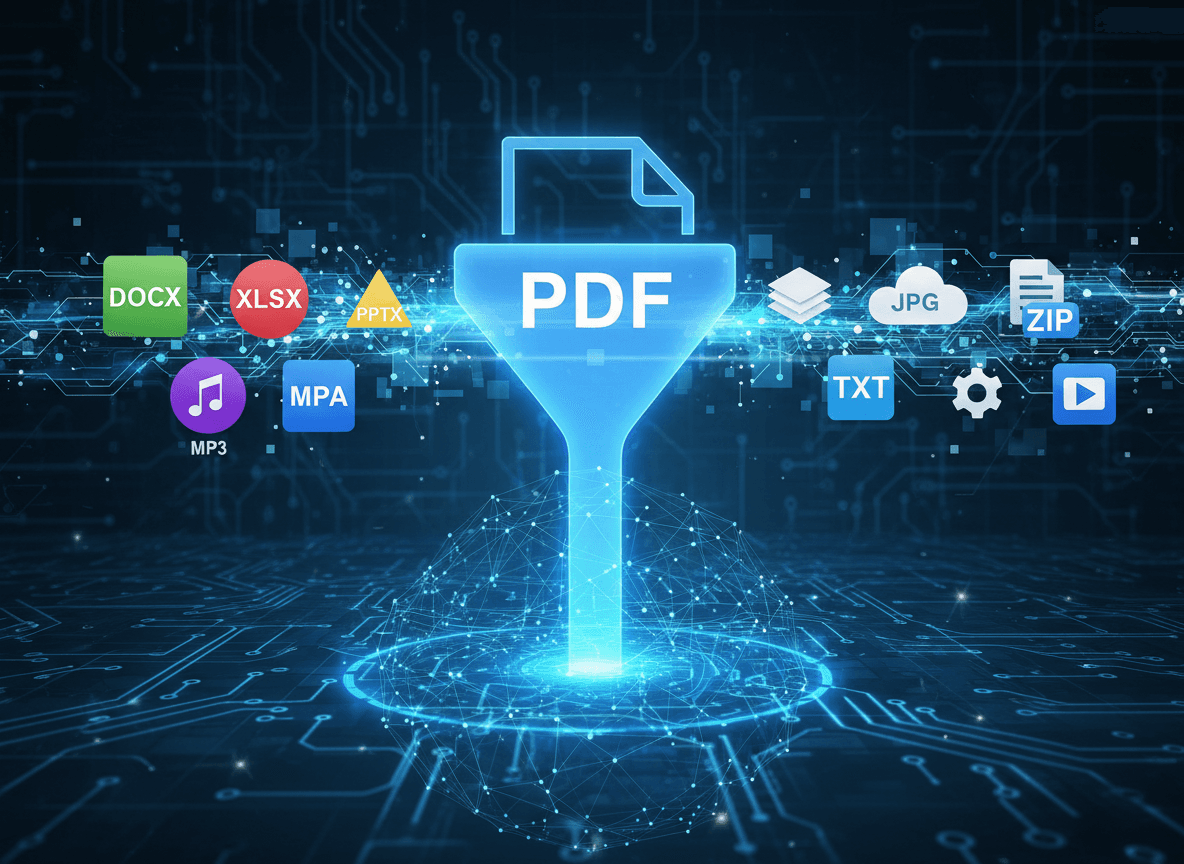
I needed to combine a proposal last week: a cover letter in Word, product photos as JPGs, a specifications PDF, and some Excel data. I used our Multi to PDF tool to combine them all into one professional PDF. That experience taught me that not all file types convert equally well, and understanding the differences helps you create professional combined documents with our tool.
You've got a mix of file types—Word documents, images, existing PDFs, maybe some Excel sheets—and you need to combine them into one PDF. Our Multi to PDF tool makes this simple. Some file types convert beautifully, others cause problems. Knowing which is which helps you plan your combination and avoid the frustration of discovering issues after everything is combined.
The Reliable Converters
Existing PDFs are the easiest to work with. Since they're already in PDF format, they combine seamlessly. You can merge multiple PDFs without any conversion step, which preserves formatting perfectly. This makes PDFs ideal building blocks for combined documents.
Images convert reliably to PDF pages. JPG, PNG, and other common image formats become single-page PDFs that maintain their quality. Each image becomes one page, so a folder of 10 photos becomes a 10-page PDF. The conversion is straightforward and predictable.
Word documents usually convert well. Most Word files translate to PDF without major issues, especially if they use standard formatting. Simple documents with basic layouts convert almost perfectly. The text, fonts, and basic formatting typically transfer accurately.
Text files are simple and convert easily. Plain text files become PDFs with minimal formatting, which is usually what you want. They're predictable and reliable, making them easy to work with in combination projects.
PowerPoint presentations convert reasonably well. Each slide becomes a PDF page, preserving the slide layout. Animations and transitions are lost (as expected), but the static content transfers well. Complex slide designs might need adjustment, but most presentations convert successfully.
The Problematic Files
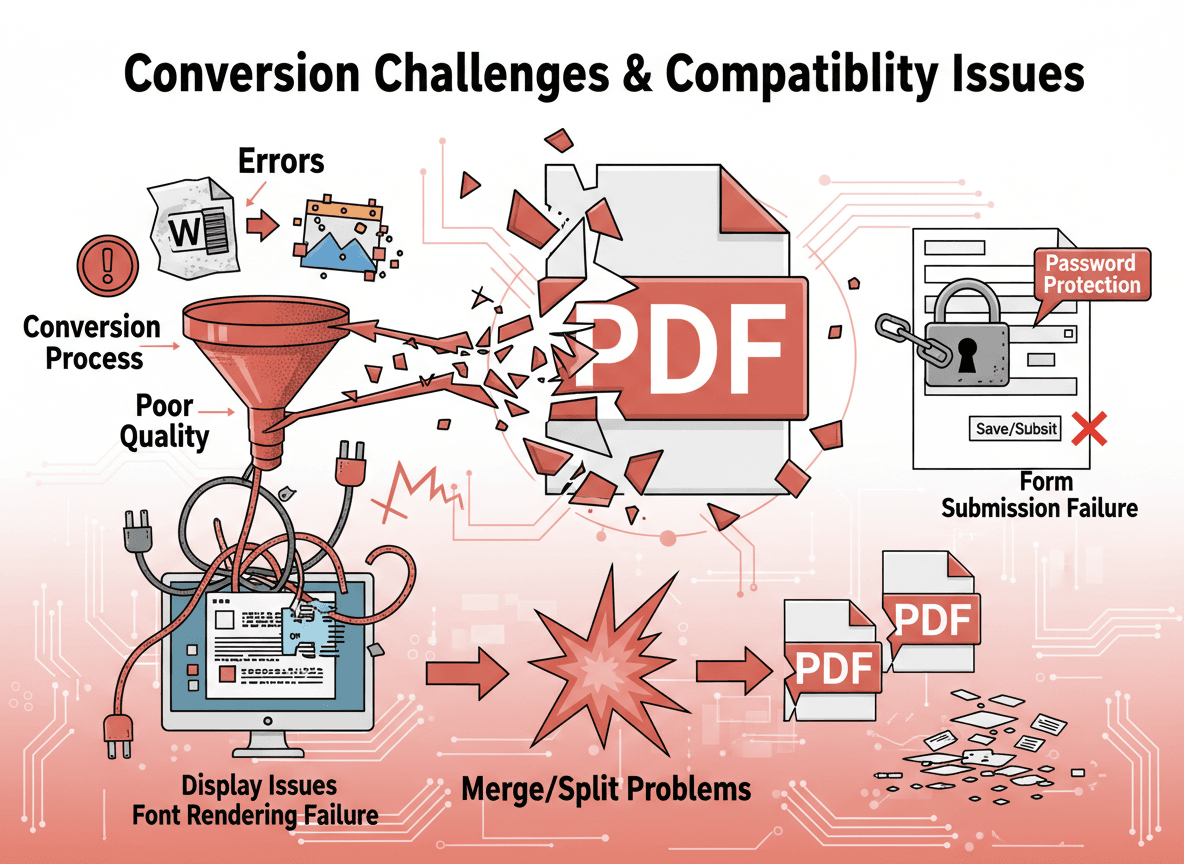
Excel spreadsheets can be tricky. Tables might lose formatting, break across pages awkwardly, or resize incorrectly. Excel's grid structure doesn't always translate well to PDF's page-based format. Wide spreadsheets might not fit on standard pages, and complex formatting can get lost.
Complex Word documents create challenges. Documents with multiple columns, text boxes, complex tables, or intricate layouts might not convert perfectly. The conversion process interprets these elements, and the interpretation isn't always accurate. Simple Word documents convert better than complex ones.
Scanned documents work but quality matters. Since they're already images, they convert like other images. But if the original scan quality was poor, the PDF will reflect that. You can't improve quality through conversion—you need good source material.
Mixed page sizes create inconsistencies. Combining letter-size documents with legal-size or A4 creates a document with varying page dimensions. This looks unprofessional and can cause printing issues. Standardizing page sizes before combining solves this.
Protected PDFs need unlocking first. Password-protected PDFs can't be combined until you remove the protection. This is a security feature, but it adds a step to your workflow if you're working with protected files.
Smart Combination Strategies
Convert to PDF first, then combine. Instead of trying to combine different file types directly, convert each type to PDF individually first. This gives you control over each conversion and lets you check results before combining. You can fix issues in individual files rather than dealing with problems in a combined document.
Check each file after conversion. Don't assume conversions worked perfectly. Open each converted PDF and verify it looks correct. Check formatting, fonts, images, and layout. Catching problems early saves time compared to discovering issues after everything is combined.
Standardize page sizes when possible. If you're combining documents with different page sizes, consider standardizing them first. Most combination tools can resize pages, but results vary. Converting source files to a standard size before combining gives you more control.
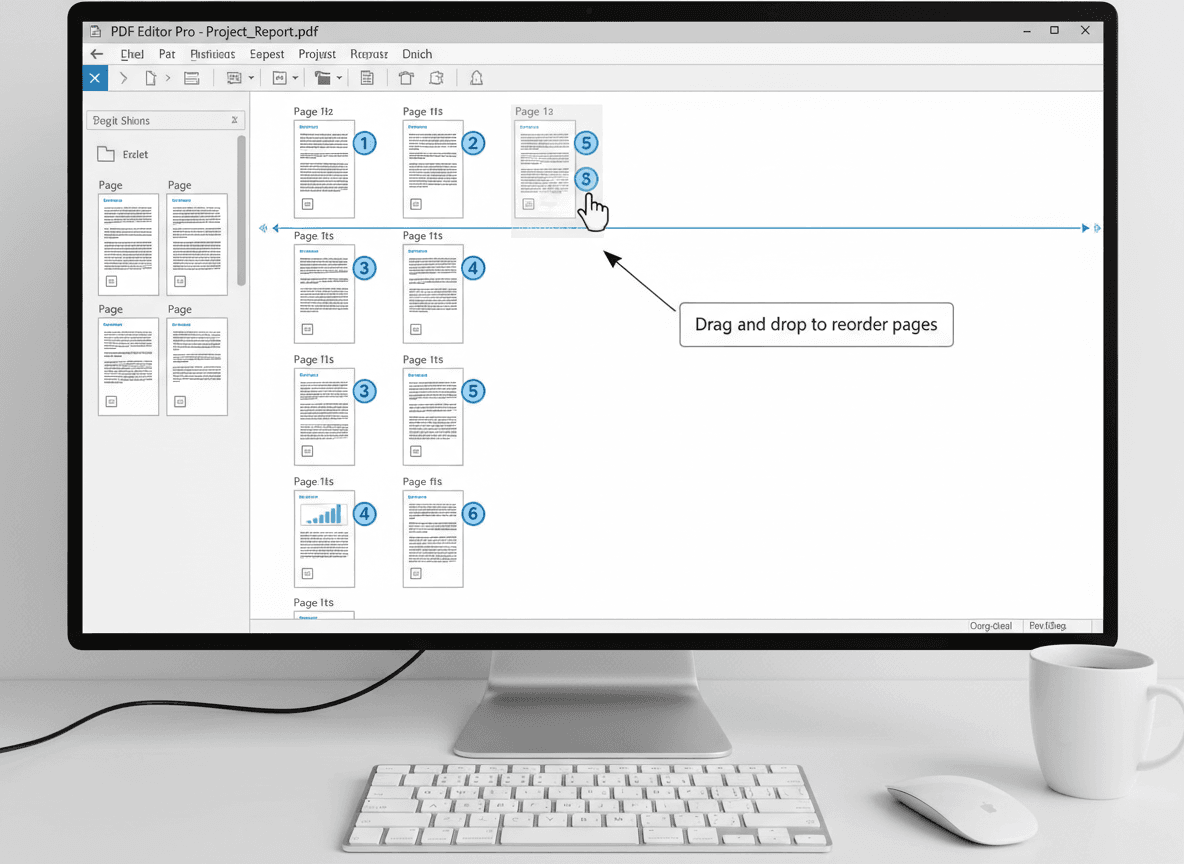
Plan your order before combining. The order files appear in the final PDF matters. Think about logical flow, document structure, and how readers will use the document. Once combined, reordering is more difficult, so get it right the first time.
Test with a few files first. Before combining everything, test the process with two or three files. This helps you identify issues early and refine your approach. Once you're confident the process works, combine all files.
Common Conversion Issues
Formatting problems are the most common issue. Complex formatting might not convert perfectly, especially with nested elements, custom styles, or unusual layouts. Simple formatting converts better than complex formatting. If you're having issues, consider simplifying the source document before converting.
Page size mismatches create visual inconsistencies. A document with mixed page sizes looks unprofessional and can confuse readers. Standardizing sizes creates a cohesive appearance. Most combination tools can resize pages, but doing it in the source files gives better results.
Quality loss can occur with images. Some conversion processes compress images, reducing quality. High-resolution images usually maintain quality, but low-resolution images might degrade further. Check image quality after conversion, especially if images are important to your document.
Missing content happens with interactive elements. Animations, videos, hyperlinks, and other interactive features might not convert. PDFs are static documents, so dynamic content is lost. If your source files have interactive elements, understand they won't transfer to PDF.
Understanding which file types convert well and which cause problems helps you plan better combinations. Our Multi to PDF tool makes combining different file types simple. Convert files individually, check results, standardize when needed, and test your process. With our tool and the right approach, you can create professional combined documents from diverse file types.
Ready to combine different file types? Try our Multi to PDF tool now and see how easy it is to create one professional PDF from multiple sources.