
I needed to create a proposal last week that included a cover letter in Word, product photos as JPGs, technical specifications as a PDF, and pricing data from Excel. I used our Multi to PDF tool to combine everything into one professional PDF document. The client appreciated having everything in one place, and it looked much more polished than separate attachments.
You need to create one complete document from multiple sources—a cover letter in Word, product photos as JPGs, specifications as a PDF, maybe some Excel data. Our Multi to PDF tool makes combining these into one professional PDF document simple. Understanding the process helps you create cohesive documents that look professional and serve their purpose effectively.
Creating a cohesive document from multiple file types is common in business, and our Multi to PDF tool makes doing it right easy. The key is proper preparation, careful conversion, and thoughtful organization. Let me show you how to do this effectively with our tool.
Planning Your Document
Determine the order before you start. Think about how your document should flow—what comes first, what comes next, and how everything connects. A well-ordered document is easier to read and looks more professional. Consider your reader's perspective when planning order.
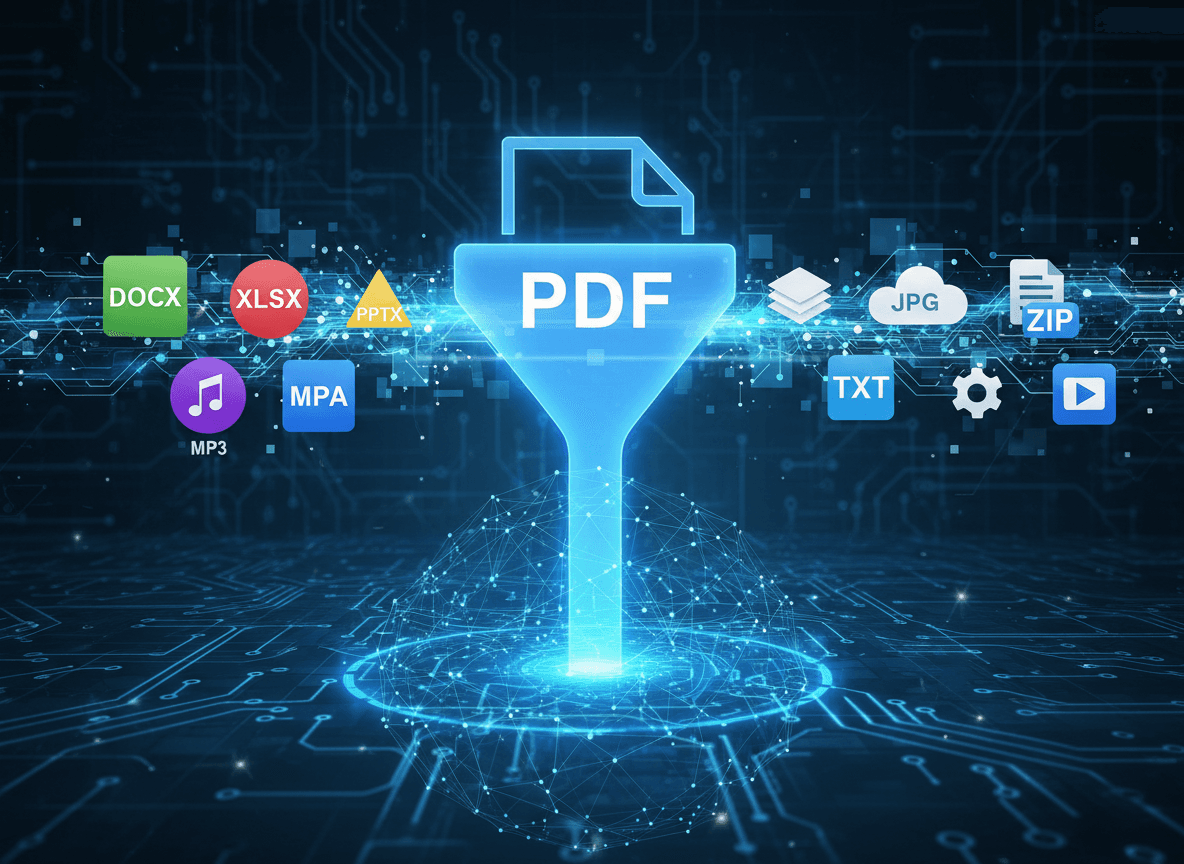
Identify all file types you need to combine. List every file and note its type—Word documents, images (JPG, PNG), PDFs, Excel spreadsheets, PowerPoint presentations, or other formats. Knowing what you're working with helps you plan the conversion process.
Check quality of each source file. Review files for issues before converting—blurry images, formatting problems, or incomplete content. Fixing issues before conversion is easier than trying to fix them after combining. Quality source material produces quality final documents.
Plan page sizes for consistency. Different file types might have different page sizes, which can look unprofessional when combined. Consider standardizing to a common size (like letter or A4) for consistency. This creates a more cohesive appearance.
The Conversion and Combination Process
Step 1: Prepare Each File
Convert each file type to PDF individually. Don't try to combine different file types directly—convert them to PDF first. This gives you better control over each conversion and lets you verify quality before combining. Use appropriate conversion tools for each file type.
Check each conversion carefully. Open each converted PDF and verify that it looks correct—formatting preserved, images clear, text readable. Catching issues at this stage prevents problems in the final combined document. Quality control at each step produces better results.
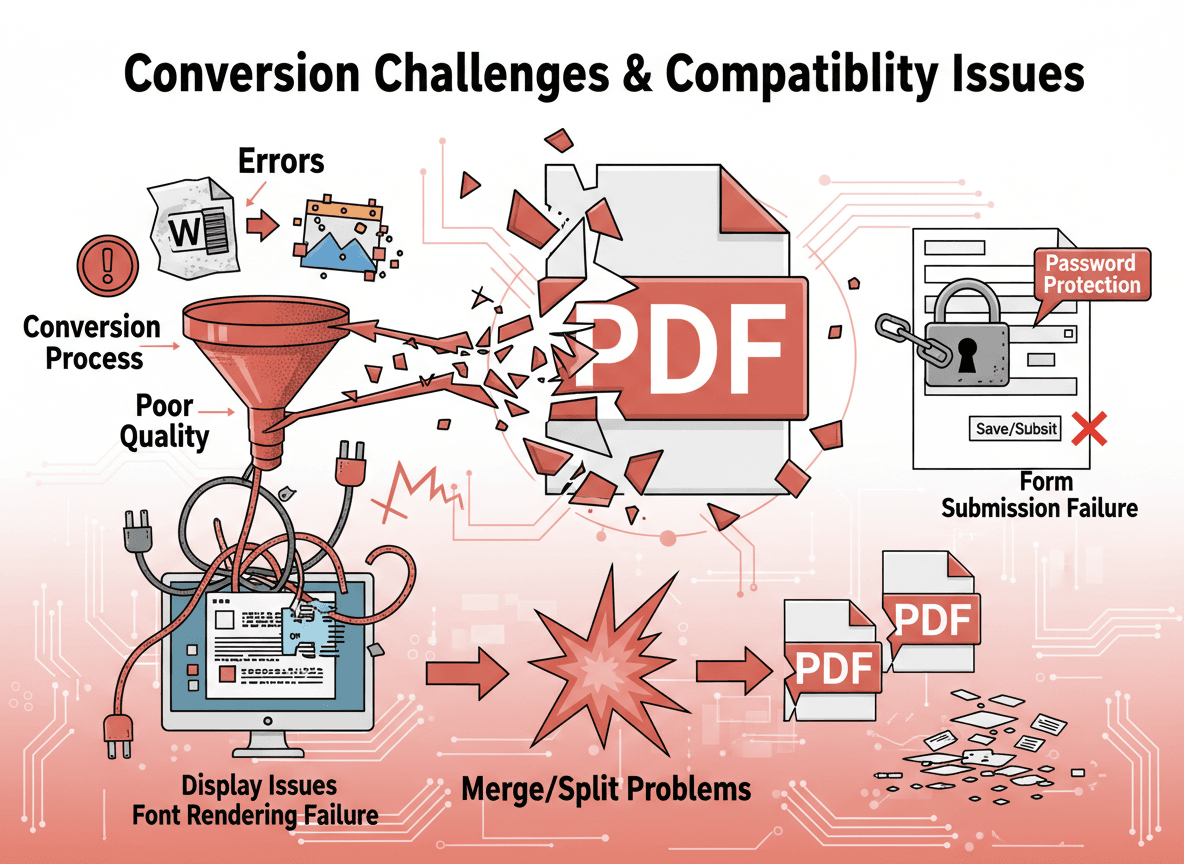
Fix any conversion issues before combining. If a conversion doesn't look right, fix the source file and convert again. Don't combine problematic PDFs hoping to fix them later. It's easier to fix individual files than to fix issues in a combined document.
Standardize page sizes if needed. If your files have different page sizes, adjust them to a consistent size. This might require resizing images or adjusting document settings. Consistent page sizes create a more professional appearance.
Step 2: Arrange in Order
Determine the sequence for your final document. Think about logical flow—what should readers see first, what comes next, and how content connects. A well-organized document guides readers through information effectively.
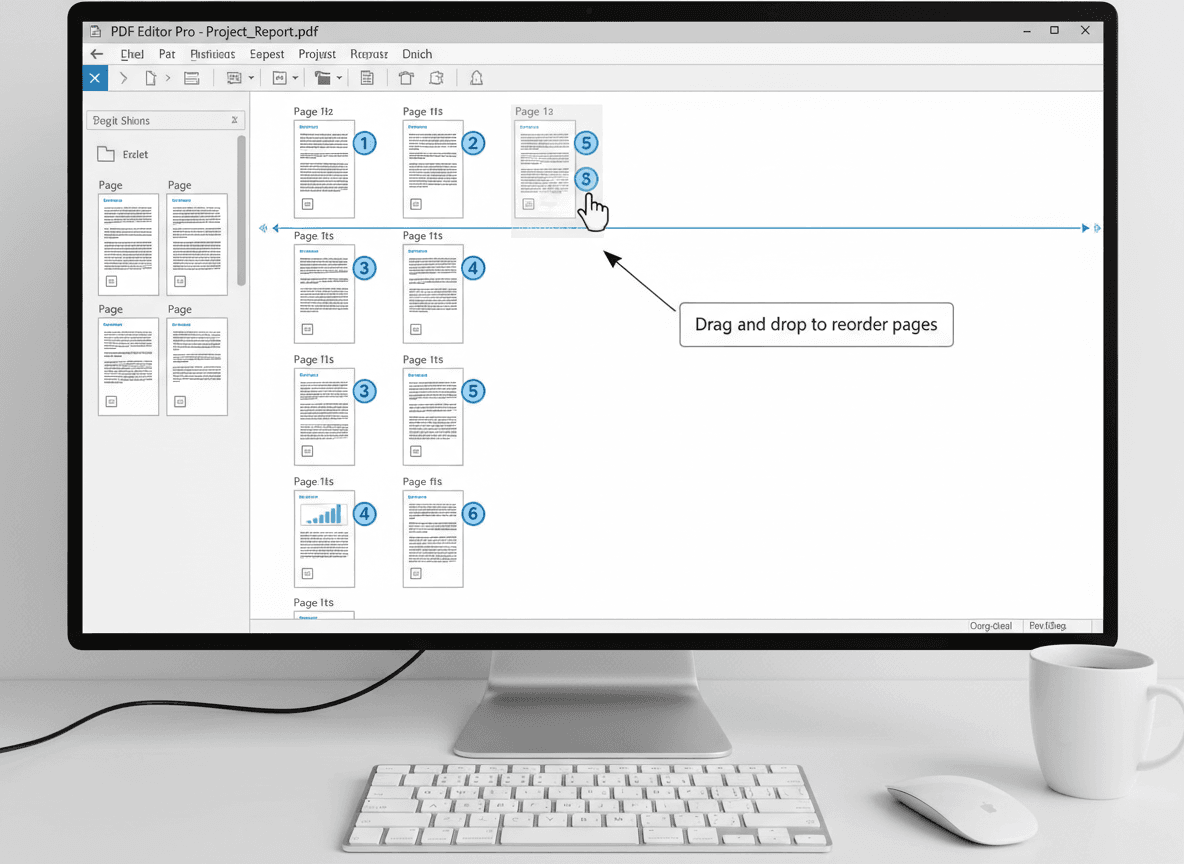
Organize your PDF files in the correct order. Before combining, arrange your PDF files in the order they should appear. This might mean renaming files with numbers (01, 02, 03) or organizing them in a folder. Proper organization makes combining easier.
Check that the order makes logical sense. Review your planned order—does it flow well? Would a reader understand the progression? Adjust if needed. Logical organization makes documents more useful and professional.
Step 3: Combine
Use a merge tool to combine all PDFs in the correct order. Upload or select your PDF files in the order you want them, then combine. Most PDF tools maintain the order you specify, so careful organization pays off.
Review the combined result thoroughly. Open the combined PDF and check that everything looks correct—all pages included, order correct, formatting preserved, no missing content. Don't assume the combination worked perfectly.
Verify completeness. Make sure all content is included and in the right order. Check page counts, verify all sections are present, and ensure nothing was lost during combination. Completeness is essential for professional documents.
Best Practices for Multi-File Documents
Convert individually first for better control. Converting each file type to PDF separately gives you control over each conversion. You can adjust settings, fix issues, and verify quality for each file. This approach produces better results than trying to convert everything at once.
Check each conversion before combining. Don't combine files blindly—verify each converted PDF looks correct. This catches issues early and prevents problems in the final document. Quality control at each step is essential.
Maintain quality throughout the process. Don't let quality degrade during conversion or combination. Ensure images remain clear, text stays readable, and formatting is preserved. Quality matters for professional documents.
Try to maintain consistent formatting across the document. While different source files might have different formatting, aim for consistency where possible. Similar fonts, spacing, and styling create a more cohesive appearance. Some variation is normal, but consistency improves professionalism.
Arrange content in a logical, easy-to-follow order. Think about how readers will use your document. What order makes the most sense? Group related content together, follow a clear progression, and make the document easy to navigate. Logical organization improves usability.
Ensure the final document looks professional and cohesive. The goal is a document that looks like it was created as one piece, not like multiple files stuck together. Attention to detail in planning, conversion, and organization creates professional results.
Common Scenarios
Business proposal: Cover letter (Word) + product images (JPG) + specifications (PDF) + pricing (Excel).
Portfolio: Introduction (Word) + work samples (JPG) + testimonials (PDF).
Report: Summary (Word) + charts (Excel) + detailed data (PDF) + images (JPG).
Application: Cover letter (Word) + resume (PDF) + portfolio (JPG) + certificates (PDF).
Combining Multiple File Types Successfully
I've combined hundreds of documents from multiple sources, and here's what I've learned: it's all about planning. Our Multi to PDF tool makes this easier. Determine the order first. Convert each file type to PDF individually so you can check quality. Then combine them in the right sequence with our tool.
The key is taking it step by step. Don't try to convert and combine everything at once. Convert files individually first—it gives you better control and lets you catch problems early. Check each conversion to make sure it looks right. Then arrange your content logically with our Multi to PDF tool.
With proper planning and our Multi to PDF tool, you can combine multiple file types into one professional, cohesive PDF document. But skip the planning, and you'll end up with a messy document that doesn't serve its purpose. Take the time to do it right with our tool.
Ready to create a complete document from multiple sources? Try our Multi to PDF tool now and see how easy it is to combine different file types into one professional PDF.