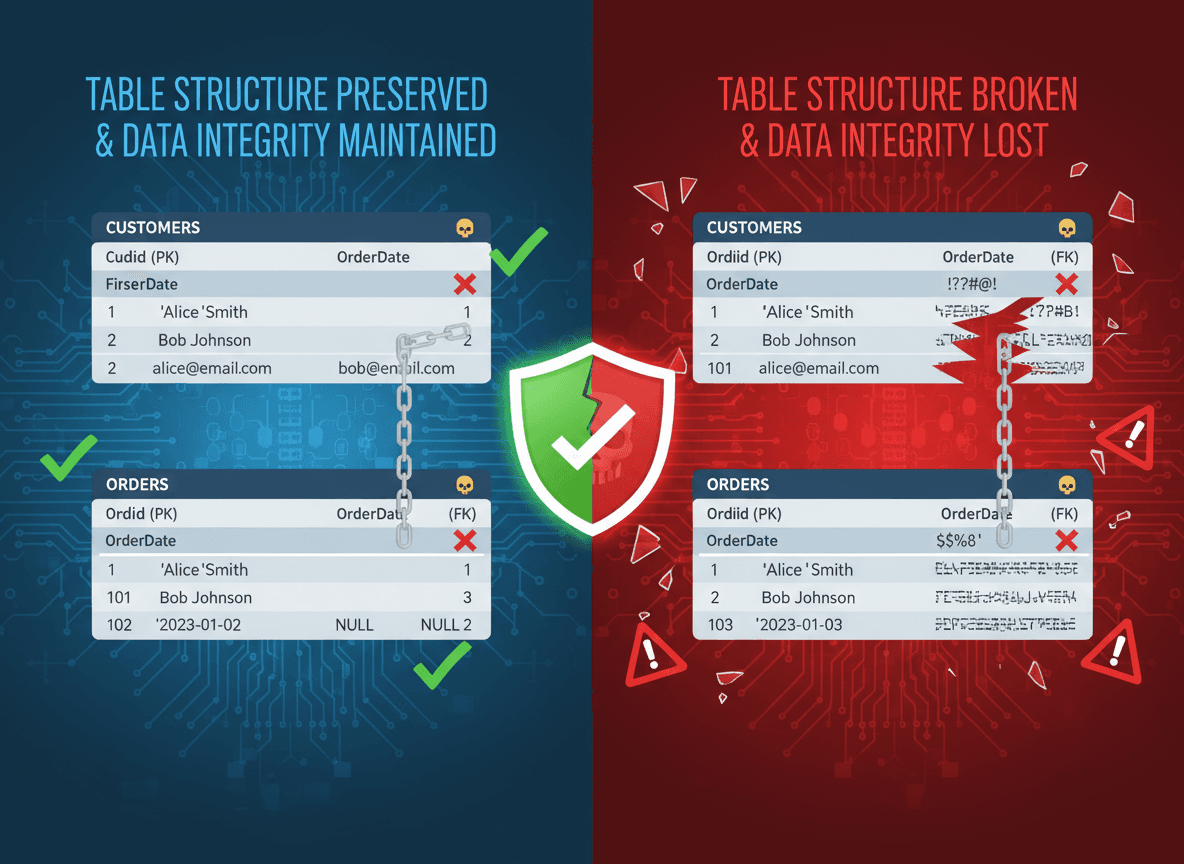
You've got a perfect table in your PDF. Columns align perfectly, borders are clean, data is organized. You convert the PDF to Word, and the table becomes a disaster. Columns don't align, borders are missing, text is scattered. What happened?
This is one of the most common PDF to Word conversion problems. Tables break because PDFs and Word handle tables completely differently. Let me explain why and what you can do about it.
Why Tables Break
PDFs and Word represent tables differently:
PDFs use absolute positioning. Tables in PDFs are often drawn as graphics or use precise positioning. The tool knows where each element should be, but not that they form a table structure.
Word needs table structure. Word tables need to be actual table objects with rows, columns, and cells. Word can't guess table structure from positioning alone.
When you convert, the conversion tool sees text in specific positions but doesn't recognize it as a table. It tries to preserve the layout, but without table structure, it falls apart.
What Actually Happens
Here's what you'll see after conversion:
Text becomes separated by spaces or tabs. Instead of table cells, you get text with spaces between columns.
Columns don't align. Without table structure, Word can't maintain column alignment.
Borders disappear. Table borders are part of the table structure. Without that structure, borders are lost.
Merged cells become separate. If your PDF table had merged cells, they become individual cells in Word.
Complex formatting is lost. Shading, alternating row colors, and other table formatting usually disappears.
Text wrapping breaks. Text that wrapped properly in table cells now wraps incorrectly.
Why Some Tables Convert Better Than Others
Not all tables break equally:
Simple tables convert better. Tables with uniform rows and columns, no merged cells, and simple formatting usually convert acceptably.
Complex tables break worse. Tables with merged cells, varying column widths, complex formatting, or unusual layouts usually break badly.
Tables drawn as graphics don't convert. If the table is actually an image in the PDF, it won't convert to a Word table at all.
Tables with lots of text break more. Long text in cells makes conversion harder because the tool has to guess cell boundaries.
How to Fix Broken Tables
Here are approaches that actually work:
Method 1: Manual Recreation (Most Reliable)
The most reliable way is to recreate the table in Word.
How it works: You create a new table in Word with the right number of rows and columns, then copy data from the converted document into it.
When to use it: When the table is important and needs to be perfect, or when the converted table is too broken to fix.
Pros: You get a perfect table that works correctly in Word.
Cons: It's time-consuming, especially for large tables.
Steps:
- Count rows and columns in the original PDF table
- Create a new table in Word with those dimensions
- Copy data from the converted document into the new table
- Format the table to match the original (borders, shading, etc.)
Method 2: Fix the Converted Table
Sometimes the converted table is fixable.
How it works: You work with the broken table and fix it manually.
When to use it: When the table structure is mostly there but needs cleanup.
Pros: Faster than recreating from scratch.
Cons: Can be tedious, and might not work for very broken tables.
Steps:
- Select the broken table text
- Convert text to table (Word has this feature)
- Adjust column widths
- Add borders and formatting
- Fix merged cells if needed
Method 3: Use a Better Conversion Tool
Some tools handle tables better than others.
How it works: You use a conversion tool specifically designed to handle tables.
When to use it: When you have access to professional conversion tools.
Pros: Can save time if it works well.
Cons: Even the best tools don't handle all tables perfectly.
Tools to try: Our PDF to Word tool handles basic tables well. For very complex tables, you may need to manually fix them in Word after conversion, but our tool preserves the text and structure as much as possible.
Method 4: Extract Data and Recreate
For data-heavy tables, extract the data and recreate.
How it works: You extract the data (maybe copy-paste or export), then create a new table in Word and import the data.
When to use it: When the table is mostly data, not formatting.
Pros: Preserves data accurately.
Cons: You lose formatting and need to recreate it.
Prevention: Creating Better Source PDFs
If you're creating PDFs that might need to be converted later:
Use actual table objects. When creating the original document, use proper table objects, not text with spacing or graphics.
Keep tables simple. Avoid merged cells, complex formatting, and unusual layouts if conversion might be needed.
Test conversion. If you know the PDF will be converted, test the conversion to see how tables fare.
Consider the source format. If conversion is likely, consider keeping the original Word/Excel file instead of just the PDF.
Workarounds
If fixing tables isn't practical, consider workarounds:
Keep the table as an image. Convert the table page to an image and insert it into Word. You can't edit it, but it looks right.
Use our PDF to Excel tool. If the table is data-heavy, use our PDF to Excel tool instead of Word. Excel handles tables better than Word.
Link to the PDF. Instead of converting, keep the table in the PDF and reference it from Word.
Accept the broken table. If the table isn't critical, you might be able to work with the broken version.
Best Practices
Here's my workflow for handling tables:
- **Assess the table.** How complex is it? Will conversion work?
- **Try conversion.** Convert and see what happens. Sometimes it works better than expected.
- **Evaluate the result.** Is it fixable, or should I recreate it?
- **Choose your approach.** Manual recreation, fixing, or workaround.
- **Fix or recreate.** Do the work to get a proper table.
- **Verify the result.** Make sure the table looks right and data is correct.
Dealing with Broken Tables
I've converted hundreds of PDFs with tables, and here's the reality: tables break during conversion because PDFs and Word handle them completely differently. PDFs use positioning—tables are drawn on the page. Word needs structure—tables need to be actual table objects. The conversion tool tries to bridge this gap, but it often fails.
The solution depends on your situation. Simple tables with basic formatting might convert acceptably. Complex tables with merged cells, borders, or special formatting usually need manual work. The key is knowing what to expect and having a plan.
Don't expect perfect table conversion. Plan to spend time fixing or recreating tables. It's frustrating, but it's the reality of converting between these formats. I've seen people spend hours trying to get a conversion tool to work when they could have recreated the table in 20 minutes. Sometimes the manual approach is faster.
Ready to convert your PDF to Word? Try our PDF to Word tool now. Upload your PDF, and download your Word document. Our tool preserves text and basic formatting. For simple tables, conversion usually works well. For complex tables, you may need to fix them in Word after conversion. If your PDF has data-heavy tables, consider using our PDF to Excel tool instead. It's free, works in your browser, and keeps your files private.