You've got a PDF contract that needs changes. A date needs updating. A clause needs modification. A term needs clarification. You can't edit PDFs directly, so you convert to Word, make your changes, and convert back. Simple, right?
Not quite. Editing contracts requires care. Legal documents need to maintain their integrity, formatting matters for legal validity, and you need to track changes properly. Let me walk you through the right way to edit a PDF contract.
Why Editing Contracts Is Different
Contracts aren't just documents—they're legal instruments. How you edit them matters.
Formatting can affect validity. Some jurisdictions require contracts to maintain specific formatting. Messing up the layout could potentially affect the document's legal standing.
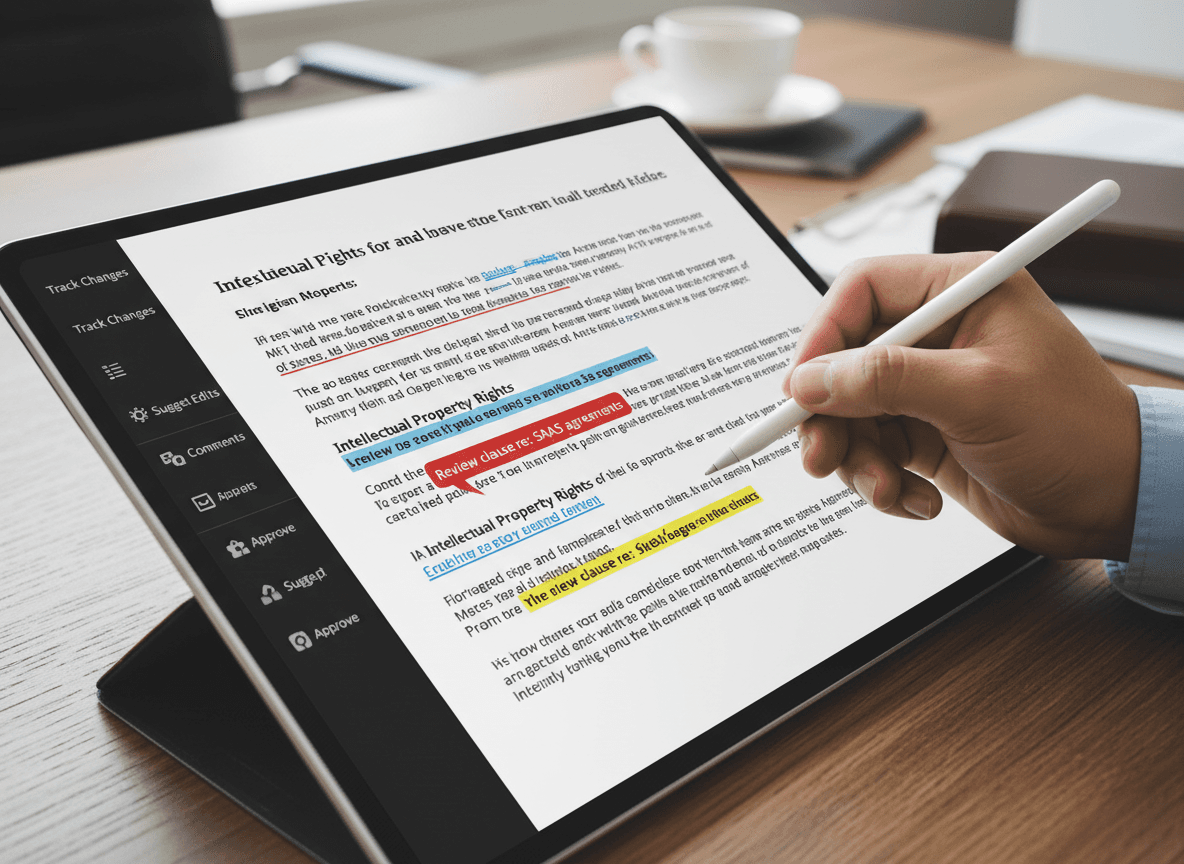
Changes need to be clear. When you modify a contract, the changes should be obvious. Using track changes or highlighting modifications helps.
Original must be preserved. You should always keep the original PDF. Never edit the only copy.
Version control matters. Contracts go through multiple versions. You need to track which version has which changes.
The Right Workflow
Here's the process that actually works:
Step 1: Assess the Contract
Before you start, understand what you're working with:
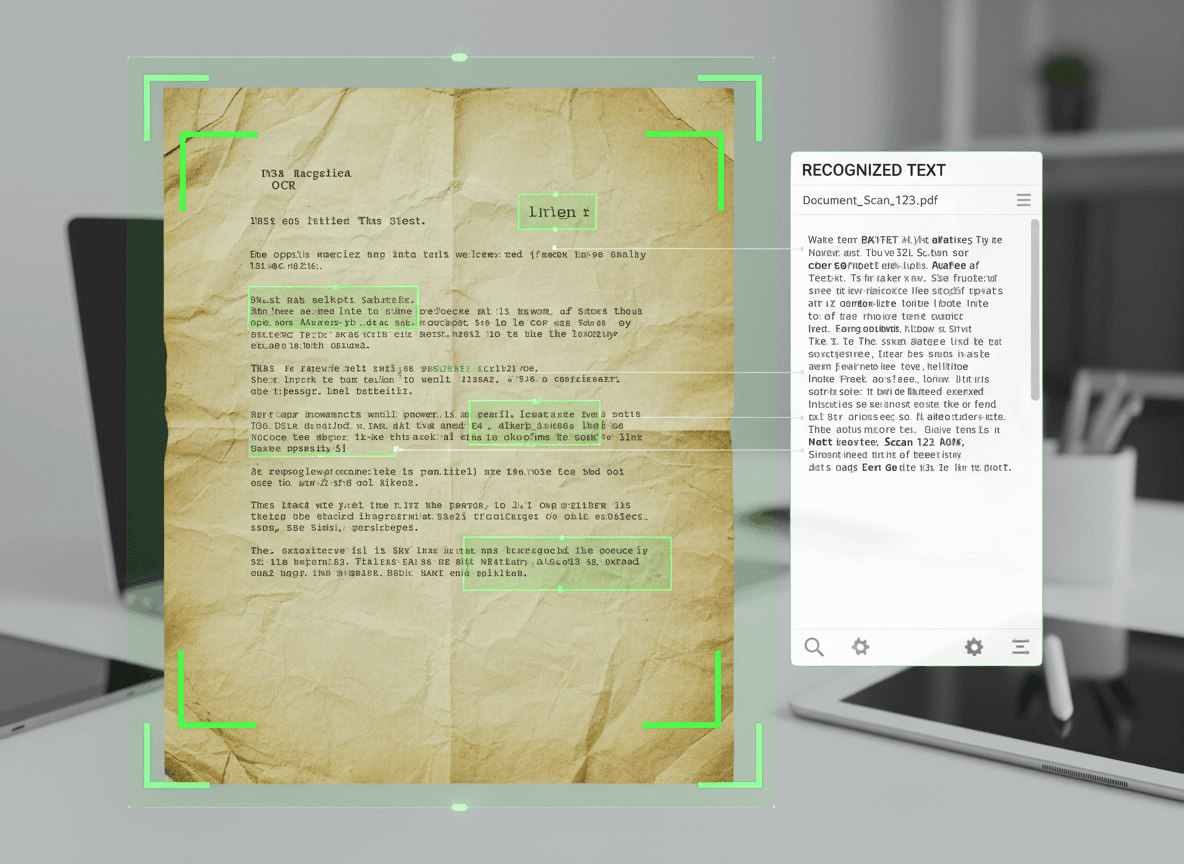
Is it a scanned PDF? If the contract is scanned (an image), use our OCR PDF tool first to extract text. Without OCR, you can't edit it.
How complex is the formatting? Simple contracts convert well. Complex contracts with tables, multiple columns, or special formatting might need more work.
What needs to change? Minor text changes are easy. Major restructuring is harder.
Is it password-protected? If the PDF is protected, use our Unlock PDF tool first to remove the password, then convert to Word.
Step 2: Convert to Word
Convert the PDF to Word using a reliable tool.
Use our PDF to Word tool. Our PDF to Word tool converts PDFs to Word while preserving text and basic formatting. It works in your browser and keeps your files private.
Check the conversion. Open the Word document and verify that text converted correctly. Look for missing content, broken formatting, or unreadable sections.
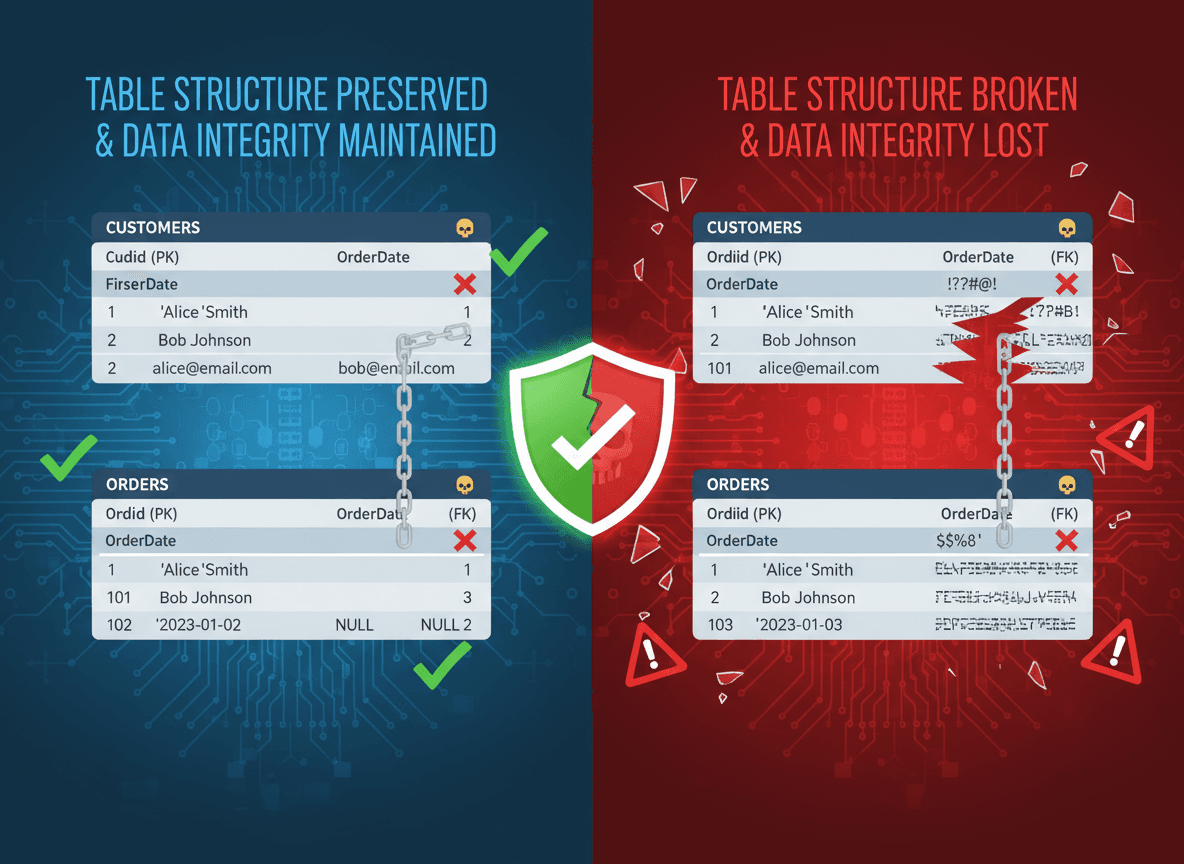
Note what didn't convert well. Tables, headers, footers, and complex formatting often need manual fixing.
Step 3: Fix Formatting Issues
Before making your edits, fix the formatting problems from conversion.
Fix tables. Tables often break during conversion. Recreate them properly in Word.
Restore headers and footers. If they disappeared, recreate them to match the original.
Fix fonts. Make sure fonts match the original, or at least use appropriate legal document fonts.
Check page layout. Ensure margins, spacing, and page breaks match the original.
Verify all content. Make sure nothing was lost during conversion.
Step 4: Make Your Editions
Now you can make your changes. But do it properly:
Use track changes. Turn on Word's track changes feature. This shows exactly what you modified.
Be precise. Legal language matters. Make sure your edits are accurate and don't change unintended parts.
Maintain consistency. If you change a term in one place, check if it appears elsewhere and needs changing too.
Document your changes. Consider adding a note explaining why changes were made.
Step 5: Review and Verify
Before converting back to PDF, review everything:
Read through the entire document. Make sure your changes make sense in context.
Check formatting. Ensure the document still looks professional and matches the original style.
Verify legal accuracy. If this is important, have someone with legal knowledge review your changes.
Check track changes. Make sure all your changes are properly tracked and visible.
Step 6: Convert Back to PDF
Convert the edited Word document back to PDF.
Use our Word to PDF tool. After editing in Word, use our Word to PDF tool to convert back to PDF. This ensures high-quality conversion and proper formatting.
Check the result. Open the PDF and verify that formatting is correct and all changes are visible.
Compare with original. If possible, compare the new PDF with the original to ensure nothing was lost.
Common Mistakes to Avoid
Here are mistakes I've seen people make:
Editing without track changes. Without track changes, it's hard to see what was modified. Always use track changes.
Not preserving the original. Never edit the only copy. Always keep the original PDF.
Skipping the formatting fix step. Making edits before fixing conversion issues creates more problems.
Not verifying the conversion. Always check that conversion worked before making edits.
Converting back without reviewing. Don't just convert back immediately. Review the Word document first.
Making changes without understanding context. Read the whole contract before editing. Make sure your changes make sense.
Special Considerations
Scanned contracts: If the contract is scanned, you need OCR first. This adds a step but is necessary.
Password-protected contracts: You'll need the password to unlock before converting. If you don't have it, you can't edit it.
Digitally signed contracts: If the contract has a digital signature, editing it will invalidate the signature. You'll need to re-sign after editing.
Multi-page contracts: Long contracts take more time to convert and fix. Plan accordingly.
Contracts with exhibits: If the contract references exhibits or attachments, make sure those are handled separately.
When to Get Professional Help
Sometimes, editing a contract yourself isn't the right approach:
If it's legally critical. If this contract is important legally, consider having a lawyer review your edits.
If formatting is complex. Very complex contracts might be better handled by professionals.
If you're unsure about changes. If you're not certain your edits are correct, get help.
If the contract is very long. Long contracts take significant time to convert and fix properly.
Best Practices
Here's what I've learned:
- **Always keep the original.** Never delete or overwrite the original PDF.
- **Use track changes.** This is essential for legal documents.
- **Fix formatting before editing.** Don't make edits on a broken document.
- **Review everything.** Don't rush. Legal documents need care.
- **Document your changes.** Note why changes were made.
- **Test the final PDF.** Make sure the converted PDF looks correct.
- **Consider version control.** Name files clearly (e.g., "Contract_v2_2024-01-15.pdf").
Editing Contracts Safely
I've edited dozens of PDF contracts, and here's what I've learned: it's not just about converting and changing text. It's about maintaining the document's integrity while making necessary modifications. The process requires care at every step.
Convert properly. Fix formatting issues. Make edits with track changes so you can see what changed. Review thoroughly—legal documents need careful attention. Convert back carefully. And always preserve the original.
The key is taking your time. Rushing leads to mistakes, and mistakes in legal documents can have real consequences. Follow a careful workflow, use track changes, and always keep the original safe. With the right approach, you can edit contracts safely and effectively. But skip the careful steps, and you risk creating problems.
Ready to edit your PDF contract? Start by converting it to Word with our PDF to Word tool. If it's scanned, use our OCR PDF tool first. If it's password-protected, use our Unlock PDF tool first. After editing in Word, convert back to PDF with our Word to PDF tool. All our tools are free, work in your browser, and keep your files private.