You've got a perfect PDF. The formatting is flawless, the layout is beautiful, everything looks exactly right. Then you convert it to Word, and... chaos. Text is everywhere. Tables are broken. Images are missing. Headers and footers are gone. What should have been a simple conversion turned into a formatting disaster.
I've converted hundreds of PDFs to Word, and I've learned that conversion failures are common—but they're usually predictable. Let me explain why conversions go wrong and what you can actually do about it.
Why PDF to Word Conversion Fails
PDFs and Word documents are fundamentally different. Understanding this difference explains why conversion is so tricky.
PDFs are display formats. They're designed to look the same everywhere. The layout is fixed, like a photograph of a document. Text position, spacing, formatting—it's all locked in.
Word documents are editing formats. They're designed to be edited. Text flows, formatting is flexible, layout can change. Word expects to control how things are positioned.
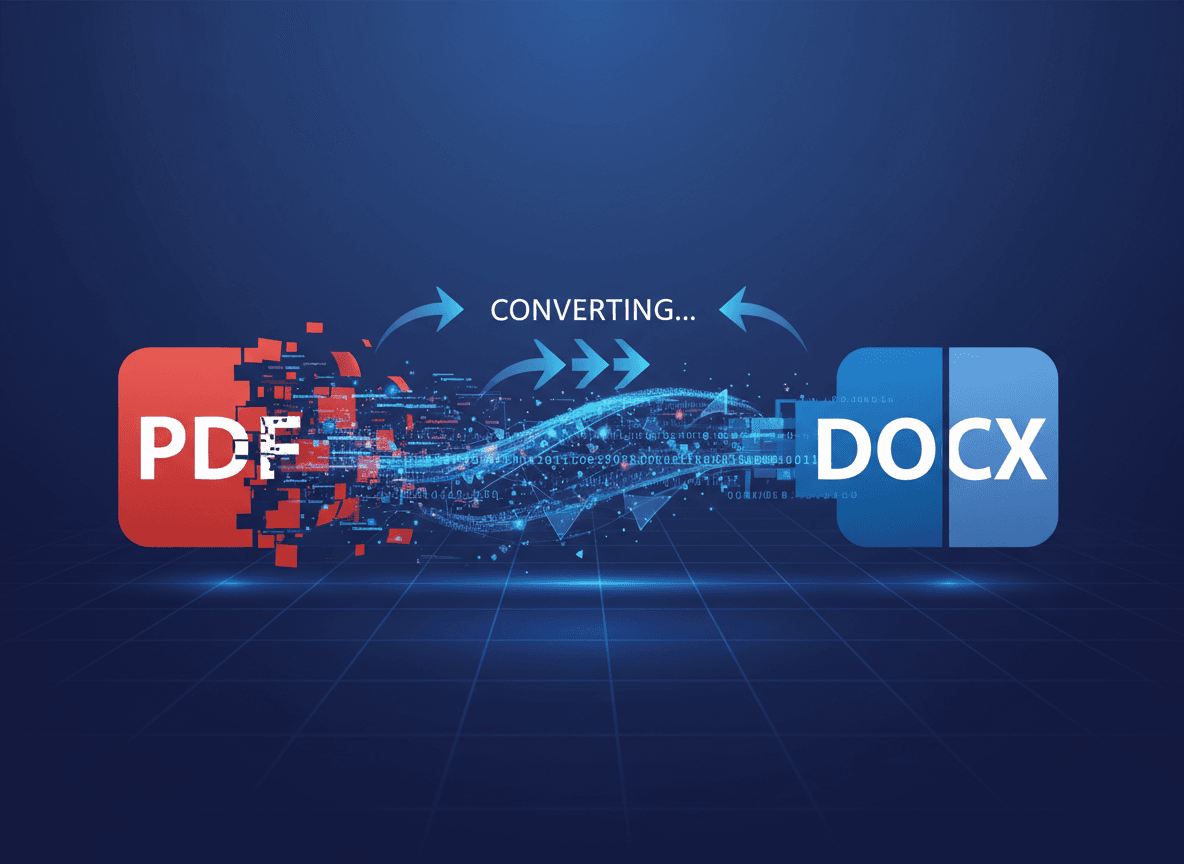
When you convert PDF to Word, you're asking a tool to guess how the PDF was originally created and recreate it in Word. Sometimes the tool guesses right. Often it doesn't.
Common Conversion Problems
Here are the problems you'll encounter:
Problem 1: Complex Layouts Break
PDFs can have complex layouts: multiple columns, text boxes, overlapping elements, precise positioning. Word doesn't handle these well.
What happens: The conversion tool tries to recreate the layout, but Word's formatting system can't handle it. Text boxes become regular paragraphs. Multiple columns become single columns. Overlapping elements get separated.
Why it happens: PDFs use absolute positioning. Word uses relative positioning. They're incompatible.
What you can do: Accept that complex layouts won't convert perfectly. You'll need to reformat in Word after conversion.
Problem 2: Tables Become Unrecognizable
Tables in PDFs often convert poorly to Word.
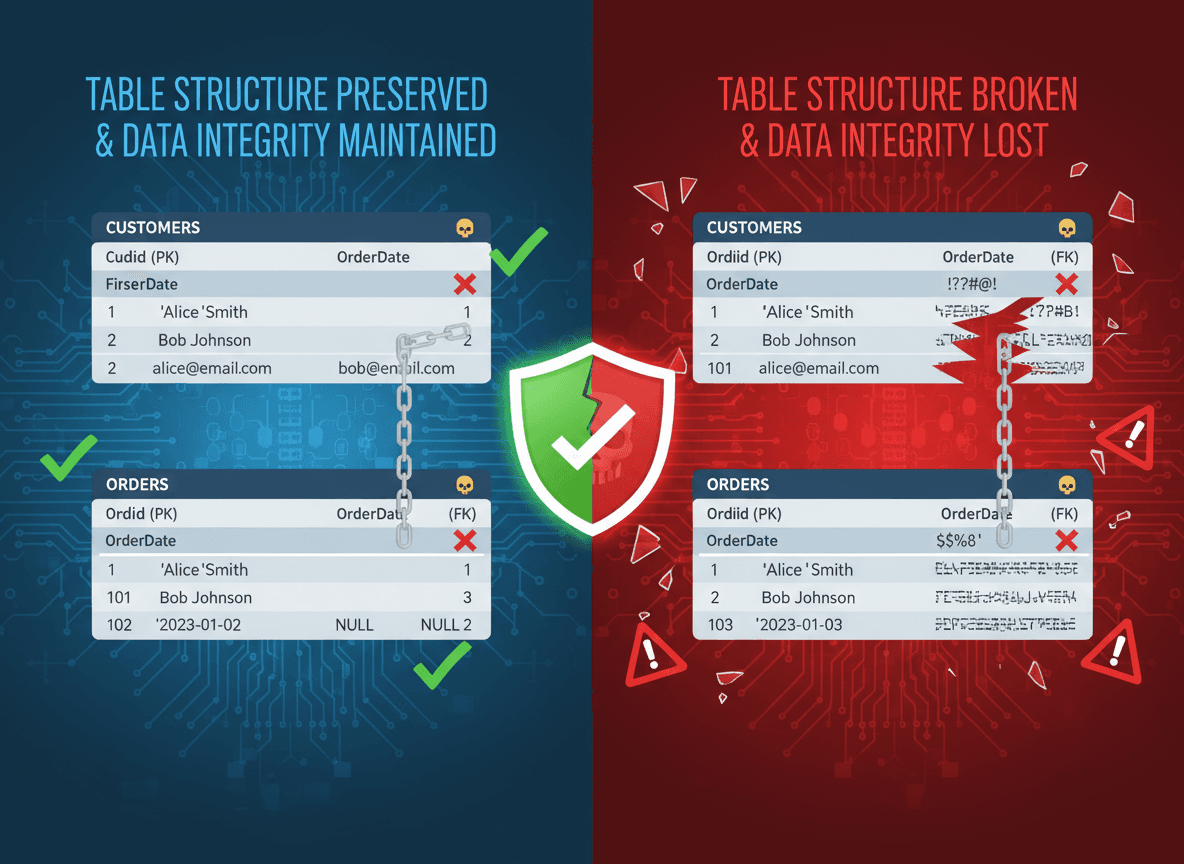
What happens: Tables become text separated by spaces or tabs. Columns don't align. Borders disappear. Merged cells become separate cells.
Why it happens: PDF tables are often drawn as graphics or use complex positioning. Word tables need specific structure that PDFs don't provide.
What you can do: Manually recreate tables in Word, or use a conversion tool that specifically handles tables well.
Problem 3: Fonts Don't Match
PDFs can use any font. Word might not have that font.
What happens: The conversion tool substitutes a different font. Your beautiful custom font becomes Arial or Times New Roman.
Why it happens: If the font isn't available on your system, Word substitutes it. The conversion tool can't embed fonts in the same way.
What you can do: Install the fonts you need, or accept the font substitution and change fonts in Word after conversion.
Problem 4: Images Disappear or Break
Images in PDFs don't always convert to Word.
What happens: Images are missing, appear as placeholders, or are low resolution.
Why it happens: Images in PDFs are embedded in complex ways. Conversion tools sometimes can't extract them properly.
What you can do: Extract images separately and insert them into Word manually.
Problem 5: Headers and Footers Vanish
PDF headers and footers often don't convert.
What happens: Headers and footers disappear entirely, or they appear as regular text in the document body.
Why it happens: PDF headers and footers are in a different layer than the main content. Conversion tools sometimes miss them.
What you can do: Manually recreate headers and footers in Word after conversion.
Problem 6: Text Becomes Uneditable
Sometimes converted text isn't actually editable.
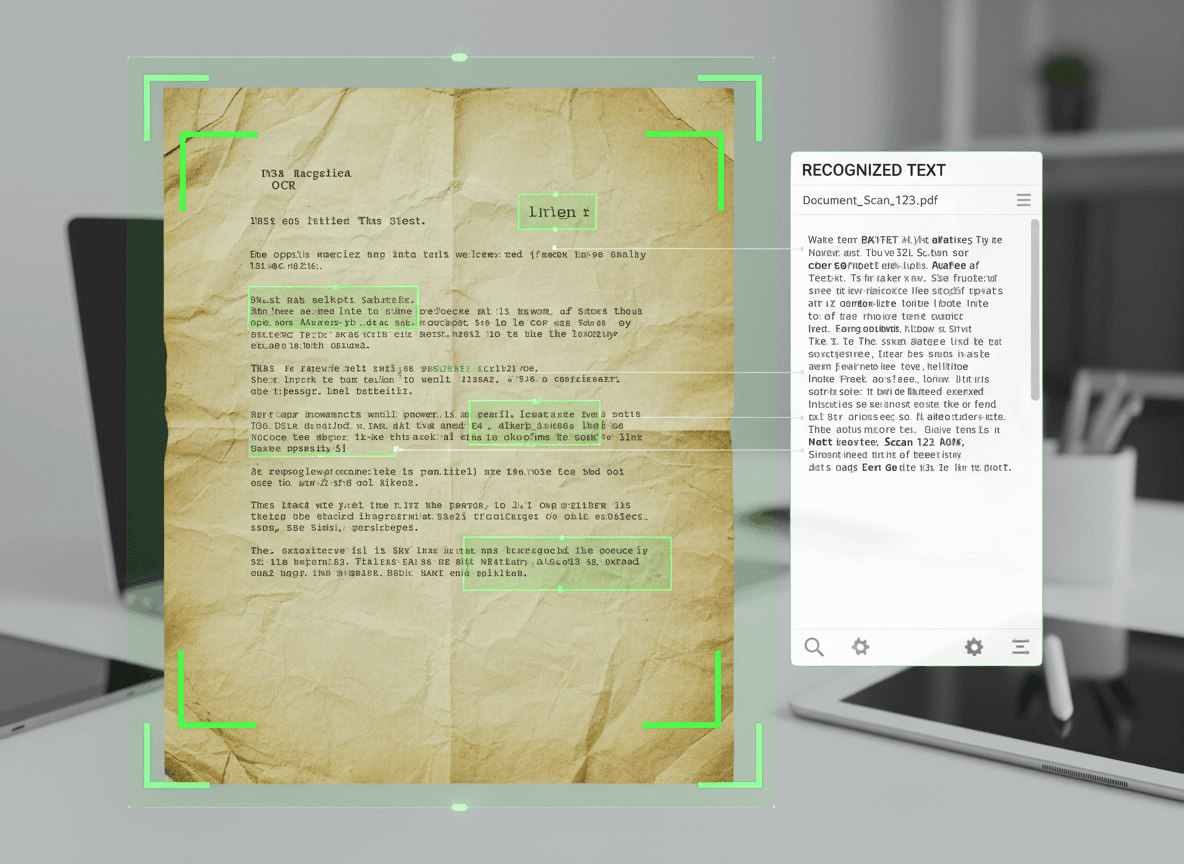
What happens: Text appears in Word, but you can't select or edit it. It's actually an image of text, not real text.
Why it happens: Scanned PDFs or PDFs created from images don't have real text—they have images of text. Conversion tools can't extract text that doesn't exist.
What you can do: Use OCR (Optical Character Recognition) first to extract text from images, then convert.
What Actually Works
Here's what you can realistically expect:
Simple text documents usually convert well. If your PDF is mostly plain text with simple formatting, conversion usually works fine.
Documents with basic formatting (headings, paragraphs, lists) usually convert acceptably. You might need minor cleanup, but it's manageable.
Complex documents (tables, multiple columns, complex layouts) usually need significant reformatting after conversion.
Scanned documents need OCR first. Without OCR, you'll get images, not editable text.
How to Improve Conversion Results
Here are things that actually help:
Use our PDF to Word tool. Our PDF to Word tool handles conversion well, preserving text and basic formatting. It works in your browser and keeps your files private.
Simplify before converting. If possible, simplify the PDF layout before converting. Remove complex elements, flatten layers.
Convert in sections. For very complex documents, convert sections separately, then combine in Word.
Use OCR for scanned PDFs. If your PDF is scanned, use our OCR PDF tool first to extract text, then convert to Word with our PDF to Word tool.
Accept that reformatting is normal. Don't expect perfect conversion. Plan to spend time fixing formatting in Word.
When Conversion Isn't Worth It
Sometimes, converting PDF to Word isn't the right approach:
If the PDF is very complex. If reformatting will take longer than recreating from scratch, consider recreating instead.
If you only need to extract text. Maybe you don't need Word format—just extract the text and paste it into Word.
If you need perfect formatting. If formatting must be exact, conversion won't work. Recreate the document.
If the PDF is scanned. Scanned PDFs need OCR first. Without OCR, conversion won't give you editable text.
Alternatives to Conversion
Before you convert, consider alternatives:
Extract text and paste. If you just need the text, extract it and paste into Word. You'll lose formatting, but you'll have editable text.
Recreate the document. If formatting is important, recreating in Word might be faster than fixing a bad conversion.
Use PDF editing tools. If you just need to make small changes, PDF editing tools might be better than converting to Word.
Keep it as PDF. If you don't actually need to edit it, maybe you don't need to convert it.
Best Practices
Here's my workflow for PDF to Word conversion:
- **Assess the PDF.** How complex is it? Will conversion work, or should I recreate it?
- **Choose the right tool.** Use a tool known for good conversion quality.
- **Convert and review.** Convert the PDF, then review the Word document to see what needs fixing.
- **Fix formatting.** Plan to spend time fixing formatting. This is normal.
- **Verify content.** Make sure all text converted correctly. Check for missing content.
- **Test editability.** Make sure text is actually editable, not just images of text.
Managing Conversion Expectations
I've converted hundreds of PDFs to Word, and here's the reality: conversion often goes wrong because PDFs and Word documents are fundamentally different. Complex layouts, tables, fonts, and images don't always convert well. The conversion tool is trying to guess how the PDF was originally created, and it often guesses wrong.
The key is managing your expectations. Don't expect perfect conversion. Plan to spend time fixing formatting. Tables will break. Fonts will change. Layouts will shift. That's normal. And if the document is very complex, consider whether conversion is worth it or if you should recreate it instead.
I've seen people spend hours trying to fix a converted document when they could have recreated it in less time. Sometimes starting fresh is the better option. But for simpler documents, conversion plus some cleanup usually works fine.
The good news? Simple documents usually convert fine. Complex documents need work, but conversion is often still faster than recreating from scratch. The trick is knowing what to expect and having a plan for fixing the problems that inevitably arise.
Ready to convert your PDF to Word? Try our PDF to Word tool now. Upload your PDF, and download your Word document. Our tool preserves text and basic formatting, making it perfect for simple to moderately complex documents. For scanned PDFs, use our OCR PDF tool first to extract text. It's free, works in your browser, and keeps your files private.