You've got a scanned PDF—maybe an old contract, a printed document, or something someone faxed you. You try to convert it to Word, and you get... nothing useful. The text isn't editable. It's just images of text, not actual text.
This is where OCR comes in. OCR (Optical Character Recognition) is what makes scanned documents editable. Without it, you can't convert scanned PDFs to Word. Let me explain what OCR is, how it works, and how to use it.
What Is OCR?
OCR stands for Optical Character Recognition. It's technology that reads text from images.
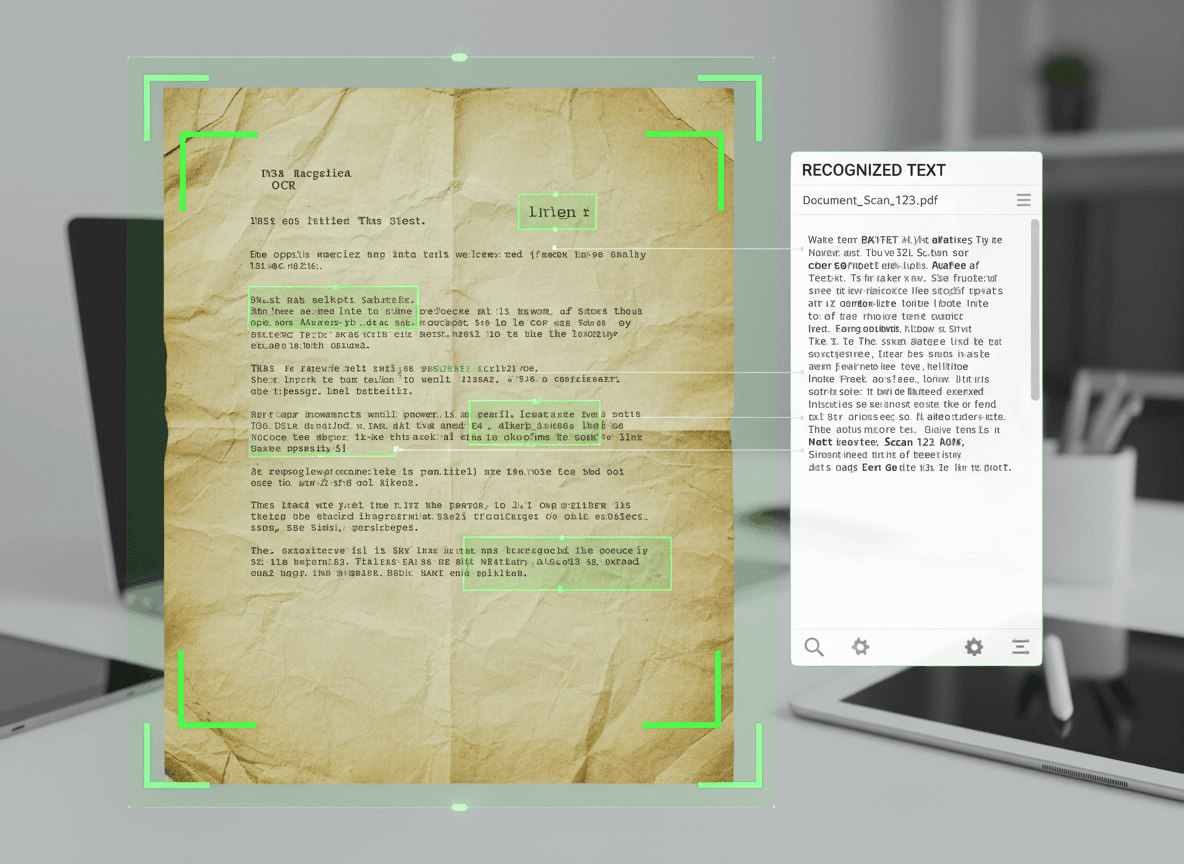
How it works: OCR software analyzes an image (like a scanned page) and identifies where text is. It then recognizes what characters those are and converts them to actual text you can edit.
What it does: Turns images of text into editable text. A scanned PDF is just images. OCR extracts the text from those images.
Why you need it: Without OCR, scanned PDFs are just pictures. You can't search them, copy text from them, or convert them to editable formats like Word.
Why Scanned PDFs Don't Convert
When you scan a document, you're creating images of pages, not text. The PDF contains pictures of text, not actual text characters.
Regular PDFs have text. When you create a PDF from Word, the PDF contains actual text. You can select it, search it, copy it.
Scanned PDFs have images. When you scan a document, you get images. The PDF contains pictures, not text. You can't select or edit the text because there is no text—just images.
Conversion tools can't extract text that doesn't exist. If you try to convert a scanned PDF to Word without OCR, you'll get images in Word, not editable text.
How OCR Works
Here's the process:
- **Image analysis.** OCR software analyzes the scanned image to find text regions.
- **Character recognition.** It identifies individual characters and determines what they are.
- **Text extraction.** It converts the recognized characters into actual text.
- **Layout preservation.** Good OCR tries to preserve the layout—where text appears on the page.
- **Confidence scoring.** OCR assigns confidence scores to its recognition. Low confidence means it's unsure about that text.
OCR Quality Factors
OCR accuracy depends on several factors:
Scan quality. High-quality scans (300 DPI, good contrast) OCR better than low-quality scans.
Text clarity. Clear, printed text OCRs well. Blurry, handwritten, or stylized text OCRs poorly.
Page layout. Simple layouts with clear text OCR better than complex layouts with overlapping elements.
Language. OCR works best with languages it's trained on. English usually works well.
Font and size. Standard fonts in reasonable sizes OCR better than unusual fonts or very small text.
The OCR Workflow
Here's how to convert a scanned PDF to Word using OCR:
Step 1: Prepare the PDF
Before OCR, prepare your scanned PDF:
Check scan quality. Make sure pages are clear, not blurry or skewed.
Rotate if needed. Make sure all pages are oriented correctly.
Remove blank pages. OCR works better if you remove unnecessary pages.
Check for password protection. If the PDF is password-protected, use our Unlock PDF tool first to remove the password.
Step 2: Run OCR
Use an OCR tool to extract text from the scanned PDF.
Choose our OCR PDF tool. Our OCR PDF tool extracts text from scanned PDFs, making them editable. It works in your browser and keeps your files private.
Run OCR on the PDF. Upload your scanned PDF to our OCR tool, and it will analyze each page and extract text.
Review OCR results. Check that text was extracted correctly. Look for obvious errors.
Fix OCR errors. OCR isn't perfect. You'll need to correct mistakes.
Step 3: Convert to Word
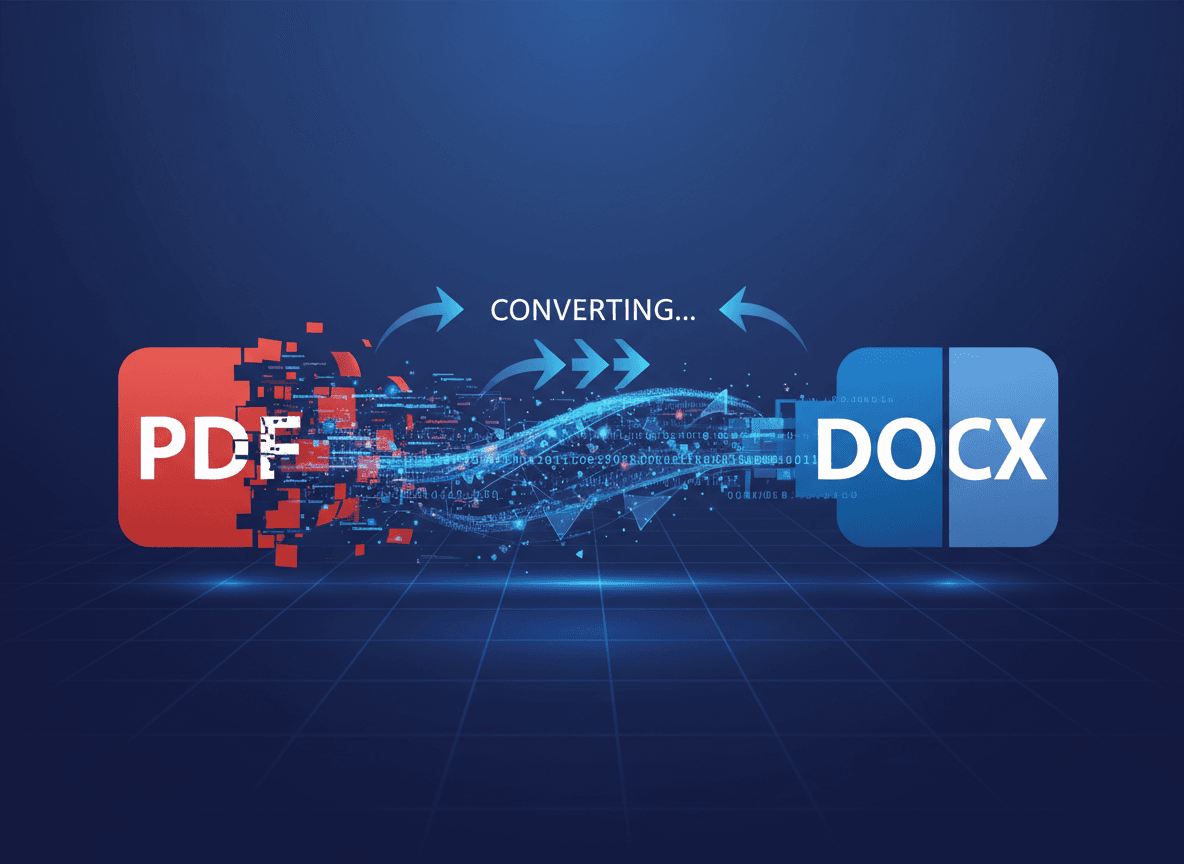
Once OCR has extracted text, convert to Word.
The PDF now has text. After OCR, the PDF contains actual text, not just images.
Convert to Word. After OCR, use our PDF to Word tool to convert the now-text-based PDF to Word. The text will be editable since OCR extracted it.
Check the result. Verify that text converted correctly and formatting is acceptable.
Step 4: Clean Up
OCR and conversion both introduce errors. Clean up the Word document:
Fix OCR mistakes. Correct text that OCR misread.
Fix formatting. Adjust formatting that didn't convert well.
Verify accuracy. Make sure all text is correct, especially important details like numbers, dates, and names.
OCR Accuracy Expectations
OCR isn't perfect. Here's what to expect:
High-quality scans: 95-99% accuracy for clear printed text.
Medium-quality scans: 85-95% accuracy, depending on clarity.
Low-quality scans: 70-85% accuracy, with more errors.
Handwriting: Usually 50% or less accuracy, if it works at all.
Complex layouts: Accuracy drops with complex formatting, tables, or unusual layouts.
The key is reviewing and correcting OCR results. Don't assume OCR is perfect.
Common OCR Problems
Here are problems you'll encounter:
Misread characters. OCR sometimes misreads similar characters (0 vs O, 1 vs l, etc.).
Layout issues. Text might not preserve original layout, especially with columns or complex formatting.
Formatting loss. Bold, italics, and other formatting might not be preserved.
Table problems. Tables often don't OCR well. Data might be extracted but lose table structure.
Mixed content. Documents with both text and images can be tricky. OCR might miss some text or include image captions incorrectly.
Tools That Work Well
Here are OCR tools I've had good results with:
Adobe Acrobat: Excellent OCR quality, handles layout well. Usually the best option if you have it.
Our OCR PDF tool: Our OCR PDF tool works well for most scanned documents. It extracts text accurately and works right in your browser, keeping your files private. Perfect for converting scanned PDFs to editable Word documents.
Built-in PDF tools: Many PDF tools now include OCR. Our tool is specifically designed for this workflow—OCR first, then convert to Word.
Best Practices
Here's what I've learned:
- **Start with good scans.** Better scans mean better OCR results.
- **Use quality OCR tools.** Cheap or free OCR often produces poor results.
- **Review everything.** OCR makes mistakes. Always review and correct.
- **Check important details.** Numbers, dates, names, and legal terms need special attention.
- **Preserve originals.** Keep the original scanned PDF. You might need to re-OCR if something goes wrong.
- **Test on a page first.** Before OCRing a long document, test on one page to see quality.
When OCR Isn't Enough
Sometimes OCR alone isn't sufficient:
Very poor quality scans. If the scan is too blurry or low quality, OCR might not work well enough.
Handwriting. OCR usually can't read handwriting reliably.
Complex layouts. Very complex documents might need manual work even after OCR.
Critical accuracy needs. If the document must be 100% accurate, OCR alone isn't enough. You'll need thorough review.
Making OCR Work for You
I've converted hundreds of scanned PDFs to Word, and here's what I've learned: you need OCR first. Without OCR, you're trying to extract text that doesn't exist—the PDF only contains images of text, not actual text.
The process is straightforward: scan (or get scanned PDF) → run OCR → convert to Word → clean up. But each step matters. Good scans produce better OCR results. Quality OCR tools produce better text extraction. Careful review catches errors that OCR missed.
Don't expect perfect OCR. Plan to review and correct. OCR is good, but it's not perfect. I've seen OCR turn "the" into "tile" and "and" into "aid." But with good scans and quality OCR tools, you can usually get editable text from scanned documents. It's not magic, but it works. The key is understanding the process and using the right tools for each step.
Ready to convert your scanned PDF to Word? Start with our OCR PDF tool to extract text from your scanned document. Once the PDF has editable text, use our PDF to Word tool to convert it to Word. If your PDF is password-protected, use our Unlock PDF tool first. All our tools are free, work in your browser, and keep your files private.