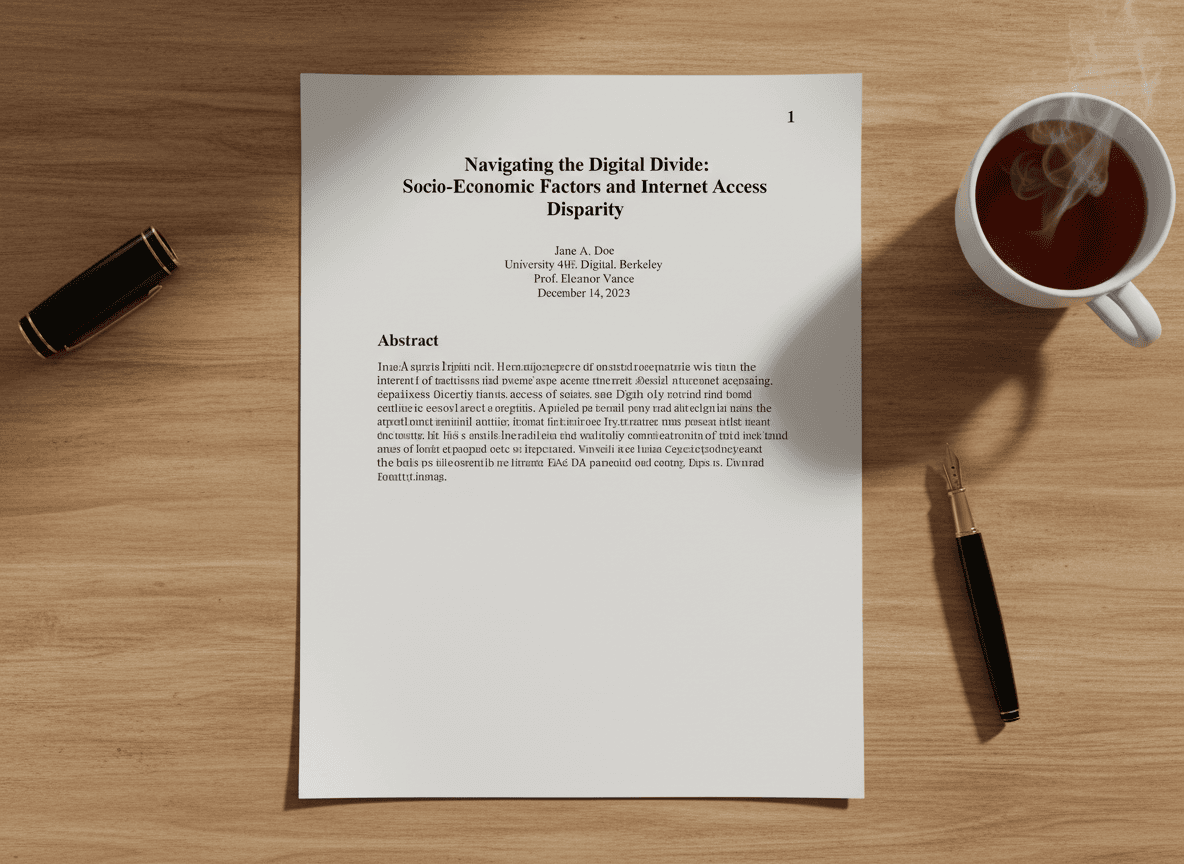
I was formatting a business proposal last month and noticed the page number "1" appeared on the cover page. It looked unprofessional—cover pages shouldn't have page numbers. I used our Page Numbers tool to configure numbering to start from page 2, which fixed the issue. That experience reminded me why skipping the first page is standard practice for professional documents.
Cover pages and title pages typically don't have page numbers. Our Page Numbers tool makes this easy to configure. Starting page numbering from page 2 (so the cover is unnumbered but the first content page is page 1) is common in professional and academic documents. This creates a cleaner, more professional appearance and follows standard document conventions.
Why Cover Pages Don't Get Numbered
Cover pages are design elements, not content pages. They're meant to introduce the document visually, not to be part of the paginated content. Adding page numbers to cover pages breaks this visual separation and makes documents look less polished. Professional documents treat cover pages as separate from the numbered content.
Title pages in academic documents follow similar conventions. Academic papers typically have unnumbered title pages, with numbering starting on the first page of actual content. This follows academic style guides and creates the expected document structure. Readers expect title pages to be unnumbered.
The visual hierarchy matters. An unnumbered cover page creates a clear distinction between the document's introduction (cover) and its content (numbered pages). This visual separation helps readers understand document structure and makes documents easier to navigate.
Professional standards expect this pattern. Business reports, proposals, academic papers, and formal documents typically have unnumbered cover pages. Following this convention makes your documents look professional and meet reader expectations.
When to Skip the First Page
Cover pages should always be unnumbered. Whether it's a business proposal, report, or presentation, the cover page is a design element that shouldn't have page numbers. This is standard practice across document types.
Title pages in academic or formal documents usually aren't numbered. Academic papers, theses, and formal reports typically start numbering after the title page. This follows academic conventions and style guide requirements.
Professional documents with cover pages should start numbering from page 2. Business proposals, reports, and presentations benefit from this approach. It creates a professional appearance and follows standard business document conventions.
Reports with cover sheets should exclude the cover from numbering. If your document has a cover sheet with company branding or document information, that sheet shouldn't be numbered. Numbering should start with the first page of actual content.
How to Configure It
Most PDF tools let you set the starting page number. Configure numbering to start from page 2 but display as page 1. This means the first page (cover) has no number, and the second page shows "1." The tool handles the offset automatically.
Some tools have an "exclude first page" option. This is simpler—you just check a box to exclude the first page from numbering, and the tool handles the rest. This is the easiest approach if your tool supports it.
After configuring, verify the result. Check that the cover page has no number, page 2 shows "1," and subsequent pages continue correctly. It's easy to make mistakes in configuration, so always verify the result looks correct.
Test with a few pages first. Before applying numbering to a long document, test with a short document to ensure your settings work correctly. This saves time if you need to adjust settings.
Best Practices
Match your document type. If you're creating a document that typically has an unnumbered cover (business reports, proposals, academic papers), configure numbering accordingly. If you're creating a simple document without a cover, you might number from page 1.
Be consistent throughout the document. Once you've configured numbering to start from page 2, make sure it continues consistently. Don't have some sections numbered differently—consistency is key to professional appearance.
Verify the final result. After adding page numbers, scroll through the entire document to ensure numbering looks correct. Check that the cover page has no number, numbering starts correctly, and continues throughout the document.
Consider your document's purpose. If your document will be printed and bound, unnumbered cover pages are especially important. Bound documents typically have covers that aren't part of the paginated content, so numbering should reflect this.
The Professional Impact
Unnumbered cover pages create a professional appearance. Documents with numbered cover pages look hastily prepared or unprofessional. Taking time to configure numbering correctly shows attention to detail and respect for document conventions.
Reader expectations matter. People expect cover pages to be unnumbered. When they see a number on a cover page, it looks wrong even if they can't articulate why. Meeting these expectations makes your documents feel more professional.
The configuration is simple, but the impact is significant. Spending a minute configuring page numbering correctly transforms how professional your document appears. It's a small detail that contributes to overall document quality.
Skipping page numbers on the first page is standard practice for professional documents. Our Page Numbers tool makes this easy to configure. Configure numbering to start from page 2, verify the result, and your documents will meet professional standards. This simple configuration step makes a significant difference in document appearance.
Ready to skip the first page? Try our Page Numbers tool now and see how easy it is to configure professional page numbering.