I once sent a client a PowerPoint file when they asked for "the presentation." They called back confused, saying they couldn't open it. Turns out they were on a Mac without PowerPoint, and they just wanted to review the slides. I should have used our PowerPoint to PDF tool to convert it first. That mistake taught me the importance of choosing the right format when sharing presentations.
The choice between PowerPoint and PDF isn't always obvious. Our PowerPoint to PDF tool makes conversion easy when you need it. Both formats have their place, and picking the wrong one can create unnecessary friction. Understanding when to use each format saves time and prevents those awkward "I can't open this" conversations.
Scenarios Where PowerPoint Makes Sense
There are specific situations where sending the original PowerPoint file is the right call. If your recipient needs to make changes, PowerPoint is essential. They can't edit a PDF easily, so sending PPTX allows them to modify content, update data, or adjust formatting. This is especially important in collaborative environments where multiple people need to contribute.
When you're actively working on a presentation together, PowerPoint enables real collaboration. People can add comments, make edits, and you can track changes. PDFs are more static—great for review, not so great for active collaboration. I've worked on team projects where we passed PowerPoint files back and forth, each person adding their section. That workflow only works with the editable format.
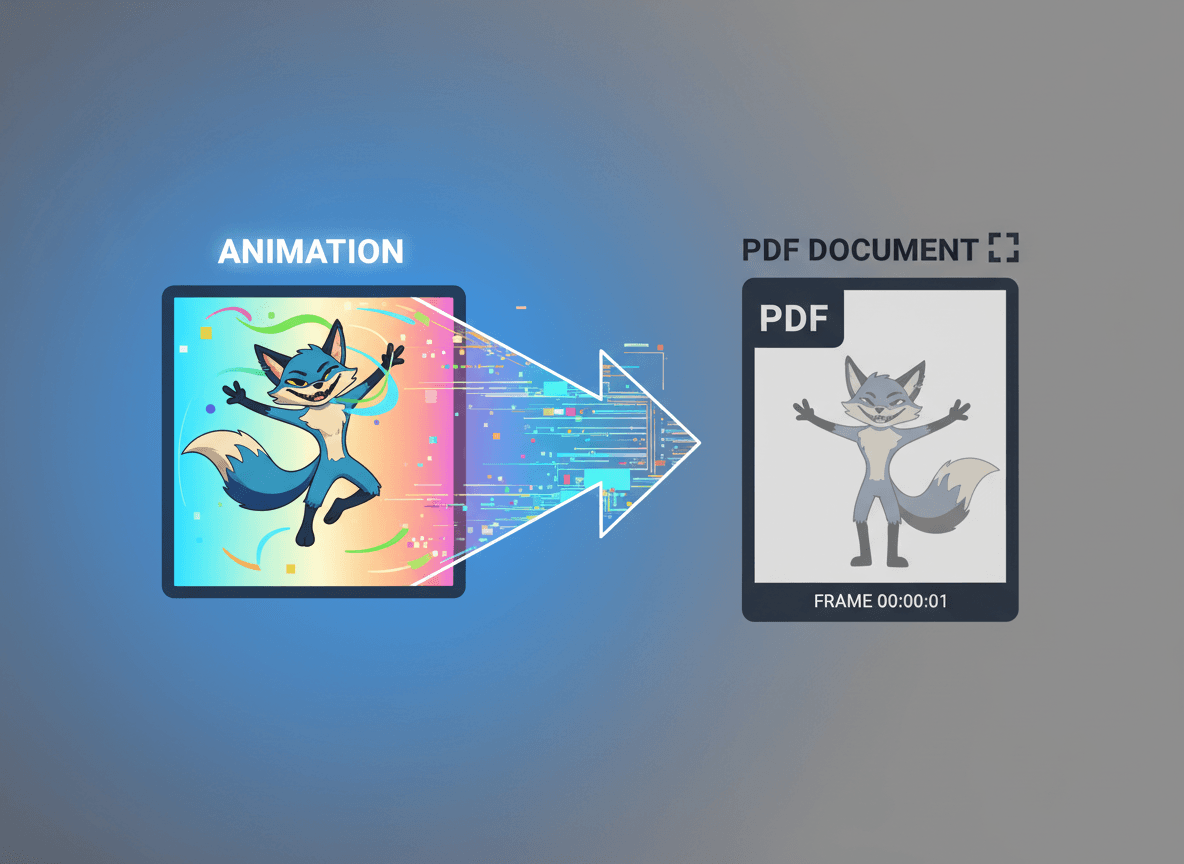
Animations and transitions are another consideration. If your presentation relies heavily on animations to tell a story or demonstrate concepts, PowerPoint preserves those effects. PDFs flatten everything into static slides. I've seen sales presentations where the animations were crucial to the pitch. Converting to PDF would have killed the impact.
Interactive elements like embedded videos, clickable links, or interactive charts work better in PowerPoint. While PDFs support some interactivity, PowerPoint offers more options. If your presentation includes complex interactive elements, stick with the original format.
When PDF Is the Better Choice
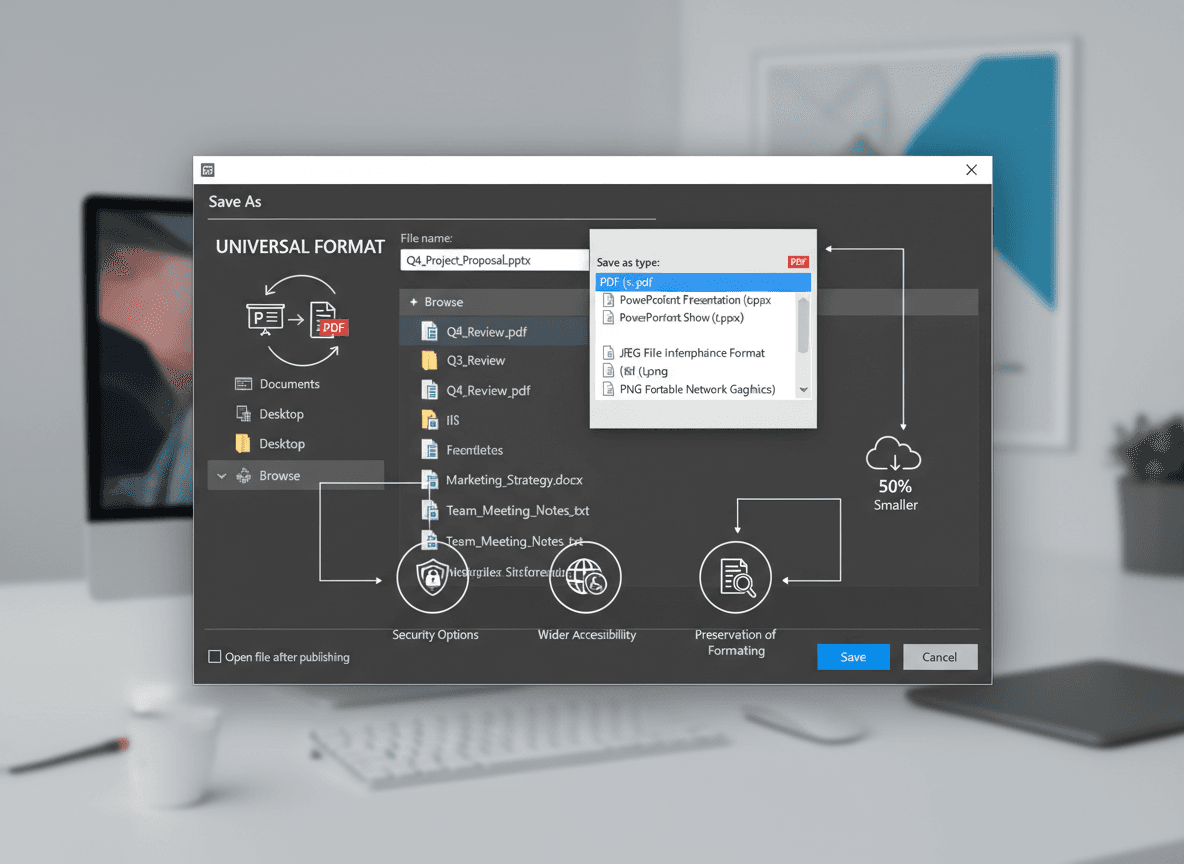
PDFs excel at universal compatibility. Almost everyone can open a PDF, regardless of their operating system or software. You don't have to worry about whether they have PowerPoint, what version they're using, or if they're on a different platform. This makes PDFs ideal for broad distribution where you can't control the recipient's setup.
For simple viewing and review, PDFs are perfect. If someone just needs to read through your slides, a PDF works great. It's lighter weight than PowerPoint files, loads faster, and doesn't require specialized software. I send PDFs when I'm sharing final versions for approval or feedback that doesn't require editing.
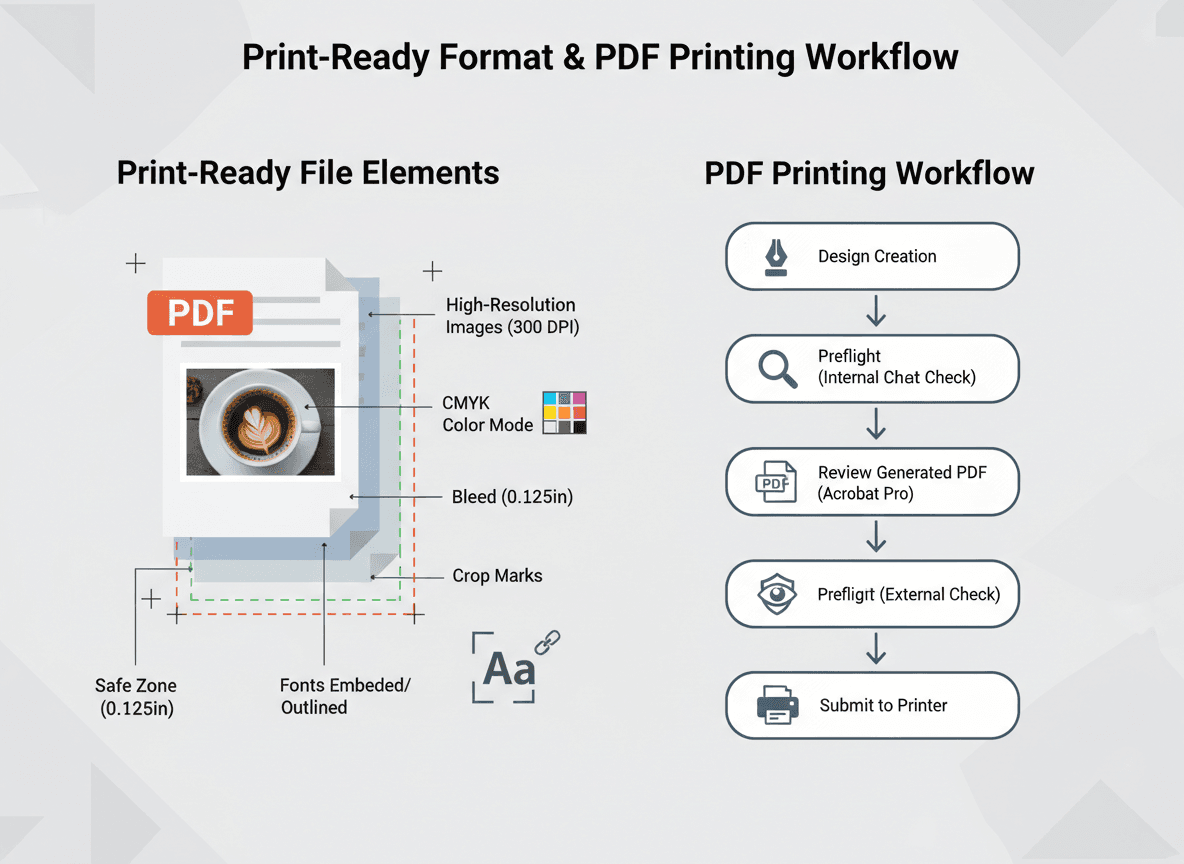
Printing is another area where PDFs shine. They're designed to print consistently across different printers and systems. PowerPoint files can have printing issues—fonts might not render correctly, layouts can shift, and colors might print differently. If you know the presentation will be printed, PDF is the safer bet.
Security and version control are important considerations. PDFs are harder to edit accidentally, making them good for sharing final, approved versions. If you want to ensure people see exactly what you created without modifications, PDF provides that protection. I use PDFs when sending proposals or final reports where I don't want accidental edits.
File size can matter too. PDFs are often smaller than PowerPoint files, especially if the original includes high-resolution images or embedded media. For email distribution or sharing via cloud storage with size limits, PDFs can be more practical.
Making the Decision
The best approach is to think about what the recipient needs to do with the file. Are they reviewing? Editing? Presenting? Printing? Their needs should drive your format choice. When I'm unsure, I ask. A quick "Do you need to edit this, or just review?" clarifies everything.
Sometimes the answer is both. In those cases, I send both formats. I'll attach the PowerPoint file with a note like "Here's the editable version, and I've also included a PDF for easy viewing." This covers all bases and lets the recipient choose what works best for them.
Consider your relationship with the recipient too. Internal team members working on a project together? PowerPoint makes sense. External clients who just need to see your proposal? PDF is probably better. The context of your relationship and the work you're doing together influences the right choice.
Common Mistakes to Avoid
I've seen people default to PowerPoint for everything, assuming everyone has the software. That's not always true, especially when working with clients or external partners. Defaulting to PDF isn't always right either—sometimes people genuinely need to edit, and sending a PDF creates unnecessary work for them.
Don't assume file size doesn't matter. Large PowerPoint files can be problematic for email systems or people with slow internet connections. PDFs are often more shareable in these situations. But if the file needs to be edited, you have to work with what you have.
Another mistake is not considering mobile devices. PDFs generally work better on phones and tablets for viewing. PowerPoint files can be problematic on mobile, even with apps designed to handle them. If you know people will be viewing on mobile, PDF might be the better choice.
Practical Tips
When in doubt, PDF is usually the safer default. It works everywhere, doesn't require special software, and prevents accidental edits. You can always send the PowerPoint version if someone asks for it. Starting with PDF and offering PowerPoint if needed is a good approach.
For important presentations, consider sending both formats with clear labels. Name your files descriptively: "Q4_Report_Final.pdf" and "Q4_Report_Editable.pptx" makes it clear which is which. This eliminates confusion and gives recipients options.
Test your PDF conversion before sending using our PowerPoint to PDF tool. Sometimes the conversion doesn't work perfectly—fonts might change, layouts might shift slightly, images might look different. Quick review catches these issues before they reach your recipient.
The format you choose affects how people interact with your presentation. PowerPoint invites editing and collaboration. PDF suggests finality and review. Choose based on the message you want to send and the work you need the recipient to do.
Ready to convert your PowerPoint to PDF? Try our PowerPoint to PDF tool now and see how easy it is to create shareable PDFs from your presentations.