I had a client meeting in thirty minutes and needed to print my presentation. I hit print in PowerPoint, and disaster struck. The fonts looked wrong, some slides printed with weird margins, and a few pages came out completely blank. I ended up using our PowerPoint to PDF tool to convert and reprint, barely making it to the meeting on time. That experience taught me to always convert to PDF before printing.
Printing directly from PowerPoint is a gamble. Sometimes it works fine, other times you get unexpected results. Fonts might not match, layouts can shift, and page breaks might not work as expected. Our PowerPoint to PDF tool eliminates most of these issues and gives you predictable, reliable printing.
Why PowerPoint Printing Is Unreliable
PowerPoint files are designed for screen presentation, not printing. When you print directly, the software has to translate your screen layout to paper, and that translation isn't always perfect. Different printers interpret PowerPoint files differently, leading to inconsistent results.
Font handling is a common problem. If your presentation uses custom fonts that aren't installed on the computer doing the printing, PowerPoint substitutes different fonts. This can change spacing, break layouts, and make your carefully designed slides look completely different on paper.
Page setup can be tricky. PowerPoint's page setup options are limited compared to dedicated PDF tools. You have less control over margins, page breaks, and scaling. What looks good on screen might not translate well to printed pages, especially if you're printing multiple slides per page.
Printer drivers vary widely. Different printers handle PowerPoint files differently. A presentation that prints perfectly on one printer might have issues on another. This inconsistency makes it hard to predict how your presentation will look when printed.
How PDFs Solve These Problems
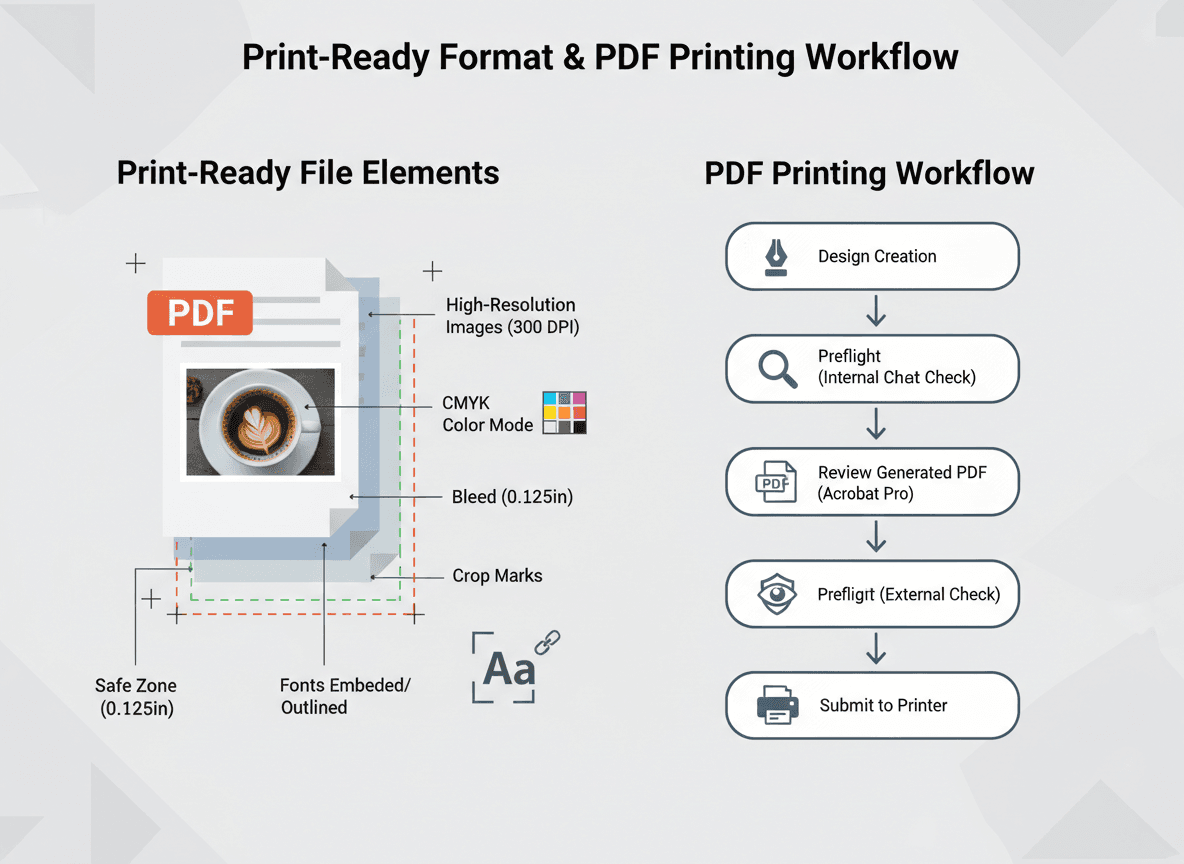
PDFs are designed for printing. They preserve your layout exactly as you created it, regardless of the printer or computer being used. When you convert PowerPoint to PDF, you're essentially "freezing" your presentation in a format that's optimized for consistent printing.
Font embedding is automatic in PDFs. All fonts used in your presentation are embedded in the PDF file, so they'll print correctly even if the printer doesn't have those fonts installed. This eliminates font substitution issues that plague PowerPoint printing.
Layout preservation is guaranteed. PDFs maintain exact positioning of all elements—text, images, shapes, everything. What you see in the PDF is what will print. There's no translation or interpretation happening at print time, which eliminates layout surprises.
Universal compatibility means PDFs work with any printer. Whether you're using an office laser printer, a home inkjet, or a professional print shop, PDFs print consistently. The format is standardized, so you get predictable results across different printing environments.
The Conversion Process
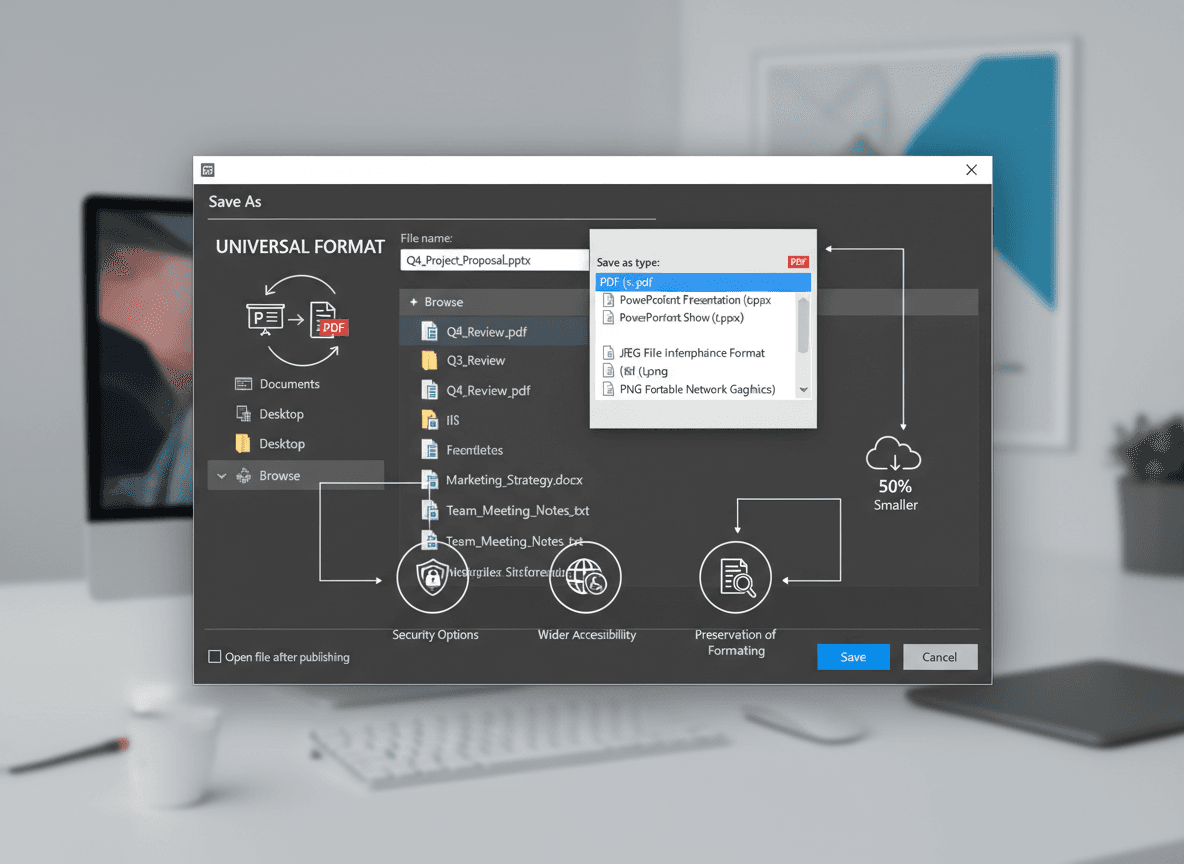
Converting is straightforward with our PowerPoint to PDF tool. Our tool converts PowerPoint files directly. The conversion process captures your slides exactly as they appear, creating a print-ready document.
After converting, always check the PDF before printing. Open it, scroll through the pages, verify that everything looks correct. Check fonts, layouts, colors, and page breaks. It's easier to catch issues in the PDF than to discover them after printing.
Once you're satisfied with the PDF, print from the PDF viewer instead of PowerPoint. Most PDF viewers have better print controls than PowerPoint, giving you more options for scaling, page selection, and print quality settings.
Print Settings in PDF Viewers
PDF viewers offer more control over printing. You can adjust scaling to fit pages, choose which pages to print, set print quality, and control color settings. These options give you flexibility that PowerPoint's print dialog lacks.
For handouts with multiple slides per page, PDF viewers handle this better. You can print two, four, or six slides per page with consistent spacing and sizing. PowerPoint's handout printing can be inconsistent, but PDF handouts are reliable.
Color management is better in PDFs. If you're printing in black and white or grayscale, PDF viewers give you more control over how colors convert. This is especially important for presentations with charts or graphics that need to remain readable in monochrome.
Best Practices for Reliable Printing
Always convert to PDF before printing important presentations. Make this part of your workflow, not an afterthought. The few extra seconds it takes to convert saves time and frustration compared to dealing with printing problems.
Test print a sample page first. Print one page from your PDF to verify everything looks correct before printing the entire presentation. This catches issues early and saves paper and time if adjustments are needed.
Use PDF print settings for optimal results. Adjust scaling, quality, and color settings in your PDF viewer's print dialog. These settings give you control that PowerPoint doesn't provide, helping you get exactly the print output you want.
For large print jobs, PDFs are more reliable. If you're printing dozens or hundreds of copies, PDFs reduce the chance of errors or inconsistencies. The format is stable and predictable, which matters when you're doing bulk printing.
When to Use Each Format
Keep PowerPoint for editing and presenting. Use it when you're actively working on your presentation or when you're presenting on screen. PowerPoint's strengths are in creation and live presentation, not printing.
Use PDF for sharing and printing. Once your presentation is finalized, convert to PDF for distribution and printing. PDFs are better for these purposes because they're stable, universal, and print reliably.
Consider your audience. If you're emailing a presentation for review, PDF is usually better because it works on any device. If someone needs to edit, send the PowerPoint file. But for printing, PDF is almost always the better choice.
The workflow is simple: create in PowerPoint, finalize and convert to PDF using our PowerPoint to PDF tool, then print from PDF. This two-step process might seem like extra work, but it prevents printing problems and ensures consistent results. The reliability is worth the small extra step.
Converting to PDF before printing isn't just a good practice—it's essential for professional results. Our PowerPoint to PDF tool makes this easy. Take the time to convert, check the PDF, and print from there. Your printed presentations will look exactly as you designed them, every time.
Ready to convert your PowerPoint for printing? Try our PowerPoint to PDF tool now and see how easy it is to create print-ready PDFs from your presentations.