I spent hours perfecting a presentation with smooth fade transitions between slides and text that animated in one word at a time. It looked fantastic in PowerPoint. Then I converted it to PDF using our PowerPoint to PDF tool for sharing, and everything became static. All those carefully crafted animations? Gone. That's when I learned the hard truth about PDF conversion: animations don't make the journey.
PDFs are fundamentally different from PowerPoint files. Our PowerPoint to PDF tool converts your presentations to static PDFs. They're designed for static, print-like documents, not dynamic presentations. This isn't a bug or limitation—it's by design. Understanding what happens to your animations helps you prepare better presentations and avoid disappointment.
The Reality of Animation Loss
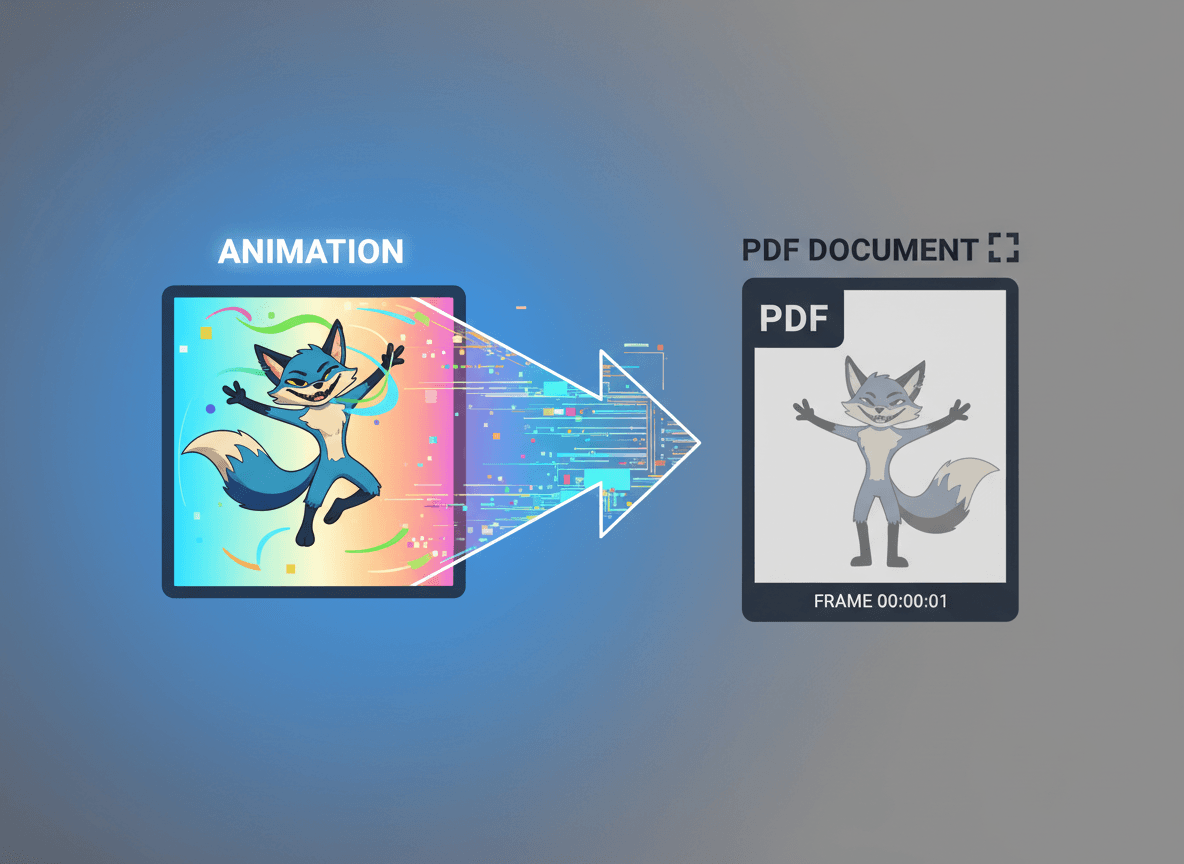
Every animation you've created will disappear. Slide transitions that fade, wipe, or push? They become instant cuts. Text that flies in from the side? It just appears. Build animations that reveal points one by one? Everything shows at once. There's no way around it—PDFs simply don't support animation.
This includes all types of animations. Entrance effects, exit effects, emphasis animations, motion paths—none of them survive conversion. Even simple animations like "fade in" become static. The software can't preserve what PDF format doesn't support.
Timing information is completely lost. Your carefully choreographed sequence where text appears, then an image fades in, then a chart builds up? All of that timing disappears. Everything appears simultaneously in the final state of each animation.
Interactive elements face the same fate. Clickable buttons, hyperlinks that trigger animations, or interactive quizzes don't function in PDFs. While basic hyperlinks might work, anything that relies on PowerPoint's interactive features won't.
What Actually Makes It Through
The good news is that all your static content survives perfectly. Text, images, shapes, charts, and design elements all convert beautifully. Your layout stays intact, colors remain accurate, and formatting is preserved. Everything that doesn't move converts well.
Animations do appear in their final state. If you had text that faded in, the PDF will show that text fully visible. If a chart animated to reveal data points, the PDF shows the complete chart. So while the animation is lost, the end result of that animation is captured.
This means you can preview how your animated slides will look by letting all animations play out, then taking a screenshot or noting the final state. That final state is exactly what will appear in your PDF.
Preparing Animated Presentations for PDF
Before converting, review each slide with all animations completed. Let PowerPoint play through all animations on each slide, then look at the final result. That's what your PDF will look like. If something looks wrong or incomplete in the final state, fix it before converting.
Consider whether your animations are essential. Some presentations rely heavily on animations to tell a story or reveal information progressively. If that's the case, you might want to keep the PowerPoint version for presentations and create a separate, simplified version for PDF sharing.
For slides with complex build animations, you might need to create static versions. If text was meant to appear one bullet point at a time, you might need to redesign the slide to work as a static layout. Sometimes this means breaking one animated slide into multiple static slides.
Test your conversion before sharing. Convert a few slides, check how they look, and make adjustments if needed. It's better to discover issues before you've shared the PDF with dozens of people.
Workarounds and Alternatives
If animations are crucial to your presentation, consider keeping both formats. Share the PowerPoint file for people who will present it, and provide a PDF version for those who just need to review the content. This gives you the best of both worlds.
Some people create "animation guides" in PDF form. They include notes about what animations were used, or they create multiple static slides showing different stages of an animation. This is more work, but it preserves the intent of animated content.
For presentations that will only be viewed as PDFs, design them as static from the start. Think in terms of print layout rather than dynamic presentation. This saves you from creating animations that will be lost anyway.
Why This Limitation Exists
PDFs were designed for document sharing and printing, not dynamic presentations. The format prioritizes consistency and reliability across different devices and software. Adding animation support would complicate the format and reduce its universal compatibility.
PowerPoint files are meant to be opened in PowerPoint, where the software can handle animations. PDFs are meant to work everywhere, which means they stick to universally supported features. It's a trade-off between functionality and compatibility.
Understanding this helps set realistic expectations. You're not doing anything wrong if your animations disappear—that's just how PDF conversion works. The format serves a different purpose than PowerPoint, and that's actually a feature, not a bug.
Making the Best of Static Conversion
When you know animations won't survive, you can design with that in mind. Create slides that work well as static images. Use layout and design to create visual interest rather than relying on motion. Good static design can be just as engaging as animations.
Think about information hierarchy. Since everything appears at once in PDF, make sure your slide layouts work when all elements are visible simultaneously. If your animation was revealing information progressively, your static version needs to organize that information differently.
The conversion process isn't broken—it's working as designed. Our PowerPoint to PDF tool gives you reliable, universal document sharing. PDFs give you reliable, universal document sharing. PowerPoint gives you dynamic presentations. Choose the right tool for the job, and you'll get the results you need.
Ready to convert your PowerPoint to PDF? Try our PowerPoint to PDF tool now and see how easy it is to create static PDFs from your presentations.