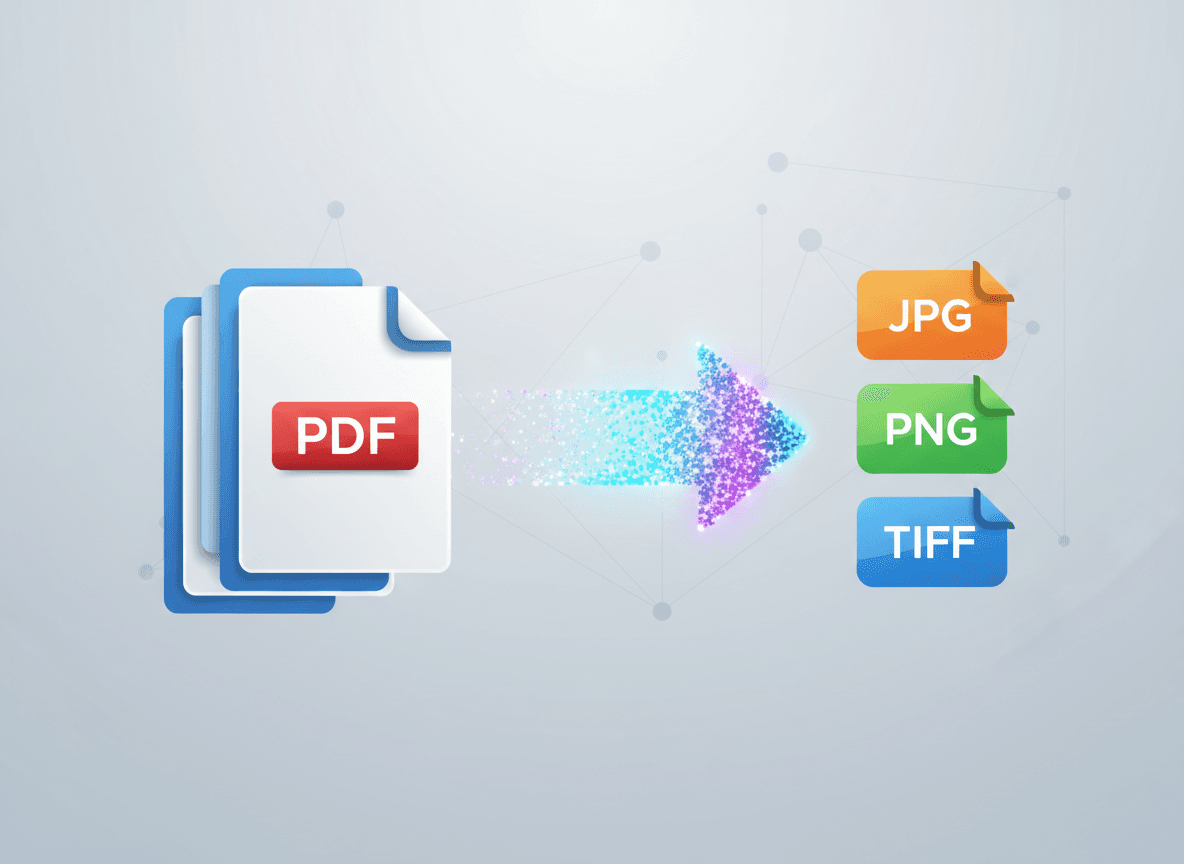
You've got a PDF, but you need it as images instead. Maybe for social media, a website, or a presentation tool that doesn't accept PDFs. Converting PDF pages to JPG images is more common than you might think, and there are good reasons to do it.
Our PDF to JPG tool makes this conversion simple and reliable. It converts PDF pages to high-quality JPG images, perfect for social media, websites, and presentations. Let me explain when converting PDF pages to images makes sense, and how our tool can help.
When You Need PDF Pages as Images
Social Media
Social media platforms often don't accept PDFs, or they don't display well. Converting PDF pages to images lets you share content on Instagram, Twitter, Facebook, and other platforms.
Use images when:
- Posting to social media
- Creating social media graphics from PDF content
- Sharing snippets or quotes from documents
- Creating Instagram stories or posts
Why it works: Images are universal. Every platform accepts them, and they display consistently.
Website Content
Websites often use images instead of PDFs for better display and faster loading.
Use images when:
- Embedding content in web pages
- Creating image galleries
- Displaying documents on websites
- Creating thumbnails or previews
Why it works: Images load faster, display better in browsers, and are easier to style with CSS.
Presentation Tools
Many presentation tools (like Prezi, some online tools, or mobile apps) work better with images than PDFs.
Use images when:
- Importing into presentation software that prefers images
- Creating slides from PDF content
- Using mobile presentation apps
- Working with tools that don't handle PDFs well
Why it works: Images are more universally compatible with presentation software.
Email Attachments
Sometimes images work better than PDFs in emails, especially for previews or when file size is a concern.
Use images when:
- Email clients show image previews but not PDF previews
- You need smaller file sizes
- Recipients might not have PDF viewers
- You want content to display inline in email
Why it works: Images often display inline in emails, and most email clients handle them well.
Mobile Apps
Many mobile apps work better with images than PDFs, especially for viewing or sharing.
Use images when:
- Using mobile apps that don't handle PDFs
- Sharing via mobile messaging apps
- Creating content for mobile-first platforms
- Working with apps that prefer image formats
Why it works: Images are simpler and more universally supported on mobile devices.
Print Design
Sometimes designers need PDF content as images to incorporate into other designs.
Use images when:
- Incorporating PDF content into design software
- Creating composites or collages
- Working with design tools that prefer images
- Need to edit or manipulate the content
Why it works: Design software often works better with images than PDFs.
When to Keep PDFs
There are times when PDFs are better than images:
Document Sharing
For sharing complete documents, PDFs are usually better. They preserve formatting, are searchable, and work well for printing.
Keep as PDF when:
- Sharing complete documents
- Recipients need to print
- Document needs to be searchable
- Preserving exact formatting is critical
Professional Documents
For professional or legal documents, PDFs are the standard format.
Keep as PDF when:
- Documents are for professional use
- Legal or official documents
- Documents that need to be uneditable
- Archival purposes
Large Documents
For multi-page documents, PDFs are more manageable than many separate image files.
Keep as PDF when:
- Document has many pages
- You want a single file
- Document structure matters
- Navigation and bookmarks are important
Quality Considerations
When converting PDF pages to images, quality matters. Our PDF to JPG tool handles this automatically:
Appropriate resolution automatically. Our tool uses high resolution (300 DPI) for best quality, which works well for all uses.
File size is balanced. Our tool balances quality and file size intelligently, creating high-quality images without excessive file sizes.
Quality is preserved. Our tool ensures converted images maintain quality and clarity.
Purpose-matched quality. Our tool produces images suitable for web, social media, presentations, and print.
Best Practices
Here's what I recommend with our tool:
For social media: Use our PDF to JPG tool to convert to high-quality images. Our tool balances quality and file size for uploads.
For websites: Our PDF to JPG tool creates web-appropriate images that load fast and look great.
For presentations: Our tool produces images with sufficient resolution for display (high quality without excessive file sizes).
For print: Our PDF to JPG tool uses high resolution (300 DPI) automatically, perfect for print quality.
For mobile: Our tool creates images optimized for mobile—high quality without huge file sizes.
Test before using: Always check converted images to ensure they look good for your purpose.
Common Scenarios
Scenario 1: Sharing a quote on Instagram
- Solution: Convert PDF page to JPG, crop to quote, use for Instagram post
- Resolution: 150 DPI is fine for social media
Scenario 2: Adding content to website
- Solution: Convert PDF pages to JPG, optimize for web, add to website
- Resolution: 72-150 DPI, optimize file size
Scenario 3: Creating presentation slides
- Solution: Convert PDF pages to images, import into presentation tool
- Resolution: 150-200 DPI for screen display
Scenario 4: Email preview
- Solution: Convert first page to JPG, attach as preview image
- Resolution: 150 DPI, keep file size small
When Images Make More Sense
I've converted hundreds of PDF pages to images, and here's what I've learned: images work better than PDFs for social media, websites, presentations, and mobile apps. They're more universally compatible, they display better in these contexts, and they're easier to work with in design tools.
Our PDF to JPG tool makes this conversion simple. It handles all the quality settings automatically, so you get high-quality images perfect for any use. But keep PDFs when you need complete documents, professional formatting, searchable text, or multi-page documents. PDFs are better for document sharing and professional use where the document structure matters.
The choice isn't about which format is "better"—it's about which format works for your specific purpose. For visual sharing and web use, our PDF to JPG tool creates images that are the right choice. For documents and professional sharing, PDFs are better. Our tool ensures quality is always appropriate for how the images will be used.
Ready to convert your PDF pages to images? Try our PDF to JPG tool now and see how easy it is to create high-quality images from your PDFs.