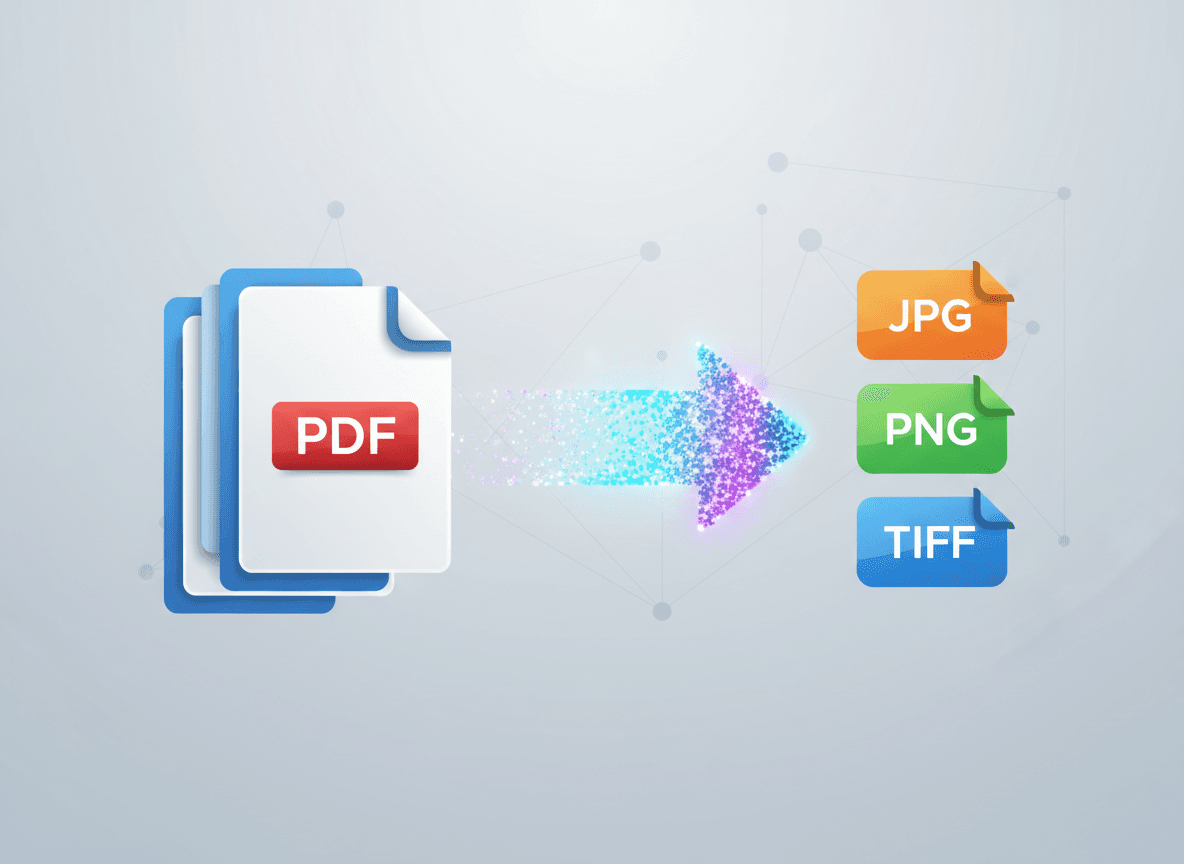
You've got a presentation as a PDF, but you need to use it in a different presentation tool. Maybe you're switching from PowerPoint to Prezi, or you need to import slides into an online tool that doesn't accept PDFs. Converting PDF slides to images is often the solution.
Our PDF to JPG tool makes this workflow simple and efficient. It converts all your PDF slides to high-quality images quickly, saving you time. This is a common workflow, and our tool makes it efficient. Let me walk you through how our tool helps you convert PDF slides to images for use in other presentation tools.
Why Convert PDF Slides to Images
There are several reasons you might need PDF slides as images:
Tool compatibility. Many presentation tools don't accept PDFs directly, but they do accept images.
Format conversion. You might be moving from one presentation format to another, and images are a universal intermediate format.
Editing flexibility. Images can be easier to work with in some tools than PDFs.
Consistent display. Images ensure slides display the same way across different tools and platforms.
Quick import. Converting to images is often faster than recreating slides from scratch.
The Workflow
Here's an efficient workflow for converting PDF slides to images:
Step 1: Prepare Your PDF
Before converting, make sure your PDF is ready:
Check slide quality. Ensure slides look good in the PDF. You can't improve quality during conversion.
Review all slides. Make sure all slides you need are included.
Check for animations. Note that animations won't convert—you'll get static images of slides.
Verify layout. Make sure slide layouts are correct. Conversion preserves what's in the PDF.
Step 2: Use Our PDF to JPG Tool
Our PDF to JPG tool handles resolution and quality automatically:
For screen display: Our tool uses 300 DPI automatically, which is excellent for presentations and keeps file sizes reasonable.
For high-quality displays: Our tool's 300 DPI ensures slides look sharp when projected large or viewed on high-resolution displays.
For print handouts: Our tool's 300 DPI is perfect if you'll also be printing the slides.
File format: Our tool creates high-quality JPG files that work perfectly for presentations.
Step 3: Convert All Slides with Our Tool
Our PDF to JPG tool converts the entire PDF efficiently:
Batch conversion. Our tool converts all pages at once automatically.
Consistent quality. Our tool applies the same high-quality settings to all slides for consistency.
Easy download. Our tool provides all converted images in an organized format.
No configuration needed. Just upload your PDF, and our tool handles everything.
Step 4: Review Converted Images
Check the converted images:
Quality check. Open a few images to verify quality is acceptable.
Completeness. Make sure all slides converted correctly.
Naming. Verify file names are correct and in order.
File size. Check that file sizes are reasonable (not too large, not too small).
Step 5: Import into Presentation Tool
Import images into your target presentation tool:
Import method. Use the tool's import feature for images.
Order matters. Import slides in the correct order.
Sizing. Adjust image sizes to fit the tool's slide format if needed.
Layout. Arrange slides as needed in the new tool.
Best Practices
Here's what makes this workflow efficient:
Use Our PDF to JPG Tool for Batch Conversion
Convert all slides at once. Our PDF to JPG tool converts all pages automatically, saving time.
Consistent quality. Our tool applies the same high-quality settings to all slides automatically.
Organized output. Our tool provides all converted images in an organized format.
Our Tool Sets Appropriate Resolution
No overdoing it. Our tool uses 300 DPI, which is perfect for presentations without creating huge files.
Matches your display. Our tool's resolution is appropriate for how slides will be displayed.
Balances quality and size. Our tool balances quality and file size intelligently, ensuring great results without excessive file sizes.
Organize Files
Clear naming. Use descriptive, sequential names: "Presentation_Slide_01.jpg"
One folder. Keep all slide images in one folder for easy access.
Backup originals. Keep the original PDF in case you need to reconvert.
Test Before Full Conversion
Convert a few slides first. Test with 2-3 slides to verify quality and settings before converting everything.
Check in target tool. Import test slides into your presentation tool to make sure they work.
Adjust if needed. If quality or sizing isn't right, adjust settings and try again.
Common Scenarios
Scenario 1: PowerPoint PDF to Prezi
Workflow:
- Export PowerPoint to PDF
- Convert PDF slides to images at 200 DPI
- Import images into Prezi as frames
- Arrange and adjust as needed
Considerations: Prezi works well with images. 200 DPI is sufficient for screen display.
Scenario 2: PDF to Google Slides
Workflow:
- Convert PDF slides to images
- Create new Google Slides presentation
- Import images as slide backgrounds or insert as images
- Adjust sizing and layout
Considerations: Google Slides accepts images easily. Keep file sizes reasonable for upload.
Scenario 3: PDF to Online Presentation Tool
Workflow:
- Convert PDF to images at appropriate resolution
- Upload images to online tool
- Arrange slides in tool
- Add any additional content needed
Considerations: Check tool's image requirements (size limits, formats accepted).
Scenario 4: PDF to Mobile Presentation App
Workflow:
- Convert PDF to images optimized for mobile (150 DPI)
- Transfer images to mobile device
- Import into mobile app
- Arrange and present
Considerations: Mobile apps often work better with images. Keep file sizes reasonable for mobile.
Quality Considerations
Quality matters for presentations:
Screen resolution. For screen display, 150-200 DPI is usually sufficient. Higher resolution doesn't help much and increases file size.
Projection. If slides will be projected large, 200-300 DPI ensures they look sharp.
Text readability. Ensure text is sharp and readable. Use 200+ DPI for text-heavy slides.
Images and graphics. Graphics and images in slides need sufficient resolution to look good.
File size balance. Balance quality with file size. Very large image files can be slow to load or import.
Troubleshooting
Slides look blurry:
- Cause: Resolution too low
- Solution: Increase DPI to 200-300
File sizes are huge:
- Cause: Resolution too high
- Solution: Use 150-200 DPI for screen presentations
Import is slow:
- Cause: Large image files
- Solution: Use moderate resolution (200 DPI) and JPG format
Slides don't fit:
- Cause: Aspect ratio mismatch
- Solution: Adjust image sizes in target tool, or crop/resize during conversion
Quality varies:
- Cause: Inconsistent conversion settings
- Solution: Use batch conversion with consistent settings
Converting PDF Slides Efficiently
I've converted hundreds of PDF slides to images for use in other presentation tools, and here's what I've learned: the key is using our PDF to JPG tool. Our tool handles batch conversion automatically, uses appropriate resolution (300 DPI), and organizes files clearly. No setup needed.
With our PDF to JPG tool, you can quickly convert PDF slides to images and import them into any presentation tool. The process is straightforward—just upload your PDF, and our tool handles everything. It's much faster than recreating slides from scratch. I've seen people spend hours recreating slides when they could have converted them in minutes with our tool.
Our tool eliminates the setup time. No need to test settings or organize files manually—our tool handles it all. Just upload, convert, and download. Your slides will look good in the new tool, and you'll save time.
Ready to convert your PDF slides? Use our PDF to JPG tool now and see how easy it is to convert all your slides to high-quality images for any presentation tool.