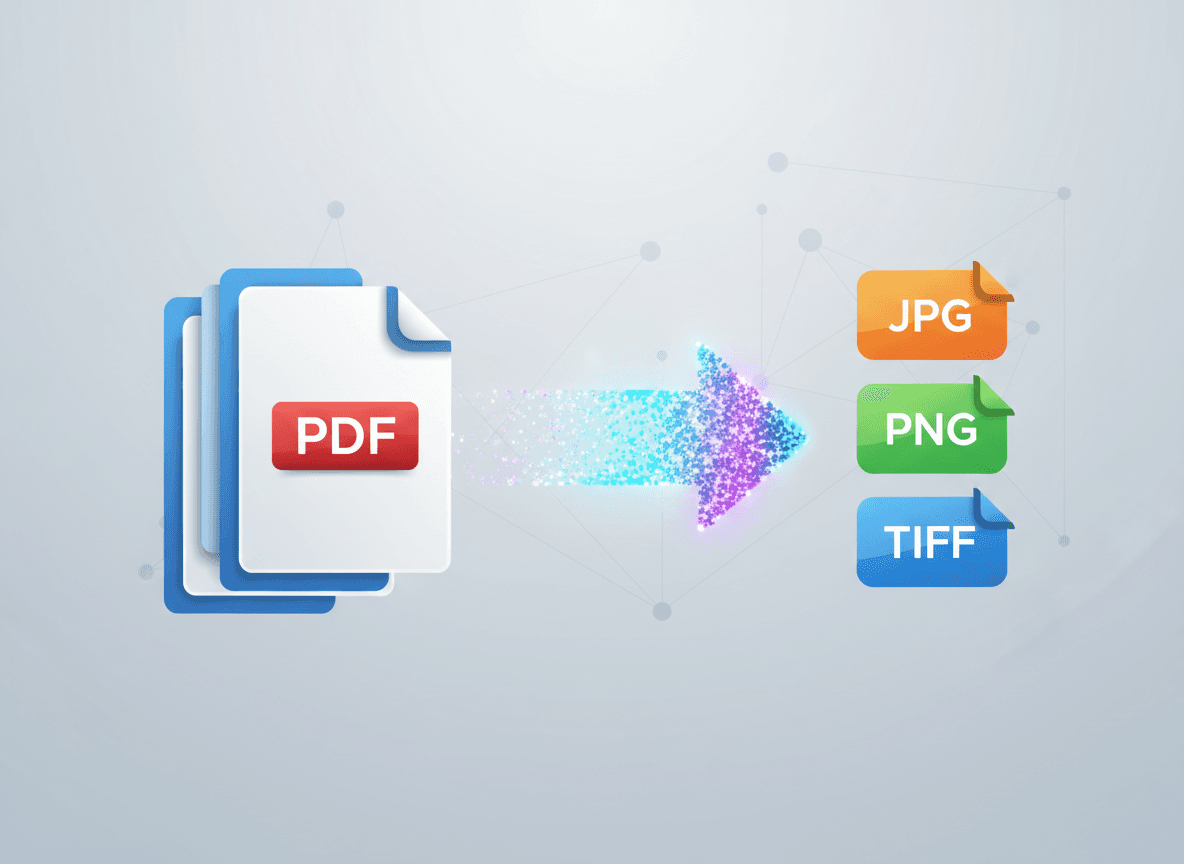
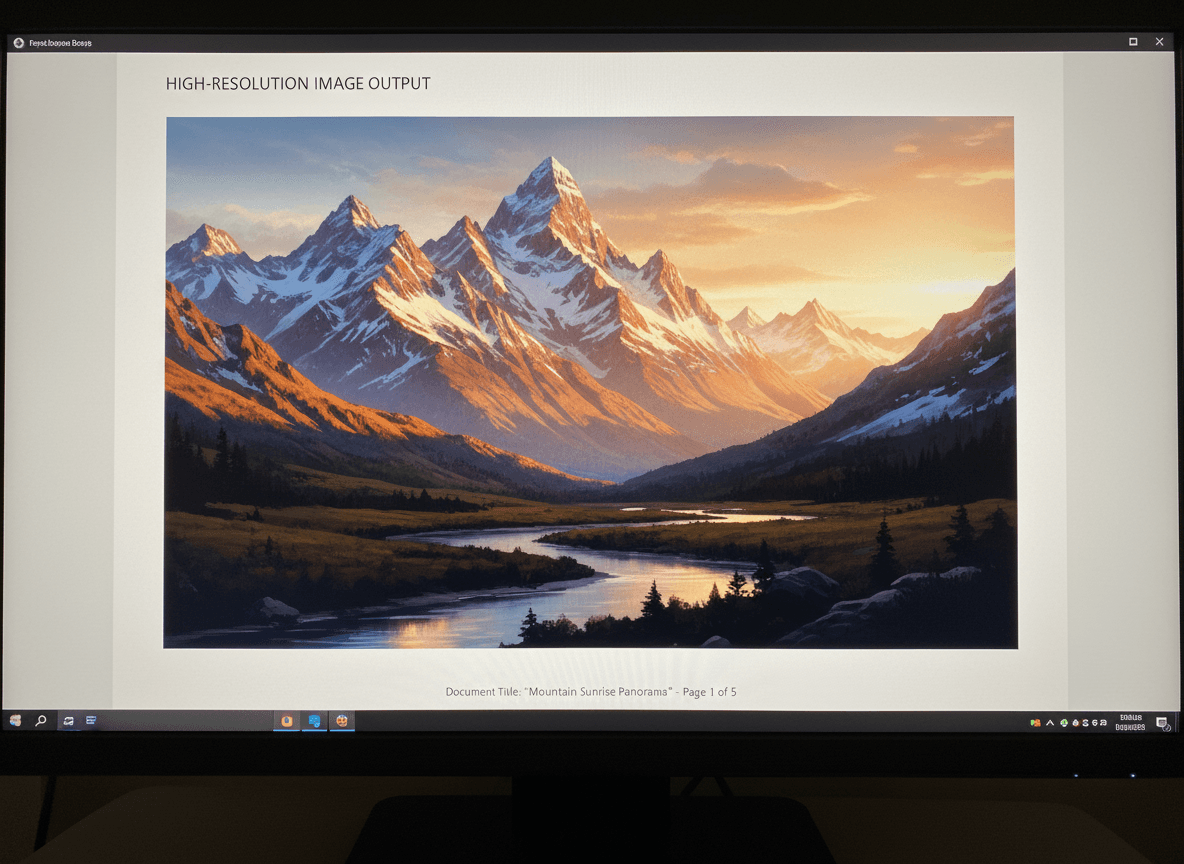
You've converted a PDF page to JPG, and it looks pixelated. The text is blurry, images are soft, and everything looks low quality. You need higher resolution, but you're not sure how to get it.
Our PDF to JPG tool solves this automatically by using high resolution (300 DPI) for all conversions. Image resolution is the key to getting crisp, clear JPGs from PDFs. Let me explain how resolution works and how our tool ensures high-quality images from your PDF pages.
Understanding Resolution
Resolution determines how sharp and clear your images are. It's measured in DPI (dots per inch) or PPI (pixels per inch).
Low resolution (72-100 DPI): Fine for web viewing, but looks pixelated when zoomed or printed.
Medium resolution (150-200 DPI): Good for screen display, social media, and some printing.
High resolution (300 DPI or higher): Necessary for print quality, sharp text, and detailed images.
Very high resolution (600+ DPI): Usually overkill, creates huge files, rarely needed.
Why PDF to JPG Conversions Look Pixelated
When you convert PDF to JPG, the tool uses a specific resolution. If that resolution is too low, images look pixelated.
Default settings are often low. Many tools default to 72-150 DPI to keep file sizes small.
You need to change settings. To get high quality, you usually need to explicitly set higher resolution.
Source PDF matters. If the PDF itself is low resolution, converted images will be too.
Scaling makes it worse. If you zoom or scale low-resolution images, they look even more pixelated.
How Our PDF to JPG Tool Gets High-Resolution JPGs
Step 1: Automatic High Resolution
Our PDF to JPG tool automatically uses high-resolution settings.
What our tool does:
- Uses 300 DPI automatically for best quality
- Preserves image quality throughout conversion
- Handles all types of PDFs properly
- No configuration needed
Quality is automatic: Our tool ensures high resolution for all conversions, whether for screen viewing, print, or web use.
Step 2: Our Tool is Designed for Quality
Our PDF to JPG tool is specifically designed to handle resolution properly.
What makes our tool better:
- High-resolution conversion by default
- Preserves image quality automatically
- Intelligent compression that maintains clarity
- Works with all PDF types
No settings to configure: Our tool handles resolution automatically, so you get high-quality results every time.
Step 3: Source Quality Matters
The quality of your source PDF affects the output, but our tool preserves what's there.
High-quality PDFs convert to high-quality images with our tool.
Low-quality PDFs will reflect their source quality, but our tool preserves what's available.
Our tool maximizes quality: Our tool uses the best possible resolution settings to get the highest quality from your source PDF.
How Our Tool Handles Resolution
Our PDF to JPG tool uses high resolution (300 DPI) automatically, which works well for all purposes:
Web and Social Media
Our tool uses 300 DPI which provides excellent quality. While 150 DPI might be sufficient, our tool's higher resolution ensures images look sharp even when zoomed.
Why this works: Our tool balances quality and file size intelligently, so you get high-quality images without excessive file sizes.
Screen Display and Presentations
Our tool's 300 DPI works excellently for presentations and screen viewing.
Why this works: Our tool ensures sharp, clear images that look great on any display.
Perfect for all displays: Whether projected large or viewed on high-resolution displays, our tool's quality is sufficient.
Print Quality
Our tool uses 300 DPI which is standard for print. This is what most printers expect.
Why this works: Printers need higher resolution than screens. Our tool's 300 DPI ensures sharp text and images for printing.
Print-ready quality: Our tool produces images ready for professional printing.
Text-Heavy Documents
Our tool's 300 DPI ensures text is sharp and readable in text-heavy PDFs.
Why this works: Text needs high resolution to look crisp, especially small text. Our tool provides this automatically.
How Our Tool Handles Resolution
Our PDF to JPG tool handles resolution automatically—no settings needed:
Automatic High Resolution
Our tool uses 300 DPI automatically for all conversions, ensuring high quality.
No configuration needed: Our tool handles resolution settings automatically, so you don't need to adjust anything.
Consistent quality: Every conversion uses the same high-quality settings, ensuring consistent results.
Works for All Uses
Our tool's 300 DPI works perfectly for web, social media, presentations, and print.
One setting for all: No need to change settings based on use case—our tool's quality works for everything.
Quality is automatic: Just upload and convert—our tool handles the rest.
File Size Considerations
Higher resolution means larger file sizes:
72 DPI: Small files, but low quality
150 DPI: Moderate files, good for most uses
300 DPI: Larger files, but high quality
600 DPI: Very large files, usually overkill
Balance quality and size. Use the resolution you need, not the highest possible.
For email/web: Lower resolution is often fine to keep file sizes manageable.
For print/archival: Higher resolution is worth the larger file size.
Testing Quality
After converting, test the quality:
Zoom in: Check if text and images remain sharp when zoomed.
Compare to original: Compare JPG to PDF to see if quality is acceptable.
Print test: If for print, print a test page to verify quality.
Check file size: Very small files usually mean low resolution. Check quality.
Common Issues
Images still look pixelated:
- Cause: Resolution still too low, or source PDF is low quality
- Solution: Increase DPI setting, or check source PDF quality
File size is huge:
- Cause: Very high resolution
- Solution: Use appropriate resolution for your purpose (300 DPI for print, 150-200 for screen)
Text is blurry:
- Cause: Resolution too low for text
- Solution: Use 300 DPI or higher for text-heavy documents
Images look good but file is large:
- Cause: High resolution creates large files
- Solution: This is normal. Use compression if file size is a problem, but don't sacrifice too much quality
Best Practices
Here's what I recommend with our tool:
For most uses: Our PDF to JPG tool uses 300 DPI automatically, providing excellent quality without huge files.
For print: Our tool uses 300 DPI automatically, which is perfect for print quality.
For web/social: Our tool's 300 DPI ensures images look sharp on screens, and our tool balances file size intelligently.
For text documents: Our tool's 300 DPI ensures text is sharp and readable automatically.
Test your results: Always check converted images to ensure quality meets your needs—our tool preserves quality, but verify it looks right.
Quality is automatic: Our tool matches resolution to purpose automatically—no need to configure settings.
Getting the Resolution Right
I've converted hundreds of PDF pages to JPGs, and here's what I've learned: getting high-quality results is all about using the right tool. Most tools default to low resolution to keep file sizes small, requiring you to explicitly set higher resolution for quality.
Our PDF to JPG tool solves this automatically. It uses 300 DPI by default, ensuring high-quality results for screen viewing, print, and text documents. I've seen people convert PDFs at default settings with other tools and end up with pixelated images that looked terrible. With our tool, that doesn't happen.
The key is using our PDF to JPG tool. Our tool uses high resolution automatically, so you don't need to change any settings. Your JPGs will be crisp and clear every time. Don't accept pixelated images—our tool ensures high-quality results automatically.
Ready to convert your PDF pages to high-quality JPGs? Try our PDF to JPG tool now and see how it produces crisp, clear images automatically.