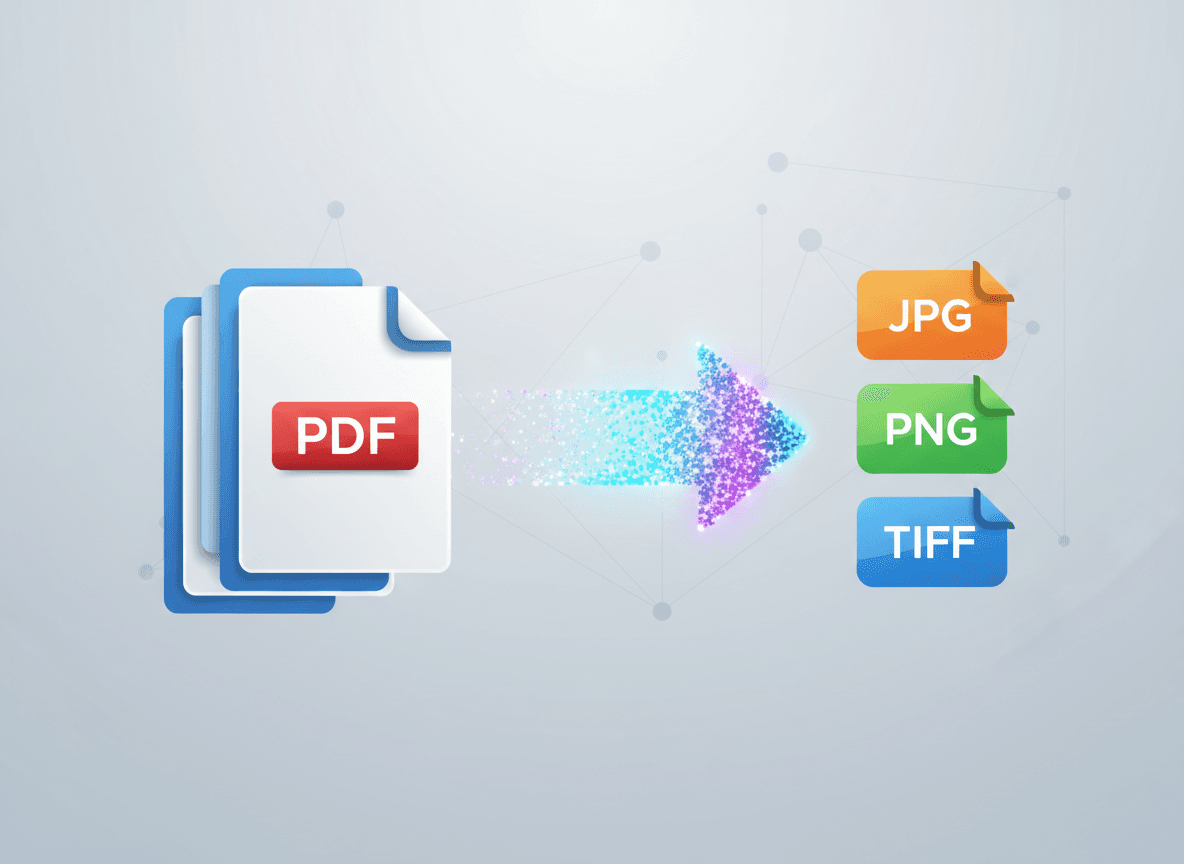
You're looking at a PDF, and there's a perfect diagram, chart, or image you need. You want it as a JPG file—maybe for a presentation, a document, or to share separately. How do you get it out of the PDF?
Our PDF to JPG tool makes extracting images from PDFs simple and reliable. It converts PDF pages to high-quality JPG images, preserving clarity and detail. There are several ways to extract images from PDFs, and our tool is the simplest method that actually works.
Method 1: Use Our PDF to JPG Tool (The Easiest)
If the image fills a page or most of a page, the easiest method is to use our PDF to JPG tool to convert that PDF page to an image.
How to do it:
- Use our [PDF to JPG tool](../pdf-to-jpg)
- Upload your PDF and select the page with your image
- Our tool converts the page to high-quality JPG
- Download and crop the image if needed to remove white space
When it works: When the image is the main content of a page, or when you can crop out other content.
Pros: Simple, fast, high-quality results, works for most situations
Cons: Might include other content on the page that you need to crop
Method 2: Screenshot (The Quick Fix)
For a quick extraction, you can take a screenshot of the image in the PDF.
How to do it:
- Open the PDF
- Zoom in on the image for better quality
- Take a screenshot (Windows: Snipping Tool or Print Screen, Mac: Cmd+Shift+4)
- Save as JPG
When it works: For quick, informal extractions when quality isn't critical.
Pros: Very fast, no tools needed
Cons: Quality depends on screen resolution, might not be high quality
Method 3: Right-Click Extract (If Available)
Some PDF viewers let you right-click on images and extract them directly.
How to do it:
- Open PDF in a viewer that supports this (like Adobe Acrobat)
- Right-click on the image
- Select "Save Image As" or "Extract Image"
- Save as JPG
When it works: When your PDF viewer supports direct image extraction.
Pros: Direct extraction, usually good quality
Cons: Not all PDF viewers support this, only works for embedded images
Method 4: PDF Editor Extraction
PDF editors often have tools to extract images directly.
How to do it:
- Open PDF in a PDF editor (like Adobe Acrobat, PDF Expert)
- Use the image extraction tool
- Select the image
- Export or save as JPG
When it works: When you have PDF editing software available.
Pros: Good quality, works for most images
Cons: Requires PDF editing software
Method 5: Convert and Crop
Convert the PDF page to image, then crop to the specific image you need.
How to do it:
- Convert PDF page to JPG
- Open JPG in image editor
- Crop to the specific image
- Save
When it works: When the image is part of a larger page with other content.
Pros: Gets you exactly what you need
Cons: Extra step of cropping
Quality Considerations
When extracting images, quality matters. Our PDF to JPG tool handles this automatically:
High resolution automatically. Our tool converts at high DPI (300 DPI or higher) for best quality.
No screenshots needed. Our tool provides direct, high-quality conversion—no need for screenshots.
Quality is preserved. Our tool ensures extracted images maintain quality and clarity.
Source quality matters. If the PDF image is low quality, extracted image will reflect that, but our tool preserves what's there.
Best Practices
Here's what I recommend:
For quick extractions: Use our PDF to JPG tool for fast, high-quality results.
For important images: Our PDF to JPG tool uses high resolution automatically, ensuring quality.
For embedded images: Our tool handles all types of images in PDFs, whether embedded or part of page content.
For complex pages: Use our PDF to JPG tool to convert the page, then crop to what you need.
Always check quality: Our tool preserves quality, but always verify the result meets your needs.
Common Issues
Image is blurry:
- Cause: Low resolution conversion or screenshot
- Solution: Use high-resolution conversion settings
Image includes unwanted content:
- Cause: Extracted entire page instead of just image
- Solution: Crop the image after extraction
Can't extract image:
- Cause: Image might be part of page content, not embedded
- Solution: Convert page to image, then crop
File size is huge:
- Cause: Very high resolution
- Solution: Use moderate resolution (200-300 DPI) unless you need very high quality
Getting the Images You Need
Extracting images from PDFs doesn't have to be complicated. Our PDF to JPG tool makes it simple. The easiest approach is using our tool to convert the PDF page to a high-resolution image, then cropping if you only need part of the page. Our tool handles the conversion at high quality automatically.
The method you choose depends on what you need. For important images that will be used professionally, our PDF to JPG tool provides high-quality conversion with proper resolution settings automatically. For quick sharing or casual use, our tool is still the best option—it's fast and produces quality results. Always check the result to make sure the image quality meets your needs.
I've seen people spend hours trying to extract images when our PDF to JPG tool would have worked in seconds. And I've also seen people use low-quality screenshots when they needed high-resolution images. Our tool solves both problems—it's fast and produces high-quality results.
Ready to extract images from your PDF? Try our PDF to JPG tool now and see how easy it is to get high-quality images from your PDFs.