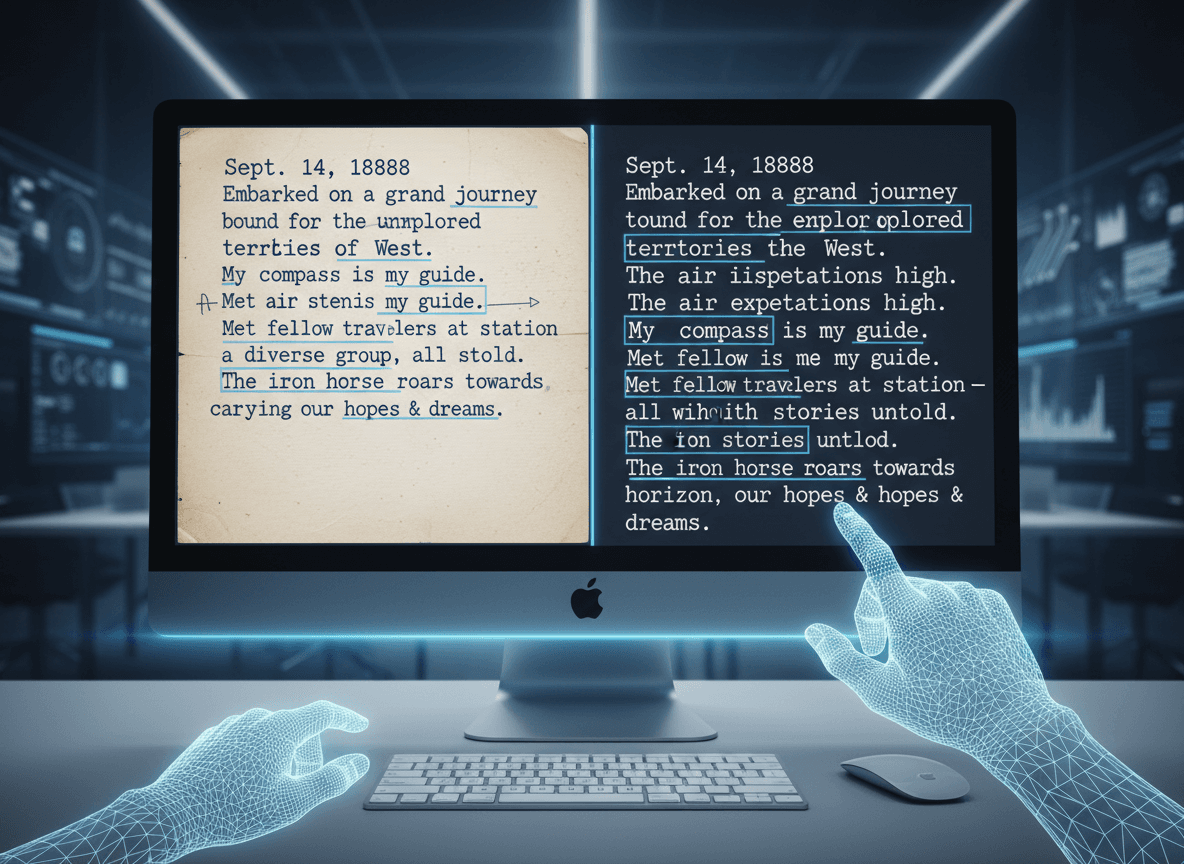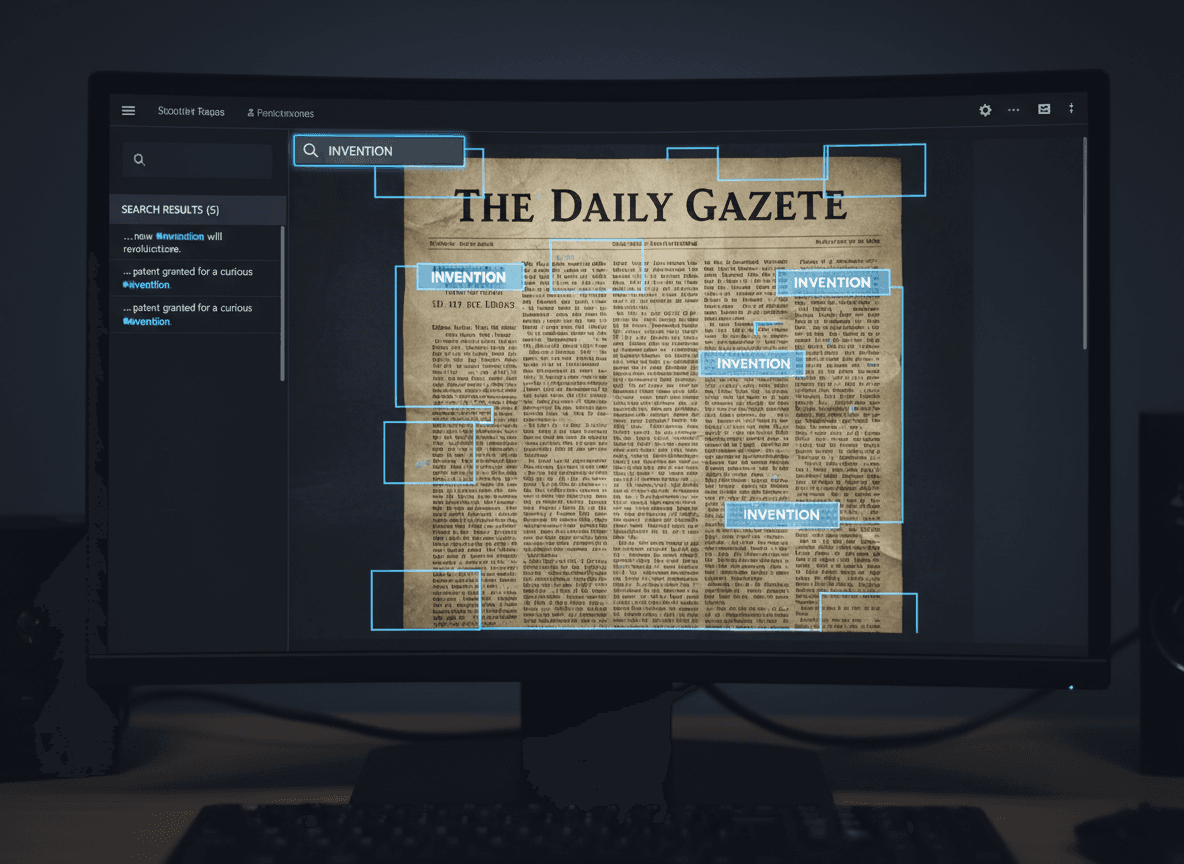
I remember the first time I tried OCR on a document. I scanned an old newspaper article at 150 DPI, ran it through OCR software, and got back complete gibberish. The software thought "the" was "tile" and "and" was "arid." Then I tried our OCR PDF tool with better scan quality, and the results were much better. That experience taught me that OCR accuracy isn't guaranteed—it depends on several factors working together.
OCR technology has come a long way, but it's not magic. Our OCR PDF tool helps you get the best results. The quality of your results directly correlates with the quality of your source material and how you process it. Understanding what influences accuracy helps you get the best possible results from our tool.
The Foundation: Scan Quality Matters Most
Nothing affects OCR accuracy more than scan quality. Low-resolution scans create blurry text that confuses OCR algorithms. I've tested the same document at different resolutions, and the difference is dramatic. A 150 DPI scan might give you 60% accuracy, while the same document at 300 DPI can reach 95% accuracy or higher.
Resolution isn't the only factor. Scan clarity matters too. A high-resolution scan of a blurry original won't help. The text needs to be sharp and well-defined. I always check my scanner settings to ensure I'm getting the best possible image quality. Some scanners have "text mode" or "document mode" settings that optimize for OCR work.
Contrast is crucial. Text needs to stand out clearly from the background. Faded documents, yellowed paper, or low-contrast printing all hurt OCR accuracy. Sometimes adjusting brightness and contrast in your scanning software can help, but there's only so much you can fix in post-processing.
Text Characteristics That Help or Hurt
The type of text on your document significantly impacts OCR results. Standard fonts like Times New Roman, Arial, or Calibri OCR much better than decorative or script fonts. The software is trained on common fonts, so unusual typography confuses it. I've seen OCR struggle with fancy wedding invitation fonts or artistic lettering.
Font size matters too. Very small text is harder for OCR to recognize accurately. If your document has tiny print, you might need higher resolution scanning to capture enough detail. Large, clear text generally OCRs well, but there's a sweet spot—extremely large text doesn't necessarily improve results.
Text spacing and alignment affect results. Well-spaced text with clear line breaks OCRs better than cramped or irregular layouts. Documents with text running in multiple columns or unusual orientations can confuse OCR software. Some tools handle complex layouts better than others.
Handwriting is a completely different challenge. Most standard OCR software struggles with handwriting, even neat printing. Specialized handwriting recognition tools exist, but they're less accurate than text OCR. If you're dealing with handwritten documents, expect lower accuracy rates and plan for more manual correction.
Language and Character Set Considerations
OCR software is typically trained on specific languages and character sets. English OCR is generally most accurate because that's what most software is primarily trained on. Other languages may have lower accuracy rates, especially if they use different character sets or writing systems.
If your documents are in multiple languages, you may need to process them separately or use software that supports multilingual OCR. Some tools can detect language automatically, but manually specifying the language often improves results. I always check language settings before processing a batch of documents.
Special characters, symbols, and mathematical notation can be problematic. OCR software trained on standard text may struggle with equations, chemical formulas, or specialized symbols. These elements often require manual correction regardless of scan quality.
Document Condition and Preparation
The physical condition of your documents affects OCR accuracy. Clean, flat documents scan better than wrinkled, creased, or damaged pages. I always try to flatten documents before scanning. For really old or fragile documents, I use a flatbed scanner instead of a sheet feeder to avoid damage.
Stains, marks, or background patterns can confuse OCR software. Water damage, coffee stains, or background graphics can make text harder to recognize. Sometimes there's nothing you can do about document condition, but being aware of these issues helps set realistic expectations.
Document preparation can help. Removing staples, flattening pages, and cleaning scanner glass all contribute to better scans. These small steps add up to significantly better OCR results. I keep a microfiber cloth and a paperweight on my desk specifically for document prep.
Software Settings and Configuration
Different OCR software has different capabilities and settings. Our OCR PDF tool handles clean, modern documents well. Some tools are better at handling specific document types. I've found that our tool works great for clean, modern documents and handles various document types effectively.
Our OCR PDF tool is optimized for quality. Many OCR tools have quality vs. speed settings. For important documents, always choose quality over speed. The time saved by fast processing isn't worth it if you have to manually correct hundreds of errors.
Language detection settings matter. If your software can't detect the language automatically, manually setting it improves accuracy. Some tools also have settings for document type—newspaper, book, form, etc. These presets optimize the OCR engine for different content types.
Practical Steps to Improve Accuracy
Start with the best possible source. If you have the original document, scan it fresh rather than using an existing digital copy. Each generation of copying or scanning introduces quality loss. If you must work with an existing scan, try to get the highest quality version available.
Use appropriate resolution. For most documents, 300 DPI is the sweet spot. Higher resolution doesn't always help and creates larger files. For documents with very small text, 400 DPI might be worth it. For standard documents, 300 DPI is usually sufficient.
Pre-process images if needed. Some OCR software includes image enhancement tools. Adjusting brightness, contrast, or using despeckle filters can improve results. But be careful—over-processing can actually hurt accuracy. Subtle adjustments work best.
Verify and correct systematically. Don't assume OCR got everything right. Spot-check important documents, and if you find consistent errors, adjust your process. Some errors are predictable—like "rn" being read as "m"—and you can search for these common mistakes.
Setting Realistic Expectations
Perfect OCR accuracy is rare, even with excellent source material. Professional OCR services might achieve 99% accuracy on perfect documents, but real-world documents with varying quality will have lower rates. Aim for 95%+ accuracy on good documents, and be prepared to manually correct the rest.
Some documents will always require significant manual work. Handwritten notes, damaged documents, or unusual fonts may never OCR well. For these, consider whether OCR is worth the effort or if manual transcription makes more sense.
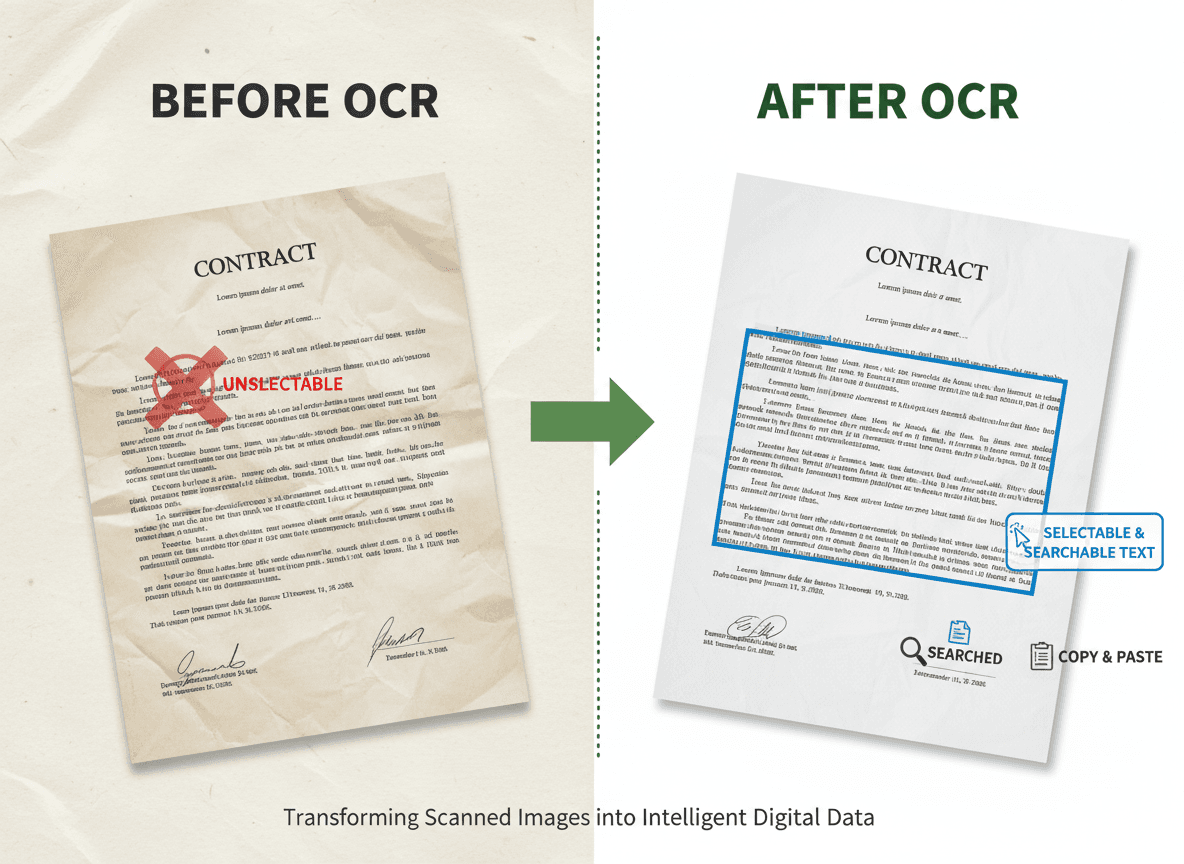
The goal isn't perfection—it's making documents searchable and usable. Even 90% accuracy makes a document much more useful than no OCR at all. You can always improve accuracy over time by correcting errors as you use the documents.
Getting good OCR results is about controlling the factors you can control. Start with quality scans, use our OCR PDF tool with appropriate settings, and verify your results. The effort you put into preparation pays off in accuracy.
Ready to improve your OCR accuracy? Try our OCR PDF tool now and see how it handles your scanned documents with high accuracy.