I had a client send me a 200-page scanned contract. I needed to find a specific clause, but since it was just images, I couldn't search for it. I had to scroll through page after page manually. That's when I used our OCR PDF tool to make it searchable, and it changed how I work with scanned documents forever.
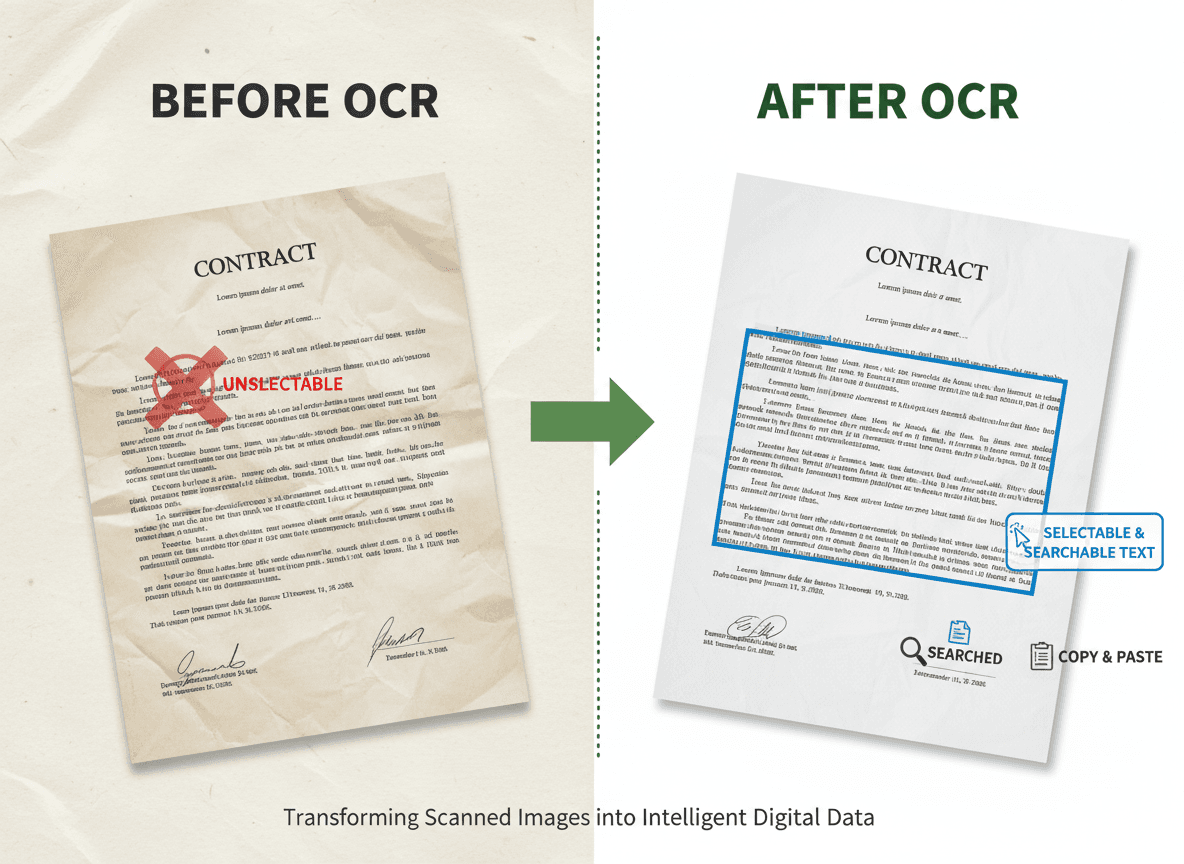
Scanned PDFs are essentially photographs of documents. You can see the text, but your computer can't read it. Our OCR PDF tool bridges that gap by analyzing those images and converting them into actual text that you can search, copy, and work with digitally.
Understanding the OCR Process
OCR software works by analyzing the pixels in an image to identify patterns that represent letters, numbers, and symbols. It's like teaching a computer to read, but instead of learning from examples, it uses pattern recognition algorithms to identify text characters.
The process starts with image preprocessing. The software cleans up the image—removing noise, adjusting contrast, and straightening skewed text. This preparation makes the actual recognition step more accurate. Think of it like cleaning your glasses before trying to read something.
Next comes character recognition. The software analyzes each section of the image, comparing patterns against a database of known characters. It looks for shapes that match letters, numbers, and punctuation marks. Modern OCR uses machine learning, so it gets better at recognizing text patterns over time.
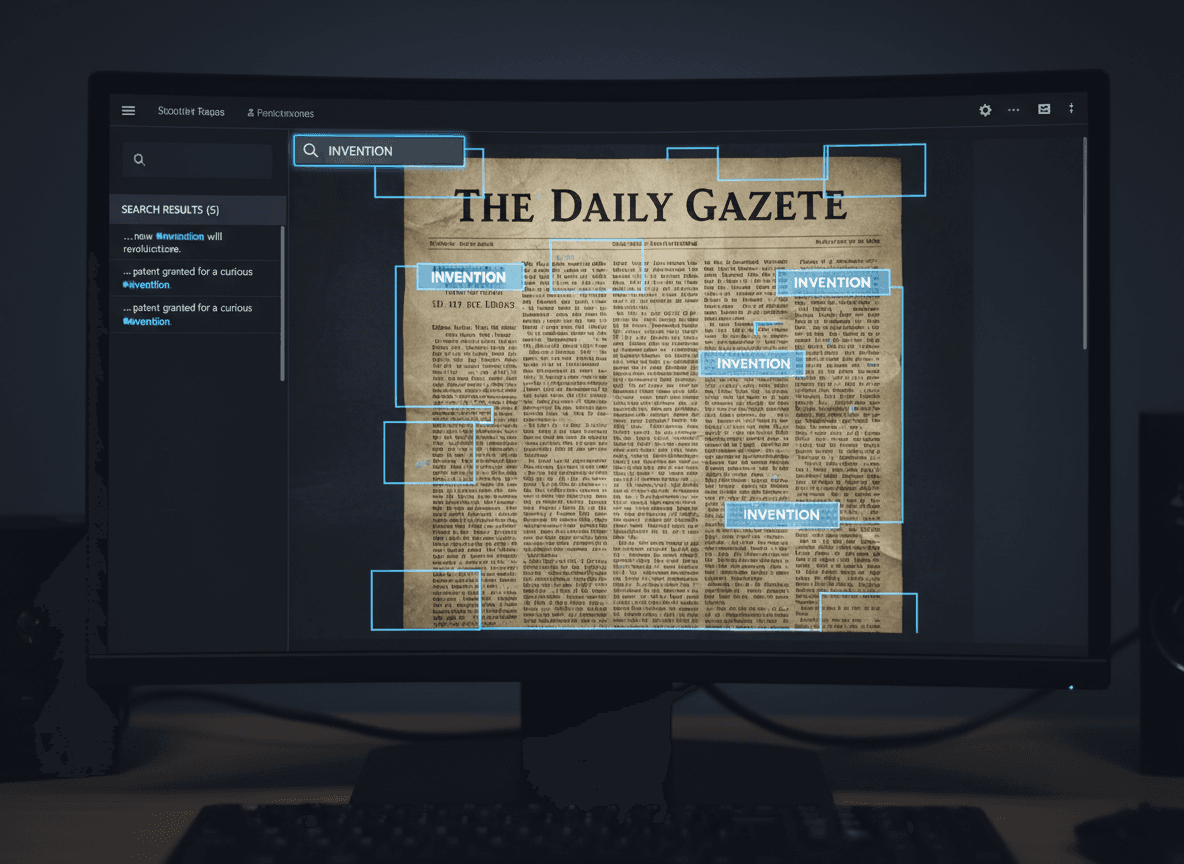
The software then creates a text layer that sits on top of the original image. This text layer is invisible to you, but it makes the document searchable. When you search for a word, the software finds it in this text layer and highlights the corresponding area in the image.
Finally, the software outputs a new PDF that combines the original images with the searchable text layer. You still see the original scanned pages, but now you can search, copy, and select text just like you would with a document that was created digitally.
Why Scanned PDFs Need OCR
Without OCR, scanned PDFs are essentially useless for digital workflows. You can't search them, you can't copy text from them, and you can't extract data programmatically. They're just pictures of documents, which limits how you can use them.
Searchability is the biggest benefit. Once OCR is applied, you can search through hundreds of pages in seconds. Need to find a specific date, name, or term? Just search for it. This transforms how you work with large scanned document collections.
Text selection and copying become possible. You can highlight and copy text from scanned documents, paste it into other applications, or extract it for analysis. This is essential for data entry, research, or creating summaries from scanned materials.
Accessibility improves dramatically. Screen readers can read OCR'd documents to visually impaired users. This makes scanned documents accessible in ways they weren't before, which is important for compliance and inclusion.
The OCR Workflow
Start by preparing your scanned PDF. The better the scan quality, the better the OCR results. High-resolution scans with good contrast produce more accurate text recognition. If you have control over the scanning process, use 300 DPI or higher resolution.
Upload your scanned PDF to our OCR PDF tool. Our tool works through a web interface, so you don't need to install software. It can process multiple pages at once, which speeds up the workflow for large documents.
The processing time varies based on document size and complexity. A single page might take seconds, while a 500-page document could take several minutes. Most tools show progress indicators so you know how long to wait.
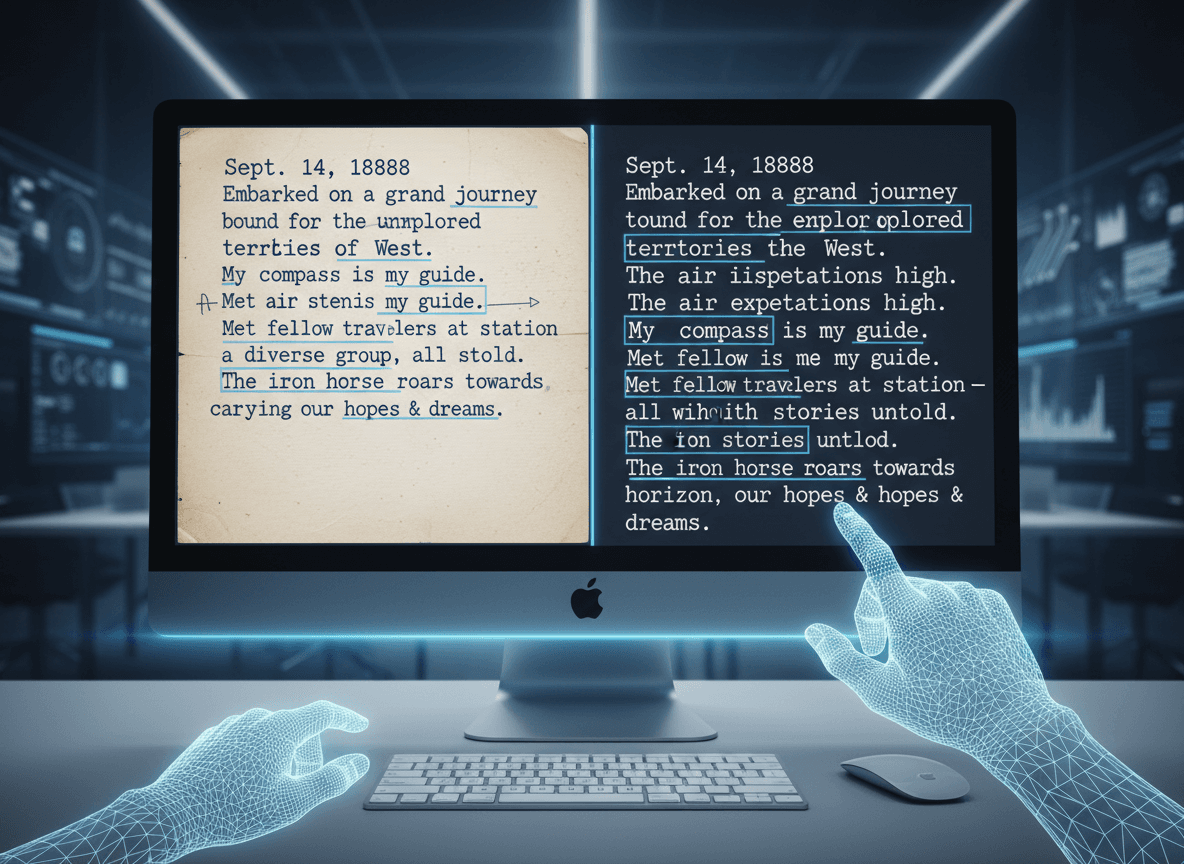
After processing with our OCR PDF tool, review the results. OCR isn't perfect, especially with poor-quality scans or unusual fonts. Check a few pages to verify accuracy. Look for common OCR mistakes like "rn" being read as "m" or "0" being read as "O".
Save your searchable PDF. Our OCR PDF tool lets you download the processed file immediately. Make sure to save it with a clear filename so you can distinguish it from the original scanned version.
Factors That Affect OCR Accuracy
Scan quality is the most important factor. High-resolution scans with good contrast produce the best results. Low-resolution, blurry, or low-contrast scans will have more errors. If you're scanning documents yourself, take time to get good scans.
Font type matters. Standard fonts like Times New Roman or Arial OCR very well. Decorative fonts, script fonts, or unusual typography are harder for OCR software to recognize. The software is trained primarily on common fonts.
Document condition affects results. Clean, flat documents scan better than wrinkled, stained, or damaged pages. If you're working with old documents, do what you can to improve their condition before scanning—flatten pages, clean stains, repair tears if possible.
Language settings are important. OCR software is typically trained on specific languages. If your document is in a language other than English, make sure to select the correct language setting. Some tools support multiple languages, but accuracy may vary.
Common OCR Mistakes and How to Handle Them
OCR software makes predictable mistakes. Numbers and letters that look similar get confused—"0" and "O", "1" and "l", "5" and "S". These errors are common and usually easy to spot when reviewing results.
Context helps identify errors. If OCR reads "the year 2O2O" instead of "2020", you can probably figure out what it should be. But for important documents, you might need to manually correct these errors, especially if the document will be used for legal or business purposes.
Some errors are harder to catch. Words that are misread but still form valid words are particularly tricky. "form" might be read as "farm", and if both words make sense in context, you might not notice the error. This is why reviewing OCR results is important.
For critical documents, consider professional OCR services. These services often include human review and correction, which produces higher accuracy rates. The cost might be worth it for important legal documents, historical archives, or business records.
Making the Most of OCR
OCR transforms scanned documents from static images into dynamic, searchable resources. Once your documents are OCR'd, you can work with them in ways that weren't possible before. This opens up new possibilities for document management, research, and data extraction.
The technology continues to improve. Modern OCR tools are more accurate than they were even a few years ago, and they handle more document types and languages. If you tried OCR in the past and weren't satisfied, it's worth trying again with current tools.
For large document collections, OCR is essential. Manually transcribing hundreds or thousands of pages isn't practical. OCR makes it possible to digitize and search large archives, turning physical document collections into searchable digital resources.
The investment in OCR pays off quickly. The time saved by being able to search documents instead of manually reviewing them makes OCR worthwhile for any significant collection of scanned materials. Our OCR PDF tool makes this process simple. Once your documents are searchable, you'll wonder how you managed without it.
Ready to make your scanned PDFs searchable? Try our OCR PDF tool now and see how easy it is to convert scanned documents into searchable, editable PDFs.