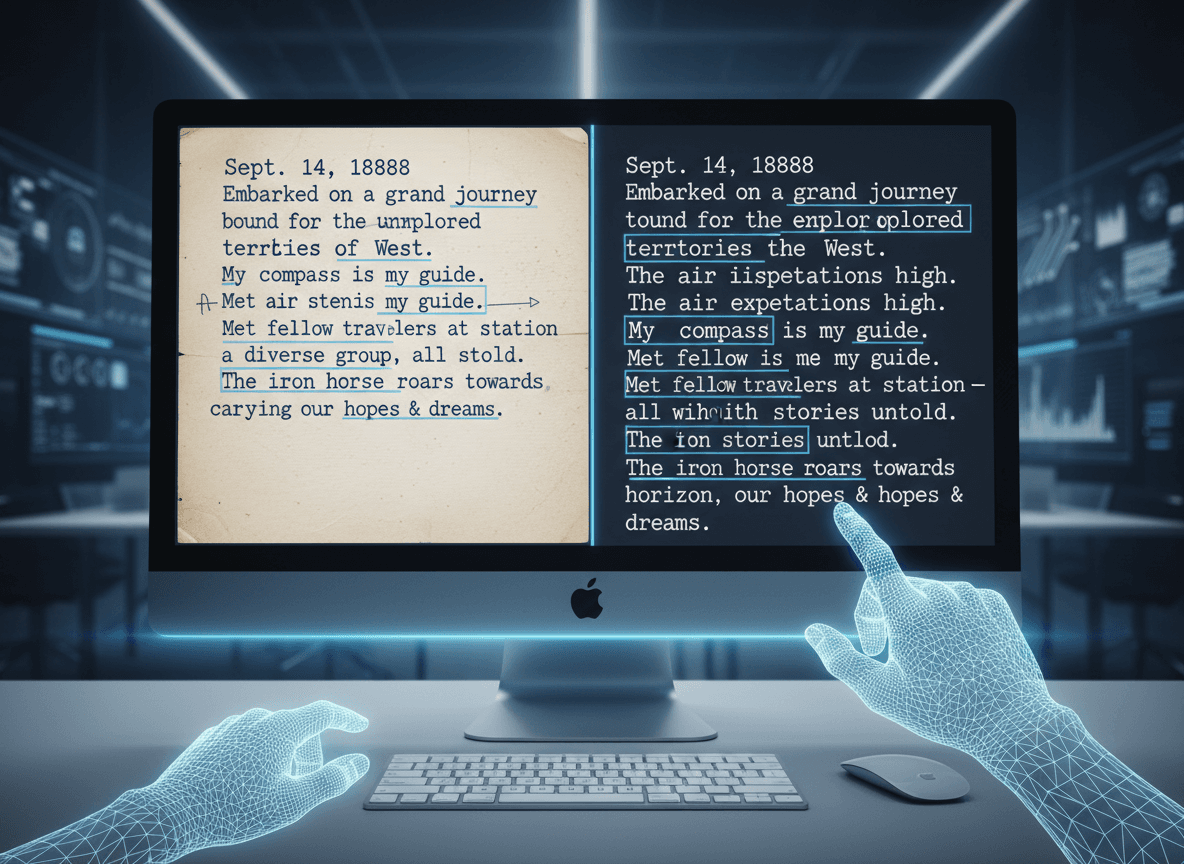
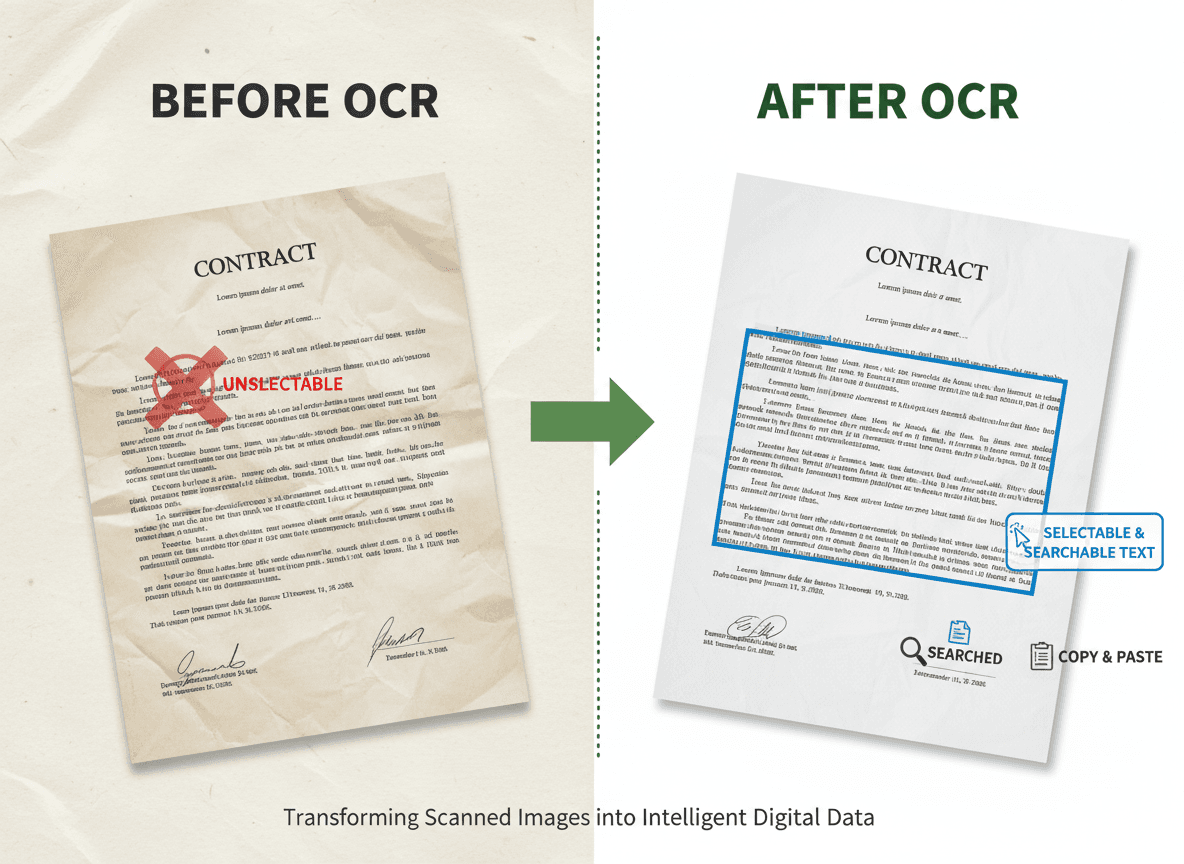
Last year, I helped a friend digitize her grandfather's collection of handwritten letters from World War II. There were hundreds of pages, some yellowed with age, others with fading ink. The thought of typing everything manually seemed impossible. That's when I used our OCR PDF tool to create a proper OCR workflow for digitizing old documents.
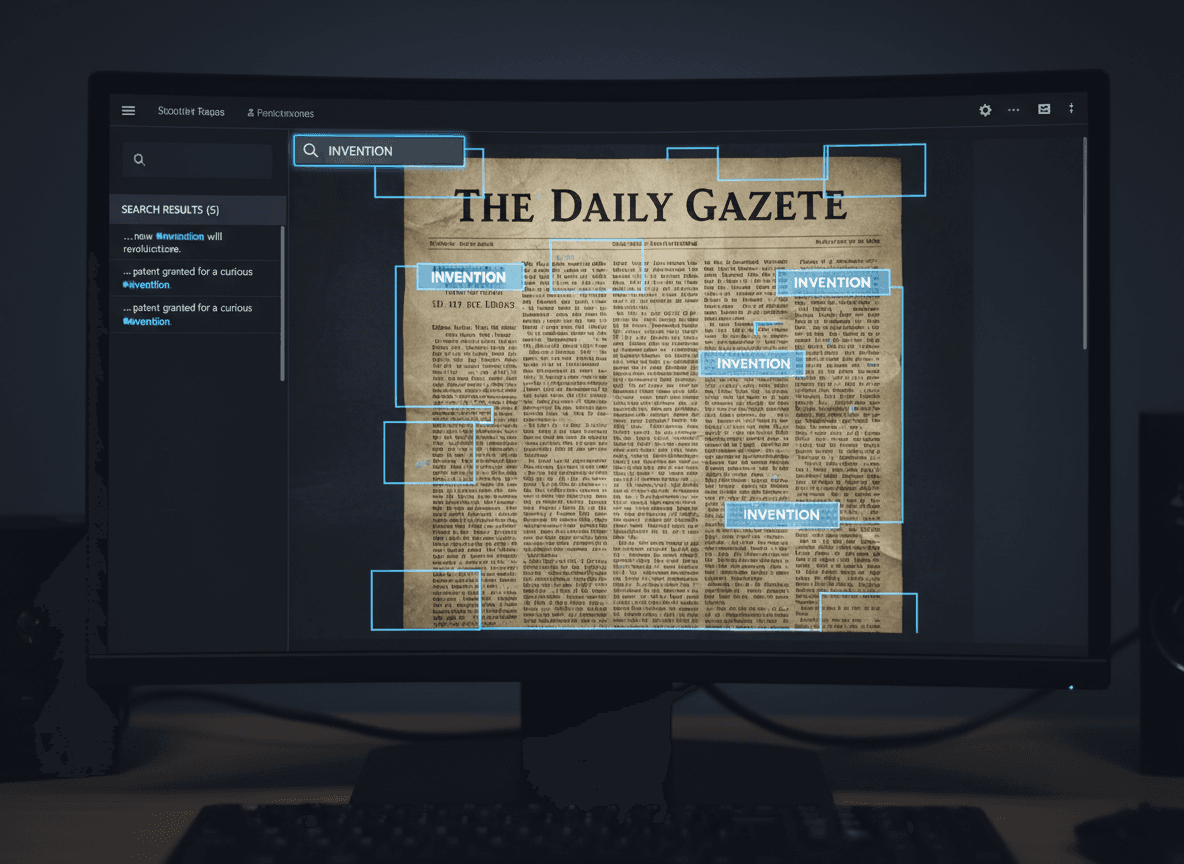
The process isn't just about scanning and running OCR software. Our OCR PDF tool helps you create a system that turns physical documents into searchable, accessible digital files without losing your mind in the process. Whether you're dealing with family archives, business records, or historical documents, the same principles apply.
Starting with Organization
Before you even touch a scanner, take time to organize your documents. I learned this the hard way when I started digitizing without a plan. Documents got mixed up, I lost track of what I'd already processed, and the whole project became chaotic.
Group documents by type, date, or importance. Create a simple numbering system or use folders to keep things separated. If you're working with different document types—letters, receipts, forms—keep them in separate batches. This organization pays off later when you're trying to find specific documents in your digital archive.
Label everything clearly. Even if it seems obvious now, six months from now you'll be grateful for clear labels. Use consistent naming conventions that make sense for your collection. For example, "Letters_1944_001.pdf" tells you exactly what it is.
The Scanning Process
Scanning quality matters more than most people realize. I've seen people rush through scanning, using low resolution to save time, only to discover later that the OCR results are terrible. You can't fix poor scans with better OCR software.
Aim for 300 DPI minimum. For documents with small text or detailed handwriting, 400 DPI isn't overkill. Yes, it takes longer and creates larger files, but the OCR accuracy improvement is worth it. Think of it this way: you're probably only going to scan these documents once. Do it right the first time.
Clean your scanner glass regularly. Dust and smudges create artifacts that confuse OCR software. I keep a microfiber cloth next to my scanner and wipe it down before each batch. It takes ten seconds and prevents hours of cleanup work later.
Handle fragile documents carefully. Old paper can be brittle. If a document is too delicate to go through a sheet feeder, use a flatbed scanner. Take your time. Rushing leads to damaged documents and poor scans.
Processing in Manageable Batches
Don't try to process everything at once. I made this mistake early on, thinking I'd power through an entire collection in one weekend. By Sunday evening, I was exhausted, making mistakes, and the quality of my work had dropped significantly.
Break your project into batches of 20-50 documents. Process one batch completely—scan, OCR, verify—before moving to the next. This approach has several advantages. You can catch problems early and adjust your process. You maintain quality because you're not burned out. And you get a sense of progress as you complete each batch.
Set realistic goals. If you have 500 documents, don't plan to finish in one day. Maybe aim for 50 documents per week. Slow and steady wins this race. The documents have been sitting in boxes for years; another few weeks won't hurt.
Running OCR Effectively
Not all OCR software is created equal. Some tools work better with certain types of documents. Text-based documents usually OCR well with most tools. Handwritten documents need specialized software and even then, results vary.
Choose your OCR tool based on your document types. Our OCR PDF tool works great for printed text. For handwriting, you'll need more advanced options. Test a few documents first before processing everything. Our tool handles printed documents well and can help you digitize your collection.
Language settings matter. If your documents are in multiple languages, you may need to process them separately or use software that supports multiple languages. I've seen people get terrible results because they forgot to set the correct language.
Verification and Quality Control
Always verify your OCR results. Don't assume the software got everything right. I spot-check about 10% of my documents, focusing on the most important ones. If I find consistent errors, I know I need to adjust my process.
Look for common OCR mistakes: "rn" being read as "m", "0" as "O", similar-looking characters being confused. These errors are easy to miss but can completely change the meaning of text. A date like "1940" being read as "I940" might not seem like a big deal, but it breaks searchability.
Create a system for correcting errors. Some documents need manual correction, others are fine as-is. Decide which documents are worth the extra time. Not every document needs to be perfect—sometimes "good enough" really is good enough.
Organizing Your Digital Archive
How you organize your digital files is just as important as how you organize the physical documents. Create a folder structure that makes sense for your needs. I organize by year, then by document type. Others prefer organizing by topic or person.
Use descriptive filenames. "Scan001.pdf" tells you nothing. "Letter_JohnSmith_1944_03_15.pdf" tells you everything. Yes, it's more typing, but you'll thank yourself later when you're searching for specific documents.
Consider adding metadata. Many PDF tools let you add tags, keywords, and descriptions. This metadata makes documents even more searchable. It takes extra time, but for important collections, it's worth it.
Common Pitfalls to Avoid
I've learned from plenty of mistakes. Don't skip the organization step—it seems like wasted time until you're trying to find a specific document in a mess of files. Don't rush the scanning—poor quality scans can't be fixed later. Don't process everything without testing first—you might discover your chosen method doesn't work well for your documents.
Don't forget to back up your work. Digital files can be lost just as easily as physical ones. Keep copies in multiple places. I use cloud storage plus an external hard drive. It might seem paranoid, but I've seen too many people lose years of work to a single hard drive failure.
Making It Manageable
Large digitization projects can feel overwhelming. The key is breaking them into small, manageable pieces. Set aside regular time—maybe an hour every weekend—rather than trying to do everything at once. Consistency beats intensity for this kind of work.
Track your progress. There's something satisfying about watching your progress grow. I keep a simple spreadsheet tracking how many documents I've processed. It helps maintain momentum when the project feels endless.
Remember why you're doing this. Whether it's preserving family history, organizing business records, or making documents accessible, keep the end goal in mind. The work is tedious, but the result—a searchable, accessible digital archive—is worth it.
The workflow I've developed works for collections of any size. Start organized, scan with quality in mind, use our OCR PDF tool to process in batches, verify your results, and maintain good digital organization. It's not glamorous work, but it's effective. And when you're done, you'll have transformed a pile of old papers into a valuable digital resource.
Ready to digitize your old documents? Try our OCR PDF tool now and see how easy it is to make your scanned documents searchable and accessible.