You've got a collection of photos to convert to PDF. Some are landscape (wide), some are portrait (tall), some are square. They're all different sizes. You convert them, and the PDF looks weird—some images are tiny, some are huge, some are cropped, and nothing looks right.
Mixing different image sizes in one PDF is tricky. PDFs have standard page sizes (like letter or A4), and images with different orientations and sizes don't always fit well. Our JPG to PDF tool handles this intelligently, fitting images properly while preserving quality. Let me explain what happens and how our tool handles it.
What Happens When You Mix Sizes
When you convert images of different sizes to PDF, several things can happen:
Automatic Fitting
Many PDF tools automatically fit images to pages. This can cause problems:
Landscape images on portrait pages: Wide images get shrunk to fit, leaving lots of white space, or they get cropped.
Portrait images on landscape pages: Tall images get shrunk or cropped awkwardly.
Square images: Square images don't fit standard page proportions well, creating awkward spacing.
Different sizes: Images of different sizes end up at different scales, making the PDF look inconsistent.
Page Size Issues
PDFs use standard page sizes (usually letter or A4). Images that don't match these proportions create problems:
White space: Images that don't fill the page leave white space, which can look unprofessional.
Cropping: Some tools crop images to fit pages, cutting off important parts.
Scaling: Images get scaled to fit, which can make some look tiny and others look huge.
Inconsistency: Different handling of different images makes the PDF look messy.
How Our JPG to PDF Tool Handles It
Our JPG to PDF tool handles mixed image sizes intelligently:
Automatic Handling
What our tool does: Automatically fits each image to pages while preserving quality and proportions.
Result: Images are handled properly, maintaining their appearance while fitting pages appropriately.
Works for all sizes: Our tool handles images of different sizes and orientations efficiently.
Quality preserved: Regardless of size differences, our tool preserves image quality.
Intelligent Layout
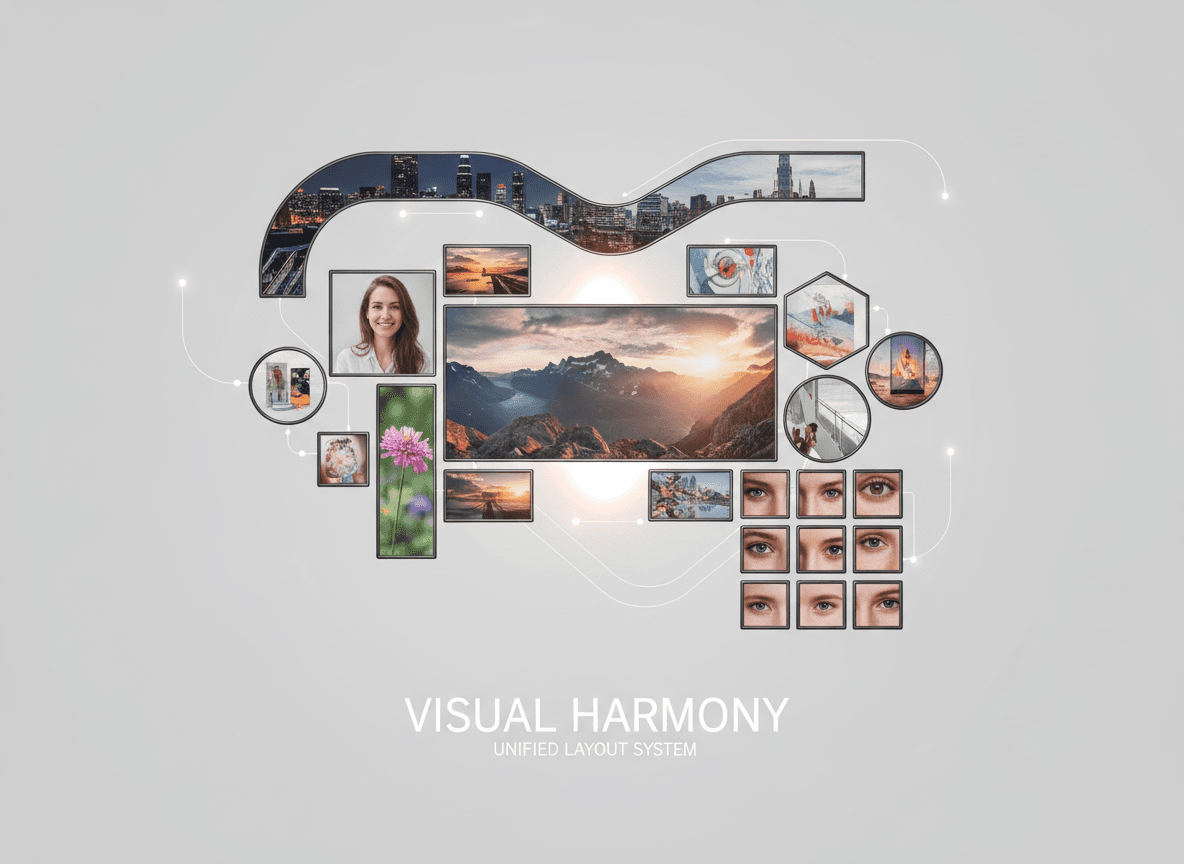
What our tool does: Creates appropriate layouts for different image sizes and orientations.
Result: Images are arranged properly, with each image displayed at appropriate size.
No manual work needed: Our tool handles layout automatically, so you don't need to arrange images manually.
Professional result: The PDF looks professional, even with mixed image sizes.
Quality First
What our tool does: Prioritizes image quality while handling different sizes.
Result: All images maintain their quality, regardless of size differences.
Consistent quality: Every image in your PDF maintains its sharpness and clarity.
How Our Tool Solves This
Our JPG to PDF tool handles mixed image sizes automatically:
Automatic Handling
Our tool handles different sizes automatically. No need to resize images before converting.
How it works:
- Upload images of any size or orientation
- Our tool handles them intelligently
- Each image is displayed properly in the PDF
- Quality is preserved for all images
Pros: No pre-processing needed, professional result
Cons: None—our tool handles it automatically
Quality Preservation
Our tool preserves quality regardless of size differences. All images maintain their sharpness.
How it works:
- Our tool preserves original image quality
- Different sizes don't affect quality
- Each image looks sharp and clear
Pros: Quality is maintained for all images
Cons: None—quality is automatic
Professional Result
Our tool creates professional PDFs even with mixed sizes. The result looks polished.
How it works:
- Our tool arranges images appropriately
- Layout looks professional
- Images are displayed at proper sizes
Pros: Professional appearance, no manual work
Cons: None—our tool handles it all
Best Practices
Here's what I recommend with our tool:
For Professional Documents
Use our JPG to PDF tool. Our JPG to PDF tool handles different sizes automatically, creating professional results.
No pre-processing needed. Our tool handles mixed sizes intelligently, so you don't need to standardize images first.
For Casual Sharing
Our tool works perfectly. Our JPG to PDF tool handles automatic conversion efficiently, even with mixed sizes.
Quality is maintained. Our tool preserves quality regardless of size differences.
For Portfolios
Our tool creates professional portfolios. Our JPG to PDF tool handles different image sizes while maintaining a professional appearance.
Consistent quality. All images maintain their quality, creating a polished portfolio.
What to Expect
When mixing different image sizes, expect:
Some white space. Images that don't match page proportions will have white space.
Different scales. Images will appear at different sizes relative to each other.
Possible cropping. Some tools might crop images to fit pages.
Mixed orientations. If using orientation-aware tools, you'll have mixed page orientations.
Inconsistent appearance. The PDF won't look as polished as one with consistent image sizes.
Handling Mixed Image Sizes
I've converted hundreds of image collections to PDF, and here's what always happens: mixing different image sizes creates challenges. Images don't fit standard page sizes well, leading to white space, cropping, or inconsistent scaling. The result looks unprofessional.
The best solution is to use our JPG to PDF tool. Our tool handles different image sizes automatically, creating professional PDFs without requiring you to standardize images first. No need to resize or crop—our tool handles it intelligently.
For professional documents or portfolios, our JPG to PDF tool creates polished results. I've seen portfolios where someone just converted a bunch of different-sized images with basic tools, and it looked messy. With our tool, the result looks professional, even with mixed sizes.
The key is using the right tool. Our JPG to PDF tool understands that PDFs work best when images are handled properly, regardless of size differences. Our tool handles mixed sizes intelligently, creating professional PDFs that look polished.
Ready to convert your mixed-size images? Try our JPG to PDF tool now and see how it handles different sizes while maintaining quality and creating professional results.