I needed to update a contract PDF last month, but the original Word document was on a computer that had crashed. All I had was the PDF. I used our Edit PDF tool to make the edits, and it made the process much easier. That experience taught me that editing PDFs without source files is possible with the right tool.
The reality is that PDFs weren't designed for editing. They're meant to preserve documents exactly as they appear, not to be modified easily. Our Edit PDF tool makes editing without source files much easier. When you don't have the source file, you're working against the format's fundamental design, but our tool helps. Understanding what's possible and what isn't helps you choose the right approach and set realistic expectations.
What You Can Actually Do
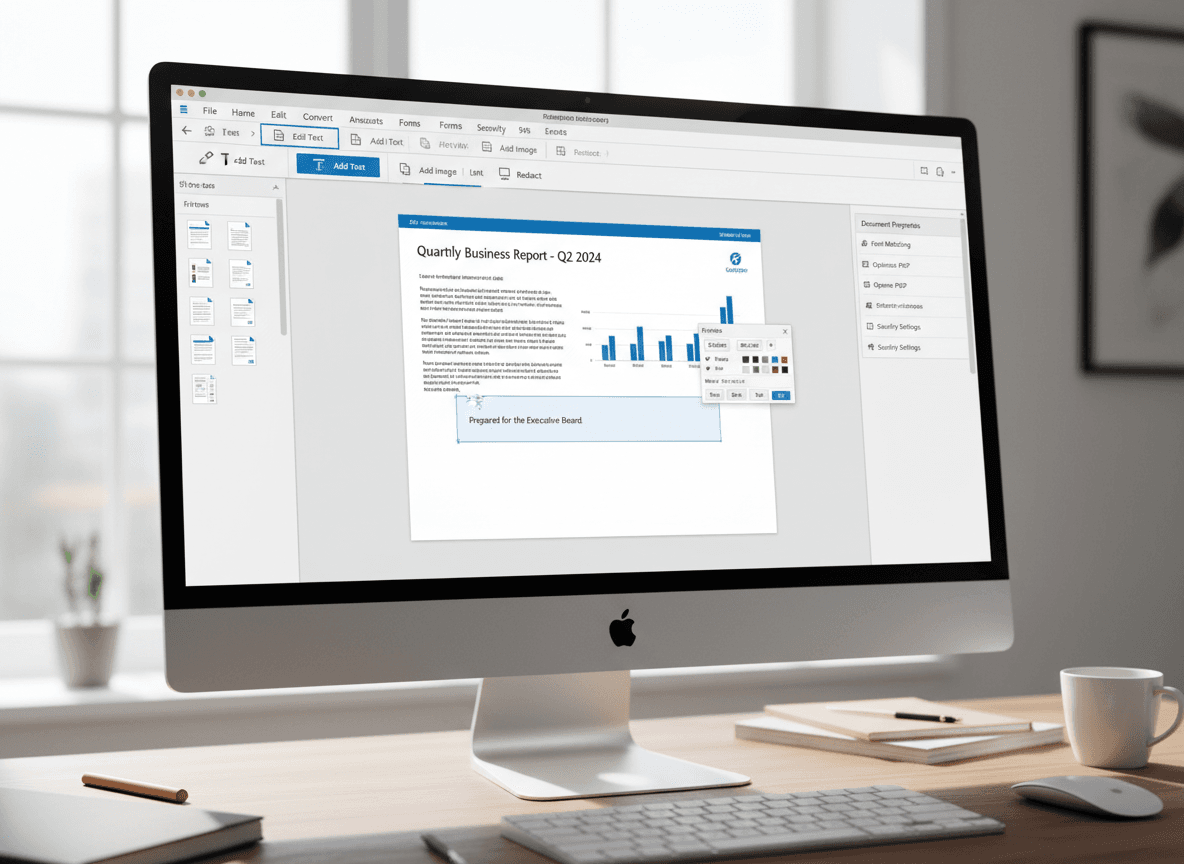
Text editing is possible but limited. You can change existing text, but the results depend on how the PDF was created. Some PDFs have text stored as actual text, which you can edit directly. Others have text stored as images or graphics, which you can't edit as text—you'd need to replace the entire image.
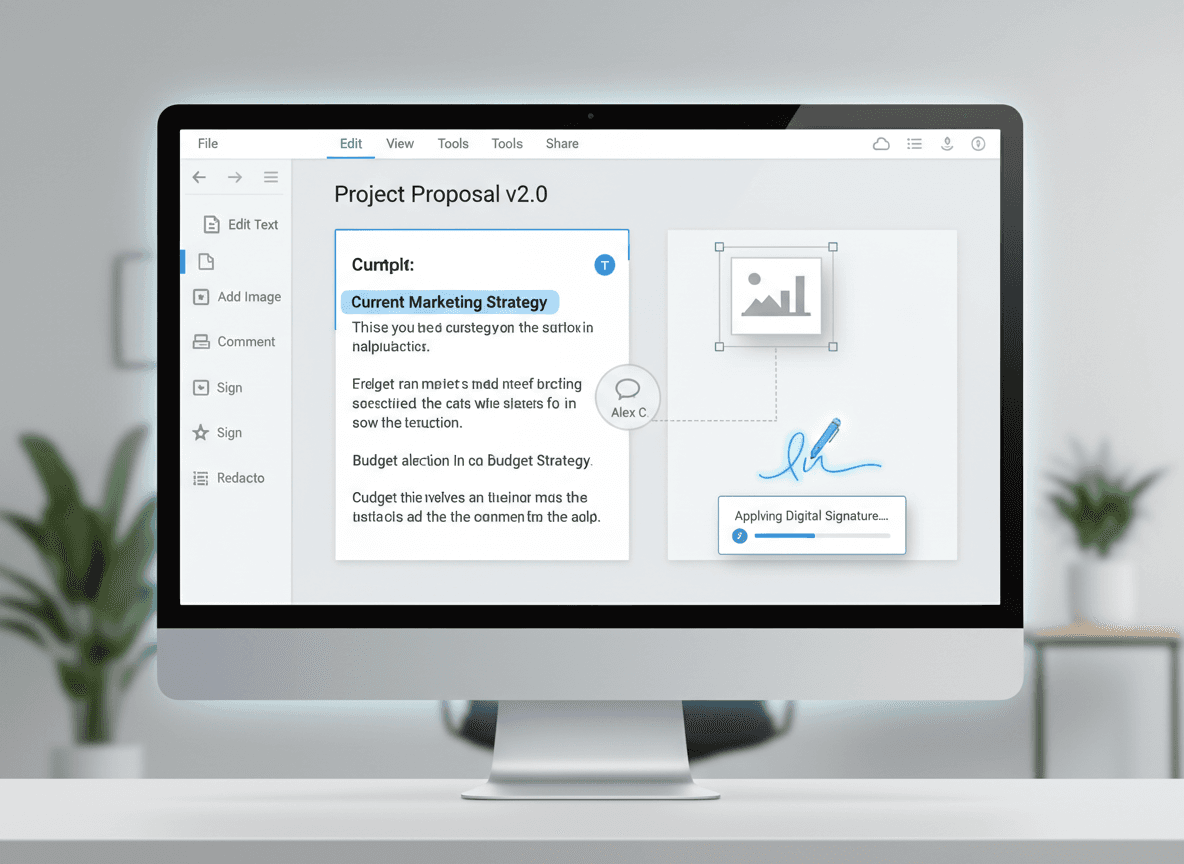
Adding new text works reasonably well with proper PDF editing tools. You can insert text anywhere in the document, matching fonts and formatting as closely as possible. The challenge is making added text look integrated rather than obviously added later. This requires careful font matching and alignment.
Images are relatively easy to work with. You can add new images, replace existing ones, or remove images entirely. Since images are separate objects in PDFs, they're more independent than text and easier to manipulate without affecting other content.
Page manipulation is straightforward. You can add new pages (from other PDFs or as blank pages), delete pages, or reorder them. This is one of the easiest types of editing to do without source files because pages are discrete units that can be moved around independently.
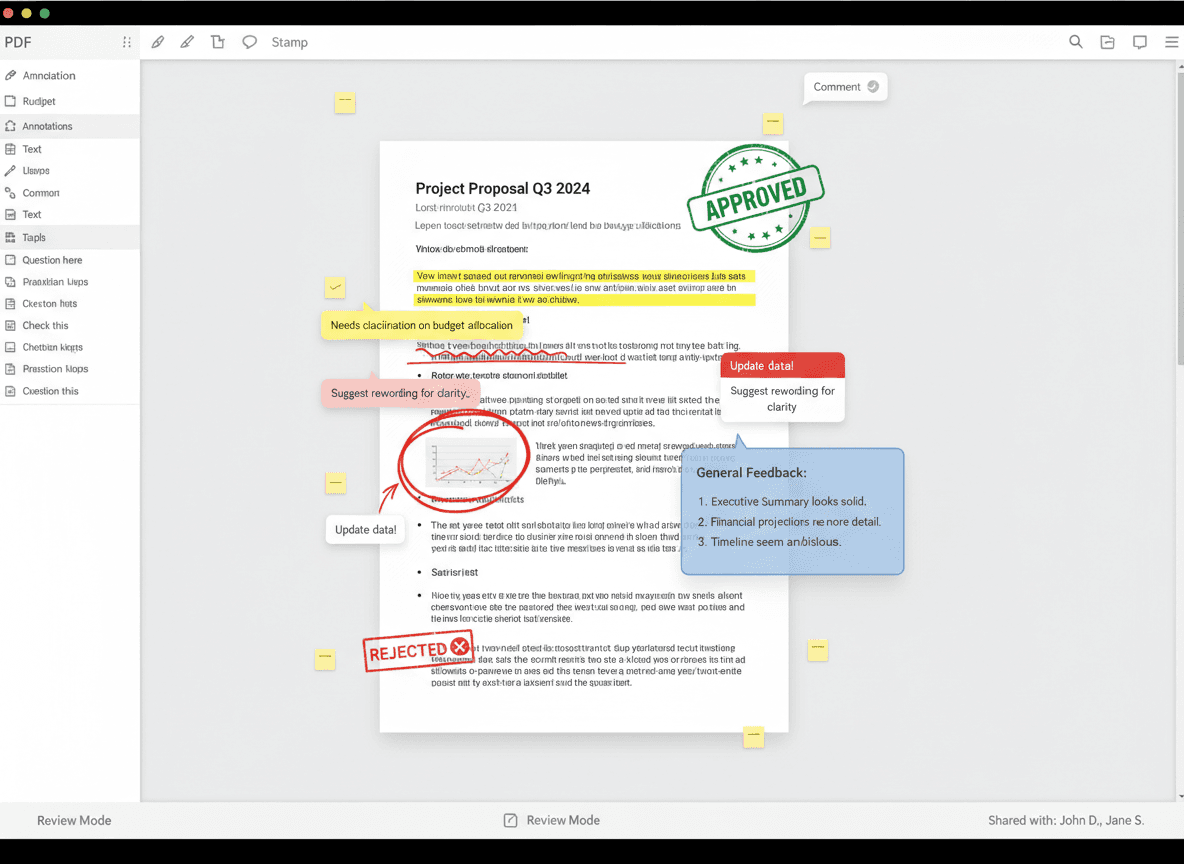
Annotations don't require source files at all. You can add comments, highlights, notes, and markup to any PDF. For review and collaboration purposes, annotations might be sufficient even when you can't make direct edits to the content.
Form fields can be filled out regardless of whether you have source files. If a PDF contains form fields, you can fill them in using any PDF viewer. You just can't modify the form structure itself without the source file.
What Becomes Difficult
Complex formatting is hard to edit without breaking things. PDFs use fixed positioning—every element has exact coordinates. When you edit text, you might change its length, which can break layouts. Text might overflow its container, overlap other content, or disrupt page flow. Simple documents handle this better than complex layouts with multiple columns, tables, or intricate designs.
Font matching is challenging. PDFs might use fonts that aren't installed on your computer. Even if you can identify the font, you might not have access to it. PDF editing tools often substitute fonts, which can look different from the original. Getting an exact match requires having the same fonts available, which isn't always possible.
Tables are particularly problematic. Editing text within table cells can break the table structure. Cells might resize incorrectly, borders might shift, or the entire table layout might collapse. Tables in PDFs are essentially graphics with text overlaid, not true table structures, which makes them fragile when edited.
Complex graphics are difficult to modify. If a PDF contains vector graphics, charts, or diagrams, you generally can't edit them directly. You'd need to replace the entire graphic, which requires having a replacement ready. Simple graphics might be editable, but complex ones usually aren't.
Flowing text doesn't exist in PDFs. In word processors, when you edit text, it reflows to fit the page. PDFs don't work that way—text has fixed positions. If you make text longer, it doesn't automatically wrap or move to the next page. You have to manually adjust positioning, which is tedious and error-prone.
Practical Approaches
Using dedicated PDF editors gives you the best results. Basic PDF viewers might let you add text or annotations, but they lack the tools needed for serious editing. Professional PDF editors provide font matching, alignment tools, and formatting options that make editing more successful.
Converting to Word is a viable option for complex edits. PDF to Word conversion tools can extract text and attempt to preserve formatting. You edit in Word (which is designed for editing), then convert back to PDF. The trade-off is that formatting often gets affected—layouts might shift, fonts might change, and complex elements might not convert perfectly. But for substantial edits, this might be worth it.
Accepting limitations is sometimes the best approach. If you only need minor changes, work within PDF editing capabilities. If you need major restructuring, you might need to recreate the document or find the source file. Fighting against PDF limitations wastes time and produces poor results.
Using annotations might be sufficient. If you're providing feedback or suggestions rather than making final edits, annotations work well. They let you communicate what needs to change without actually modifying the document. The recipient can then make changes using source files if available.
The Conversion Trade-off
PDF to Word conversion gives you better editing capabilities but risks formatting loss. The conversion process tries to interpret the PDF's layout and recreate it in Word, but it's not perfect. Simple documents convert well; complex ones often have issues.
After conversion, you can edit freely in Word, taking advantage of its editing features. Text flows properly, formatting is easier to adjust, and you have access to Word's full editing toolkit. This is much easier than trying to edit in PDF.
Converting back to PDF after editing restores the PDF format but might introduce new formatting issues. The round-trip conversion (PDF → Word → PDF) can compound formatting problems. Each conversion is an interpretation, and interpretations can introduce errors.
For documents where formatting precision matters, the conversion approach might not be suitable. Legal documents, official forms, or documents with specific layout requirements might need to stay in PDF format, limiting your editing options.
Knowing When to Use Each Approach
Simple text edits are best done in PDF. If you just need to fix a typo, change a date, or make minor corrections, PDF editing tools can handle this. The formatting stays intact, and the process is straightforward.
Complex edits require conversion. If you need to restructure content, change layouts, or make extensive modifications, converting to Word gives you the tools you need. Accept that formatting might need adjustment, but you'll be able to make the changes.
When formatting is critical, consider recreating. If a document has very specific formatting requirements and conversion would damage it, recreating from scratch might be faster than trying to edit or convert. This is especially true for documents with complex layouts or design elements.
Annotations work for collaboration. When multiple people need to provide input, annotations let everyone contribute without modifying the document. The document owner can then incorporate feedback using source files if available.
Editing PDFs without source files is a compromise. You can make some edits, but not all edits. Our Edit PDF tool makes this much easier. The key is understanding the limitations, choosing the right approach for your needs, and accepting that results might not be perfect. Sometimes the best solution is finding the source file or recreating the document, but when that's not possible, our tool helps you work within PDF limitations.
Ready to edit your PDF without the source file? Try our Edit PDF tool now and see how easy it is to make edits to your PDFs.