I needed to add a correction to a contract PDF last week. I used our Edit PDF tool to add the correction properly—matching fonts, aligning correctly, and making it look professional. When the client received it, they couldn't tell it was added later. That experience taught me there's a right way and a wrong way to add text to PDFs.
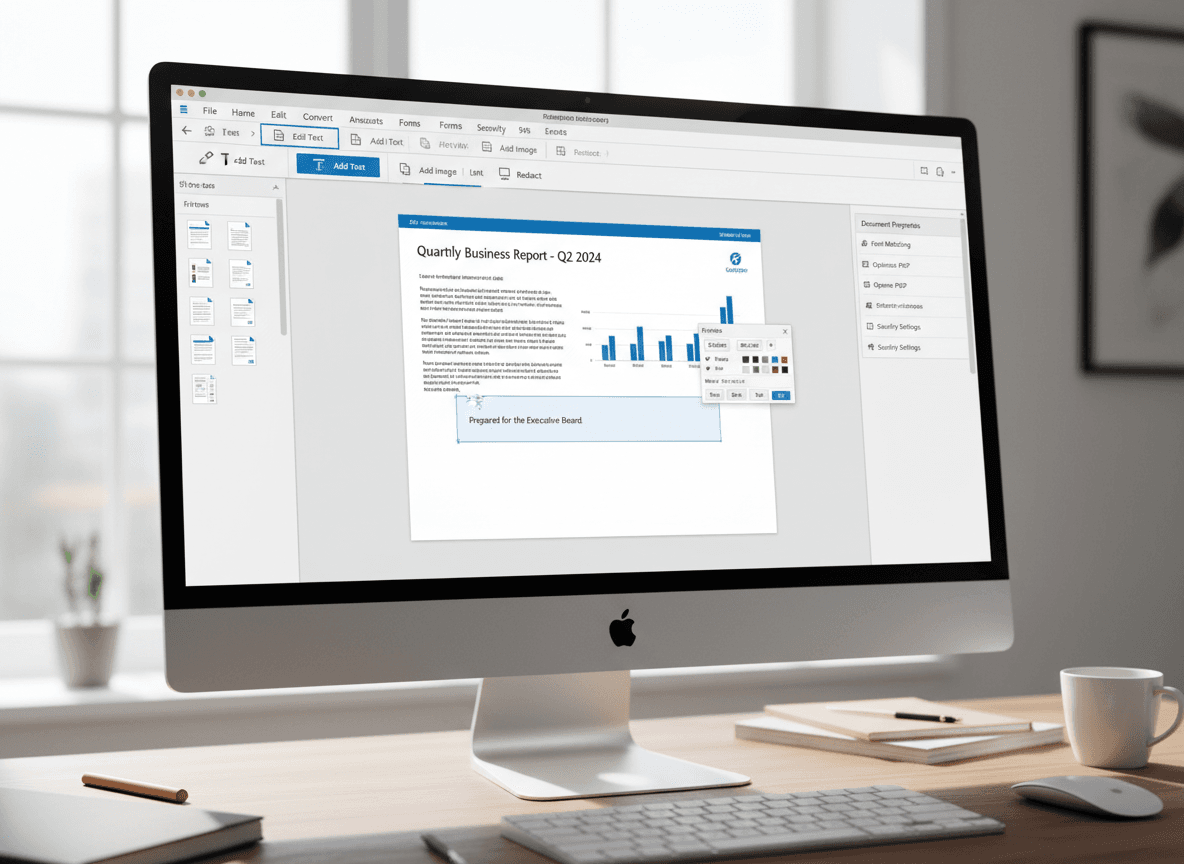
Our Edit PDF tool makes adding text to PDFs simple and professional. Adding text to a PDF seems simple, but doing it well requires attention to detail. The difference between professional-looking additions and amateur ones comes down to matching fonts, proper alignment, and making the new text look like it was always part of the document. Our tool helps you achieve this.
The Professional Approach
Font matching is crucial. When you add text to a PDF, you need to identify what font the existing text uses. Most PDF editing tools can show you font information for existing text. Match not just the font family (like Arial or Times New Roman) but also the size, weight (bold, regular), and style (italic, normal). Even small differences are noticeable.
Proper alignment makes added text look integrated. Text should align with margins, baselines, and surrounding content. If existing text is left-aligned with a specific margin, your added text should match that alignment exactly. Misaligned text immediately looks added, even if the font matches perfectly.
Color consistency matters. Most documents use black text, but if the existing text uses a specific color (like dark gray or a brand color), match it. Don't use bright colors or colors that clash with the document's design. The goal is for added text to be invisible as an addition—it should look like it was always there.
Positioning requires thought. Place added text where it logically belongs in the document flow. If you're adding a sentence, it should flow naturally with surrounding sentences. If you're adding a note or correction, position it clearly but unobtrusively. Awkward positioning makes additions obvious.
Professional appearance comes from attention to all these details. When font, alignment, color, and positioning all match the existing document, added text blends seamlessly. The reader shouldn't be able to tell what was added and what was original.
Common Mistakes
Using wrong fonts is the most obvious mistake. People often use whatever default font their PDF editor provides, which rarely matches the document. This creates an immediate visual disconnect that screams "this was added later." Taking time to identify and match the existing font is essential.
Poor alignment is equally noticeable. Text that doesn't align with margins or baselines looks sloppy. Even if the font matches, misaligned text stands out. Many people don't realize how sensitive the human eye is to alignment—even small misalignments are immediately noticeable.
Inappropriate colors are distracting. Using bright red or blue text in a document that's otherwise black creates visual noise. The color draws attention to itself, which is usually not what you want. Match the existing color scheme unless you have a specific reason to highlight the addition.
Bad positioning makes additions look like afterthoughts. Text placed in awkward locations, overlapping existing content, or floating in white space looks unprofessional. Consider the document's layout and flow when positioning additions.
Obvious additions defeat the purpose. If your goal is to make the document look polished and professional, additions that are clearly visible as additions undermine that goal. The best additions are invisible—they look like they were always part of the document.
Tools and Techniques
Use proper PDF editing tools, not basic viewers. Basic PDF viewers might let you add text, but they lack the features needed to do it well. Professional PDF editors provide font matching tools, alignment guides, and formatting options that make professional additions possible.
Font identification tools are essential. Good PDF editors can show you the font properties of existing text, making it easy to match. Some tools even let you sample text to automatically match its font properties. This saves time and ensures accuracy.
Alignment guides help position text correctly. Many PDF editors show alignment guides when you're positioning text, helping you align with margins, baselines, and other elements. These visual aids make proper alignment much easier than trying to align by eye.
Formatting options matter. Beyond font matching, you need control over spacing, line height, and other formatting properties. These details contribute to making added text look integrated. Basic tools often lack these options, which is why they produce amateur-looking results.
The Process
Start by examining the existing text. Use your PDF editor's tools to identify the font family, size, weight, and color of text near where you want to add content. Note these properties so you can match them exactly.
Set up your text tool with the correct properties before typing. Configure font, size, color, and alignment to match the existing text. This ensures everything you type will match from the start, rather than trying to fix it afterward.
Type your addition, paying attention to alignment as you go. Use alignment guides if available, and check that your text aligns with surrounding content. Don't just place it roughly—take time to get the alignment right.
Review the addition in context. After adding text, zoom out and look at how it fits with the surrounding content. Does it look integrated, or does it stand out? If it stands out, adjust font, alignment, or positioning until it blends seamlessly.
Test the final appearance. View the PDF as it will appear to others. Sometimes text looks fine while you're editing but stands out when viewing the final document. Make final adjustments based on how it looks in the final view.
When Professional Appearance Matters
For client-facing documents, professional appearance is essential. Contracts, reports, proposals, and other documents that represent you or your organization need to look polished. Amateur-looking additions undermine credibility and professionalism.
Legal and business documents require precision. In contexts where document integrity matters, additions that look unprofessional can raise questions about the document's authenticity or your attention to detail. Professional appearance supports document credibility.
Collaborative documents benefit from seamless additions. When multiple people are working on a document, additions that blend seamlessly create a cohesive final product. Obvious additions make documents look pieced together rather than intentionally designed.
The time investment in doing it right is minimal compared to the impact. Spending a few extra minutes to match fonts and align properly creates a professional result. The alternative—quick additions that look amateur—can undermine an otherwise professional document.
Adding text to PDFs professionally is about attention to detail. Our Edit PDF tool helps you achieve this. Match fonts exactly, align properly, use appropriate colors, and position thoughtfully. When all these elements come together, added text becomes invisible as an addition—it simply looks like part of the original document. That's the mark of professional PDF editing.
Ready to add text to your PDF professionally? Try our Edit PDF tool now and see how easy it is to add text that looks like it was always part of the document.