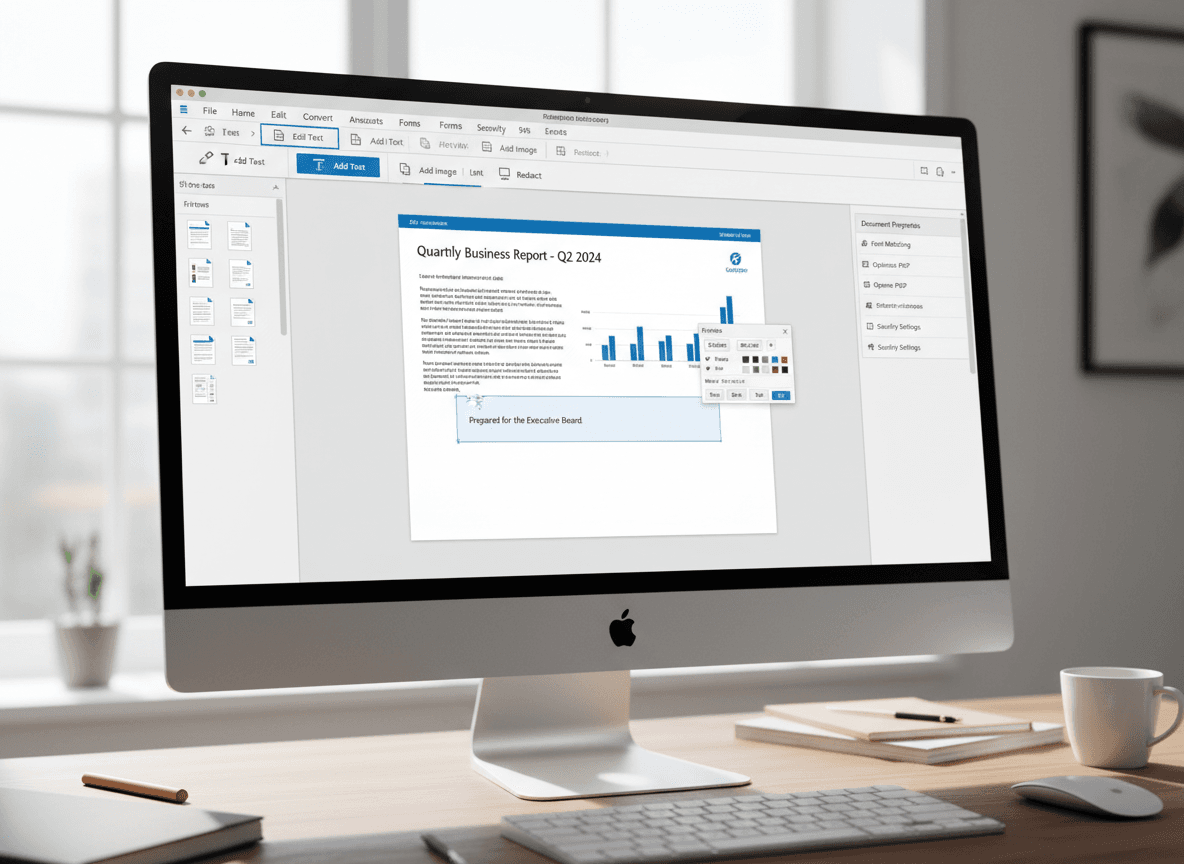
I was reviewing a 50-page contract last month, and I needed to provide detailed feedback. Instead of writing a separate document explaining all the changes, I used our Edit PDF tool to add annotations directly on the document. The client could see exactly what I was referring to, and the review process was much smoother. That experience showed me how powerful proper annotation can be.
Annotating PDFs for review has become the standard way to provide feedback on documents. Our Edit PDF tool makes this easy. Whether you're reviewing contracts, editing manuscripts, or collaborating on reports, annotations let you communicate clearly and efficiently. The key is knowing which annotation types to use and how to use them effectively with our tool.
Understanding Annotation Types
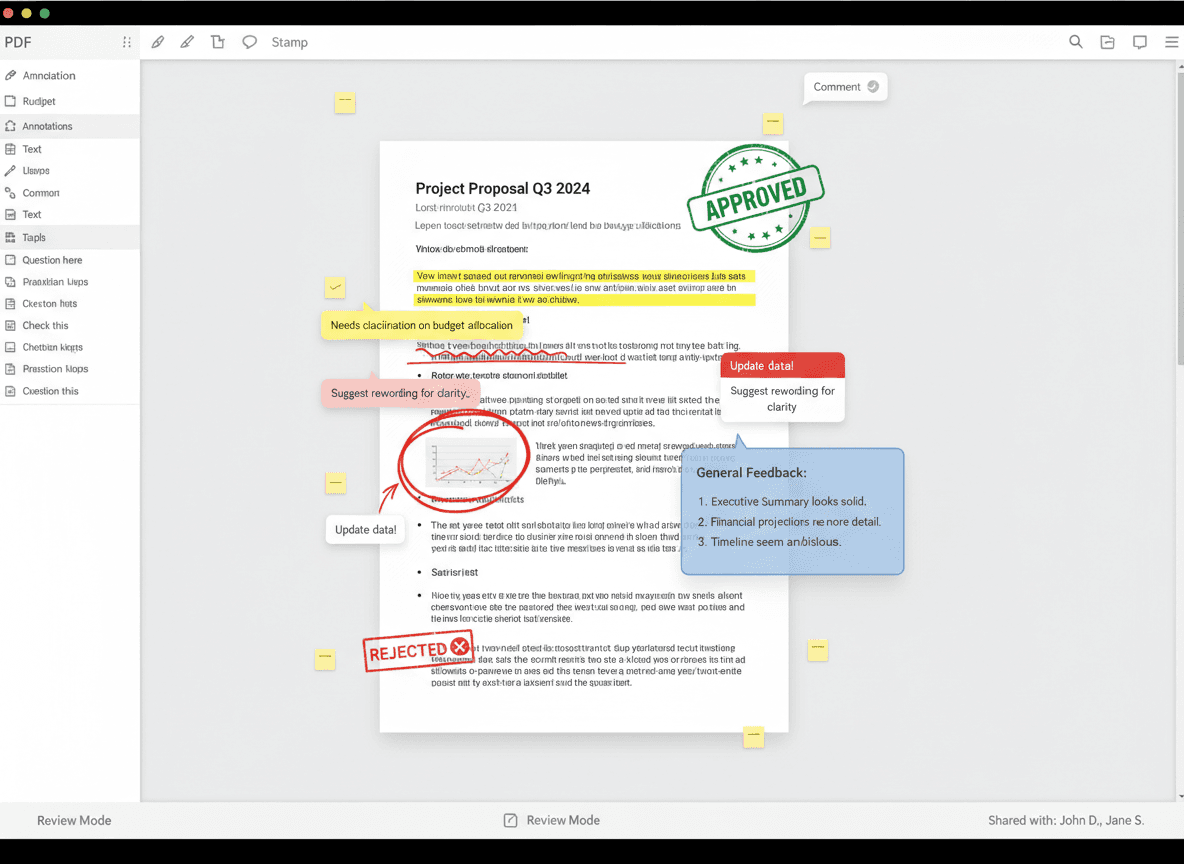
Comments are the most versatile annotation type. They're text notes that you attach to specific locations in the document. You can use them to ask questions, provide explanations, or suggest changes. Comments appear as small icons that expand when clicked, so they don't clutter the document but are easily accessible.
Highlights draw attention to important text. They're like using a highlighter on paper—you mark text that needs attention. Different colors can mean different things: yellow for general attention, red for critical issues, green for positive feedback. Establish a color system and use it consistently so reviewers understand your meaning.
Underlines work similarly to highlights but are more subtle. They're good for marking text that needs minor attention without the visual weight of highlighting. Some people prefer underlines for less critical issues, reserving highlights for more important points.
Strikethrough marks text for deletion. When you want to suggest removing text, strikethrough shows what should be removed while keeping it visible so reviewers can see the original. This is clearer than just deleting text, which makes it hard to understand what changed.
Shapes let you mark areas rather than specific text. You can draw rectangles, circles, or arrows to point to images, tables, or sections. This is useful when you need to comment on visual elements or layout rather than text content.
Stamps are pre-made annotations like "Approved," "Draft," "Confidential," or "For Review." They're quick ways to mark document status or provide standard feedback. Many PDF tools come with common stamps, and you can often create custom ones for your workflow.
Effective Annotation Practices
Be specific in your annotations. Instead of "This needs work," say "This paragraph contradicts the statement on page 3." Instead of highlighting an entire page, highlight the specific sentence that needs attention. Specificity makes your feedback actionable.
Use the right annotation type for your purpose. Don't use a comment when a highlight would suffice. Don't use a highlight when you need to explain something—use a comment. Matching the annotation type to your communication goal makes your feedback clearer.
Organize your annotations logically. If you're reviewing a document with multiple issues, group related annotations together or use a numbering system. Some PDF tools let you create annotation summaries that list all comments, which helps reviewers see the big picture.
Be concise but complete. Comments should be long enough to be clear but short enough to be readable. A good comment explains what the issue is and, if appropriate, suggests how to fix it. Avoid rambling comments that bury the important point.
Review your annotations before sending. Read through all your annotations to ensure they're clear, consistent, and complete. Check that you haven't missed important issues or created conflicting feedback. A quick review prevents confusion later.
Common Annotation Workflows
Document review workflows benefit from systematic annotation. Start by reading through the document once to understand it, then go through again adding annotations. This two-pass approach helps you provide comprehensive feedback without getting bogged down in details on the first read.
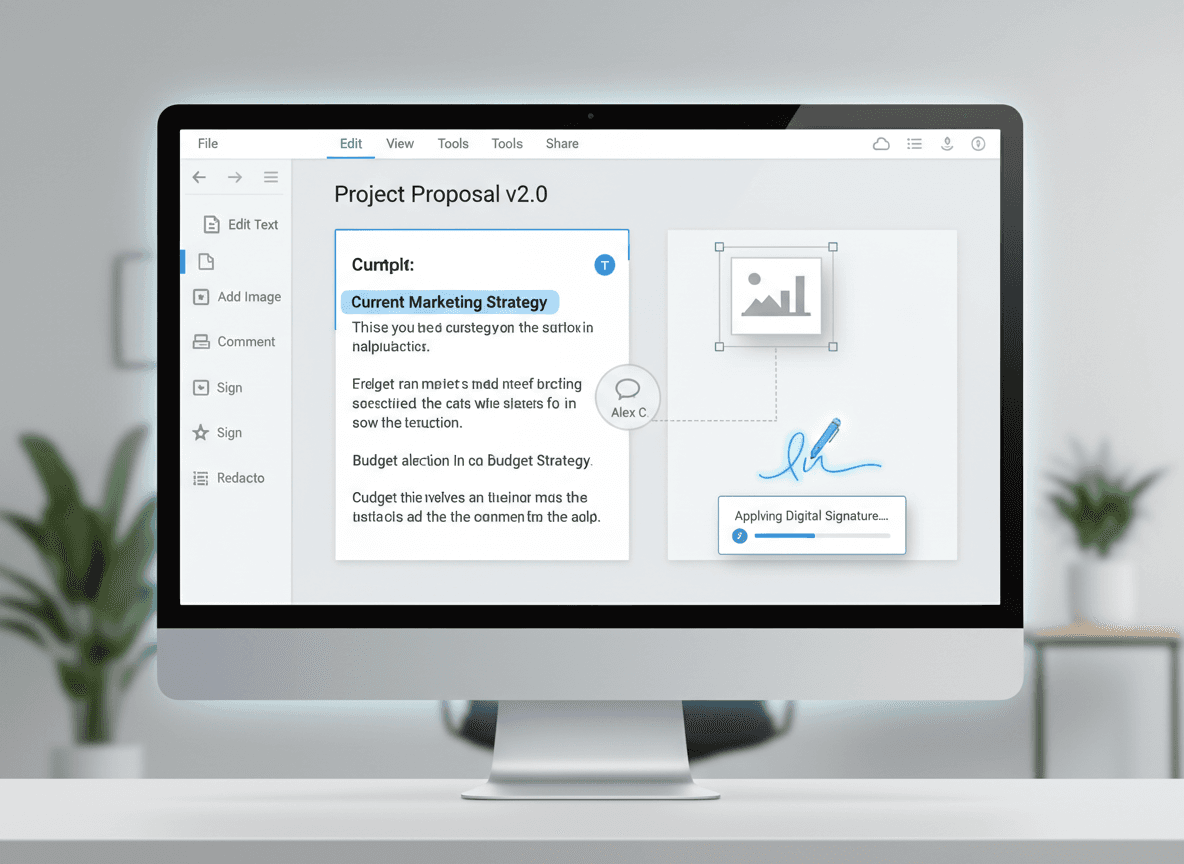
Collaboration workflows use annotations to facilitate discussion. Multiple reviewers can add their own annotations, creating a threaded conversation about the document. Many PDF tools show who added each annotation and when, which helps track the review process.
Editing workflows use annotations to provide instructions. Instead of making changes directly (which might not be what the author wants), annotations suggest changes. The author can then implement suggestions or discuss alternatives.
Approval workflows use stamps and comments to mark document status. A document might go through stages: "Draft" → "For Review" → "Approved" or "Needs Revision." Stamps make these status changes clear and visible.
Annotation Best Practices
Establish annotation standards for your team or organization. Agree on what different colors mean, what types of annotations to use for different purposes, and how to structure comments. Consistency makes annotations easier to understand and follow.
Use annotation summaries when available. Many PDF tools can generate reports listing all annotations, which helps reviewers see all feedback at once. This is especially useful for long documents with many annotations scattered throughout.
Resolve annotations as you address them. When you fix an issue that was annotated, mark the annotation as resolved. This helps track what's been addressed and what still needs work. It also prevents confusion about whether feedback has been incorporated.
Don't over-annotate. Too many annotations can overwhelm reviewers and make it hard to prioritize. Focus on the most important issues, and group minor points together when possible. Quality of feedback matters more than quantity.
Making Annotations Work for You
The goal of annotation is clear communication. Every annotation should help the document author understand what needs attention and why. If an annotation doesn't add clarity, reconsider whether it's needed.
Consider your audience when annotating. Technical reviewers might appreciate detailed technical comments, while business reviewers might need simpler explanations. Tailor your annotation style to who will be reading them.
Use annotations to build on previous feedback. If multiple people are reviewing, read existing annotations before adding your own. This prevents duplicate feedback and helps build a coherent review rather than a collection of disconnected comments.
Annotations are tools for collaboration, not criticism. Frame feedback constructively. Instead of "This is wrong," try "Consider revising this to match the style used in section 2." Constructive annotations lead to better outcomes and maintain positive working relationships.
Effective PDF annotation transforms the review process from frustrating to efficient. Our Edit PDF tool makes this easy. When done well, annotations provide clear, actionable feedback that helps improve documents. The time invested in learning to annotate properly pays off in smoother collaboration and better final documents.
Ready to annotate your PDF? Try our Edit PDF tool now and see how easy it is to add comments, highlights, and notes to your PDFs for review.