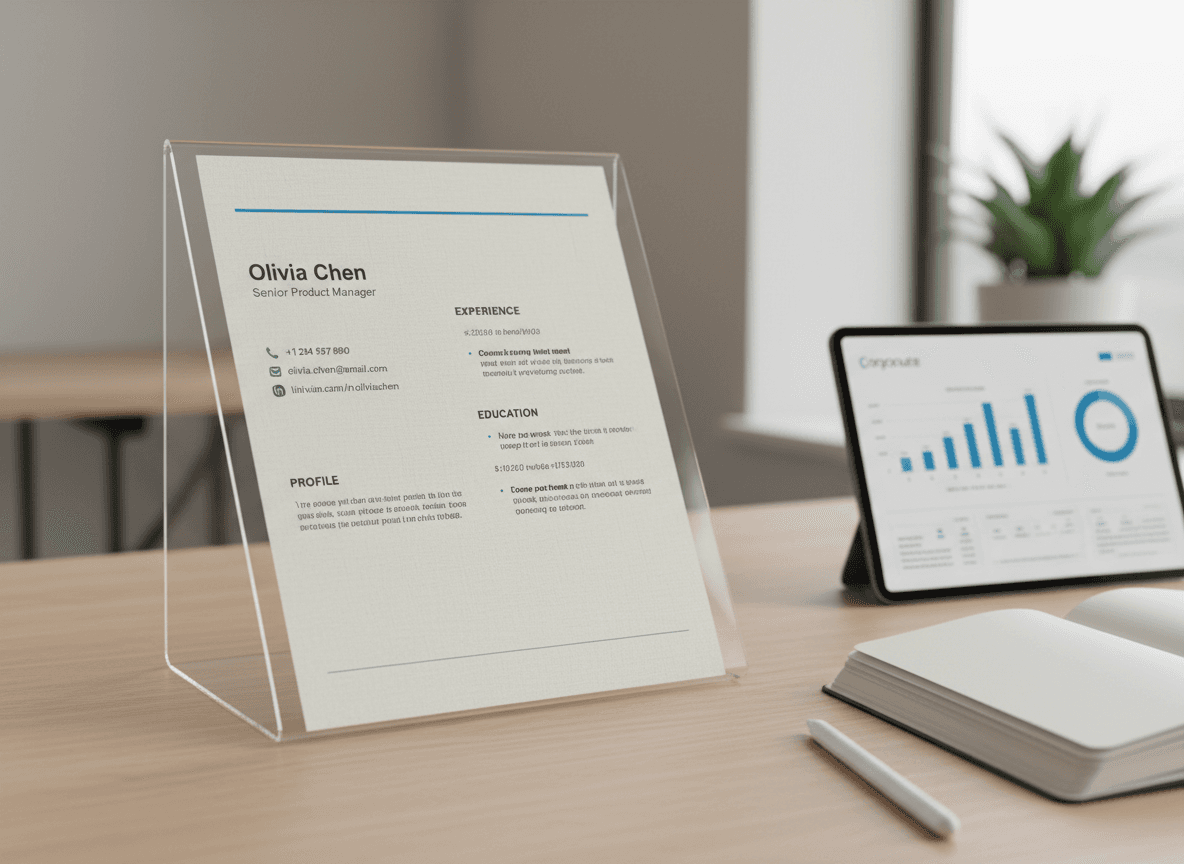
You've spent hours perfecting your resume in Word. Every bullet point is polished, every section is formatted just right. You're ready to send it out, and then you see it: "Please send your resume as a PDF."
Why? Why do recruiters want PDFs instead of Word documents? And more importantly, how do you make sure your beautifully formatted Word resume converts to PDF without looking like a mess?
Our Word to PDF tool makes this conversion simple and reliable. It preserves your formatting, fonts, and layout perfectly, ensuring your resume looks professional every time. Let me explain why PDFs are the standard for resumes, and how our tool can help you convert yours properly.
Why Recruiters Want PDFs
There are practical reasons recruiters prefer PDF resumes:
Formatting stays consistent. Your resume will look exactly the same on their computer as it does on yours. Word documents can look different on different systems, especially if fonts aren't available.
They can't accidentally edit it. PDFs are harder to edit, which means your resume stays as you intended. Word documents can be modified, and recruiters might accidentally change something.
It's professional. PDFs are the standard for professional documents. Sending a Word document can look less polished.
It works everywhere. PDFs open on any device, any operating system. Word documents require specific software.
File size is manageable. PDFs are usually smaller than Word documents, making them easier to email and store.
It's what they expect. Most recruiters expect PDFs. Sending a Word document can stand out—and not in a good way.
Common Conversion Problems
When you convert Word to PDF, things can go wrong:
Fonts don't match. Your beautiful custom font becomes Arial or Times New Roman.
Formatting breaks. Spacing, alignment, or layout might change.
Images look wrong. Photos or graphics might be low resolution or missing.
Page breaks are off. Content might break across pages awkwardly.
Colors change. Colors might look different in PDF than in Word.
How to Convert Properly
Here's how to convert your Word resume to PDF correctly:
Step 1: Prepare Your Word Document
Before converting, make sure your Word document is ready:
Use standard fonts. If possible, use fonts that are widely available (Arial, Times New Roman, Calibri). This reduces font substitution issues.
Embed fonts if using custom ones. Word lets you embed fonts in PDFs. Use this option if you have custom fonts.
Check page breaks. Make sure content breaks across pages naturally. Adjust if needed.
Verify images. Make sure all images are high quality and properly inserted.
Test print preview. Use Word's print preview to see how it will look. Fix any issues before converting.
Step 2: Use Our Word to PDF Tool
Our Word to PDF tool handles all the conversion complexities for you. Simply upload your Word document, and our tool will convert it to a perfect PDF while preserving all your formatting, fonts, and layout.
How to do it: Visit our Word to PDF tool, upload your Word resume, and download the converted PDF.
Why this works: Our tool is specifically designed to handle Word documents properly, ensuring fonts are embedded correctly, formatting stays intact, and your resume looks exactly as intended.
Benefits: No software installation needed, works on any device, and handles complex formatting automatically.
Step 3: Check the PDF
After converting, always check the PDF:
Open the PDF. Don't just assume it converted correctly.
Check formatting. Make sure spacing, alignment, and layout look right.
Verify fonts. Make sure fonts look correct. If they don't, you might need to embed fonts.
Check images. Make sure photos and graphics look good.
Test on different devices. If possible, open the PDF on a different computer or device to see how it looks.
Print a test page. Sometimes printing reveals issues that screen viewing doesn't.
Step 4: Fix Any Issues
If something looks wrong, fix it:
Font issues: Go back to Word, embed fonts, and convert again.
Formatting problems: Fix formatting in Word, then convert again.
Image problems: Check image quality in Word, then convert again.
Page break issues: Adjust page breaks in Word, then convert.
Best Practices
Here's what I recommend:
Always convert to PDF. Don't send Word documents for resumes. Always convert to PDF first using our Word to PDF tool.
Use our Word to PDF tool. It's the most reliable method, handling fonts, formatting, and layout automatically.
Fonts are handled automatically. Our tool embeds fonts correctly, so your custom fonts will display properly.
Keep the Word version. Don't delete your Word resume. You'll need it for updates.
Name the file clearly. Use something like "John_Smith_Resume.pdf" not "resume.pdf" or "document1.pdf".
Keep file size reasonable. Resumes should be under 2MB. If yours is larger, use our Compress PDF tool to reduce file size.
Test before sending. Always check the PDF before sending it to anyone.
Common Mistakes
Here are mistakes to avoid:
Sending Word documents. Always convert to PDF first.
Not checking the PDF. Don't assume conversion worked. Always verify.
Using unusual fonts. Stick to standard fonts when possible to avoid substitution issues.
Not embedding fonts. If you use custom fonts, embed them or they might not display correctly.
Large file sizes. Compress images if your PDF is too large.
Generic filenames. Use your name in the filename so recruiters can find it.
Why PDF Resumes Matter
I've helped dozens of job seekers convert their resumes, and here's what I've learned: recruiters want PDF resumes because PDFs are consistent, professional, and work everywhere. Your beautifully formatted Word document might look perfect on your computer, but on a recruiter's system with different fonts installed, it could look completely different.
Converting your Word resume to PDF is essential. The good news? Our Word to PDF tool makes it easy. Simply upload your Word document, and our tool handles all the conversion details—font embedding, formatting preservation, and layout consistency. With our tool, your Word resume will convert to a perfect PDF that looks professional and works everywhere.
The key is using the right tool. Our Word to PDF tool ensures your formatting stays intact, fonts are embedded correctly, and your resume looks exactly as intended. No need to worry about font substitution or broken formatting. Just upload, convert, and download your perfectly formatted PDF resume.
Ready to convert your resume? Try our Word to PDF tool now and see how easy it is to create a professional PDF resume that impresses recruiters.