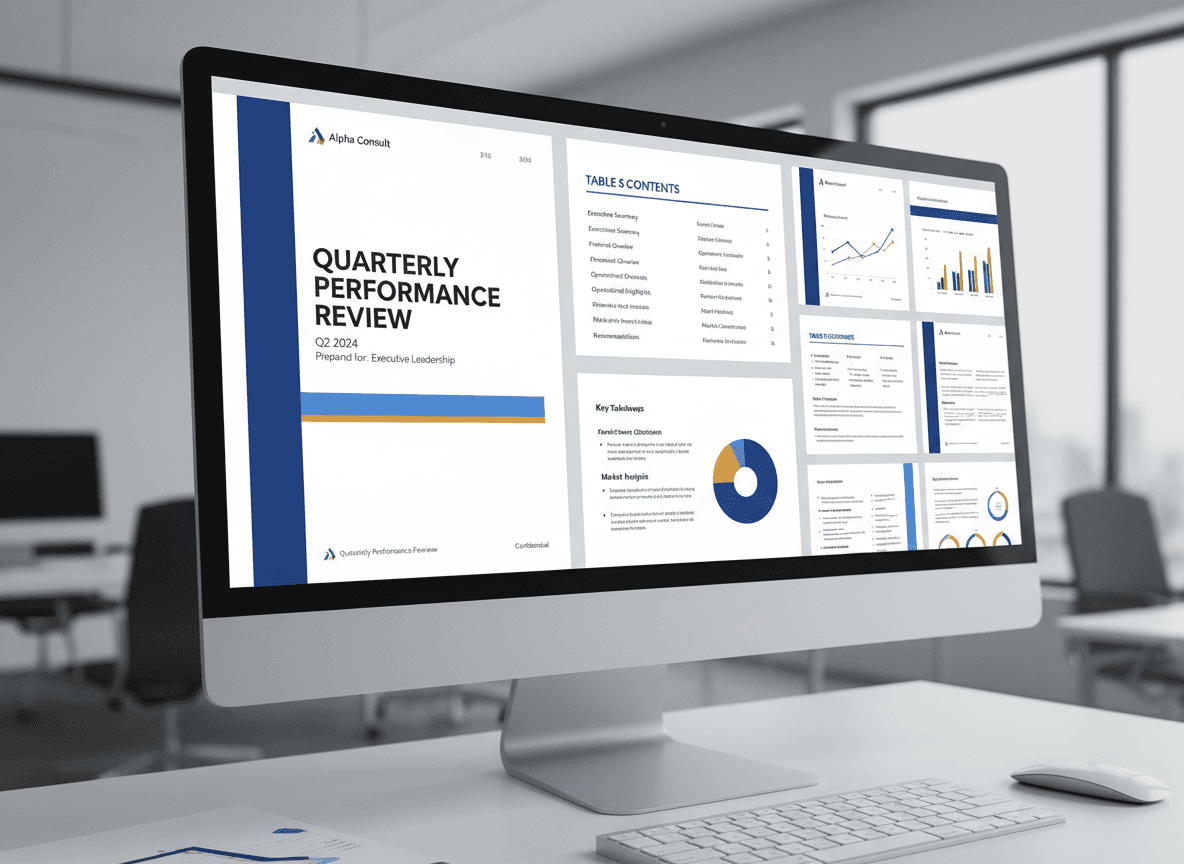
You've finished your monthly report. It's comprehensive, well-formatted, and ready to share. But before you send it to stakeholders, you need to convert it to PDF. This isn't just a technical step—it's essential for professional document sharing.
Business reports are different from simple documents. They often have complex formatting, multiple sections, charts, and professional styling. Our Word to PDF tool handles all these complexities, ensuring your report maintains its professionalism when converted. Let me walk you through how our tool makes this conversion seamless.
Why Business Reports Need PDFs
Business reports are shared with stakeholders, clients, executives, and team members. PDFs are essential for several reasons:
Professional appearance. PDFs look polished and professional. They're the standard for business document sharing.
Formatting consistency. Your report will look exactly the same for everyone, regardless of their software or device.
Prevents accidental editing. PDFs are harder to edit, so your report stays as intended. You don't want someone accidentally changing numbers or text.
Universal compatibility. PDFs work on any device, any operating system. Recipients don't need specific software.
File size management. PDFs are usually smaller than Word documents, making them easier to email and store.
Archival format. PDFs are good for long-term storage. They're less likely to become unreadable over time.
Preparing Your Word Report
Before converting, prepare your Word document:
Check Formatting
Review page layout. Make sure margins, spacing, and page breaks are correct.
Verify headers and footers. Check that headers and footers appear on all pages correctly.
Check section breaks. If your report has multiple sections, verify section breaks are correct.
Review tables and charts. Make sure tables are formatted properly and charts are clear.
Check fonts. Use professional fonts and make sure they're consistent throughout.
Verify Content
Proofread everything. Reports need to be error-free. Read through carefully.
Check numbers and data. Verify that all numbers, statistics, and data are correct.
Review dates and references. Make sure dates are current and references are accurate.
Confirm completeness. Ensure all sections are included and nothing is missing.
Optimize for PDF
Consider file size. If your report has many images, optimize them before converting.
Check page count. Long reports might benefit from bookmarks or a table of contents in the PDF.
Review color usage. If printing is likely, consider how colors will look in grayscale.
The Conversion Process
Here's how our Word to PDF tool converts your Word report to PDF properly:
Step 1: Upload Your Report
How to do it:
- Visit our [Word to PDF tool](../word-to-pdf)
- Upload your Word report
- Our tool automatically processes it
Why this works: Our tool is specifically designed to handle complex Word documents with tables, charts, and formatting, ensuring everything converts correctly.
Step 2: Automatic Processing
Our tool handles everything automatically:
Font embedding: Our tool automatically embeds fonts to ensure they display correctly.
Formatting preservation: Tables, charts, and complex layouts are preserved exactly as in your Word document.
Image quality: Images are maintained at high quality for professional reports.
Document structure: Headers, footers, and page breaks are preserved correctly.
Step 3: Download and Verify
After converting, download your PDF:
Open and review. Check that the PDF looks correct.
Verify formatting. Our tool preserves spacing, alignment, and layout automatically.
Review all pages. Scroll through to confirm everything converted properly.
Check tables and charts. Our tool ensures tables and charts remain readable and clear.
Verify fonts. Fonts are embedded automatically, so they display correctly.
Test on different devices. Since fonts are embedded, the PDF will look correct everywhere.
Step 4: If You Need Adjustments
If something needs fixing:
Edit in Word. Make changes to your Word document.
Reconvert with our tool. Upload the updated document and convert again.
Our tool handles it automatically. No need to worry about settings or options.
Special Considerations for Business Reports
Business reports often have specific requirements:
Charts and Graphs
High resolution. Charts need to be clear in PDF. Use high-resolution images or create charts directly in Word.
Color vs grayscale. Consider how charts will look if printed in grayscale.
Legends and labels. Make sure chart elements are readable in PDF.
Tables
Proper formatting. Tables should be properly formatted in Word before converting.
Column widths. Ensure columns are wide enough to be readable.
Borders and shading. Check that table formatting converts correctly.
Headers and Footers
Page numbers. Make sure page numbering works correctly in PDF.
Company branding. If headers/footers include logos or branding, verify they appear correctly.
Consistency. Ensure headers and footers are consistent throughout.
Multiple Sections
Section breaks. If your report has sections, verify section breaks work correctly.
Different formatting. If sections have different formatting, make sure it's preserved.
Table of contents. If you have a TOC, verify it works in PDF (if it's interactive).
Best Practices
Here's what I recommend for business reports:
Always convert to PDF. Don't send Word documents for business reports. Always use PDF.
Use our Word to PDF tool. Our Word to PDF tool is the most reliable method, handling complex formatting automatically.
Fonts are embedded automatically. Our tool ensures fonts are embedded so the report looks correct everywhere.
Check before sending. Always review the PDF before sharing it.
Keep the Word version. Don't delete your Word document. You'll need it for updates.
Name files clearly. Use descriptive names like "Q1_2024_Financial_Report.pdf".
Consider file size. If the PDF is very large, use our Compress PDF tool to reduce file size while maintaining quality.
Test printing. If the report will be printed, test print a page to verify it looks good.
Common Issues and Solutions
Formatting looks different:
- Cause: Fonts not embedded or conversion issues
- Solution: Embed fonts and check conversion settings
Tables are broken:
- Cause: Complex table formatting
- Solution: Simplify tables in Word before converting
Charts are blurry:
- Cause: Low resolution images
- Solution: Use higher resolution images or create charts in Word
File size is huge:
- Cause: Large images or embedded fonts
- Solution: Compress images or optimize fonts
Page breaks are wrong:
- Cause: Conversion issues with page breaks
- Solution: Adjust page breaks in Word, then convert again
Making Business Reports Work
I've converted hundreds of business reports from Word to PDF, and here's what I've learned: the conversion itself is simple, but the details matter. A report that looks perfect in Word can look unprofessional in PDF if fonts aren't embedded, page breaks are wrong, or formatting is lost.
The process isn't complicated with our Word to PDF tool—just upload your document, and our tool handles all the details automatically. Fonts are embedded, formatting is preserved, and page breaks are maintained. I've seen reports with broken tables, wrong fonts, or awkward page breaks that could have been avoided by using our tool.
Business reports represent your work. They're often the first impression stakeholders, clients, or executives have of your work. Our Word to PDF tool ensures your report looks professional and builds confidence. No need to worry about fonts, tables, or page breaks—our tool handles it all.
So don't struggle with manual conversion settings. Use our Word to PDF tool and let it handle the technical details. Your report will look professional, fonts will display correctly, and formatting will be preserved. It takes just a few seconds, and it ensures your report makes the right impression.
Ready to convert your business report? Try our Word to PDF tool now and see how it preserves all the professional details of your report.