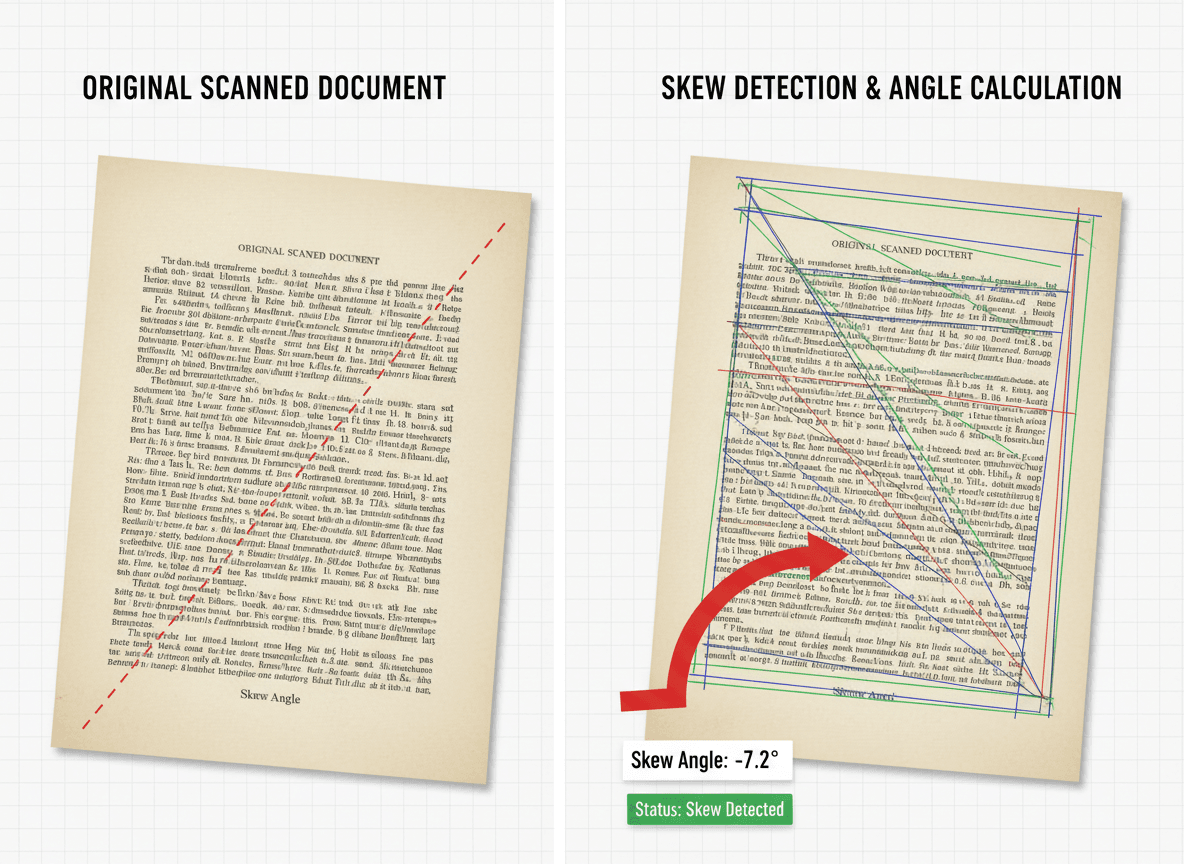
You've scanned a stack of documents, and when you open the PDF, half the pages are sideways. Some are landscape when they should be portrait, some are upside down, and some are rotated 90 degrees. It's frustrating, but it's also very common—and very fixable.
Our Rotate PDF tool makes fixing rotated pages simple. You can rotate individual pages or all pages at once, in any direction you need. Scanned documents end up rotated for several reasons: pages were fed into the scanner wrong, the scanner's auto-rotation didn't work, or pages were placed incorrectly. Whatever the cause, our tool makes fixing rotated pages straightforward.
Why Scanned Pages Get Rotated
Understanding why helps you prevent it in the future:
Incorrect page placement. Pages placed in the scanner wrong (upside down, sideways) create rotated scans.
Scanner auto-rotation fails. Many scanners try to auto-detect orientation, but they don't always get it right.
Mixed orientations. If you're scanning pages that were originally in different orientations, they'll scan that way.
Scanner settings. Some scanner settings can affect how pages are oriented.
Manual scanning errors. When scanning pages one at a time, it's easy to place them wrong.
How to Fix Rotated Pages
Fixing rotated pages is simple:
Step 1: Identify Which Pages Need Rotation
Open your PDF and scroll through to identify pages that are rotated wrong.
Look for:
- Pages that are landscape when they should be portrait (or vice versa)
- Pages that are upside down
- Pages rotated 90 degrees
Note the page numbers of pages that need rotation.
Step 2: Use Our Rotate PDF Tool
Use our Rotate PDF tool to fix the pages.
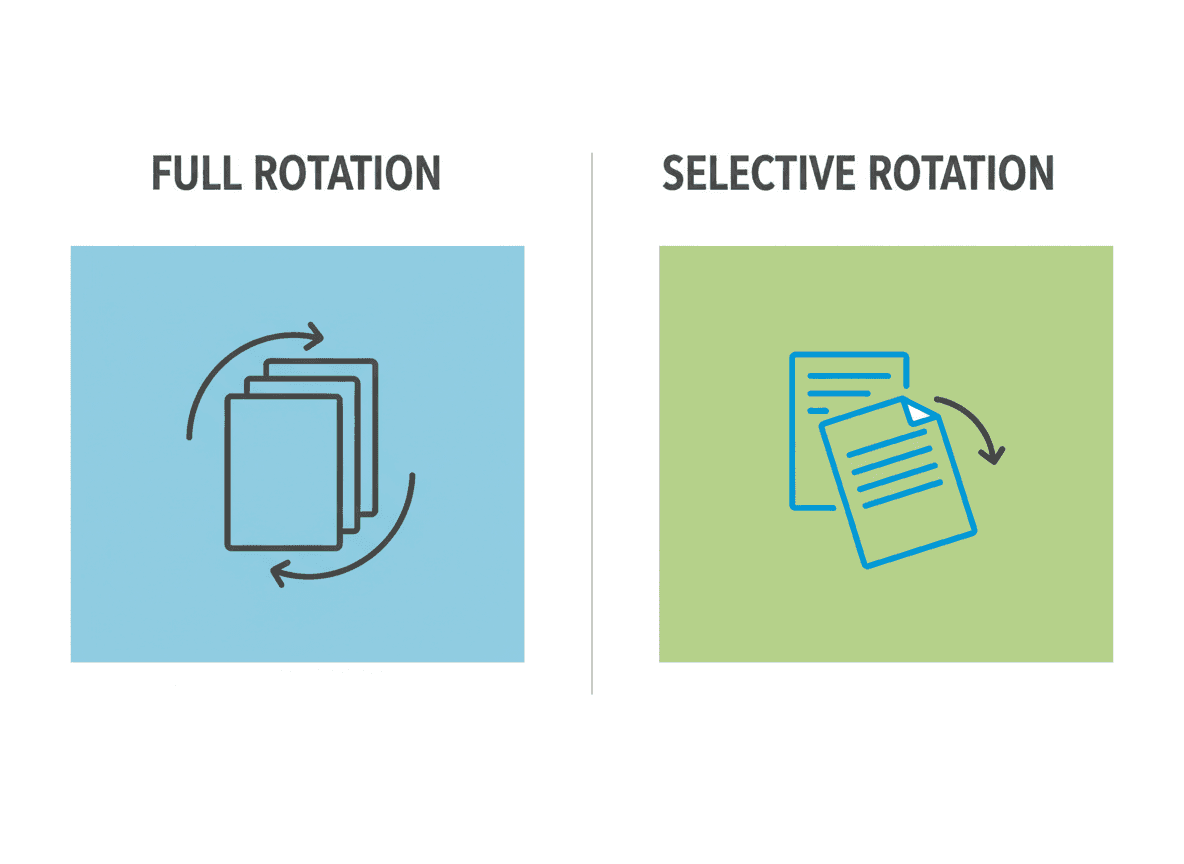
For all pages the same way: If all pages need the same rotation (e.g., all rotated 90 degrees clockwise), our tool lets you rotate all at once.
For individual pages: If different pages need different rotations, our tool lets you rotate them individually with precision.
Rotation options in our tool:
- 90 degrees clockwise
- 90 degrees counterclockwise
- 180 degrees (upside down)
Step 3: Verify the Fix
After rotating, check the PDF again to make sure all pages are now correct.
Scroll through: Look at all pages to verify orientation is correct.
Check text: Make sure text is readable and not still rotated.
Verify all pages: Don't assume—actually check each page.
Preventing Future Rotation Issues
Here's how to avoid this problem:
Check scanner settings. Before scanning, check your scanner's orientation settings.
Place pages correctly. Take care to place pages in the scanner correctly—right side up, facing the right direction.
Use auto-rotation carefully. Scanner auto-rotation helps, but don't rely on it completely. Check results.
Scan in batches. If scanning many pages, scan similar orientations together.
Check as you scan. Periodically check scanned pages to catch rotation issues early.
Quick Fix Workflow
Here's my workflow for fixing rotated scans with our tool:
- **Open the PDF** in our [Rotate PDF tool](../rotate-pdf) and identify rotated pages
- **Note which pages** need rotation and which direction
- **Use our tool** to fix pages (all at once if same, individually if different)
- **Download the PDF** with corrected orientation
- **Verify all pages** are now correct
Common Scenarios
All pages rotated the same way:
- Solution: Rotate all pages at once with the same rotation
- Time: Very fast, one operation
Different pages rotated differently:
- Solution: Rotate pages individually
- Time: Takes longer but necessary
Mix of correct and rotated pages:
- Solution: Rotate only the pages that need it
- Time: Moderate, depends on how many pages need rotation
Fixing Rotated Scans
I've fixed hundreds of rotated scanned documents, and here's what I've learned: it's common, but fixing it is simple with our Rotate PDF tool. Identify which pages are wrong. Use our tool to fix them. Verify the result. The whole process usually takes just a few minutes.
To prevent future issues, place pages correctly in the scanner and check results as you scan. But when pages do end up rotated, don't stress—our tool makes it an easy fix. Just use our Rotate PDF tool to rotate the pages to the correct orientation, and you're done.
I've seen people re-scan entire documents because a few pages were rotated, when they could have just used our tool to rotate those pages in the PDF. Don't waste time re-scanning. Use our Rotate PDF tool and move on.
Ready to fix your rotated PDF? Try our Rotate PDF tool now and see how easy it is to correct page orientation.