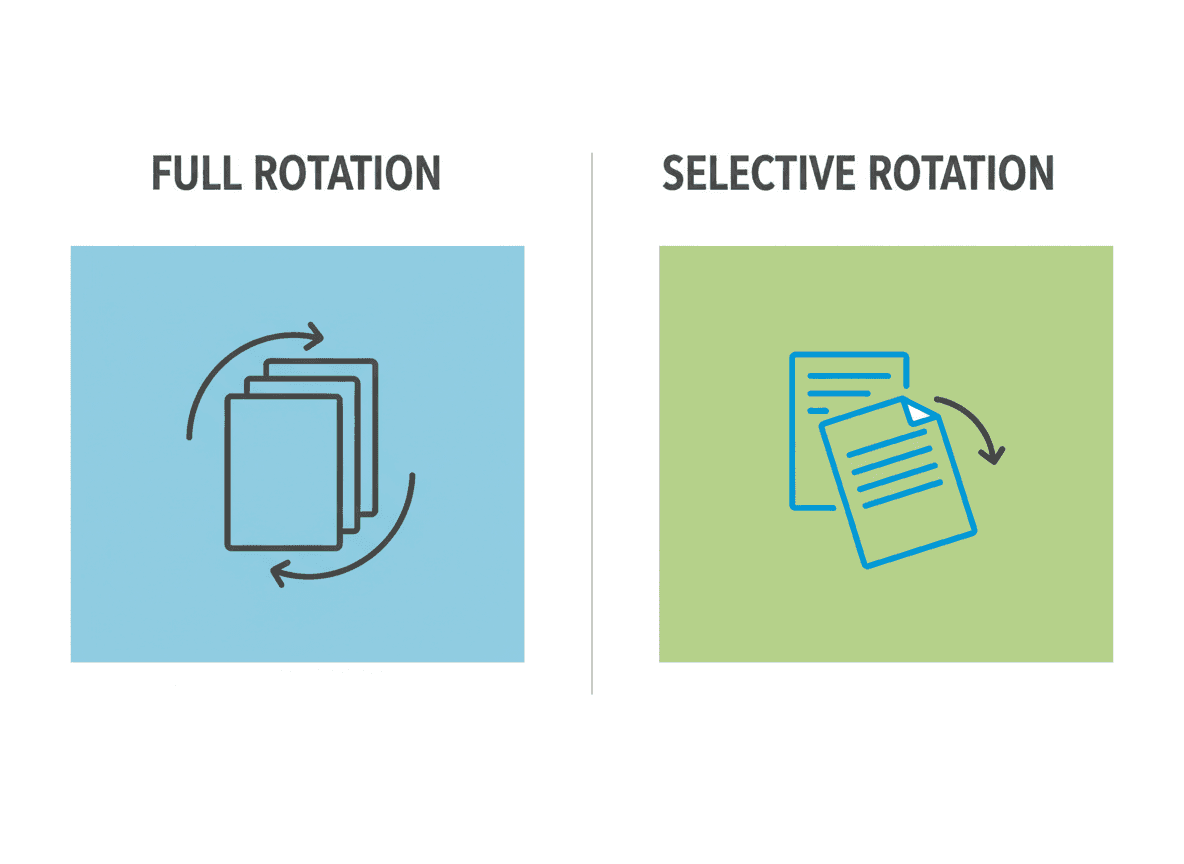
You've got a PDF with mixed page orientations. Some pages are correct, some are rotated wrong. Some need clockwise rotation, some need counterclockwise. Do you rotate all pages at once, or handle them individually?
Our Rotate PDF tool supports both approaches—you can rotate all pages at once or handle them individually with precision. The answer depends on your situation. Sometimes rotating all pages is faster, sometimes you need individual control. Let me explain when to use each approach and how our tool helps you handle mixed orientations efficiently.
When to Rotate All Pages
Rotate all pages when:
All pages need the same rotation. If every page needs to be rotated the same way (e.g., all 90 degrees clockwise), rotating all at once is fastest.
Consistent problem. If the entire document has the same orientation issue, fix it all at once.
Time saving. Rotating all pages takes one operation instead of many.
Example scenarios:
- All pages scanned sideways the same way
- Entire document needs to be rotated 180 degrees
- All pages are landscape but should be portrait
When to Rotate Individual Pages
Rotate individual pages when:
Different pages need different rotations. Some pages need clockwise, others counterclockwise.
Only some pages are wrong. If most pages are correct but a few are rotated, fix only those pages.
Mixed orientations are intentional. Sometimes documents legitimately have mixed orientations (like a report with some landscape charts).
Precision needed. When you need exact control over each page's orientation.
Example scenarios:
- Some pages scanned wrong, others correct
- Document has intentional mixed orientations
- Different pages need different rotation directions
Handling Mixed Orientations
When you have a mix of correct and rotated pages:
Step 1: Identify the Problem
Go through the PDF and identify which pages need rotation.
Note:
- Which pages are wrong
- Which direction each needs to rotate
- Which pages are already correct
Create a list if you have many pages to fix.
Step 2: Group Similar Rotations
Group pages by rotation needed:
- Pages needing clockwise rotation
- Pages needing counterclockwise rotation
- Pages needing 180-degree rotation
- Pages that are correct
This helps you batch similar operations.
Step 3: Rotate in Batches
Rotate pages in groups:
- Rotate all clockwise pages together
- Rotate all counterclockwise pages together
- Leave correct pages alone
Or rotate individually if each page needs different treatment.
Step 4: Verify Results
Check all pages after rotating to ensure everything is correct.
Don't assume—actually verify each page.
Best Practices
Here's what works well:
For Consistent Problems
If all pages need the same fix: Rotate all at once. It's faster and ensures consistency.
Verify first: Check a few pages to confirm they all need the same rotation before rotating all.
For Mixed Problems
Identify first: Go through the entire PDF before starting to rotate. Know what needs fixing.
Batch similar: Group pages with the same rotation needs and handle them together.
Be systematic: Work through pages in order to avoid missing any.
Verify as you go: Check pages after rotating to catch mistakes early.
For Large Documents
Work in sections: For very large PDFs, work through sections at a time.
Keep notes: If you have many pages to fix, note which ones need what rotation.
Save frequently: Save your work as you go in case you need to undo.
Common Scenarios
Scenario 1: All Pages Rotated Same Way
Situation: Every page needs 90 degrees clockwise rotation.
Solution: Rotate all pages at once.
Time: Very fast, one operation.
Scenario 2: Some Pages Wrong, Some Correct
Situation: 10 pages are rotated, 20 are correct.
Solution: Rotate only the 10 wrong pages individually.
Time: Moderate, but preserves correct pages.
Scenario 3: Mixed Rotations
Situation: Some pages need clockwise, some counterclockwise, some are correct.
Solution: Rotate pages individually or in groups by rotation type.
Time: Takes longer but necessary for precision.
Scenario 4: Intentional Mixed Orientations
Situation: Document legitimately has some landscape and some portrait pages.
Solution: Only rotate pages that are actually wrong, not pages that are intentionally different.
Time: Moderate, requires careful review.
Our Rotate PDF Tool Features
Our Rotate PDF tool offers all the options you need:
Rotate all: Our tool lets you rotate all pages at once when they need the same rotation.
Rotate selected: Our tool lets you select specific pages to rotate individually.
Rotate individually: Our tool supports rotating pages one at a time with precision.
Preview: Our tool shows preview of rotation before applying, so you can verify.
Flexible control: Our tool lets you apply different rotations to different pages as needed.
Tips for Efficiency
Plan before rotating: Know what needs to be done before starting.
Use batch operations: When possible, rotate multiple pages together.
Check as you go: Verify rotations are correct to catch mistakes early.
Save originals: Keep a copy of the original PDF in case you need to start over.
Work systematically: Go through pages in order to avoid missing any.
Choosing Your Approach
I've rotated pages in hundreds of PDFs, and here's what I've learned: the approach depends entirely on your situation. Our Rotate PDF tool supports both approaches. If all pages need the same rotation, do them all at once with our tool—it's faster and ensures consistency. If pages need different rotations, our tool lets you handle them individually or in groups.
For PDFs with mixed orientations, the key is planning first. Go through the document and identify what needs fixing before you start rotating. Our tool makes this easy with its visual interface. Group pages with similar rotation needs. Work systematically through the document. A few minutes of planning saves you time and prevents mistakes.
The real skill isn't in knowing how to rotate—it's in knowing what needs to be rotated and planning your approach. Our Rotate PDF tool makes the actual rotation smooth and easy. Take that time upfront, and the actual rotation goes smoothly with our tool.
Ready to handle mixed page orientations? Try our Rotate PDF tool now and see how easy it is to rotate pages individually or all at once.