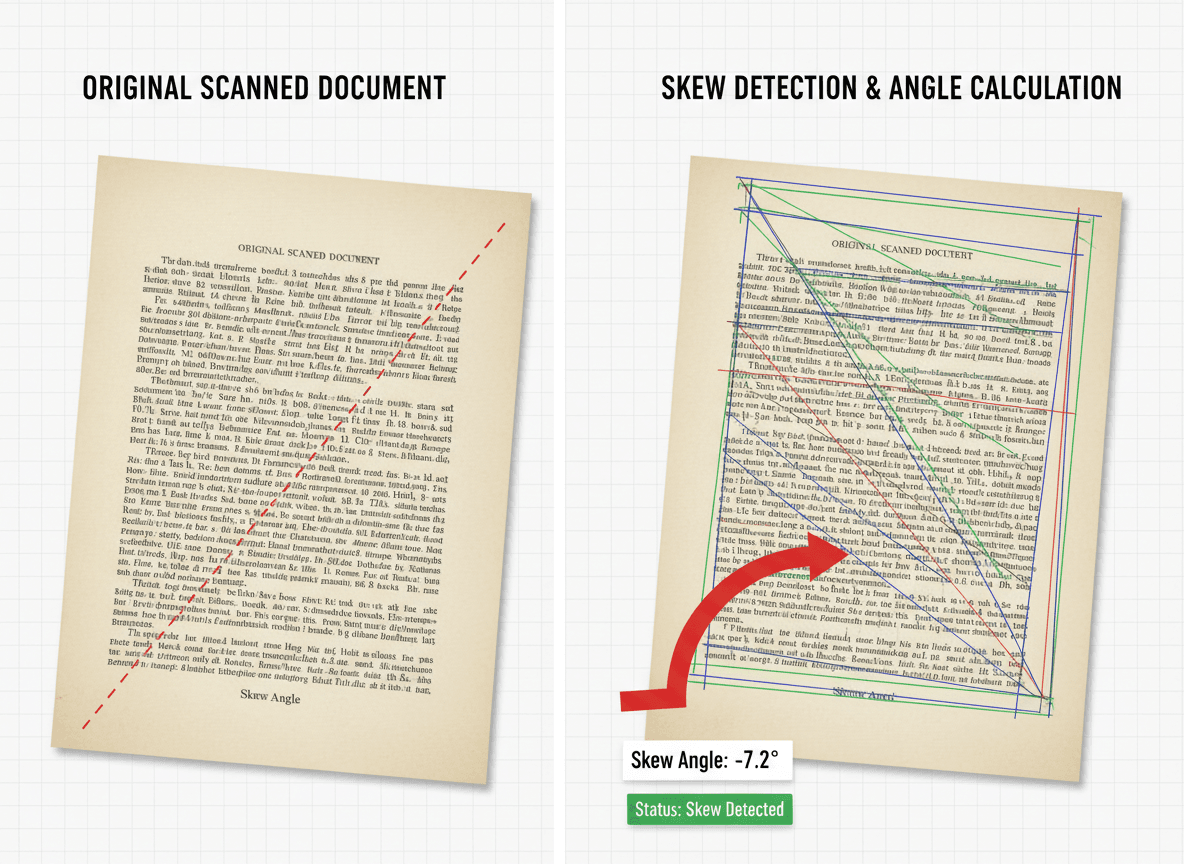
You created a PDF on your phone—maybe you scanned a document, took a photo and converted it, or created it in an app. It looks perfect on your phone. Then you open it on your computer, and it's upside down or rotated wrong. What happened?
This is a common problem with mobile-created PDFs. Phones and computers handle orientation differently, and what looks right on a phone might be wrong on a desktop. Our Rotate PDF tool makes fixing this simple. Let me explain why this happens and how our tool helps you fix it.
Why Mobile PDFs Get Rotated
Mobile devices and desktop computers handle PDF orientation differently:
Device Orientation
Phones rotate automatically. Your phone automatically rotates content based on how you're holding it. A PDF that looks right in portrait mode on your phone might be stored in a different orientation.
Desktop doesn't rotate. Desktop computers don't automatically rotate PDFs. They display them in the orientation they're stored.
Mismatch creates problems. When a PDF is created with phone orientation but viewed on a desktop, the orientation can be wrong.
Photo Orientation
Photos have EXIF data. When you take a photo, your phone stores orientation information in EXIF data. This tells the phone how to display the photo.
PDFs might ignore EXIF. When photos are converted to PDF, the PDF might not preserve EXIF orientation data, or it might be interpreted differently.
Result: A photo that looks right on your phone might be rotated in the PDF.
App Behavior
Different apps handle orientation differently. Some apps preserve orientation, others don't. Some apps use device orientation, others use photo EXIF data.
Inconsistent behavior. The same photo might create different PDF orientations in different apps.
Scanning Apps
Scanner apps detect orientation. Many scanning apps try to auto-detect page orientation, but they don't always get it right.
Auto-rotation can be wrong. The app might think a page is oriented one way when it's actually another.
How to Fix Mobile PDF Rotation
Fixing rotated mobile PDFs is straightforward:
Method 1: Use Our Rotate PDF Tool
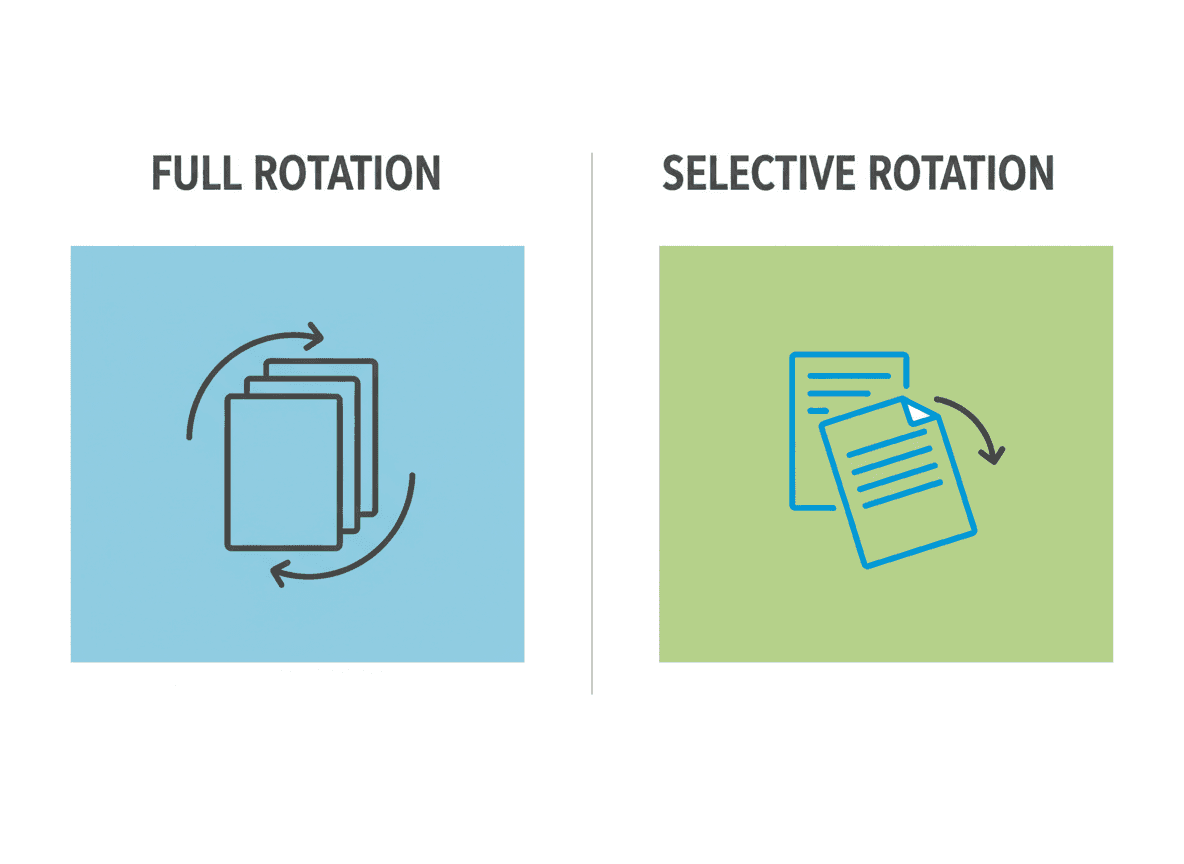
Use our Rotate PDF tool to fix the orientation.
How to do it:
- Open the PDF in our [Rotate PDF tool](../rotate-pdf)
- Identify which pages are rotated wrong
- Use our tool to rotate them to the correct orientation
- Download the corrected PDF
Works for: Any rotated PDF, regardless of how it was created. Our tool handles all rotation scenarios.
Method 2: Fix Before Creating PDF
If you haven't created the PDF yet, fix orientation first:
For photos:
- Rotate the photo in your phone's photo app before converting to PDF
- Ensure the photo is in the correct orientation
For scans:
- Check the scan preview before creating PDF
- Rotate if needed in the scanning app
For documents:
- Ensure the document is oriented correctly before creating PDF
Method 3: Use Desktop Tools
Create PDFs on desktop when possible for more control:
Advantages:
- More control over orientation
- Consistent results
- Easier to verify before sharing
When to use: For important documents where orientation matters.
Preventing Mobile PDF Rotation Issues
Here's how to avoid the problem:
When Taking Photos
Hold phone consistently. Hold your phone the same way when taking photos for documents.
Check orientation before converting. Verify photos are oriented correctly before converting to PDF.
Use apps that preserve orientation. Some apps handle orientation better than others.
When Scanning
Place documents correctly. Place documents right-side-up in the scanner or camera view.
Check preview. Always check the scan preview before finalizing.
Use orientation lock. Some scanning apps let you lock orientation.
When Creating PDFs
Verify on phone first. Check the PDF looks correct on your phone before sharing.
Test on desktop. If possible, open the PDF on a desktop to verify orientation.
Use consistent apps. Stick with apps that handle orientation consistently.
Common Scenarios
Scenario 1: Photo to PDF
Problem: Took a photo of a document, converted to PDF, looks wrong on desktop.
Solution: Rotate the photo on your phone before converting, or rotate the PDF after creation.
Prevention: Hold phone consistently, check photo orientation before converting.
Scenario 2: Scan to PDF
Problem: Scanned document with phone app, PDF is rotated on desktop.
Solution: Rotate the PDF using a rotation tool.
Prevention: Check scan preview, place document correctly.
Scenario 3: App-Created PDF
Problem: Created PDF in mobile app, orientation is wrong on desktop.
Solution: Rotate the PDF, or check app settings for orientation options.
Prevention: Test app behavior, use apps with good orientation handling.
Best Practices
Here's what I recommend:
Check before sharing: Always verify PDF orientation on the device where it will be viewed.
Fix early: If you notice rotation issues, fix them before sharing or archiving.
Use consistent methods: Develop a consistent workflow for creating PDFs to avoid issues.
Test on multiple devices: If possible, check PDFs on both mobile and desktop.
Keep originals: Keep original photos or scans in case you need to recreate the PDF.
Fixing Mobile PDF Rotation Issues
I've helped dozens of people fix rotated PDFs from mobile devices, and the pattern is always the same: the PDF looks fine on the phone but wrong on a desktop. The solution is straightforward—use our Rotate PDF tool to correct the orientation.
But here's what I've learned: prevention is easier than fixing. Check the orientation before creating PDFs. Verify PDFs look correct before sharing. Use consistent methods for creating PDFs. A few seconds of checking saves you from having to fix rotation issues later.
When rotation problems do occur, they're usually easy to fix with our Rotate PDF tool. Just use our tool to rotate the pages to the correct orientation. Our tool makes this simple and fast. The key is being aware that mobile-created PDFs might need rotation when viewed on desktops, and checking them before you share.
Ready to fix your mobile PDF rotation issues? Try our Rotate PDF tool now and see how easy it is to correct orientation.