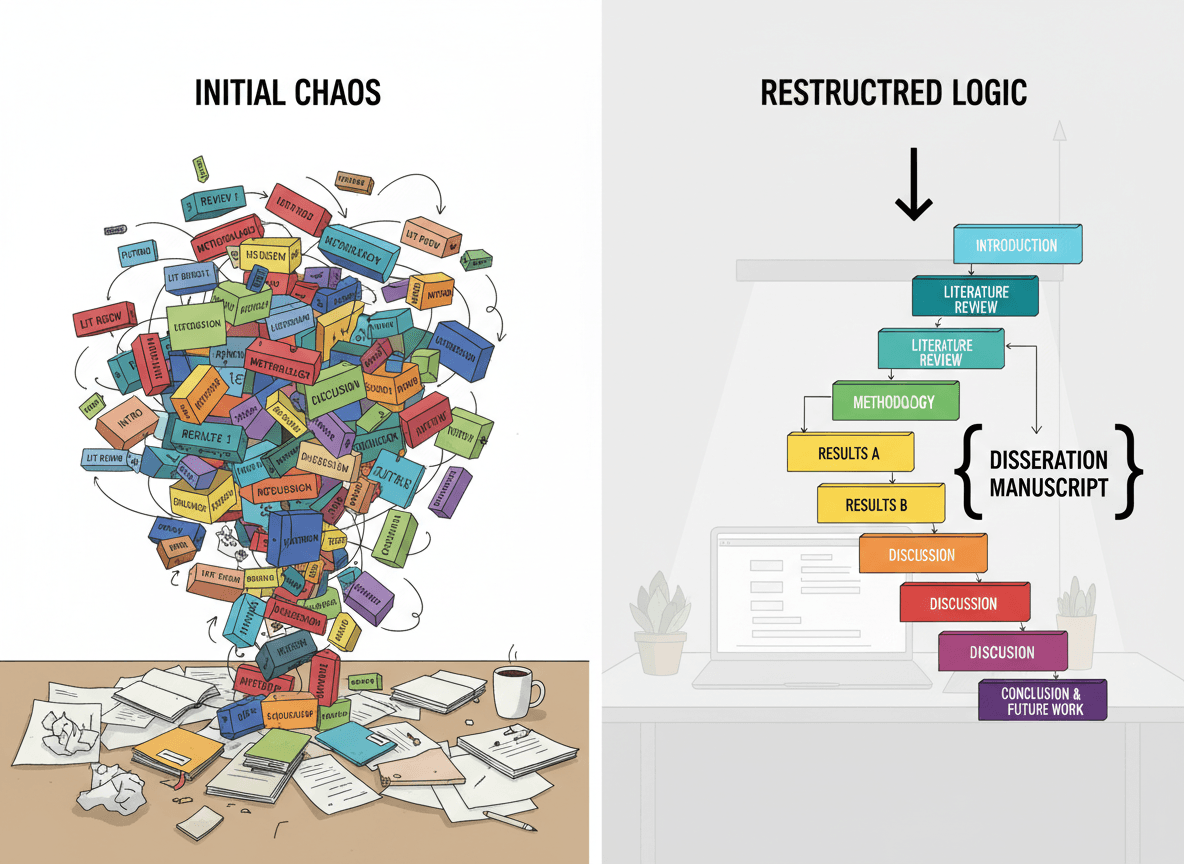
You've got a textbook PDF, and the chapters are all mixed up. Chapter 3 comes before Chapter 1, Chapter 7 is in the middle of Chapter 2, and nothing follows a logical order. Trying to study from this is frustrating and inefficient.
Reorganizing PDF chapters is a common need for students, and it's totally doable. Our Organize PDF tool makes this process simple—you can see all pages as thumbnails, drag chapters to reorder them, and get your textbook organized in minutes. With the right approach, you can get your textbook organized so studying actually makes sense.
Why Chapters Get Mixed Up
Understanding why helps you fix it:
Scanning order. When textbooks are scanned, pages might be scanned out of order.
Merging issues. If chapters were separate files and merged, they might have been merged in the wrong order.
File combination. Combining multiple PDF files can mix up the order.
Download issues. Sometimes downloaded PDFs have pages in the wrong order.
Source problems. The original PDF might have been created with pages out of order.
Planning Your Reorganization
Before you start moving pages, plan your approach:
Step 1: Identify Chapter Boundaries
Find where chapters start and end. Look for:
- Chapter headings or titles
- Table of contents
- Page breaks between chapters
- Chapter numbers in headers or footers
Note page numbers. Write down the page number where each chapter starts and ends.
Create a map. Create a simple list: Chapter 1 starts on page X, ends on page Y, etc.
Step 2: Determine Correct Order
What's the correct order? Usually chapters should be 1, 2, 3, 4... in numerical order.
Check table of contents. If there's a TOC, it shows the correct order.
Use chapter numbers. Chapter numbers in the document tell you the correct order.
Consider your needs. Sometimes you want a different order for studying (e.g., review chapters first).
Step 3: Plan the Moves
Figure out what needs to move. Which chapters are in the wrong position?
Plan the sequence. Sometimes you need to move chapters in a specific order to avoid conflicts.
Work backwards if needed. Sometimes it's easier to work from the end toward the beginning.
The Reorganization Process
Here's how to reorganize chapters:
Method 1: Move Chapters One at a Time (Easiest with Our Tool)
Upload your textbook to our Organize PDF tool to see all pages as thumbnails.
Identify a chapter that's in the wrong place by looking at the thumbnails.
Move it to the correct position. Simply drag the chapter pages to reorder them—our tool makes this visual and intuitive.
Verify the move. Check that the chapter is now in the right place and pages are intact.
Repeat for next chapter. Move to the next chapter that needs repositioning.
Pros: Precise control, easy to verify each move, visual drag-and-drop makes it simple
Cons: Takes longer if many chapters need moving, but our tool makes it faster than other methods
Method 2: Extract and Reorder (Alternative Approach)
Extract each chapter as a separate PDF using our Split PDF tool.
Reorder the chapter files in the correct order on your computer.
Merge them back in the correct order using our Merge PDF tool.
Pros: Can be faster for many chapters, easier to see what you're doing
Cons: More steps, need to merge afterward
Note: For most students, Method 1 using our Organize PDF tool is simpler and faster since you can drag chapters directly without extracting and merging.
Method 3: Work in Sections
Group chapters into larger sections (e.g., Part 1, Part 2).
Organize sections first, then organize chapters within sections.
Pros: More manageable for large textbooks
Cons: Still need to organize within sections
Best Practices
Here's what works well:
Plan first. Don't start moving pages until you know the correct order and have a plan.
Work systematically. Move chapters in order rather than jumping around.
Verify as you go. After moving each chapter, check that it's in the right place.
Keep a backup. Keep the original PDF in case you make mistakes.
Save frequently. Save your work as you reorganize.
Check page flow. Make sure pages within chapters are still in order after moving.
Verify chapter boundaries. Make sure you didn't accidentally split or combine chapters.
Common Challenges
Large textbooks: For very large textbooks, work in sections. Don't try to reorganize everything at once.
Unclear chapter boundaries: If chapter boundaries aren't clear, look for chapter titles, numbers, or major section breaks.
Many chapters: If there are many chapters to move, work systematically. Don't rush.
Mixed up within chapters: Sometimes pages within chapters are also mixed up. Fix chapter order first, then fix page order within chapters.
Our Organize PDF Tool Solves This
Our Organize PDF tool is perfect for reorganizing textbook chapters:
Visual page thumbnails: See all pages at once, making it easy to identify chapter boundaries and see the overall structure.
Drag and drop reordering: Simply drag pages or page ranges to move entire chapters to the correct position—no complex menus or confusing interfaces.
Easy chapter identification: With all pages visible as thumbnails, you can quickly spot chapter headings and determine where each chapter starts and ends.
Works in your browser: Everything happens locally in your browser—your textbook never leaves your device, ensuring privacy and security.
Free and fast: No software to install, no watermarks, and it works right in your browser.
Special Considerations
Table of Contents
Update TOC if needed. After reorganizing, the table of contents might need updating if it has page numbers.
Or remove TOC. Sometimes it's easier to remove an outdated TOC than to update it.
Page Numbers
Page numbers might be off. After reorganizing, page numbers in headers/footers might not match actual page positions.
This is usually fine. For studying, this usually doesn't matter. Pages are in the right order even if numbers don't match.
If it matters: You might need to renumber pages, but this is usually unnecessary for study purposes.
Bookmarks
Bookmarks might break. If the PDF had bookmarks, they might point to wrong pages after reorganization.
Recreate if needed. If bookmarks are important, you might need to recreate them.
Reorganizing Chapters Successfully
I've helped dozens of students reorganize textbook PDFs, and here's what I've learned: it's about planning and working systematically. Identify chapter boundaries. Determine correct order. Plan your moves. Then execute methodically. Don't try to do everything at once—work through it step by step.
For students, having chapters in the correct order makes studying much more efficient. I've seen students struggle with mixed-up textbooks when 30 minutes of reorganization would have made everything easier. Take time to plan your reorganization. Work systematically. Verify as you go. With the right approach, you can turn a mixed-up textbook into an organized study resource.
The key is patience and methodical work. A well-organized textbook is worth the effort—it makes studying so much easier. Spend the time upfront, and you'll save hours of frustration later.
Ready to reorganize your textbook chapters? Try our Organize PDF tool now. Upload your textbook PDF, see all pages as thumbnails, identify chapter boundaries, and drag chapters to reorder them. It's free, works in your browser, and keeps your files private. Get your textbook organized in minutes and make studying much more efficient.