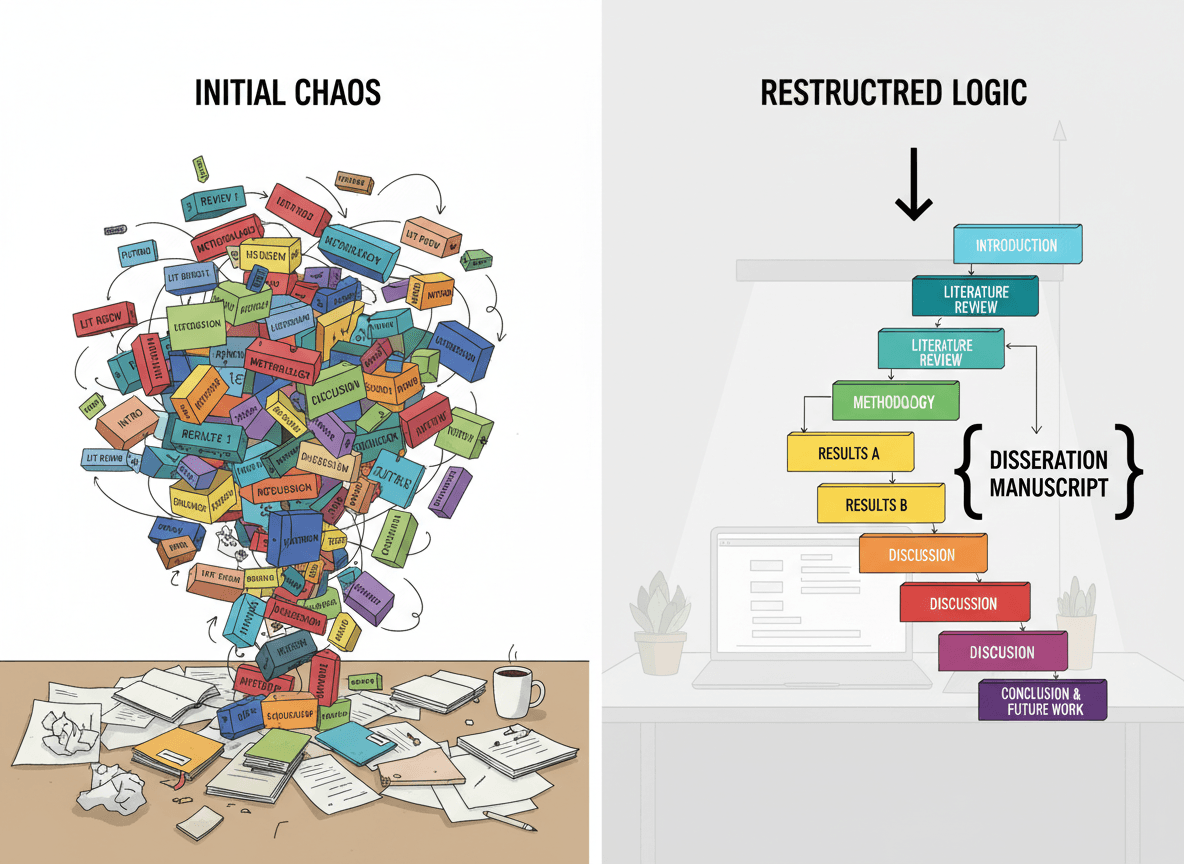

You've got a PDF that's a complete mess. Pages are out of order, duplicates are scattered throughout, some pages are rotated wrong, and nothing makes logical sense. You know it needs organizing, but where do you even start?
Organizing a messy PDF can feel overwhelming, but it's manageable if you approach it systematically. Our Organize PDF tool makes this process simple and visual—you can see all your pages as thumbnails, drag and drop to reorder them, and delete unwanted pages with just a click. Let me give you a practical step-by-step approach that actually works.
Step 1: Assess the Situation
Before you start moving pages around, understand what you're dealing with:
Scroll through the entire PDF. Don't just jump in—actually look at all the pages to understand the scope of the problem.
Identify the issues:
- Pages out of order
- Duplicate pages
- Rotated pages
- Missing pages
- Pages that don't belong
Count the problems. How many duplicates? How many pages need reordering? This helps you plan.
Determine the goal. What should the final PDF look like? What's the correct order? Having a goal helps you organize.
Step 2: Remove Duplicates First
Start by removing duplicate pages. This simplifies everything else.
Why first: Duplicates make it harder to see what you're working with. Remove them, and the document becomes clearer.
How to find duplicates:
- Upload your PDF to our [Organize PDF tool](../organize-pdf) to see all pages as thumbnails
- Scroll through and note pages that look identical
- Compare page thumbnails visually—our tool shows you all pages at once
How to remove:
- In our Organize PDF tool, simply click the delete button on duplicate pages
- Delete duplicate pages, keeping the best copy
- If duplicates are slightly different, keep the clearest one
- Be systematic—don't skip any
Verify: After removing duplicates, scroll through again to make sure you got them all.
Step 3: Fix Rotations
Next, fix any rotated pages. This makes the document easier to work with.
Identify rotated pages: In our Organize PDF tool, you can see all page thumbnails at once, making it easy to spot rotated pages.
Rotate them correctly: First, use our Rotate PDF tool to fix page orientations, then return to the Organize tool to arrange them in order.
Why now: Having pages in the correct orientation makes it easier to see content and organize logically.
Step 4: Remove Pages That Don't Belong
If there are pages that don't belong in the document, remove them.
Identify outliers: Pages that are clearly not part of the document.
Delete them: Remove pages that don't fit.
Be careful: Make sure pages really don't belong before deleting. It's hard to undo deletions.
Step 5: Organize Pages into Logical Groups
Now that the document is cleaner, organize pages into logical groups.
Identify sections: What are the main sections or chapters?
Group related pages: Pages that belong together should be near each other.
Think about structure: How should the document be organized? Chronologically? By topic? By section?
Work in sections: Organize one section at a time rather than trying to organize everything at once.
Step 6: Arrange Pages in Final Order
Once pages are grouped, arrange them in the final order.
Start with the first section: Get the beginning right.
Work through systematically: Move through the document section by section.
Verify as you go: Check that pages flow logically.
Final check: Scroll through the entire document to verify the final order makes sense.
Our Organize PDF Tool Solves This
Our Organize PDF tool is specifically designed to handle messy PDFs:
Visual page thumbnails: See all your pages at once as thumbnails, making it easy to identify duplicates, rotated pages, and out-of-order content.
Drag and drop reordering: Simply drag pages to rearrange them in the correct order—no complex menus or confusing interfaces.
Easy page deletion: Click to delete unwanted pages, duplicates, or pages that don't belong. The tool shows you exactly what you're removing.
Works in your browser: Everything happens locally in your browser—your files never leave your device, ensuring privacy and security.
Common Challenges
Large documents: For very large PDFs, work in sections. Don't try to organize everything at once.
Unclear structure: If you're not sure of the correct order, look for clues like page numbers, headers, or content flow.
Many duplicates: If there are many duplicates, remove them systematically. Don't rush.
Mixed content: If pages are from different sources, group by source first, then organize within groups.
Best Practices
Work systematically: Don't jump around. Follow a logical process.
Save frequently: Save your work as you go in case you need to undo.
Keep a backup: Keep the original messy PDF in case you need to start over.
Take breaks: Organizing large documents can be tedious. Take breaks to stay focused.
Verify final result: Always check the final organized PDF to make sure everything is correct.
Organizing Messy PDFs Systematically
I've organized hundreds of messy PDFs, and here's what I've learned: it's about working systematically. Assess the situation. Remove duplicates. Fix rotations. Remove outliers. Group pages. Arrange in final order. Don't try to do everything at once—work through it step by step.
The key is having a plan. Understand what's wrong. Decide what the final document should look like. Work through the problems systematically. I've seen people try to fix everything at once and end up making things worse. With a methodical approach, even the messiest PDF can be organized into something usable.
Take your time. Work systematically. Verify as you go. A well-organized PDF is worth the effort. It might take 30 minutes to organize a messy document, but you'll save hours of frustration later when you can actually find what you need.
Ready to organize your messy PDF? Try our Organize PDF tool now—it's free, works in your browser, and makes organizing PDFs simple and visual. Upload your PDF, see all pages as thumbnails, drag to reorder, and delete unwanted pages. Your organized PDF will be ready in minutes.