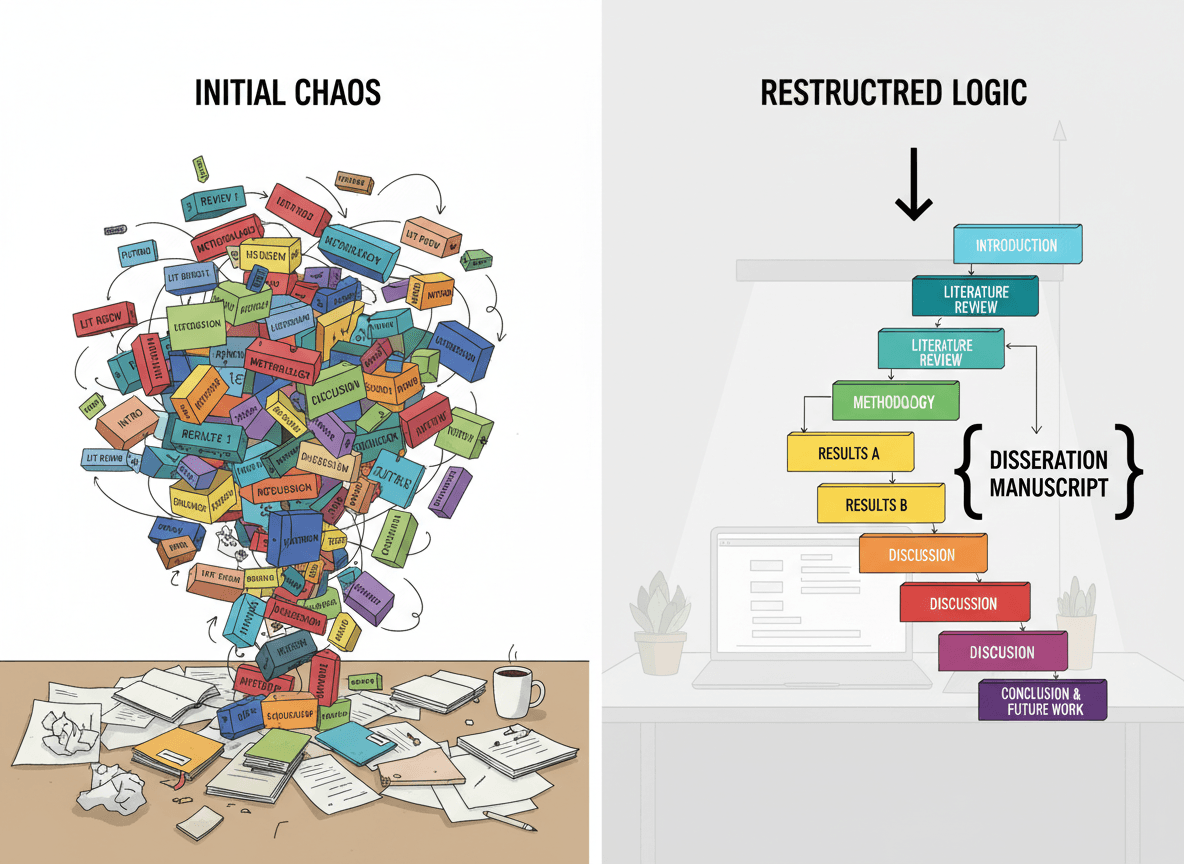
You've spent time reorganizing your PDF pages using our Organize PDF tool. Everything is in the right order now, pages flow logically, and the document makes sense. But when you check the bookmarks, they're pointing to the wrong pages. What happened?
When you reorganize PDF pages, bookmarks often break. Bookmarks are links that point to specific page numbers, and when you move pages around, those links don't automatically update. Our Organize PDF tool helps you reorganize pages easily with drag-and-drop, but it's important to understand how bookmarks are affected. Let me explain what happens and how to handle it.
Why Bookmarks Break
Bookmarks in PDFs are essentially navigation links that point to specific page numbers. When you reorganize pages:
Page numbers change. When you move pages, their positions in the document change. A page that was page 10 might now be page 5.
Bookmarks still point to old positions. Bookmarks remember the old page numbers, so they point to the wrong pages after reorganization.
Links don't update automatically. Most PDF tools don't automatically update bookmark links when you move pages.
Result: Bookmarks that worked before reorganization now point to wrong pages or broken locations.
What to Expect
Here's what typically happens:
Best case: Some tools automatically update bookmarks when pages are moved. This is ideal but not common.
Good case: Bookmarks still exist but point to wrong pages. You can manually fix them.
Bad case: Bookmarks are broken or missing entirely. You might need to recreate them.
Worst case: Bookmarks cause errors or don't work at all.
Most of the time, you'll end up in the "good case" or "bad case"—bookmarks exist but point to wrong pages, or they're broken.
How to Handle Broken Bookmarks
You have several options:
Option 1: Recreate Bookmarks
Delete old bookmarks and create new ones pointing to the correct pages.
How to do it:
- Open bookmark panel in your PDF tool
- Delete old bookmarks
- Create new bookmarks for each section/chapter
- Link them to the correct pages
Pros: Clean, accurate bookmarks
Cons: Takes time, especially for many bookmarks
Option 2: Update Bookmark Links
If your tool supports it, update bookmark links to point to new page positions.
How to do it:
- Open bookmark properties
- Update page references to correct pages
- Save changes
Pros: Keeps bookmark structure, just updates links
Cons: Not all tools support this, can be tedious
Option 3: Organize First, Then Add Bookmarks
Our Organize PDF tool makes reorganizing easy, but it doesn't automatically update bookmarks. The best approach is to organize your pages first, then add or recreate bookmarks afterward.
How to do it:
- Use our Organize PDF tool to reorganize pages with drag-and-drop
- Download your organized PDF
- Add new bookmarks pointing to the correct pages after reorganization
Pros: Clean organization with accurate bookmarks
Cons: Requires an extra step to add bookmarks, but ensures they're correct
Option 4: Accept Broken Bookmarks
If bookmarks aren't critical, you might just accept that they're broken.
When this works: If you rarely use bookmarks, or if the document is short enough that you don't need them.
When it doesn't: For long documents or documents where navigation is important.
Preventing Bookmark Issues
Here's how to minimize problems when using our Organize PDF tool:
Reorganize first, then add bookmarks. Our Organize PDF tool makes it easy to drag and drop pages into the correct order. Do this first, then add bookmarks afterward so they point to the correct pages.
Plan your organization. Before reorganizing, decide on the final page order. Our tool's visual thumbnail view helps you see all pages at once and plan the reorganization.
Test with a small section. Try reorganizing a small section first to see how bookmarks are affected before doing the whole document.
Backup your original. Keep the original PDF with working bookmarks in case you need to reference them when recreating bookmarks.
Best Practices
Here's what I recommend:
For important documents: If bookmarks are critical, use tools that preserve them, or plan to recreate them.
For long documents: Bookmarks are more important for long documents. Take time to fix or recreate them.
For short documents: If the document is short, broken bookmarks might not matter much.
Plan ahead: If you know you'll reorganize, consider whether bookmarks are important and plan accordingly.
Test first: Try reorganizing a small section to see how bookmarks are affected before doing the whole document.
Common Scenarios
Scenario 1: Simple Reorganization
Situation: Moving a few pages, bookmarks break.
Solution: Update bookmark links if possible, or recreate bookmarks for affected sections.
Time: Moderate, depends on how many bookmarks are affected.
Scenario 2: Major Reorganization
Situation: Completely reorganizing document, many bookmarks break.
Solution: Probably easiest to recreate all bookmarks from scratch.
Time: Takes longer, but ensures accuracy.
Scenario 3: Bookmarks Not Critical
Situation: Document has bookmarks, but you don't use them much.
Solution: Accept broken bookmarks, or remove them if they're confusing.
Time: Minimal, if you don't fix them.
Scenario 4: Need Working Bookmarks
Situation: Bookmarks are essential for navigation.
Solution: Use bookmark-preserving tools, or recreate bookmarks after reorganizing.
Time: Takes time, but necessary for functionality.
Dealing with Broken Bookmarks
I've reorganized hundreds of PDFs, and here's what always happens: bookmarks break. They point to specific page numbers, and when you move pages around, those links don't automatically update. Most tools don't handle this for you.
The solution depends on what you need. If bookmarks are important for navigation, you'll need to recreate them or use tools that preserve them. If they're not critical—maybe it's a short document or you rarely use bookmarks—you might just accept that they're broken or remove them entirely.
The key is understanding that reorganization affects bookmarks, and planning for that. If bookmarks matter to you, factor in time to fix or recreate them as part of your reorganization process. It's extra work, but with the right approach, you can have both well-organized pages and working bookmarks.
Ready to reorganize your PDF pages? Try our Organize PDF tool now. Upload your PDF, see all pages as thumbnails, drag to reorder them, and download your organized PDF. After organizing, you can add or recreate bookmarks pointing to the correct pages. It's free, works in your browser, and keeps your files private.