I once needed to convert a 50-megabyte Excel file with 15,000 rows of data to PDF using our Excel to PDF tool. The conversion took a while, but it completed successfully. The PDF was 200 pages long, and all data was preserved. That experience taught me that large spreadsheets require special handling when converting to PDF.
Excel files can grow massive—hundreds of thousands of rows, complex formulas, embedded charts, and extensive formatting. Our Excel to PDF tool handles large files well. Converting these behemoths to PDF isn't always straightforward. The process can be slow, memory-intensive, and sometimes incomplete if you don't approach it correctly.
Understanding the Scale Problem
Large spreadsheets create large PDFs. A spreadsheet with 10,000 rows might become a 50-page PDF. One with 100,000 rows could be 500 pages or more. This isn't necessarily a problem, but it's something to plan for. You need to consider how the PDF will be used—will people actually read 500 pages, or do you need a summary?
File size becomes an issue. Large Excel files create large PDFs. A 20-megabyte Excel file might become a 30-megabyte PDF. This can cause problems with email attachments, file sharing services, or storage systems with size limits. You might need to compress the PDF or split it into smaller files.
Memory requirements are significant. Converting a very large spreadsheet requires substantial computer memory. If your system doesn't have enough RAM, the conversion might fail or your computer might become unresponsive. This is especially true for spreadsheets with complex formulas or many embedded objects.
Processing time increases dramatically. A small spreadsheet might convert in seconds, but a large one could take minutes or even longer. The conversion process has to process every cell, every formula result, every chart, and every formatting element. Large files simply take more time.
Preparation Before Conversion
Before converting, review your spreadsheet. Do you really need everything in the PDF? Sometimes you can hide unnecessary columns or rows, or create a summary sheet that contains only the essential information. Reducing the amount of data before conversion speeds up the process and creates a more manageable PDF.
Check your page setup. Excel's page break preview shows you how pages will be divided. For large spreadsheets, you might want to adjust page breaks so important data doesn't get split awkwardly across pages. This is especially important for tables where you want rows to stay together.
Consider your print area. If you only need specific sections, set print areas in Excel before converting. This tells Excel to only convert those sections to PDF, which is much faster and creates smaller files. You can set multiple print areas if you need different sections.
Optimize your spreadsheet. Remove unnecessary formatting, consolidate similar data, and clean up any unused cells. The cleaner your spreadsheet, the faster and more reliable the conversion will be. This is also a good time to check for errors or inconsistencies in your data.
Using Excel's Built-in Conversion
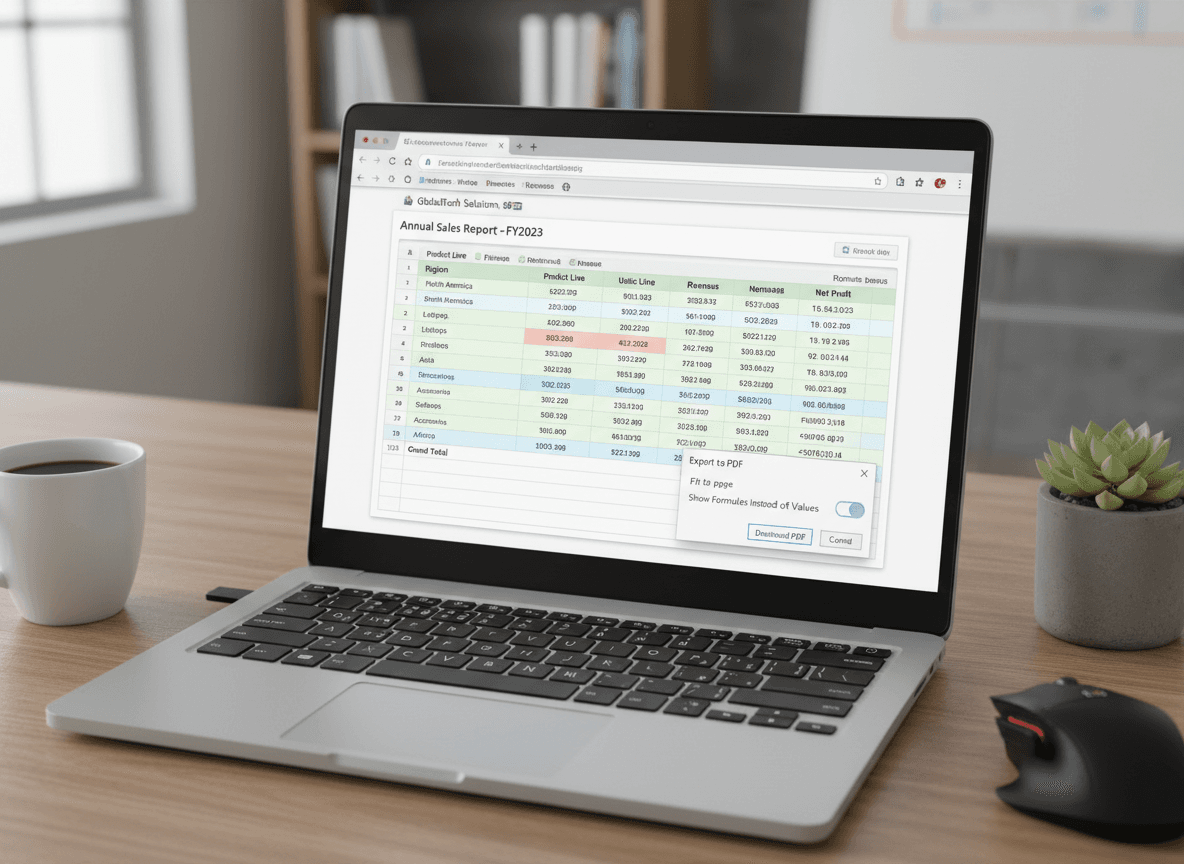
Our Excel to PDF tool handles large files well. It's optimized for Excel's file format and handles large spreadsheets effectively. The conversion happens in your browser, so it's convenient and accessible.
The process is straightforward. Go to File > Save As, choose PDF as the file type, and click Save. Excel will convert your entire workbook or just the active sheet, depending on your selection. For very large files, this might take a while, so be patient.
Excel gives you options during conversion. You can choose to include all sheets or just specific ones. You can optimize for standard or minimum file size. You can include document properties or exclude them. These options help you control the output.
One advantage of Excel's conversion is that it handles formulas correctly. All formula results are calculated and included in the PDF. Third-party tools sometimes struggle with complex formulas or might not calculate them correctly before conversion.
Handling Very Large Files
For extremely large spreadsheets, consider splitting them. Instead of one massive PDF, create multiple smaller PDFs organized by section, date range, or category. This makes the files more manageable and easier to share or work with.
You can split by creating separate Excel files for different sections, then converting each to PDF. Or you can use Excel's ability to set multiple print areas and convert each area separately. This approach gives you more control and creates more usable files.
Compression can help with file size. After conversion, you can compress the PDF using PDF compression tools. This reduces file size without significantly affecting quality, making the file easier to share or store. Just be aware that heavy compression might affect image quality if your spreadsheet contains charts or images.
Consider creating a summary version. Instead of converting the entire massive spreadsheet, create a summary sheet with key metrics, totals, or important data points. Convert that to PDF for sharing, and keep the full spreadsheet available separately for those who need detailed data.
Verifying Completeness
Always verify that your conversion included all the data you need. Open the PDF and spot-check a few sections. Scroll through the pages to make sure nothing is missing. Check that page breaks make sense and that data isn't cut off awkwardly.
Pay special attention to the last pages. Sometimes very large conversions fail silently near the end, and you might not notice missing data unless you check. Scroll to the end of the PDF and verify that your last rows or columns are included.
Check charts and graphics. If your spreadsheet contains embedded charts, verify that they appear correctly in the PDF. Large spreadsheets with many charts can sometimes cause conversion issues, and charts might be missing or distorted.
Test the PDF on different devices if possible. A PDF that looks fine on your computer might have issues on tablets or phones. For large PDFs intended for mobile viewing, you might need to create a separate, optimized version.
Alternative Approaches
For regularly updated large spreadsheets, consider automating the conversion. You can create macros or scripts that automatically convert your spreadsheet to PDF on a schedule. This saves time and ensures consistency in how the conversion is done.
Some organizations use server-based conversion tools for very large files. These tools run on powerful servers with lots of memory, handling conversions that would be difficult on regular computers. If you're dealing with extremely large files regularly, this might be worth exploring.
Cloud-based conversion services can handle large files that might overwhelm local software. These services have the infrastructure to process very large files quickly. Just be aware of data privacy considerations if your spreadsheets contain sensitive information.
The key to successfully converting large spreadsheets is preparation and patience. Take time to optimize your spreadsheet, use our Excel to PDF tool, and verify your results. With the right approach, even very large spreadsheets can be converted to usable PDFs.
Ready to convert your large spreadsheet to PDF? Try our Excel to PDF tool now and see how it handles your large files.