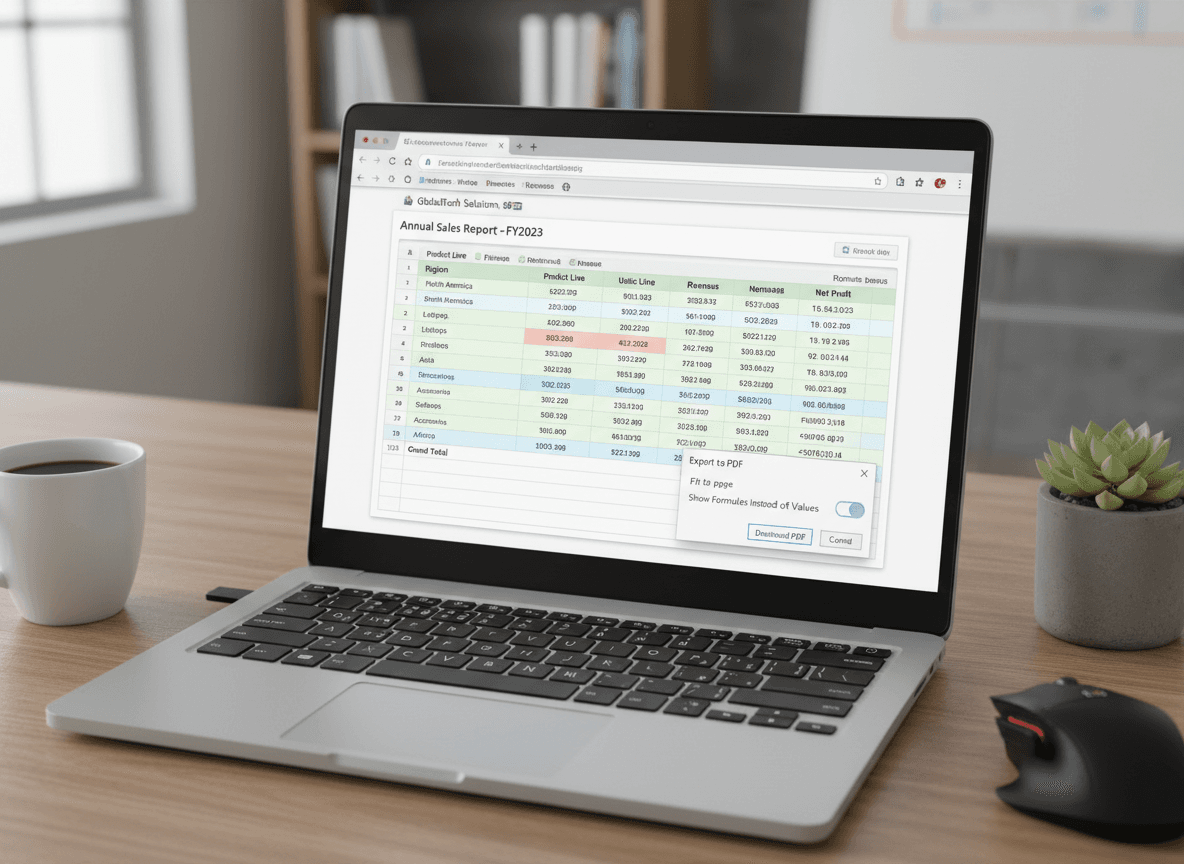
I converted a complex financial model to PDF last month using our Excel to PDF tool, thinking it would be easier to share. A week later, someone asked me to update the numbers, and I realized the PDF only had the calculated values—all my formulas were gone. I had to go back to the Excel file, make changes, and convert again. That's when I learned the hard way that Excel formulas don't survive PDF conversion.
When you convert an Excel spreadsheet to PDF using our Excel to PDF tool, something important happens: all your formulas are calculated, and only the results are preserved. The PDF becomes a snapshot of your data at that moment, but it loses the ability to recalculate. Understanding this helps you decide when PDF conversion makes sense and when you should keep the Excel file.
The Formula Conversion Process
Excel formulas are essentially instructions: "add these cells," "look up this value," "calculate this percentage." When you convert to PDF, Excel runs all those formulas one last time, captures the results, and puts those numbers into the PDF. The formulas themselves don't make the journey.
Think of it like baking. Your Excel file is the recipe with instructions. The PDF is the finished cake—you can see the result, but you can't see how it was made. If you want to change the recipe or use different ingredients, you need to go back to the recipe (Excel file), not the cake (PDF).
This happens because PDFs are designed to be static documents. They're meant to preserve how something looked at a specific moment, not to perform calculations. Excel is a calculation engine; PDF is a presentation format. The conversion process bridges these two purposes by capturing the calculated state.
When Static Values Are Perfect
For final reports and presentations, static values are exactly what you want. You're sharing the results of your analysis, not the methodology. PDFs are ideal for this because they preserve the numbers exactly as they were calculated, ensuring everyone sees the same results.
Printing is another scenario where static values work well. When you print a spreadsheet, you want the current calculated values, not the formulas. PDF conversion gives you a print-ready document with all formulas resolved to their final values.
Archival purposes benefit from static values. If you're saving a snapshot of financial data for historical records, you want the calculated results at that point in time. PDFs preserve this perfectly, creating a permanent record that won't change even if someone modifies the original Excel file.
Sharing with people who don't need to edit is ideal for PDFs. If you're sending quarterly results to stakeholders who just need to review the numbers, PDF is perfect. They get the information they need without the complexity of Excel formulas.
When You Need Formulas Preserved
Sometimes you need to share the formulas themselves. Maybe you're collaborating on a financial model, teaching someone how calculations work, or providing documentation. In these cases, PDF conversion loses important information.
If recipients need to modify the spreadsheet or update the data, they need the Excel file with formulas intact. A PDF won't let them change numbers and see recalculated results. They'd have to manually recalculate everything, which defeats the purpose of using formulas.
Dynamic data scenarios require Excel files. If your spreadsheet pulls data from external sources or needs to update regularly, PDF conversion breaks that functionality. The PDF becomes outdated as soon as the source data changes, while the Excel file can stay current.
Complex models with interdependent calculations need to stay in Excel. If changing one value should automatically update related calculations throughout the spreadsheet, that functionality is lost in PDF. The relationships between cells disappear, leaving only the final numbers.
Practical Solutions
The best approach is often to keep both formats. Maintain the Excel file for editing and calculations, and create PDFs for sharing and archiving. This gives you flexibility: use Excel when you need to work with the data, use PDF when you need to share results.
For important spreadsheets, document your formulas separately if needed. Create a separate sheet in Excel that lists key formulas and their purposes, or include formula documentation in your PDF. This helps people understand how calculations work even if they can't see the formulas in the PDF.
Consider your audience when choosing format. Technical users who need to understand or modify calculations should get Excel files. Business users who just need to review results can get PDFs. Match the format to what people actually need to do.
Some organizations create both versions automatically. They maintain Excel files for internal use and generate PDFs for external sharing. This workflow ensures formulas are preserved where needed while providing convenient PDFs for distribution.
Understanding the Trade-offs
PDF conversion trades functionality for portability. You gain universal compatibility and a stable, unchangeable document. You lose the ability to edit, recalculate, and see how numbers were derived. This trade-off is usually worth it for final reports, but problematic for working documents.
The conversion is one-way in terms of formulas. You can't extract formulas from a PDF back into Excel. Once formulas are converted to values, that information is lost unless you have the original Excel file. This is why keeping source files is important.
File size can be a consideration. Excel files with many formulas might be smaller than PDFs of the same content, especially if the PDF includes high-resolution charts or images. But PDFs are often more shareable because they don't require Excel software to view.
Security considerations matter too. PDFs can be password-protected and have editing restrictions, which is useful for sensitive financial data. Excel files can also be protected, but PDFs offer more control over what recipients can do with the document.
Making the Right Choice
Before converting, ask yourself what the recipient needs to do. Do they need to review results, or do they need to modify and recalculate? Reviewing is perfect for PDFs. Modifying requires Excel files.
Consider the document's lifecycle. Is this a final report that won't change, or a working document that gets updated regularly? Final documents are good candidates for PDF conversion. Working documents should stay in Excel.
Think about collaboration needs. If multiple people need to work with the spreadsheet, Excel files enable that. If you're just distributing information, PDFs are more convenient and prevent accidental changes.
The key is understanding that PDF conversion is a one-way street for formulas. Once converted, you can't get the formulas back. So keep your Excel files, especially for important spreadsheets. You might need them later for updates, modifications, or to understand how calculations work.
Excel to PDF conversion serves a specific purpose: creating stable, shareable snapshots of calculated data. Our Excel to PDF tool makes this easy. It's perfect for reports, presentations, and archival. But when you need formulas, calculations, or the ability to modify data, stick with Excel files. The format you choose should match how the document will be used.
Ready to convert your Excel to PDF? Try our Excel to PDF tool now and see how easy it is to create shareable PDFs from your spreadsheets.