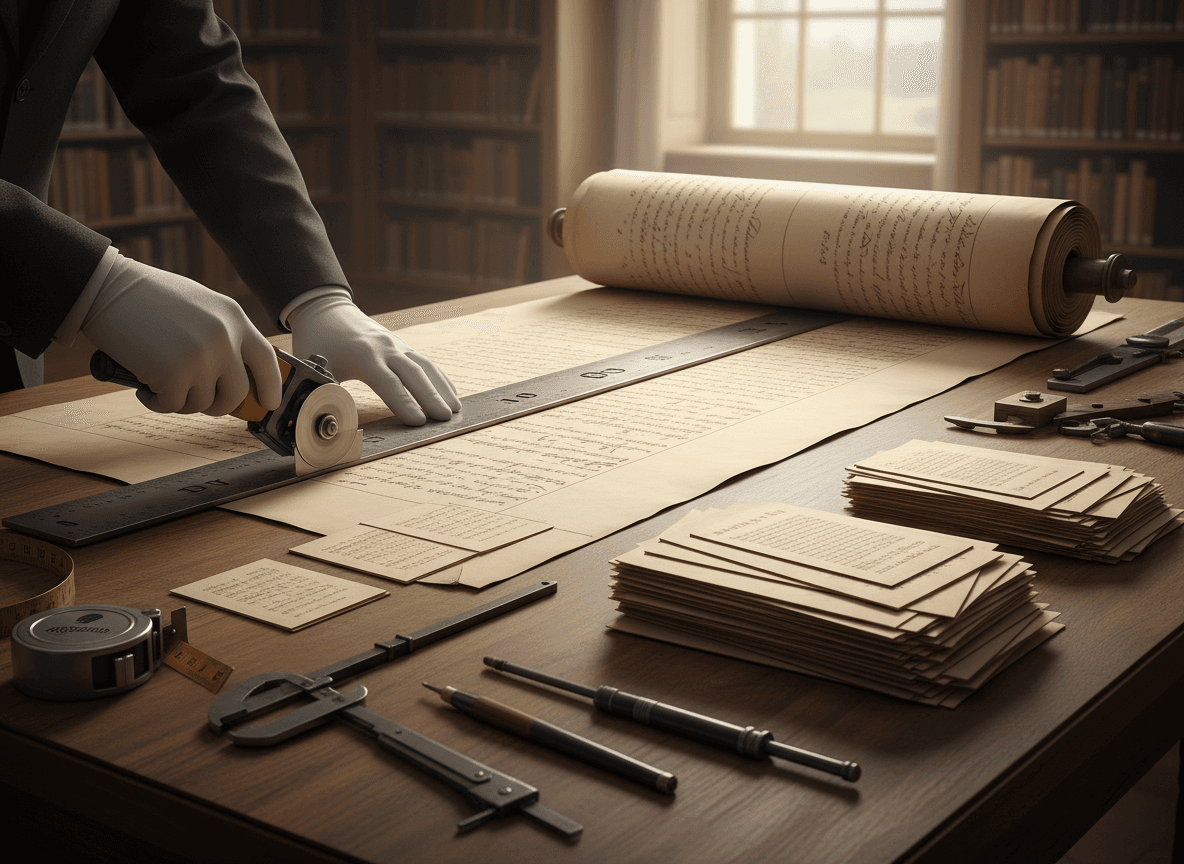
Let me tell you about the time I spent an entire afternoon splitting a 200-page PDF into individual chapters, only to realize I could have just used the search function to jump between sections. That was three hours of my life I'm never getting back. The thing is, splitting PDFs can be incredibly useful—when you do it for the right reasons. But it can also be a complete waste of time if you're doing it when you don't need to.
I've learned this the hard way, so let me save you from making the same mistakes. Here's when splitting actually makes sense, when it doesn't, and how to tell the difference before you spend hours doing something unnecessary.
When Splitting Is Actually Worth It
Scenario 1: Sharing Specific Sections
This is probably the most common legitimate reason to split a PDF. You've got a 50-page manual, but you only need to send someone pages 12-18. Instead of sending the whole thing and saying "just look at pages 12-18" (which nobody ever does), you split out those specific pages and send a clean, focused document.
I do this all the time at work. Someone asks for the budget section from a quarterly report. Instead of forwarding a 30-page document and hoping they find the right part, I use our Split PDF tool to extract pages 8-12 and send just that. It's faster for them, and they're more likely to actually read what I sent.
The key here is that you're creating a document with a specific purpose for a specific person. That's different from splitting just because the file is big.
Scenario 2: Breaking Down Textbooks for Study
Students, this one's real. You've got a 500-page textbook PDF, and you're studying chapter by chapter. Having the whole thing open is overwhelming, and scrolling through hundreds of pages to find chapter 7 is annoying. Splitting it into chapters makes studying way more manageable.
I've seen this work really well for people who study on tablets or e-readers. Our Split PDF tool lets you split by page ranges, so you can break a textbook into chapters. Instead of one massive file that takes forever to load and navigate, you have 15 smaller files, each named "Chapter_1.pdf", "Chapter_2.pdf", etc. It's easier to organize, easier to study, and easier on your device's memory.
But here's the catch: make sure you're actually going to study this way. If you're the type who jumps between chapters constantly, splitting might make things harder, not easier.
Scenario 3: Creating Handouts from Presentations
You've got a 40-slide presentation, but for your workshop, you only want to hand out slides 5-15 and 20-25. Splitting lets you create a custom handout without having to create a whole new presentation file.
This is especially useful when you're adapting content for different audiences. The full presentation might have background info your advanced group doesn't need, or detailed slides your beginner group isn't ready for. Splitting gives you flexibility.
Scenario 4: Separating Confidential from Public Information
Sometimes you have one PDF that contains both public information and confidential details. You need to share the public part, but not the confidential section. Splitting lets you share only what's appropriate.
I've worked with contracts where the main terms are fine to share, but the pricing page needs to stay private. Splitting lets me send the terms without accidentally including sensitive information.
Scenario 5: Reducing File Sizes for Email
This one's practical: you've got a 15MB PDF, but your email limit is 10MB. If the document has distinct sections, splitting it into two or three smaller files might be the solution.
But honestly? This is usually a sign you should compress instead of split. If the file is too big because of images or formatting, splitting won't help much. But if it's too big because it's just really long, splitting into logical sections can work.
When Splitting Is a Waste of Time
Now let's talk about the times I've seen people (including myself) split PDFs when they really shouldn't have.
When You Just Want to Find Something
This was my big mistake. I had a long PDF, thought "this is too big, I'll split it," spent hours splitting it, and then realized I could have just used Ctrl+F to find what I needed. Splitting doesn't make a PDF easier to search—it actually makes it harder because now you have to search multiple files.
If your only problem is "this file is long and I can't find things," use bookmarks, use search, use the navigation pane. Don't split. Splitting is for when you need separate files, not when you need better navigation in one file.
When File Size Isn't Actually a Problem
I've seen people split PDFs because they think smaller files are always better. But if your device handles the large file fine, and you're not sharing it, and you're not hitting any size limits, why split? You're just creating more files to manage.
Modern devices and software handle large PDFs pretty well. Unless you're on a really old device or have specific constraints, a 100-page PDF usually isn't a problem. Don't split just because you think you should.
When You Need to Reference Multiple Sections
If you're constantly jumping between different parts of a document, splitting makes that harder. Now instead of scrolling or using bookmarks in one file, you're opening and closing multiple files. That's slower, not faster.
I learned this working on a project where I needed to reference the introduction, methodology, and conclusion constantly. Having them in separate files meant I had three windows open and was constantly switching. One file with bookmarks would have been way easier.
When the Split Wouldn't Create Logical Sections
Splitting a document into arbitrary chunks (like "first 20 pages, next 20 pages") usually doesn't help. You end up with files that don't make sense on their own, and you still have to remember which file has what.
If you're going to split, split at natural boundaries: chapter breaks, section breaks, topic changes. Random page splits just create confusion.
When You'll Need to Merge Again Later
I've seen this happen: someone splits a document, works with the pieces, and then needs to put it back together. If you're going to merge again, why split in the first place? You're just creating extra work for yourself.
The exception is if you're editing individual sections and then recombining. That can make sense. But if you're just splitting to work with it and then merging back, you're probably better off working with the original file.
How to Tell If You Should Split
Here's my quick decision tree:
- **Do you need to share only part of the document?** → Split
- **Do you need separate files for organization?** → Split
- **Is the file too big for a specific purpose (email, upload, etc.)?** → Maybe split, but consider compressing first
- **Do you just find the file hard to navigate?** → Don't split, use bookmarks/search instead
- **Will you need to reference multiple sections together?** → Don't split
- **Is this a one-time thing or ongoing?** → If one-time, maybe don't split. If ongoing, splitting might help.
The Right Way to Split
If you've decided splitting is the right move, here's how to do it well:
Split at logical boundaries. Don't just split every 20 pages. Look for chapter breaks, section headers, topic changes. Your future self will thank you.
Name your files clearly. "document_part1.pdf" tells you nothing. "Q1_Report_Introduction.pdf" tells you everything. Use descriptive names that make sense even if you forget the context.
Keep the original. Don't delete the full PDF just because you've split it. You might need it later, or you might realize splitting was a mistake. Keep the original until you're absolutely sure you don't need it.
Check each split file. Open them and make sure they start and end at logical points. A file that starts mid-sentence or ends mid-thought is confusing and unprofessional.
Consider page numbers. If your original PDF had page numbers, the split files will have numbers that don't start at 1. That's usually fine, but if it matters for your use case, you might need to renumber pages in the split files.
Alternatives to Splitting
Before you split, consider these alternatives:
Use bookmarks. Most PDFs can have bookmarks added. Instead of splitting, add bookmarks to major sections. It's faster and keeps everything in one file.
Use the navigation pane. PDF readers have navigation panes that show document structure. Use that instead of splitting.
Compress instead. If file size is your concern, use our Compress PDF tool to reduce file size. This might solve the problem without creating multiple files.
Create a summary document. Instead of splitting, create a separate summary or index that points to specific pages. Sometimes that's all you need.
Final Thoughts
Splitting PDFs is a tool, not a solution. Use it when you actually need separate files, not when you're just frustrated with a large document. The time you spend splitting should be less than the time you'll save by having separate files. If that's not true, you're probably better off finding another solution.
I've learned to ask myself: "Am I splitting because I need separate files, or because I'm avoiding learning how to navigate this document better?" The answer usually tells me whether splitting is worth it.
Remember, the goal isn't to have the most files—it's to have the most useful files. Sometimes that means one big file with good navigation. Sometimes that means multiple smaller files. The trick is knowing which situation you're in.
Ready to split your PDF? Try our Split PDF tool now. Upload your PDF, choose to split by page ranges or extract specific pages, and download your split files. It's free, works in your browser, and keeps your files private. Perfect for extracting sections, breaking down textbooks, or creating focused documents.