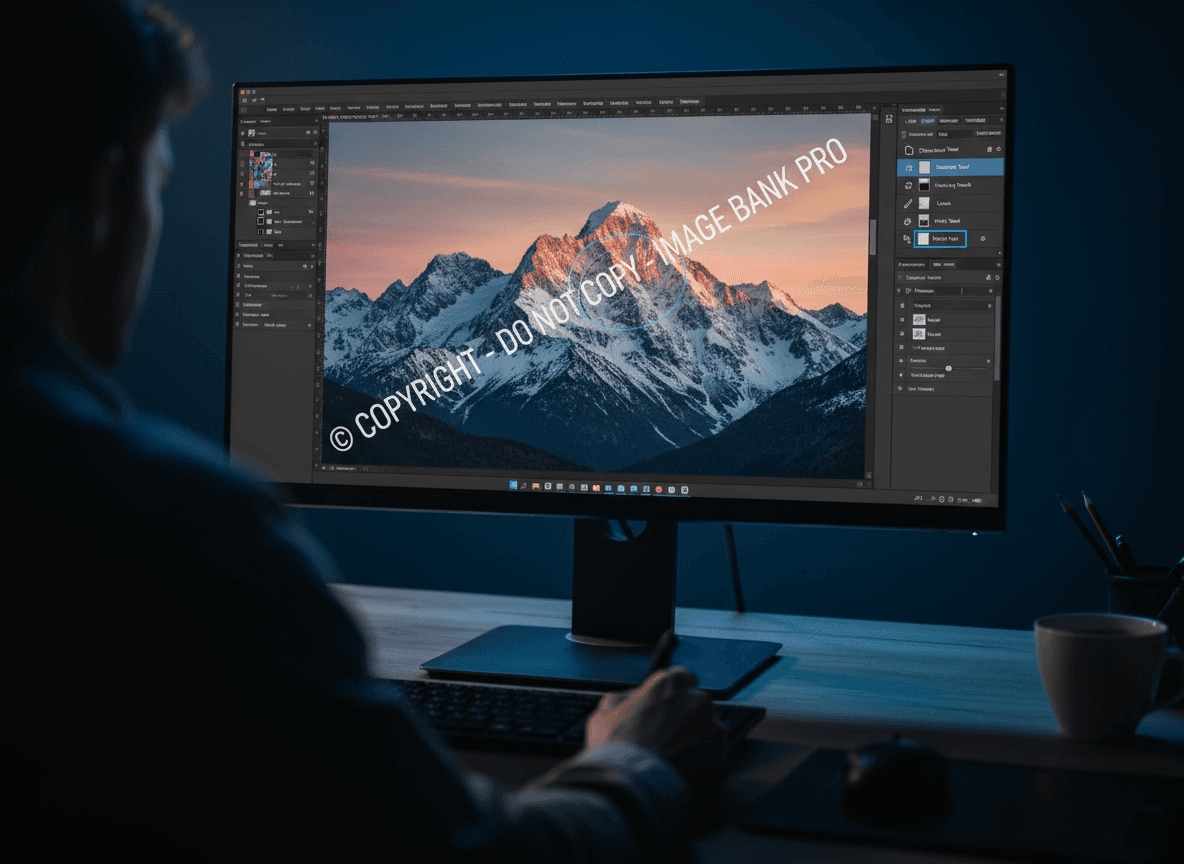

I added a watermark to a client proposal last month, and it looked terrible—too dark, awkwardly placed, and it made the document look unprofessional. The client noticed immediately and asked me to remove it. That experience taught me the importance of creating watermarks that actually look professional.
Our Watermark tool makes adding professional watermarks simple. You can control opacity, placement, size, and style to create watermarks that look great. You've added a watermark to your PDF, but it looks amateur—too bold, wrong placement, or just plain ugly. A bad watermark can make even a professional document look unprofessional. Understanding what makes watermarks effective and professional helps you use our tool to create watermarks that protect your documents without compromising their appearance.
Good watermarks are subtle, well-placed, and effective. Our Watermark tool helps you achieve this. They protect your document without distracting from the content. The key is finding the right balance between visibility and subtlety. Let me show you how to create watermarks that actually look professional with our tool.
What Makes a Professional Watermark
Subtle appearance prevents distraction. A good watermark is visible but doesn't dominate the page. It should be noticeable enough to serve its purpose (protection, branding, or status indication) without interfering with document readability. Overpowering watermarks defeat their purpose by making documents hard to read.
Proper opacity is crucial for effectiveness. Too opaque and it's distracting; too transparent and it's useless. 20-40% opacity is usually good—visible enough to be effective, subtle enough not to interfere. This range provides good balance between protection and readability.
Good placement enhances effectiveness. Centered or diagonal placement works well because these positions are harder to remove and more professional. Avoid corners where watermarks are easy to crop out. Strategic placement makes watermarks more effective while maintaining professional appearance.
Appropriate size matters for effectiveness. Watermarks should be large enough to be effective but small enough not to interfere with reading. Too small and they're ineffective; too large and they're distracting. Finding the right size depends on your document and purpose.
Clear text or images ensure readability. If using text, make it readable with simple, clear fonts. If using an image or logo, make it clear and high-quality. Unclear watermarks look unprofessional and reduce effectiveness.
Consistent style maintains professionalism. Use the same watermark style throughout the document. Different watermarks on different pages look unprofessional and suggest carelessness. Consistency creates a more polished appearance.
Common Mistakes to Avoid
Too bold or dark watermarks distract from content. Watermarks that are too dark make documents hard to read and look unprofessional. They draw attention away from content, which defeats the purpose of having a document. Light, subtle watermarks are more effective.
Poor placement reduces effectiveness. Watermarks in corners are easy to crop out, making them ineffective for protection. Corner placement also looks less professional. Strategic placement in the center or diagonally across the page is more effective and professional.
Wrong size creates problems. Too small watermarks are ineffective and might not serve their purpose. Too large watermarks are distracting and interfere with reading. Finding the right size is important for both effectiveness and appearance.
Inconsistent styling looks unprofessional. Different watermarks on different pages suggest lack of attention to detail. Consistency is important for professional appearance. Use the same style, placement, and opacity throughout the document.
Poor quality images reduce professionalism. Low-resolution logos or images look bad and make documents appear unprofessional. Use high-quality images for watermarks. Blurry or pixelated watermarks detract from document quality.
Wrong font choices hurt readability. Using decorative or hard-to-read fonts makes watermarks ineffective and unprofessional. Simple, clear fonts work best for text watermarks. Readability is important even for watermarks.
Best Practices for Professional Watermarks
Use 20-40% opacity for optimal balance. This makes the watermark visible but not distracting. Test different opacity levels to find what works best for your specific document and purpose. The right opacity depends on your content and watermark type.
Center or diagonal placement works best. These positions are harder to remove and more professional than corner placement. Diagonal placement across the page is particularly effective for protection because it's difficult to remove without affecting content.
Use clear, readable text for text watermarks. If using text, use simple, readable fonts. Avoid decorative fonts that are hard to read. The text should be clear enough to read but subtle enough not to distract. Simple fonts work best.
Keep styling consistent throughout the document. Use the same watermark style, placement, opacity, and size on all pages. Consistency creates a more professional appearance and ensures the watermark serves its purpose effectively across the entire document.
Test readability to ensure effectiveness. Make sure the watermark doesn't make content hard to read. If readers struggle with content because of the watermark, it's too prominent. The watermark should protect or brand without interfering with document use.
Use high-quality images for logo watermarks. If using a logo or image, use a high-resolution version. Low-quality images look unprofessional and reduce document quality. Clear, sharp images maintain professional appearance.
Consider color carefully. Light gray or light colors work well for watermarks. Avoid dark colors that distract from content. The color should be visible but not overpowering. Subtle colors maintain professional appearance while ensuring visibility.
Watermarks for Different Purposes
Draft documents benefit from "DRAFT" watermarks. Use "DRAFT" in light gray, centered or diagonal. This clearly indicates document status without being too distracting. Draft watermarks help prevent accidental use of unfinished documents.
Confidential documents need clear status indication. Use "CONFIDENTIAL" in red or gray, clearly visible. Confidential watermarks should be more prominent than draft watermarks because the status is more critical. Ensure visibility while maintaining readability.
Company branding uses logo watermarks. Use company logo, subtle and professional. Logo watermarks should be visible enough for branding but not so prominent that they interfere with content. Professional logo placement enhances brand presence.
Copyright protection requires visible notices. Use copyright notice, subtle but present. Copyright watermarks should be visible enough to serve legal purposes but not so prominent that they distract. Balance visibility with subtlety.
Sample documents need clear indication. Use "SAMPLE" clearly but not overpowering. Sample watermarks help prevent accidental use of sample documents. They should be visible but not interfere with viewing the sample content.
Creating Professional Watermarks
I've created hundreds of watermarked PDFs, and here's what I've learned: professional watermarks are subtle, well-placed, and consistent. Our Watermark tool makes this easy. Use appropriate opacity (20-40%) with our tool. Center or diagonal placement. Clear text or high-quality images. Keep the style consistent throughout the document.
Avoid common mistakes like being too bold, poor placement, or inconsistent styling. Our tool helps you avoid these mistakes with easy controls. I've seen watermarks that were so dark they made documents unreadable, or so light they were useless. Our Watermark tool lets you test and adjust until it's perfect. With our tool and the right approach, watermarks can protect your documents while maintaining a professional appearance.
The goal is to protect your document without making it look unprofessional. Our Watermark tool helps you find that balance between visibility and subtlety. Professional watermarks enhance documents rather than detract from them, serving their purpose while maintaining quality appearance.
Ready to add a professional watermark? Try our Watermark tool now and see how easy it is to create watermarks that look great.