You're compressing a PDF, and you see two options: "lossless" and "lossy." Everyone tells you to use lossless because it preserves quality. But lossy gives you smaller files. Which one should you actually use?
The answer isn't as simple as "always use lossless." Sometimes lossy compression is perfectly fine, and sometimes lossless isn't enough. Let me break down when each makes sense so you can make the right choice for your situation.
What's the Difference?
Lossless compression reduces file size without losing any data. When you decompress, you get exactly what you started with. Every pixel, every character, every detail is preserved. The trade-off? File size reduction is usually modest—maybe 20-40% for most PDFs.
Lossy compression reduces file size by removing some data. It makes intelligent decisions about what you won't notice, then discards that information. The result? Much smaller files, but some quality loss. How much loss depends on how aggressive the compression is.
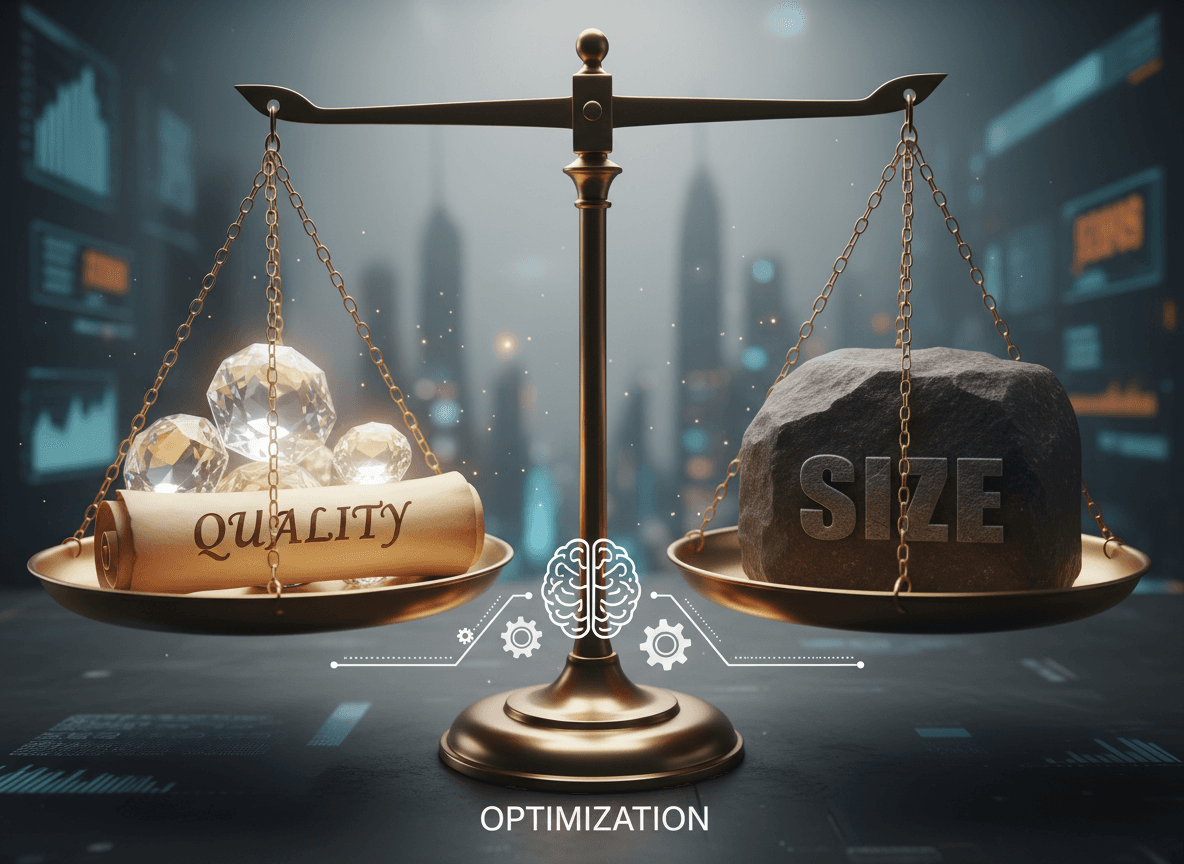
The key difference: lossless preserves everything perfectly, lossy sacrifices some quality for smaller size.
When Lossless Makes Sense
Use lossless compression when:
Quality is critical. If you're submitting documents for publication, printing at high resolution, or archiving important files, use lossless. You want every detail preserved.
The file isn't dramatically oversized. If you just need to shrink a file by 20-30% to fit an email limit, lossless is usually enough. No need to sacrifice quality.
You're compressing text-heavy documents. Text compresses well with lossless methods. You'll get good size reduction without quality concerns.
You need to compress multiple times. If you'll compress, edit, compress again, lossless prevents quality degradation from accumulating.
You're not sure. When in doubt, use lossless. It's the safe choice.
When Lossy Makes Sense
Use lossy compression when:
File size is the priority. If you absolutely must get a file under a certain size (like a 10MB email limit), and lossless isn't enough, lossy can get you there.
The document is for screen viewing. If people will view it on screens, not print it, moderate lossy compression is usually fine. Screens don't show the quality loss as much as print does.
Images dominate the file. Image-heavy PDFs compress much better with lossy methods. You can often reduce file size by 50-70% with minimal visible quality loss.
It's a draft or working document. If this isn't the final version, lossy compression is fine. Save lossless for the final version.
You're sharing for review. If you're emailing something for someone to review on screen, lossy compression usually works fine. They're reading content, not judging image quality.
The Quality Question
Here's what most people don't realize: lossy compression doesn't always look bad. Modern compression algorithms are smart. They know what you'll notice and what you won't.
For text: Lossy compression usually doesn't affect text readability much. Text is either readable or it's not—there's not much middle ground.
For photos: Moderate lossy compression (70-80% quality) often looks identical to lossless unless you're comparing side-by-side or printing large.
For charts and diagrams: These compress really well with lossy methods. Simple graphics don't show quality loss much.
For scanned documents: This is where you need to be careful. Too much lossy compression can make scanned text blurry or pixelated.
The key is testing. Try lossy compression, look at the result, and decide if the quality is acceptable for your purpose.
Real-World Examples
Let me give you some actual scenarios:
Scenario 1: Business Report for Email
- File: 18MB report with text, charts, and a few photos
- Goal: Get under 10MB for email
- Solution: Try lossless compression with our [Compress PDF tool](../compress) first. If it gets you to 12MB, that's not enough. Use moderate lossy compression (75% quality). Result: 8MB file that looks fine on screen.
Scenario 2: Academic Paper for Submission
- File: 15MB paper with text and charts
- Goal: Submit to journal (they want under 10MB)
- Solution: Use lossless compression with our [Compress PDF tool](../compress). Text compresses well, and you need perfect quality for submission. Result: 9MB file with perfect quality.
Scenario 3: Portfolio with High-Res Photos
- File: 50MB portfolio PDF
- Goal: Get under 10MB for email
- Solution: Lossless won't be enough. Use lossy compression at 70% quality. Result: 8MB file. Photos look slightly less sharp but still professional.
Scenario 4: Scanned Legal Document
- File: 25MB scanned contract
- Goal: Archive with good quality
- Solution: Use lossless or very light lossy (90% quality). Text readability is critical. Result: 12MB file with perfect text readability.
How to Decide
Here's my decision process:
- **What's the purpose?** If it's for print or publication, lean toward lossless. If it's for screen viewing or email, lossy might be fine.
- **How much compression do you need?** If lossless gets you there, use it. If you need more compression, consider lossy.
- **What's in the file?** Text-heavy? Lossless is usually fine. Image-heavy? Lossy might be necessary.
- **Test both.** Try lossless first. If it's not enough, try lossy and compare the results. See if the quality loss is acceptable.
- **Consider the recipient.** Will they notice or care about quality? If they're just reviewing content, lossy is probably fine.
The Middle Ground
Many tools offer quality settings for lossy compression. You're not stuck with "lossless" or "aggressive lossy." You can choose:
- **High quality (90-95%):** Minimal quality loss, good compression
- **Medium quality (70-85%):** Noticeable but acceptable quality loss, better compression
- **Low quality (50-70%):** Significant quality loss, maximum compression
Start with high quality lossy. If that's not enough, try medium. Only go to low quality if you absolutely must.
Common Mistakes
Here are mistakes I see people make:
Always using lossless "just to be safe." Sometimes this means files stay too large when lossy would have been fine.
Using aggressive lossy when lossless would work. Don't sacrifice quality unnecessarily. Try lossless first.
Not testing the result. Always look at the compressed file before sending. Make sure quality is acceptable.
Using lossy for print documents. Print shows quality loss more than screens. Use lossless for anything that will be printed.
Assuming lossy always looks bad. Modern compression is good. Moderate lossy often looks fine.
Best Practices
Here's my workflow:
- **Start with lossless.** See if it gets you the file size you need.
- **If lossless isn't enough, try high-quality lossy.** Test at 85-90% quality first.
- **Compare the results.** Look at both versions. Is the quality difference noticeable? Is it acceptable?
- **Adjust if needed.** If high-quality lossy isn't enough, try medium quality. But test each step.
- **Keep the original.** Never delete your original file. You might need to try different settings.
- **Document your choice.** If you use lossy, note why. Future you will appreciate the context.
Making the Right Choice
Here's what I've learned after years of compressing PDFs: there's no universal "best" choice between lossless and lossy. The right choice depends entirely on your file, your needs, and your situation.
I've seen people insist on lossless for a draft document that's just being reviewed on screen. I've also seen people use aggressive lossy compression on a document that's going to be printed professionally. Both are mistakes, but for opposite reasons.
The smart approach? Start with lossless. See if it gets you where you need to be. If it does, great—you're done. If it doesn't, try lossy at high quality and actually look at the result. Compare it to the original. Is the quality difference noticeable? Is it acceptable for your purpose?
Don't let "always use lossless" or "lossy is fine" become rigid rules. Test, compare, and decide based on what you actually see, not on what someone told you. Your eyes are the best judge of whether quality is acceptable for your specific use case.
Ready to compress your PDF? Try our Compress PDF tool now. Upload your PDF, choose between lossless or lossy compression, and download your compressed file. Our tool lets you control compression quality, so you can find the perfect balance between file size and quality. It's free, works in your browser, and keeps your files private.