
You know that moment. You've finished your report, you're ready to send it, you attach it to the email, and then—bam. "File too large." Your 18MB PDF needs to be under 10MB, and you have no idea if that's even possible. I've been there more times than I care to admit, and I've learned a thing or two about what's actually achievable when it comes to shrinking PDFs.
Let me give you the real numbers, the honest expectations, and the methods that actually work. No marketing fluff, just what I've learned from compressing hundreds of PDFs for actual work situations.
The Reality Check: What's Actually Possible?
Here's the thing most people don't realize: you can't shrink every PDF. Some files are already as small as they can reasonably get. Others can be compressed dramatically. The difference comes down to what's in your PDF.
Text-heavy PDFs can usually be compressed by 30-50%. If you've got a 10MB document that's mostly text, you can probably get it down to 5-7MB without losing quality. Sometimes more, depending on how it was created.
Image-heavy PDFs are where the real magic happens. I've seen 50MB files shrink to 5MB. I've also seen 20MB files that only compress to 18MB. It depends on image resolution, compression already applied, and image format.
Scanned documents are tricky. They're essentially images of text, so they can compress well, but you risk making text unreadable if you compress too much. Usually, you can get 40-60% reduction, but you need to be careful.
Mixed content (text, images, charts, etc.) usually compresses by 20-40%, depending on what dominates.
The bottom line? Don't expect miracles, but don't assume it's impossible either. Most PDFs can be reduced by at least 20-30% without noticeable quality loss.
Why Some PDFs Won't Compress Much
Before you get frustrated, understand why your PDF might not shrink:
It's already compressed. If the PDF was created with compression already applied, there's not much room left. You can't compress something that's already been compressed to death.
It's mostly text. Text doesn't compress much. A 100-page text document might only be 2MB to begin with, and compressing it might save you 200KB. That's not nothing, but it's not going to solve a size problem.
Images are already optimized. If the images in your PDF are already low-resolution or heavily compressed, you can't squeeze much more out of them.
It's a scanned document with high DPI. Scans at 300 DPI or higher create huge files. You can compress them, but you need to balance file size with readability.
Complex formatting and fonts. Some PDFs have embedded fonts, complex layouts, and other elements that don't compress well. These files are harder to shrink.
Methods That Actually Work
I've tried a lot of compression methods. Here's what actually works in real-world situations:
Method 1: Our Compress PDF Tool (The Easy Way)
Our Compress PDF tool makes compression simple and fast. Upload your PDF, choose your compression level, and download your compressed file. It's quick, it's easy, and for many files, it's enough.
What it does: Our tool recompresses images, removes unnecessary metadata, and optimizes the file structure. It's not aggressive by default, but it's safe and usually gets you 20-30% reduction without noticeable quality loss.
When to use it: When you need a quick solution and the file isn't dramatically oversized. If you need to go from 18MB to 10MB, our tool can usually do it. If you need to go from 50MB to 5MB, you might need more aggressive compression settings.
Method 2: Image Compression (The Big Win)
If your PDF has images, this is where you'll see the biggest results. The trick is compressing images without making them look terrible.
For photos and graphics: You can usually reduce image quality to 70-80% without noticeable degradation. This can cut image file sizes in half or more.
For scanned text: Be more careful. You need enough resolution for text to be readable, but you can often reduce from 300 DPI to 200 DPI without problems. That's a significant size reduction.
For charts and diagrams: These can usually be compressed more aggressively. They're simpler images, so lower quality settings often work fine.
The key is to preview the compressed version. Don't just compress and send—actually look at it. Make sure text is readable and images look acceptable.
Method 3: Removing Unnecessary Elements
Sometimes your PDF is big because of stuff you don't need:
Embedded fonts can make files huge. If you're not using special fonts, remove embedded fonts you don't need.
Metadata and annotations add size. If you've got comments, annotations, or extensive metadata, removing them can help.
Unused resources sometimes get left in PDFs. Optimization tools can remove these.
Bookmarks and navigation add a small amount of size. If you don't need them, removing them saves a bit.
This won't give you dramatic reductions, but every little bit helps, and it's usually safe to do.
Method 4: Splitting and Compressing Separately
If you have a really large PDF, sometimes the best approach is to use our Split PDF tool to split it into sections, compress each section with our Compress PDF tool, and then use our Merge PDF tool to combine them back. This can work better than trying to compress the whole thing at once.
I've used this for 100+ page documents with lots of images. Split into 20-page chunks using our Split PDF tool, compress each chunk with our Compress PDF tool, then merge back. The result is often smaller than compressing the whole document at once.
Method 5: Recreating the PDF (The Nuclear Option)
Sometimes the best way to shrink a PDF is to not compress it at all—instead, recreate it from scratch with better settings. This is time-consuming, but if you have the source files, it often produces the best results.
Export from your original software with compression settings optimized for file size. Use lower image resolutions, compress images before adding them, and choose PDF settings that prioritize file size over quality.
Real-World Examples
Let me give you some actual numbers from files I've compressed:
Case 1: Business Report
- Original: 15MB (text + charts + a few photos)
- After compression: 8MB
- Method: Built-in compression with image quality set to 75%
- Result: Looked identical, easily emailed
Case 2: Scanned Document
- Original: 25MB (300 DPI scan of 50 pages)
- After compression: 9MB
- Method: Reduced to 200 DPI, compressed images
- Result: Text still perfectly readable, file size manageable
Case 3: Portfolio with High-Res Images
- Original: 45MB (portfolio with many high-resolution photos)
- After compression: 6MB
- Method: Aggressive image compression to 60% quality
- Result: Images looked slightly less sharp but still professional, file was email-able
Case 4: Text-Heavy Academic Paper
- Original: 12MB (200 pages, mostly text, some charts)
- After compression: 9MB
- Method: Standard compression
- Result: Only 25% reduction because text doesn't compress much, but enough to email
What Quality Loss Actually Looks Like
People worry about quality loss, and they should. But it's not always as bad as you think:
Text usually stays perfect. Unless you're doing something really aggressive, text readability doesn't suffer.
Photos might look slightly less sharp, but for most purposes (viewing on screen, printing at normal sizes), the difference isn't noticeable unless you're comparing side-by-side.
Charts and diagrams usually compress well without visible quality loss.
Scanned text is where you need to be careful. Compress too much, and text becomes blurry or pixelated. But moderate compression usually works fine.
The key is to test. Compress a copy, look at it, and decide if the quality is acceptable for your purpose. If you're emailing a report for review, slightly lower quality might be fine. If you're submitting something for publication, you might need higher quality.
When Compression Isn't Enough
Sometimes, no matter what you do, you can't get the file small enough. Here are your options:
Use cloud storage. Instead of emailing, upload to Google Drive, Dropbox, or similar, and share a link. This solves the size problem without compromising quality.
Split the file. If it's a long document, split it into multiple smaller files and send them separately or over multiple emails.
Use a file transfer service. Services like WeTransfer let you send large files without email size limits.
Accept the quality trade-off. If you absolutely must email and can't use alternatives, you might need to compress more aggressively and accept some quality loss.
Best Practices
Here's my workflow that's never failed me:
- **Start with the easy method.** Try built-in compression first. It's quick and often enough.
- **Check the result.** Don't just compress and send. Open the compressed file and make sure it looks acceptable.
- **If that's not enough, get more aggressive.** Reduce image quality, remove unnecessary elements, try different compression settings.
- **Test again.** Always verify quality after more aggressive compression.
- **If it's still too big, consider alternatives.** Cloud storage, splitting, or file transfer services might be better than destroying quality.
- **Keep the original.** Never delete your original file. You might need it later, or you might need to try a different approach.
Getting It Right
After compressing hundreds of PDFs, I've learned that success comes from matching your approach to the file. A 50MB image-heavy portfolio needs aggressive image compression. A 12MB text document might only need basic optimization. A scanned contract needs careful balance between size and readability.
The real skill isn't knowing which button to click—it's understanding what your file needs and choosing the right method. Start simple, test the results, and only get more aggressive if you need to. Most of the time, built-in compression or moderate image compression gets you where you need to be.
And here's something important: compression isn't always the answer. If you've tried reasonable compression and the file is still too big, maybe it's time to consider alternatives. Cloud storage, file transfer services, or splitting the document might be better solutions than destroying quality with extreme compression.
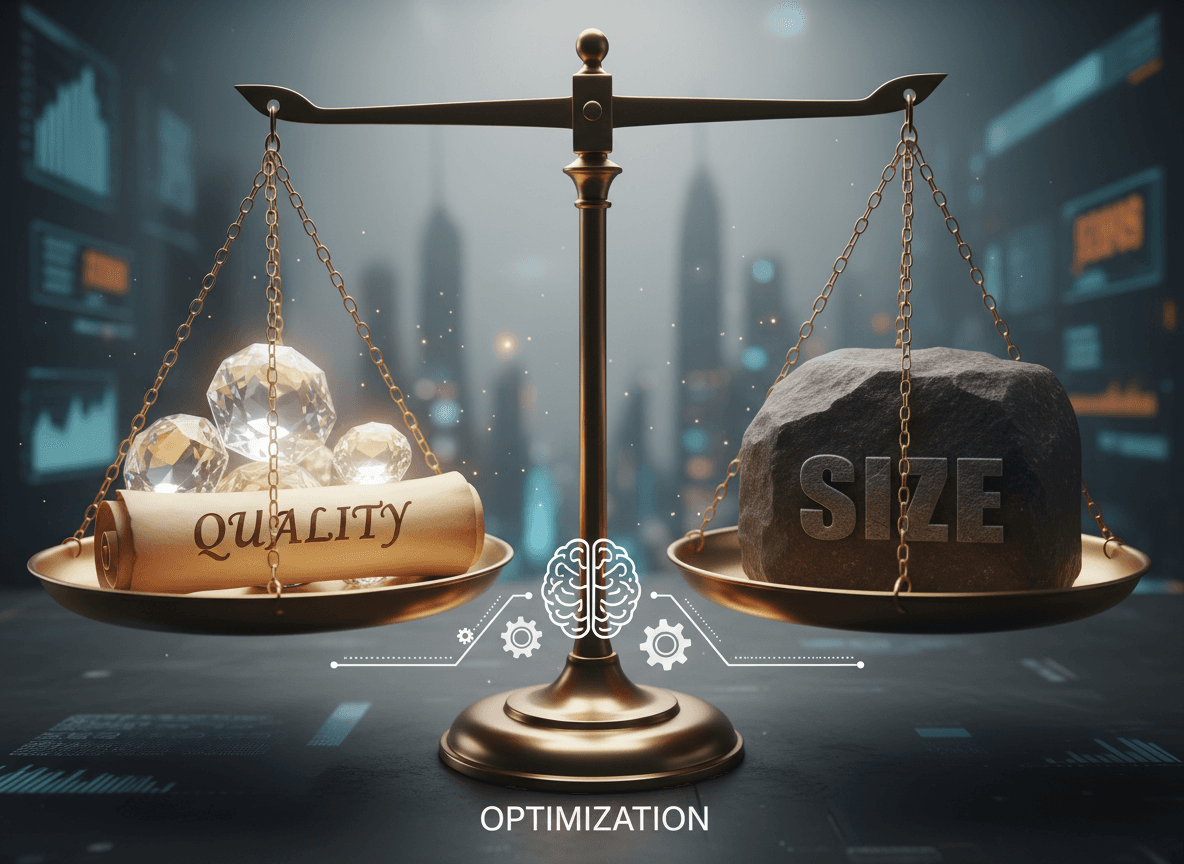
The goal isn't to make every file as small as possible—it's to make files the right size for their purpose while maintaining acceptable quality. Sometimes that means 20% compression. Sometimes that means 70% compression. Sometimes that means not compressing at all and using a different solution entirely.
Ready to compress your PDF? Try our Compress PDF tool now. Upload your PDF, choose your compression level, and download your compressed file. Our tool reduces file size while maintaining quality, making it perfect for emailing large files or reducing storage space. It's free, works in your browser, and keeps your files private.