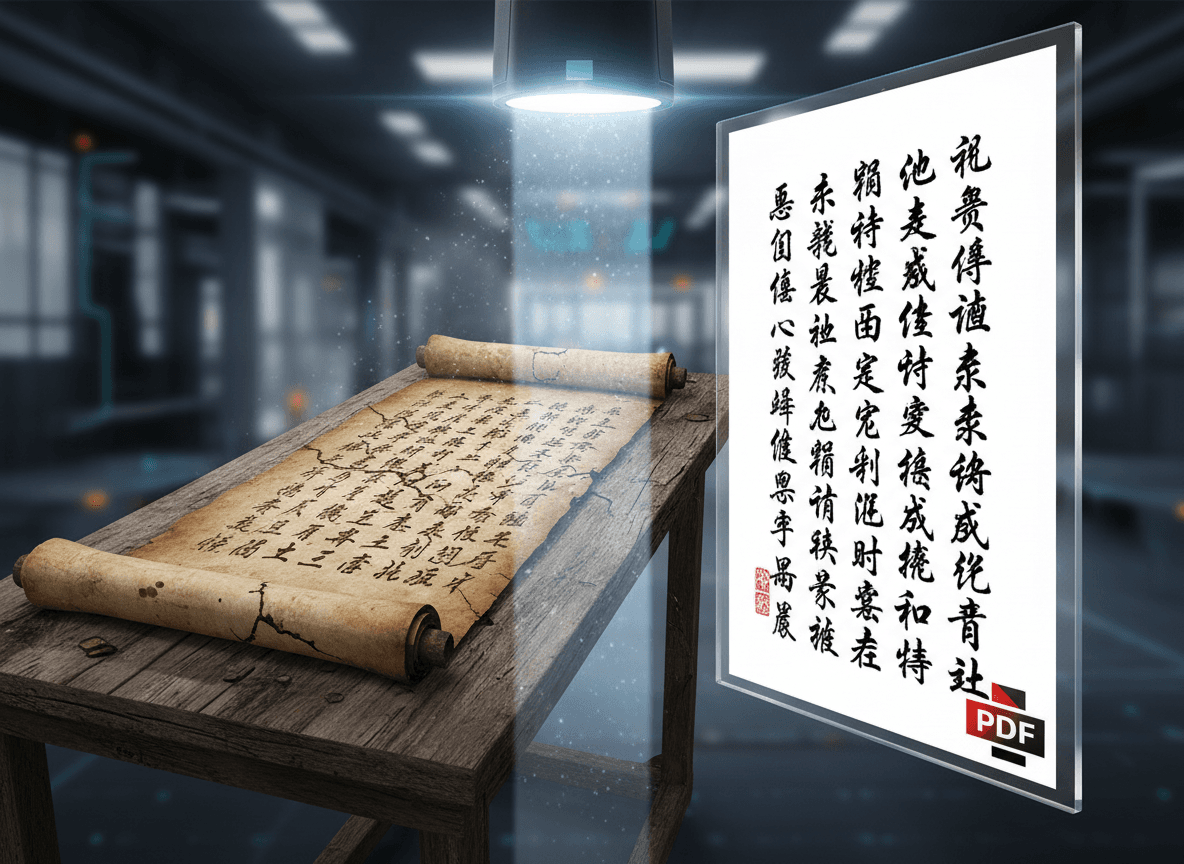
I converted a beautifully designed PDF brochure to HTML last month using our PDF to HTML tool, expecting it to look identical. The text converted fine, but the three-column layout collapsed into a single column, the custom fonts were replaced with defaults, and the carefully positioned graphics were scattered. That experience taught me that PDF to HTML conversion has limits, and understanding what converts well and what doesn't helps set realistic expectations.
PDF to HTML conversion doesn't always preserve everything perfectly. Our PDF to HTML tool handles most conversions well, but some elements convert better than others. Understanding what typically converts and what doesn't helps you set expectations and plan accordingly. Knowing these limitations before you start saves frustration and helps you decide whether conversion is worth the effort.
Elements That Usually Convert Successfully
Text content transfers reliably. The actual text from your PDF usually converts to HTML text accurately. Words, sentences, and paragraphs come through intact. However, formatting might change—font sizes might differ, line spacing might adjust, and text alignment might shift. The content is there, but how it looks might vary.
Images typically convert, though they may need optimization. Images embedded in PDFs are extracted and saved as separate files, then referenced in the HTML. The images themselves usually convert fine, but file sizes might be large, requiring optimization for web use. Image quality is generally preserved, though some compression might occur.
Basic layouts often convert reasonably well. Simple single-column layouts with standard text and images usually translate to HTML without major issues. The HTML might use different positioning methods than the PDF, but the overall structure remains recognizable. Simple is better when it comes to conversion success.
Links usually convert to HTML links. If your PDF contains hyperlinks, they typically become clickable HTML links in the converted version. This is one of the more reliable conversion features. Internal links (to other pages in the PDF) might need adjustment, but external links usually work.
Headings often convert to HTML heading tags. If your PDF uses styled headings, conversion tools often recognize them and convert them to proper HTML heading tags (H1, H2, etc.). This is helpful for SEO and document structure, though the recognition isn't always perfect.
Elements That Often Cause Problems
Complex layouts frequently break. Multi-column layouts, text boxes, overlapping elements, and intricate designs often don't convert well. HTML uses different layout methods than PDFs, and complex PDF layouts rely on precise positioning that doesn't translate easily. Simple layouts convert better than complex ones.
Exact positioning doesn't always translate. PDFs use absolute positioning—every element has exact coordinates. HTML uses relative positioning and flow-based layouts. When you convert, elements might shift, overlap, or appear in unexpected positions. The more precise your PDF layout, the more likely it is to break in HTML.
Fonts may not match exactly. If your PDF uses custom fonts that aren't available on the web, conversion tools substitute similar fonts. The result might look close, but it won't be identical. Font sizes, weights, and styles might also differ. For exact font matching, you'd need to ensure web fonts are available.
Complex tables can break or lose formatting. Simple tables usually convert fine, but complex tables with merged cells, nested structures, or intricate formatting often have issues. Borders might disappear, alignment might shift, and cell content might overflow. Tables are one of the trickier elements to convert.
Graphics and vector elements may not convert perfectly. Simple graphics usually work, but complex vector graphics, charts, or diagrams might not translate well. Some might become rasterized images, losing their scalability. Others might not convert at all, appearing as missing elements in the HTML.
Setting Realistic Expectations
Test your conversion before committing. Don't assume your PDF will convert perfectly. Run a test conversion, review the HTML output, and see what works and what doesn't. This helps you understand what cleanup work will be needed and whether conversion is worth the effort.
Simplify PDF layouts when possible. If you know you'll be converting to HTML, design your PDF with conversion in mind. Use simpler layouts, standard fonts, and straightforward structures. This makes conversion more successful and reduces cleanup work afterward.
Expect some differences. HTML won't match your PDF exactly, and that's okay. The goal is functional HTML that serves your purpose, not a pixel-perfect replica. Accept that some formatting differences are normal and focus on ensuring content and functionality transfer correctly.
Plan to edit HTML after conversion. Most converted HTML needs some cleanup. You might need to fix layouts, adjust styles, optimize images, or restructure content. Budget time for this cleanup work. Conversion is a starting point, not a finished product.
Making Conversion Work for You
Choose the right conversion tool. Different tools handle different PDF elements better. Some are better at preserving layouts, others at extracting text. Test a few tools to see which works best for your specific PDFs. The right tool can make a significant difference in conversion quality.
Optimize your PDF before converting. Clean up your PDF before conversion. Remove unnecessary elements, simplify complex layouts, and ensure fonts are embedded. A cleaner PDF produces better HTML output. Taking time to prepare your PDF pays off in conversion quality.
Consider hybrid approaches. Sometimes the best solution is converting part of your PDF to HTML and keeping other parts as images or separate PDFs. Complex graphics might stay as images, while text content becomes HTML. This hybrid approach gives you the benefits of HTML while preserving elements that don't convert well.
PDF to HTML conversion is a tool, not a magic solution. Our PDF to HTML tool makes this process simple. Understanding what converts well and what doesn't helps you use it effectively. Test conversions, set realistic expectations, and plan for cleanup work. With our tool and the right approach, you can successfully convert PDFs to HTML while understanding and working within the conversion's limitations.
Ready to convert your PDF to HTML? Try our PDF to HTML tool now and see how easy it is to convert your PDFs.