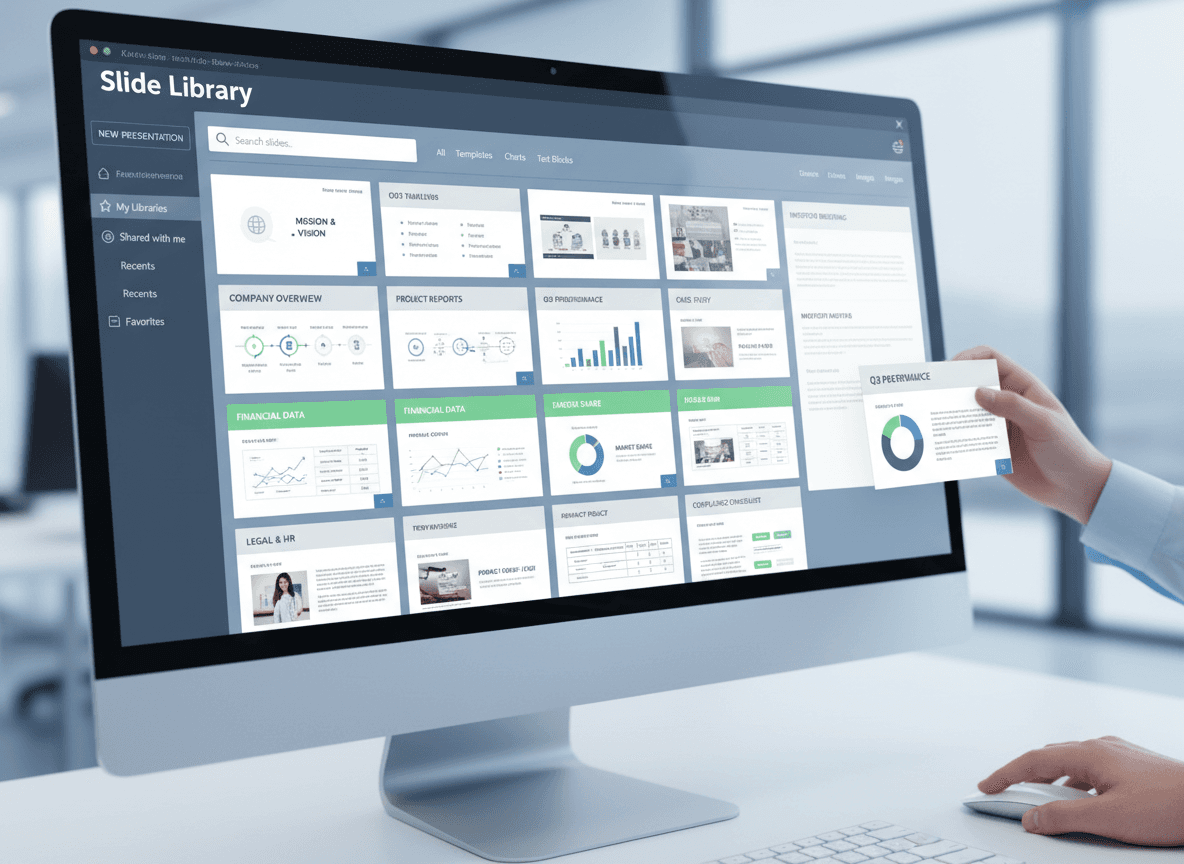
I needed to update a presentation last month, but all I had was the PDF version. The original PowerPoint file was lost. I used our PDF to PowerPoint tool to convert the PDF back to PowerPoint, hoping to edit it easily. The text was editable, and the layouts were preserved well. That experience showed me that our tool makes PDF to PowerPoint conversion work well.
Converting PDF presentations back to PowerPoint is possible with our PDF to PowerPoint tool. Some PDFs convert beautifully, others lose formatting or become difficult to edit. Understanding the trade-offs helps set realistic expectations and guides you in deciding whether conversion is worth the effort.
What the Conversion Process Does
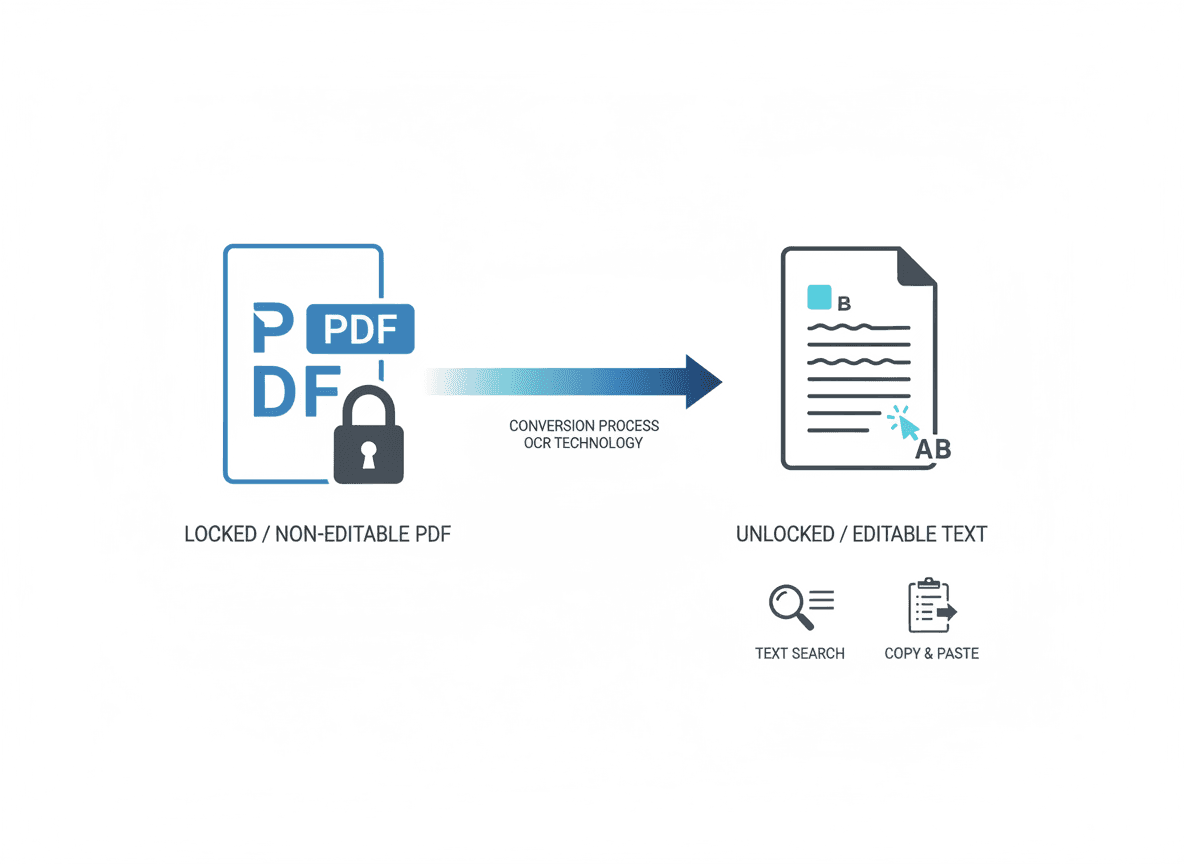
The conversion tool analyzes your PDF and attempts to recreate it as a PowerPoint presentation. It identifies text, images, and layout elements, then reconstructs them in PowerPoint format. This is essentially reverse engineering—taking a finished document and trying to make it editable again.
Layout preservation varies. Simple, straightforward layouts usually convert well. Complex layouts with multiple columns, overlapping elements, or intricate designs often need adjustment. The conversion tool does its best, but PDFs and PowerPoint use different layout systems, so perfect preservation isn't always possible.
Text editing capability depends on how the PDF was created. If the PDF contains actual text (not scanned images), the text usually becomes editable in PowerPoint. However, formatting might change—font sizes might differ, text alignment might shift, and text boxes might resize. The content is editable, but how it looks might need adjustment.
Images usually convert successfully. Images embedded in PDFs are extracted and placed in PowerPoint slides. They might need resizing or repositioning, but the images themselves typically transfer well. Complex graphics or vector elements might need recreation if they don't convert properly.
The Reality of Conversion Quality
Simple layouts convert much better than complex ones. A basic slide with a title and bullet points usually converts almost perfectly. A slide with multiple columns, text boxes, images, and complex formatting often needs significant cleanup. The simpler your original PDF, the better your conversion results.
Standard fonts convert better than custom fonts. If your PDF uses common fonts like Arial, Times New Roman, or Calibri, conversion tools can match them easily. Custom or unusual fonts might not be available, causing substitution. The text is there, but it might look different.
High-quality PDFs produce better conversions. PDFs created directly from PowerPoint (not scanned) convert better than scanned PDFs. PDFs with clear text, good resolution images, and proper structure convert more successfully than low-quality or damaged PDFs.
PDFs originally created as presentations convert better. If a PDF was created by exporting from PowerPoint, converting it back works well because the structure is familiar. PDFs created from other sources (like Word documents converted to PDF) are harder to convert back to presentation format.
When Conversion Works Well
Simple slide layouts with standard elements convert reliably. Title slides, bullet point slides, and basic content slides usually convert with minimal issues. The conversion tool understands these common structures and recreates them accurately.
Clear, standard text converts well. If your PDF has readable text in common fonts, that text becomes editable in PowerPoint. You might need to adjust formatting, but the content transfers successfully.
Standard fonts ensure better matching. When PDFs use fonts that are also available in PowerPoint, conversion works smoothly. Font substitution is minimal, and text appearance remains consistent.
High-quality source PDFs produce better results. PDFs with good resolution, clear text, and proper structure convert more successfully. The better your source material, the better your conversion outcome.
When Conversion Becomes Challenging
Complex layouts with multiple elements often need significant adjustment. Slides with intricate designs, overlapping text boxes, or unusual layouts might not convert accurately. You'll likely need to manually adjust positioning, sizing, and relationships between elements.
Custom fonts create matching problems. If your PDF uses fonts that aren't available in PowerPoint, the conversion tool substitutes similar fonts. This changes appearance, sometimes significantly. You might need to manually apply the correct fonts after conversion.
Complex graphics might not convert perfectly. Vector graphics, charts, or diagrams might become rasterized images, losing their scalability. Some complex graphics might need to be recreated in PowerPoint to maintain quality and editability.
Detailed formatting often gets simplified. Precise spacing, custom colors, or intricate styling might not transfer exactly. The conversion tool focuses on content and basic structure, not perfect formatting replication.
Making Conversion Work for You
Use our PDF to PowerPoint tool for quality conversion. Our tool preserves layouts and extracts text well. It works well for most PDFs and handles the conversion process effectively.
Check results thoroughly after conversion with our PDF to PowerPoint tool. Don't assume the conversion worked perfectly. Open the PowerPoint file, review each slide, check text editing, verify images, and test formatting. Catching issues early makes fixes easier.
Plan to edit and adjust. Conversion is a starting point, not a finished product. Budget time for cleanup work—adjusting layouts, fixing fonts, repositioning elements, and ensuring consistency. This editing work is normal and expected.
Keep the original PDF as a reference. While you're editing the converted PowerPoint, refer back to the PDF to see how things should look. This helps you recreate formatting and layout accurately.
Setting Realistic Expectations
Conversion won't be perfect, and that's okay. Some formatting differences are normal and expected. The goal is to get editable content that you can work with, not a pixel-perfect replica. Accept that some cleanup work will be needed.
Simple PDFs convert better than complex ones. If your PDF has basic layouts and standard elements, conversion will be smoother. Complex PDFs with intricate designs will require more editing work. Adjust your expectations based on your PDF's complexity.
The conversion gives you editable content, which is the main goal. Even if formatting needs adjustment, having editable text and images in PowerPoint is valuable. You can fix formatting issues, but you can't easily edit a PDF.
PDF to PowerPoint conversion is a useful tool, but it requires realistic expectations and willingness to do cleanup work. Our PDF to PowerPoint tool makes this process easier. Use our tool, check results thoroughly, and plan to edit. With the right approach, you can successfully convert PDFs to editable PowerPoint presentations.
Ready to convert your PDF to PowerPoint? Try our PDF to PowerPoint tool now and see how easy it is to create editable presentations from your PDFs.