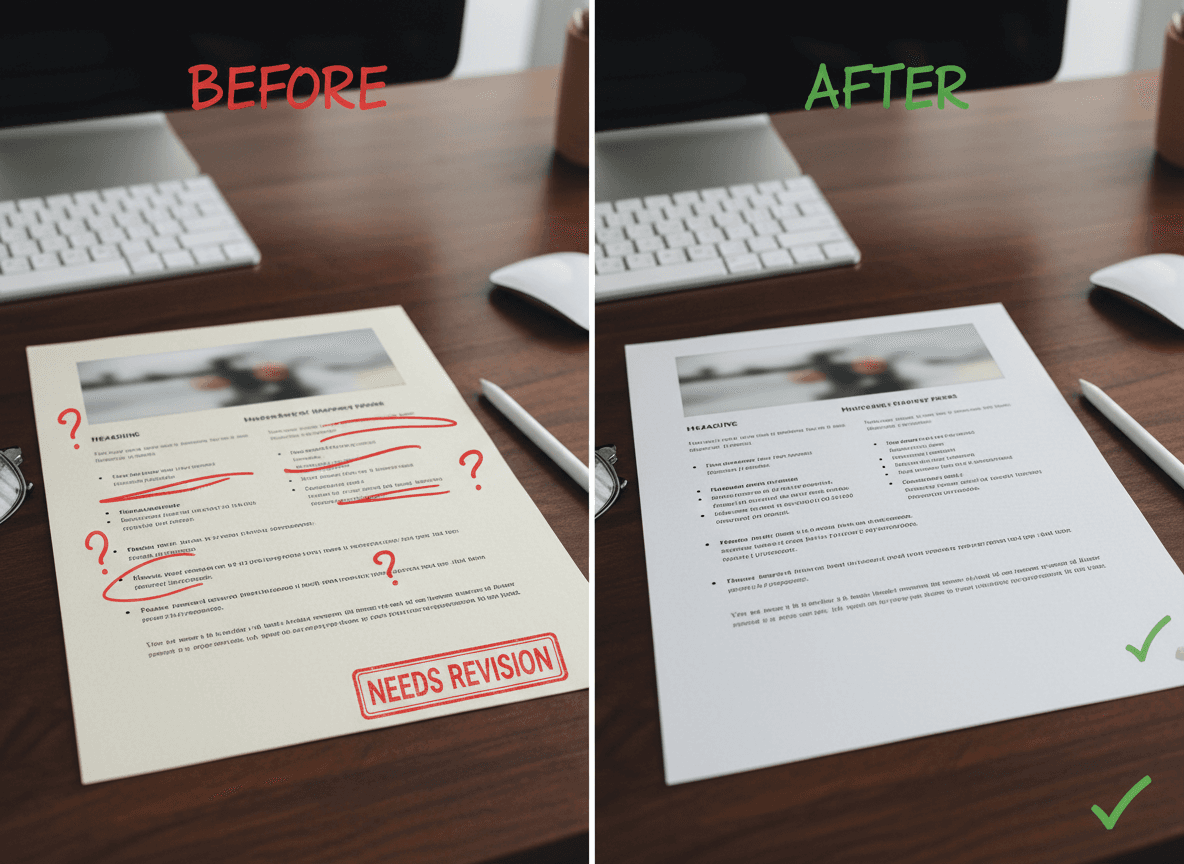
You know that moment when you're staring at your desktop and there are seven separate PDF files that really should be one document? Yeah, I've been there too. It's not just annoying—it's inefficient. But here's the thing: not every situation calls for merging. Sometimes keeping files separate makes more sense. Let me walk you through when merging is actually the right move, and more importantly, how to do it without creating a formatting disaster.
When Merging Makes Perfect Sense
1. Monthly Reports and Financial Statements
If you're in accounting, finance, or any role that deals with monthly documentation, you've probably experienced this. You've got January's invoice, February's invoice, March's invoice—you get the picture. Each one is a separate PDF, but when tax season rolls around or your boss asks for the quarterly summary, you need them all in one place.
Here's what I've learned: merge them in chronological order. It sounds obvious, but trust me, scrambling to figure out which month came first at 11 PM the night before a deadline is not fun. Our Merge PDF tool lets you drag and drop files to reorder them before merging, so take the extra 30 seconds to get it right.
The real pro tip? Name your merged file something like "Q1_2024_Invoices.pdf" instead of "merged_document.pdf". Future you will thank present you.
2. Research Papers and Academic Submissions
Students, this one's for you. You've written your paper, you've got your references, you've got your appendices. Everything's in separate files because that's how you organized your work. But your professor wants one submission. One file. That's it.
Merging academic documents is trickier than it seems. Here's why: different sections might have different formatting, page numbering gets weird, and if you're not careful, your beautiful title page ends up looking like it was added as an afterthought.
The solution? Check page breaks before merging. Make sure your title page doesn't have a page number, your table of contents is properly formatted, and your main content starts on the right page. Our Merge PDF tool shows you file thumbnails so you can verify the order before merging. It's saved me from submitting disaster documents more than once.
3. Legal Documents and Contracts
Lawyers and legal professionals merge documents constantly. You've got the main contract, the amendments, the addendums, the exhibits. They all need to be together for court filings or client presentations.
This is where attention to detail matters most. Legal documents often have specific formatting requirements, and page numbers matter. If you're submitting to a court, they might reject your filing if the page numbers are off or if documents appear out of order.
My advice? Create a checklist before merging. List each document in the order it should appear, check that all pages are accounted for, and verify that nothing got duplicated. I've seen cases where someone accidentally included the same exhibit twice, and it caused confusion down the line.
4. Project Documentation
Project managers know this struggle well. You've got the project proposal, the timeline, the budget breakdown, the team bios, the risk assessment—all separate files that need to become one comprehensive project document.
The challenge here is that different documents might have been created by different people using different software. One person used Word, another used Google Docs, someone else used a design tool. When you convert everything to PDF and merge, formatting can get messy.
What works? Convert everything to PDF first, then merge. Don't try to merge Word docs and PDFs directly—it rarely works well. And if you have documents with different page sizes (some letter, some A4), be aware that the merged PDF will preserve those sizes. That's usually fine, but if you need everything uniform, you'll need to resize pages first.
5. Portfolio and Presentation Materials
Creative professionals, freelancers, and job seekers often need to combine multiple pieces into one portfolio. You've got your resume, your work samples, your testimonials, your case studies. They all tell your story, but they need to be in one file for easy sharing.
The key here is visual consistency. If one document has a fancy header and another is plain text, the merged result looks unprofessional. Take time to make sure your documents have a cohesive look before merging, or at least ensure they don't clash dramatically.
Also, consider file size. If you're including high-resolution images, your merged portfolio might be huge. That's fine for some purposes, but if you're emailing it, you might hit size limits. Compress images before merging, or be prepared to compress the final merged file.
Common Mistakes (And How to Avoid Them)
Now that we've covered when to merge, let's talk about the mistakes that turn a simple merge into a formatting nightmare.
Mistake #1: Not Checking the Order
You upload files, hit merge, and realize page 3 should have been page 1. Most tools let you reorder before merging, but if you're in a hurry, it's easy to skip this step. Don't. Take the extra minute to verify the order. It's way faster than having to split and re-merge later.
Mistake #2: Ignoring Page Sizes
I mentioned this earlier, but it's worth repeating. If you merge a letter-sized document with an A4 document, you'll get a PDF with mixed page sizes. That's usually fine for viewing, but if you need to print it, things get complicated. If uniform page size matters, resize everything to match before merging.
Mistake #3: Forgetting About Bookmarks
If your original PDFs had bookmarks or a table of contents, they might not transfer correctly to the merged document. Some tools preserve them, others don't. If navigation is important, check whether your merging tool handles bookmarks, or be prepared to recreate them.
Mistake #4: Not Checking File Sizes
Merging five 5MB files gives you a 25MB file. That might be fine, or it might be too big for email, cloud storage, or whatever system you're using. Check the total size before merging, and if it's too large, consider compressing individual files first or compressing the final merged document.
Mistake #5: Merging Password-Protected Files
If any of your PDFs are password-protected, you'll need to unlock them before merging. Most tools can't merge protected files. Unlock them first, then merge. Just remember to re-protect the merged file if it contains sensitive information.
The Right Way to Merge
Here's my step-by-step process that's never let me down:
- **Gather all files** in one folder. Name them in the order you want them merged (like "01_Introduction.pdf", "02_MainContent.pdf").
- **Check each file** to make sure it's the right version. Nothing worse than merging and realizing you used the wrong draft.
- **Unlock any protected files** if needed.
- **Upload to our [Merge PDF tool](../merge)** in the correct order. Our tool shows file thumbnails—use them to verify the order before merging.
- **Drag and drop to reorder** if needed. Our tool lets you rearrange files by dragging them, so you can get the order perfect before merging.
- **Merge and download**, then **open the merged file** to verify everything looks right before sharing or submitting.
- **Name it something meaningful**. "merged_document.pdf" tells you nothing. "Q1_2024_Financial_Reports.pdf" tells you everything.
When NOT to Merge
Merging isn't always the answer. Here are times when you should keep files separate:
- **When file size would become unmanageable**. Sometimes it's better to have five 2MB files than one 10MB file.
- **When different people need different sections**. If your team only needs the budget but not the timeline, separate files make more sense.
- **When documents serve different purposes**. Your resume and your portfolio might be related, but they're not the same document. Keep them separate unless you're specifically creating a combined submission.
- **When you need to update frequently**. If one section changes often but others don't, merging means you have to re-merge every time. Keep frequently updated sections separate.
Final Thoughts
Merging PDFs seems simple, and honestly, the technical part is. The skill is in knowing when to do it, how to prepare your files, and what to check afterward. Take your time, verify everything, and don't be afraid to split and re-merge if something doesn't look right. A few extra minutes of care saves hours of fixing problems later.
Remember: the goal isn't just to combine files—it's to create a cohesive, professional document that serves its purpose. Whether that's a quarterly report, an academic submission, or a project portfolio, the same principles apply. Plan ahead, check your work, and name your files clearly. Your future self (and anyone who has to work with your documents) will appreciate it.
Ready to merge your PDFs? Try our Merge PDF tool now. Upload multiple PDF files, drag to reorder them, and merge them into one document. It's free, works in your browser, and keeps your files private. Perfect for combining invoices, reports, academic papers, or any PDFs you need in one place.